Content Windows
Overview
Content windows are available only in the desktop app, on Mac, Windows and Linux, not on the web or on phones and tablets.
You can open any thought — or any link — in a content window of its own. The window shows that item's properties, attachments and notes, just like the content area beside the Plex, but without a Plex or a brain tab. It stays on that item while you keep activating other thoughts in the brain window, so you can keep a note open for reference while you work elsewhere.
You can open as many content windows as you like, from one brain or from several, and arrange them however suits you.
How to Open a Content Window
Do any of the following:
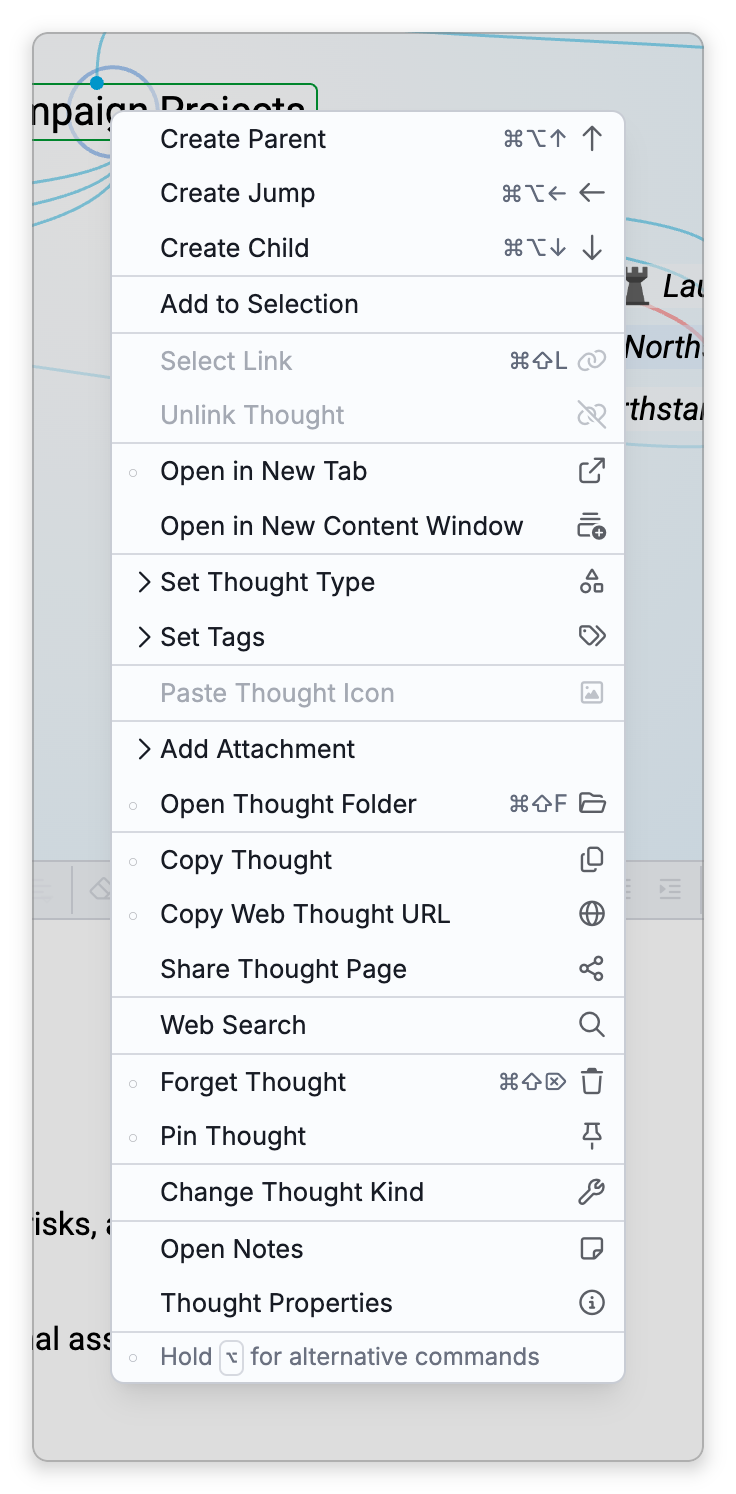
- Right-click a thought and choose Open in New Content Window. In the Mac desktop app, the same command is in the menu bar's Thought menu.
- Right-click a link and choose Open in New Content Window to show the link itself — its properties and notes.
- In a note, right-click a thought link (or open its tooltip menu) and choose Open in New Content Window. You can also
Ctrl+Shift-click the thought link (⇧⌘-click on Mac). This works while you're editing, too, and leaves your cursor where it was. - In the floating content window, click Open in new content window in its title row. It opens the selected link, or otherwise the active thought, in a content window of its own, while the floating window goes on following the Plex.
If a content window already shows that thought or link, it comes to the front instead of opening a second one. A new window opens a little below and to the right of where you opened it, and each further window is offset a little more so they don't stack exactly on top of each other.
The Content Window
The top row of the window shows:
- Back and Forward — Return to what the window showed before, or go forward again.
- The thought's icon (or a link icon) and its name.
- The brain's icon and name — click them to Activate in brain window: the thought becomes active in a brain window, in a tab already showing that brain, or else in a new tab. For a link, its first thought is activated. The content window itself stays as it was.
- Keep above other windows (the pin) — Keeps the window in front of every other window. Click it again to make it an ordinary window.

The rest of the window is the content area you already know: edit the note, work with attachments, and change the properties. Commands for notes, attachments, thoughts and links act on what the window shows. Commands that belong to the Plex do nothing in a content window.
New Window — the default shortcut is Ctrl+Shift+N (⇧⌘N on Mac) — opens a brain window on the brains list. When no brain window is open, it brings back the brain windows and tabs you had open last.
Moving to Another Thought
A content window only moves when you act inside it. Clicking a thought link in its note, a backlink, an unlinked mention, a tag or the type, or one of a link's two thoughts shows that thought in the same window. Activating a thought in a brain window never changes a content window.
A link to a thought in another brain shows that thought in the window. If that brain can't be opened on this device, the thought opens in a brain window instead and the content window stays where it was.
Each content window keeps its own history of the places it showed. Besides the Back and Forward buttons, you can use the Navigate Backward and Navigate Forward commands and your mouse's back and forward buttons, and on a Mac Back and Forward in the menu bar's Go menu and a trackpad swipe.
Closing
Close a content window with its window close button or Ctrl+W (⌘W on Mac). Pressing Esc doesn't close it.
- A content window uses its brain's content theme and your own view settings for that brain, and follows changes to them.
- Content windows stay open when you close the brain's tabs or every brain window. The app quits when its last window of any kind closes, unless it keeps running in the system tray. On a Mac, clicking TheBrain's Dock icon while only content windows are open brings back the content window you used last, without opening a brain window; use New Window to get your brain windows back.
- When you relaunch the app, the content windows that were open come back with what each showed, where it was, and whether it was pinned. Their Back and Forward history starts fresh. A window you closed doesn't come back.
- If the thought a window shows is deleted (or forgotten while forgotten thoughts are hidden), the window goes back to what it showed before, or closes if there's nowhere to go back to.
- Signing out closes all content windows. Markdown file windows stay open (see Markdown File Windows). Deleting a brain closes that brain's content windows.
- Reset Window Positions... doesn't move content windows.
- A content window is different from the floating content area (Float Content, default shortcut
Ctrl+Shift+O,⇧⌘Oon Mac): the floating content area belongs to a brain tab and follows whatever you activate in its Plex, while a content window stays on its own thought — see Floating the Content Area.