Markdown File Windows
Overview
In the desktop app, on Mac, Windows and Linux, TheBrain can open a Markdown file that lives anywhere on your computer — a README, a document you also edit in Obsidian or VS Code, notes you keep in a folder — and edit it in the same editor your notes use. The file opens in a window of its own and stays an ordinary file: it isn't added to a brain, and saving writes it back where it is. The web app and phones and tablets don't open files from your computer this way.
A Markdown file window doesn't need a brain or an account. It works in guest mode and while no one is signed in, and it stays open when you sign out.
How to Open a Markdown File
Do any of the following:
- Choose Main Menu > File > Open File... and pick a
.mdor.markdownfile. It opens one file at a time. On a Mac, Open File... is also in the menu bar's File menu. - Choose Main Menu > File > Open Recent and pick a file you opened before. The submenu shows once you have opened a file, and Clear Menu at its bottom empties it. On a Mac, Open Recent is also in the menu bar's File menu.
- Choose Main Menu > File > New Markdown File to start an empty, untitled document.
- Drag one or more Markdown files from your file manager and drop them on a brain window's title bar, on a content window's top row, or anywhere on a Markdown file window. Each file opens in a window of its own. A drop elsewhere in a brain window, or one that includes other kinds of files, does what it always did, such as attaching the files to a thought.
- In your file manager, open the file with TheBrain using Open With. On a Mac you can also drop the file on TheBrain's icon in the Dock. To have TheBrain open Markdown files when you double-click them, use Set TheBrain as the default app for Markdown files (see Markdown Files Settings).
- In a Markdown file window, click a link to another Markdown file (see Links).
If the file is already open in a window, that window comes to the front. When you open a file from your file manager while TheBrain isn't running, TheBrain starts without a brain window: it shows the file, along with the content windows and Markdown file windows you had open when you last quit. Files you open are added to your computer's list of recent documents, which a Mac shows in the Dock menu and Windows in the taskbar's jump list.
The Window
The top row of the window shows:
- Main Menu (☰) — The window's own menu (see The Main Menu).
- Back and Forward — Return to the file or thought the window showed before you followed a link, or go forward again.
- The file's name, with a dot (•) while it has unsaved changes. A new document is named Untitled (then Untitled 2, and so on) until you save it. Click the name for the file menu described below. Drag the icon beside the name to drag the file itself (see Dragging the File).
- The name of the folder the file is in, after a folder icon. Point at it to see the full path. Click it for a menu of that folder and every folder above it; choose one to show it in Finder or File Explorer, with the file, or the next folder down, selected.
- Keep above other windows (the pin) — Keeps the window in front of every other window. Click it again to make it an ordinary window. A file window you open from a pinned window starts out pinned.
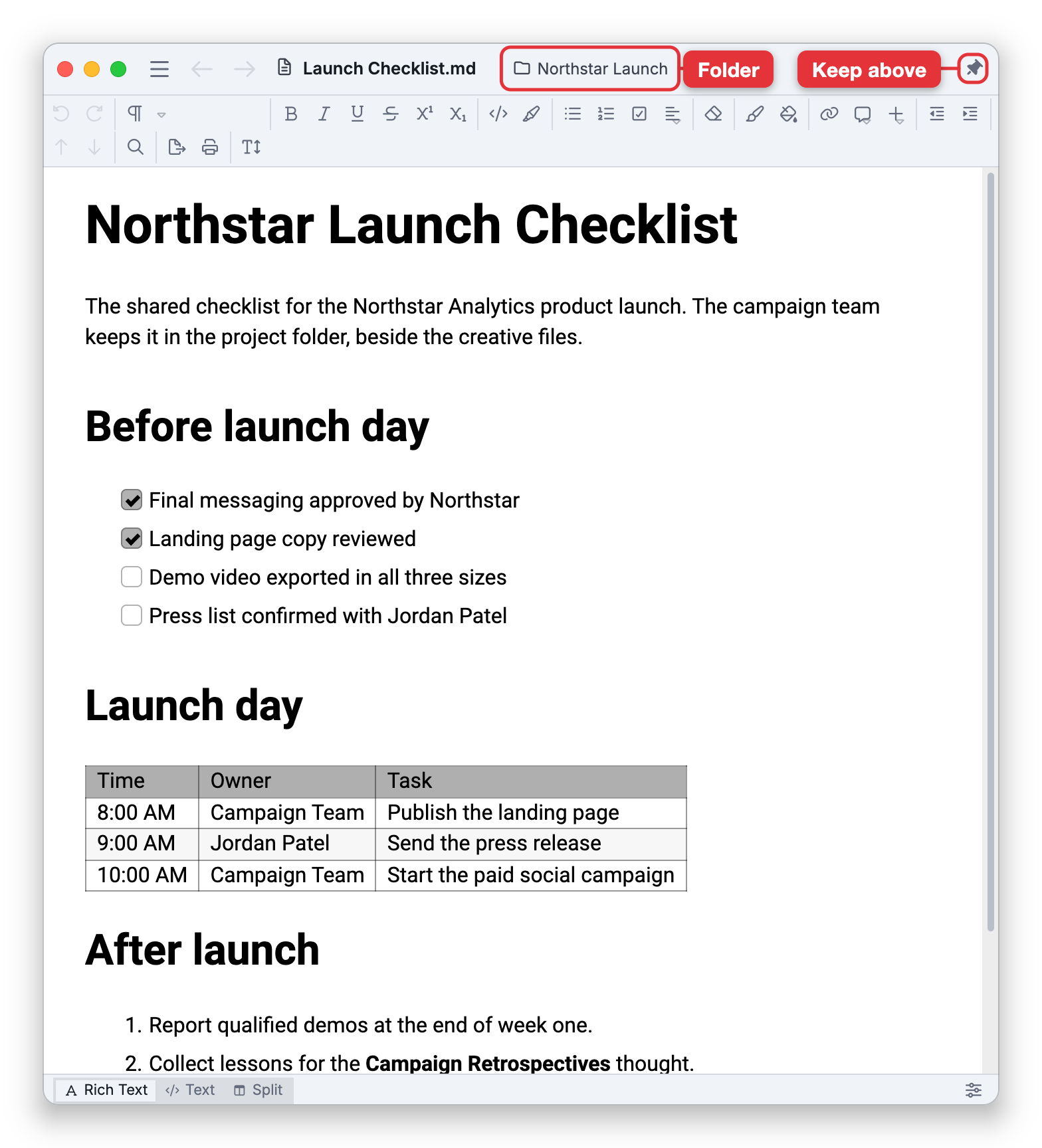
Below the top row is the notes editor, with its toolbar and status bar. The window always opens in Rich Text. Switch to Text (the document's Markdown) or Split (both side by side) with the status bar's view buttons or Main Menu > View.
Text and Split show the document as TheBrain will write it when you save, not the file's original text. For example, a list the file wrote with * already shows its bullets as - (see What Saving Does to a File in Markdown Files Settings). The file's properties at the top (frontmatter) don't show in any view; they are kept as they were when you save.
The Main Menu
- File — New Markdown File, Open File..., Open Recent, Save, Save As..., Revert to Saved, New Window (which opens a brain window), Close Window and Exit.
- Edit — Undo, Redo, Cut, Copy (with Copy as Plain Text, Copy as Markdown and Copy as HTML Source), Paste, Paste Without Formatting, Select All, and Find and Replace.
- View — Rich Text, Text and Split; the headings sidebar; the status bar and its word and character counts; where the toolbar goes; Join Wrapped Lines (see Wrapped Lines in Markdown Files Settings); Content Theme..., which opens Settings > User > Markdown Files; and Notes Settings....
- Help — TheBrain Help, video tutorials, feedback, release notes, About TheBrain, and the log folder.
- Settings... — Opens Settings over the window.
On a Mac, while a Markdown file window is in front, the menu bar's File menu has New Markdown File, Open File..., Open Recent, Save, Save As..., Revert to Saved and Rename..., and the Window menu lists each file window by its file and folder name. In a file window, Ctrl+T (⌘T on Mac) is Go to Heading....
The File Menu
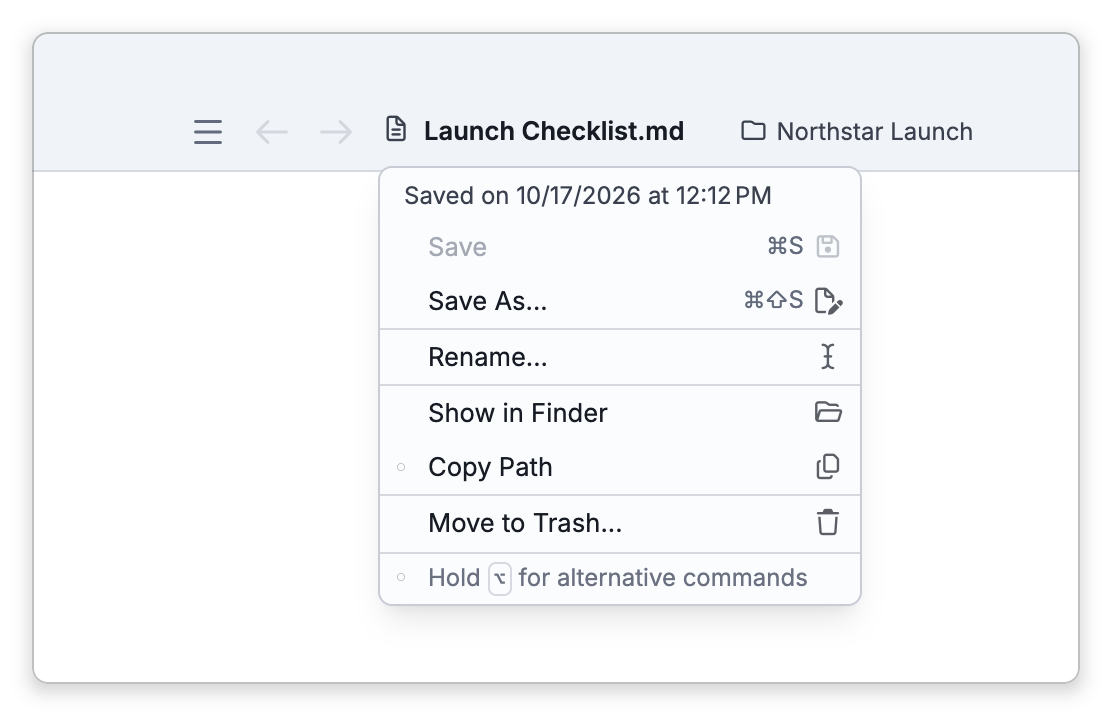
Click the file's name for these commands:
- At the top, the file's state: Edited, Saved at a time (Saved on a date and time when that was before today), Changed by another app, Deleted from disk, or Not saved.
- Save and Save As...
- Revert to Saved — Shown while the file has unsaved changes. Discards your changes since the last save, after asking.
- Rename... — Renames the file in its folder. If you leave out the extension, the old one is kept. TheBrain tells you when it can't use the name, for example when the folder already has a file with that name or another app is using the file.
- Show in Finder (Show in Explorer on Windows, Show in Folder on Linux).
- Copy Path — Copies the file's full path. Hold
Shift(⌥on Mac) while the menu is open and it becomes Copy Folder Path. - Move to Trash... (Delete... on Windows) — After you confirm, the file goes to the Trash (the Recycle Bin on Windows), where you can restore it, and the window goes back to what it showed before, or closes. If the file can't go to the Trash, it stays where it was; TheBrain never deletes it permanently. The file's
imagesfolder and any backup copies stay where they are.
A new document that hasn't been saved yet offers only Save and Save As....
Dragging the File
The document icon beside the file's name stands for the file itself. Drag it anywhere you could drop the file from your file manager:
- Onto a thought — Drop it on a thought in the Plex, on the content area, or on a note, and the file is attached to that thought.
- Onto a drop zone around the active thought — Drop it on the parent, child or jump drop zone, and it becomes a new thought named after the file, with the file attached.
- Into another app or a folder — Drop it into a Finder or File Explorer window, an email, or any app that takes files.
In a brain, the file is copied in unless you've changed On File/Folder Drop in Settings > User > General, and you can hold a modifier key as you drop to link to it or move it instead (see Dragging Files and Links In in Adding Attachments). A linked file stays where it is, so the thought's attachment and the window show the same file. A file you move into the brain leaves its folder, so the window then shows it as deleted.
What you drag is the file as it was last saved, so save first if you want your latest changes to go with it. A new document can't be dragged until you save it, and neither can a file that has been deleted.
Images
- Pasting or dropping images — Paste an image, or drop a PNG, JPEG, GIF or WebP file on the text, and it goes into the document. When you save, it is written to an
imagesfolder beside the file, asimage.png,image-2.pngand so on; pasting the same image again reuses its file. In a new document, images stay in the document until its first save. - Insert > Insert Image — Choose an image file (up to 10 MB), which is saved to the
imagesfolder the same way, or enter a web address, which stays a link to the web image. - Images the file already has — Images show whether the file gives a path relative to its own folder (including one in a folder above it), a full path, or a web address, and they keep that path when you save. An image that can't be found shows as missing and keeps its path.
Other kinds of files dropped on a Markdown file window aren't added to it.
Links
- Another Markdown file — The window moves to that file, whether the link gives a path relative to the file's folder, a full path, or a
file://address. Back returns to the file you came from.Ctrl+Shift-click the link (⇧⌘-click on Mac) to open the file in a new window instead. - A heading in the same file (
#heading) — In Rich Text, the window scrolls to the heading. - A thought (
brain://) — The window moves to the thought and shows it as a content window does, and Back returns to the file. If the thought's brain can't be opened on this device, the thought opens in a brain window instead.Ctrl+Shift-click (⇧⌘-click on Mac) opens the thought in a new content window. - A web page — Opens in your own browser, never in the embedded browser that web links in notes can use.
When the file has unsaved changes, following a link to another file or a thought, or going Back or Forward, asks first, as closing the window does: Save saves and moves on, Don't Save moves on and discards the changes, and Cancel stays on the file. A link you open in a new window leaves this one as it is and asks nothing.
What's Different from a Note
The editor works as it does for notes, with a few differences, because a file isn't part of a brain:
- Insert Link asks only for an address and the text to show. Links to thoughts, backlinks, mentions, mapped links, embedded thought notes, and Extract Child Thought aren't available.
- Footnotes and diagrams can always be inserted.
- There are no note versions and no Print. The backup copies TheBrain can make before saving take the place of versions (see Markdown Files Settings).
Saving
TheBrain writes to the file only when you save it. Use Save — the default shortcut is Ctrl+S (⌘S on Mac) — or Save As..., whose default shortcut is Ctrl+Shift+S (⇧⌘S on Mac). These shortcuts save only in Markdown file windows; in a brain window the same keys keep their usual commands.
- Save As... starts in the file's folder. The window then shows the new file, and the original keeps its last saved version.
- The first time you save a new document, TheBrain asks where to put it. It suggests a name taken from the document's first line, and starts in the folder you last saved to, or your Documents folder.
- If you undo back to the saved text, the dot goes away and closing doesn't ask.
- Closing a window with unsaved changes asks whether to save them: Save, Don't Save or Cancel. An untitled window with nothing in it closes without asking. Moving the window to another file or a thought asks the same question (see Links).
- Quitting TheBrain doesn't ask. Your unsaved edits are kept, and the window comes back the next time you start TheBrain with the edits still unsaved. If another app changed the file meanwhile, the window says so when it comes back.
- If the file can't be written, for example because it is read-only, TheBrain says The file couldn't be saved and why. Your edits stay in the window.
Saving from Rich Text writes the whole file again in standard Markdown. What you see is kept, but some formatting may be written differently, for example list bullets become -. The frontmatter, the file's encoding, its line endings and its byte order mark are kept as they were. Saving from Text view writes exactly what the text editor holds. A file with content the editor can't keep as written, such as HTML, shows a warning when it opens, and the warning goes away after the first save. TheBrain can make a backup copy before saving; see Markdown Files Settings for the details and the backup choices.
The File's Encoding
TheBrain reads a file in the encoding it was saved in and saves it the same way. Most Markdown files are UTF-8; TheBrain also reads UTF-16 and UTF-32 files, and older files in an encoding such as Windows-1252, so their accented letters and symbols show correctly. If you add a character the file's encoding can't hold, such as an emoji in a Windows-1252 file, TheBrain saves the file as UTF-8 instead, with the marker that tells other apps so, and says Saved as UTF-8, because the file's encoding can't hold some of its characters.
When the File Changes on Disk
- Another app saves the file. If you have no unsaved changes, the window shows the new version. If you do, a bar says This file was changed by another app.: Reload shows the other app's version at once and discards your changes, and Keep My Changes keeps yours. While the bar is up, the file menu offers Reload from Disk, which asks first, and Keep My Changes in place of Revert to Saved. Saving before you choose asks whether to replace the other app's version, with Replace or Cancel; after Keep My Changes, saving replaces it without asking.
- Another app renames the file in its folder. The window follows the file.
- The file is deleted or moved to another folder. The window shows (deleted) after the name and counts as unsaved. Save writes the file again where it was.
When a File Can't Be Opened
- This file couldn't be opened. shows, with the reason, when the file exists but TheBrain can't read it — for example because you don't have permission, or the file is in a folder that macOS protects until you allow access. Save and Save As... do nothing then.
- The file couldn't be read again shows when Reload or Revert to Saved can't read the file.
- A Markdown file attached to a thought doesn't open in a file window; it opens in the thought's content area (see Viewing Attachments).
- When you relaunch TheBrain, Markdown file windows come back where they were, with their size and pin. Each opens in Rich Text at the top of the file, and its Back and Forward history starts fresh. Collapsed sections are remembered for each file on this device, even after you close its window and open the file again. A file deleted while TheBrain was closed comes back marked (deleted) only if it had unsaved edits; otherwise its window doesn't return.
- While a Markdown file window is open, TheBrain keeps running, and on a Mac clicking TheBrain's Dock icon brings it back.
- A new window opens a little below and to the right of the window you opened it from.