Floating the Content Area
Overview
Floating the content area is available only in the desktop app, not on the web or on phones and tablets.
The brain window normally shows the Plex on one side and the content area — the active thought's properties, attachments and notes — on the other. Float Content moves the content area out of the brain window into a window of its own. The Plex then fills the whole brain window, and you can put the content window wherever suits you: beside the brain window, on a second display, maximized, or full screen.
The content window keeps working just as the docked content area does. It shows whichever thought you activate in the Plex, hover and keyboard previews appear in it, and clicking a thought link in a note activates that thought in the Plex. When you want the content back beside the Plex, dock it.
How to Float the Content Area
Do any of the following:
- Click the Open in separate window button in the top-right corner of the content pane.
- Choose Float Content from Main Menu > View > Set View Mode, or from the brain toolbar's Window Layout menu.
- Use the default shortcut
Ctrl+Shift+O(⇧⌘Oon Mac).
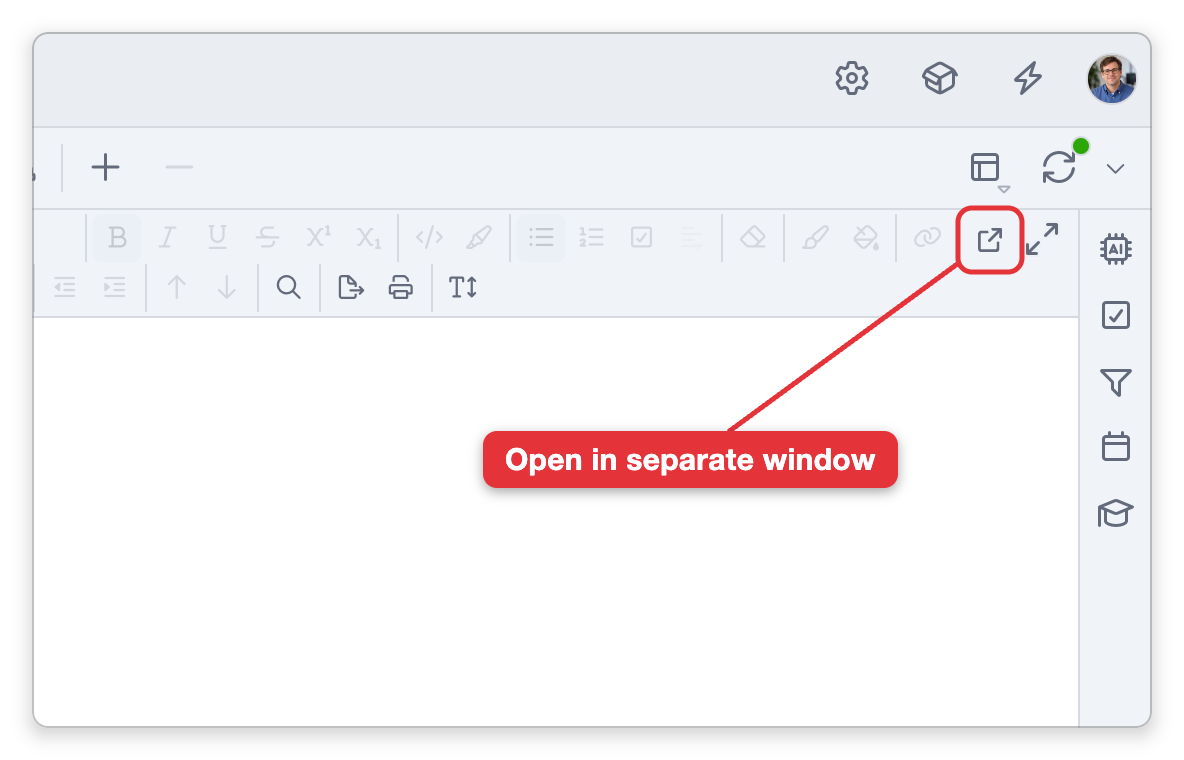
The first time, the window opens where the content pane was, slightly offset so you can see it leave the brain window. After that it opens wherever you last left it.
The Content Window
The top row of the content window is its title bar. It shows the active thought's icon and name, with the brain's icon and name beside it, and has these buttons:

- Open in new content window — Opens the selected link, or otherwise the active thought, in a content window of its own that stays on it while this window goes on following the Plex — see Content Windows.
- Keep above other windows (the pin) — Keeps the content window in front of every other window, including other apps'. Click it again (Stop keeping above other windows) to make it an ordinary window again. The window remembers whether it is pinned.
- Go to brain window — Brings the brain window that holds the Plex to the front, restoring it if it's minimized. If you have switched to another tab in the brain window, it switches back to the content window's tab. Clicking the brain's icon and name in the title row does the same.
- Dock in brain window — Puts the content area back in the brain window and closes the content window.
The rest of the window is the content area as you know it: the notes toolbar, the properties, attachments and notes, and the status bar. The window also has your system's usual window buttons, so you can minimize, maximize, resize, or make it full screen.
Unless it's pinned, the content window is an ordinary window: whichever of the brain window and content window you clicked last is in front, and it appears in your system's window lists (such as the Windows taskbar, or the Window menu and Mission Control on Mac).
Moving Between the Two Windows
- Show content window — While the content floats, the button in the Plex's top-right corner brings the content window to the front (restoring it if it's minimized). The same command is in Main Menu > View > Set View Mode and the Window Layout menu as Show Content Window, and its default shortcut is
Ctrl+Shift+K(⇧⌘Kon Mac). - Back and forth with one shortcut — Pressing
Ctrl+Shift+K(⇧⌘Kon Mac) while the content window is in front brings the brain window forward instead, so the one shortcut switches between the two. - See which window belongs to which — Hover over Show content window or Go to brain window, and after a moment the other window is outlined in your accent color.
App shortcuts you press in the content window act on the brain, just as they would in the brain window, while typing and editing shortcuts go to the note you're editing. The menus and app shortcuts act on the content window's own tab even when another tab is showing in the brain window.
Closing and Docking
- Closing the content window (its window close button) closes only the window. The content stays floating, so the brain window doesn't take it back; use Show content window to open it again where it was.
- Docking — Click Dock in brain window, or choose Dock Content (the same menu item and shortcut as Float Content, which changes its name while the content floats). The content returns to the brain window in the layout it had before you floated it.
- While the content floats, the window layout commands (split, maximize, and swap navigation and content) are unavailable.
- Each brain remembers on this device whether its content floats and where the window was, including whether it was maximized or full screen. These settings aren't synced to your other devices. When you open the brain again, its content opens floating, where it was.
- If a brain is open in more than one tab, each tab keeps its own content window. A content window stays shown when you switch to another tab in the brain window, so you can have several open at once, and it keeps its own brain's theme while another brain's tab is in front. It closes when you close its tab or open a different brain in that tab.
- To dock the content and forget where its window was, use Reset Window Positions... — see Floating Tools Panels.