Links in Notes
Overview
Text in a note can link out — to another thought in the brain or to a web page. Links to thoughts are especially powerful: TheBrain can treat a link in your note as a real connection between the two thoughts, show you every note that links back to the current thought, and even point out mentions of a thought's name that aren't linked yet. This keeps your writing woven into the brain's structure instead of sitting apart from it.
Inserting a Link
Select the text you want to link and choose Insert Thought or Web Link — the default shortcut is Ctrl+K (⌘K on Mac). With nothing selected, the word the cursor is in or next to is linked, if there is one. The same command handles both kinds of link: pick a thought to create a thought link (you can create a brand-new thought right from the picker), or enter a URL to create a web link. The picker finds only thoughts in the brain you're in; for a thought in a different brain, see Linking to a Thought in Another Brain below.
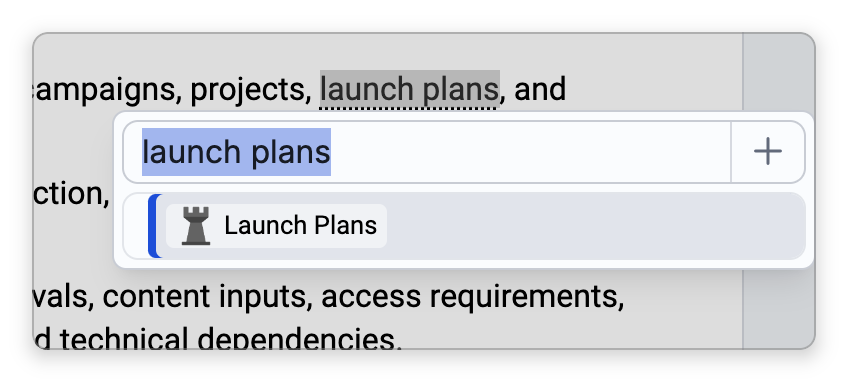
When there is no text to link, the link's text is the thought's name — unless you found the thought by typing one of its aliases, in which case that alias becomes the link text instead (see Thought Aliases). Finding it by its label still links with the name. The link's tooltip always shows the thought's real name, whatever the text says.
Following a Link
In a note you can edit, clicking a link doesn't open it: the click only places the cursor in the link, so you can edit its text. Whenever the cursor is inside a link, a small tooltip appears beside it showing the linked thought's name or the web address. To follow the link, click that name or address in the tooltip, or open the menu button beside it and choose Open Link (web link) or Activate "<the name>" (thought link). On a computer, right-clicking the link offers the same commands.
Where a note can't be edited, a single click follows the link directly — in a brain you can only view, and in the rendered preview of the Split view. Links inside an embedded note also open with a single click, even while you're editing the note around them.
Following a thought link activates that thought. Where a web link opens depends on what you're using:
- Desktop app, and tablets in the mobile app — the page opens in TheBrain's embedded browser in the content area by default. To open web links in your own browser instead, go to Settings > User > Content Area and set URL attachments to Open in external browser; the setting covers web links in notes as well as link attachments (see Content Area Settings). Open Link in the link's menu always uses your own browser, whatever that setting says.
- Web app and phones — there is no embedded browser, so the link opens in your browser.
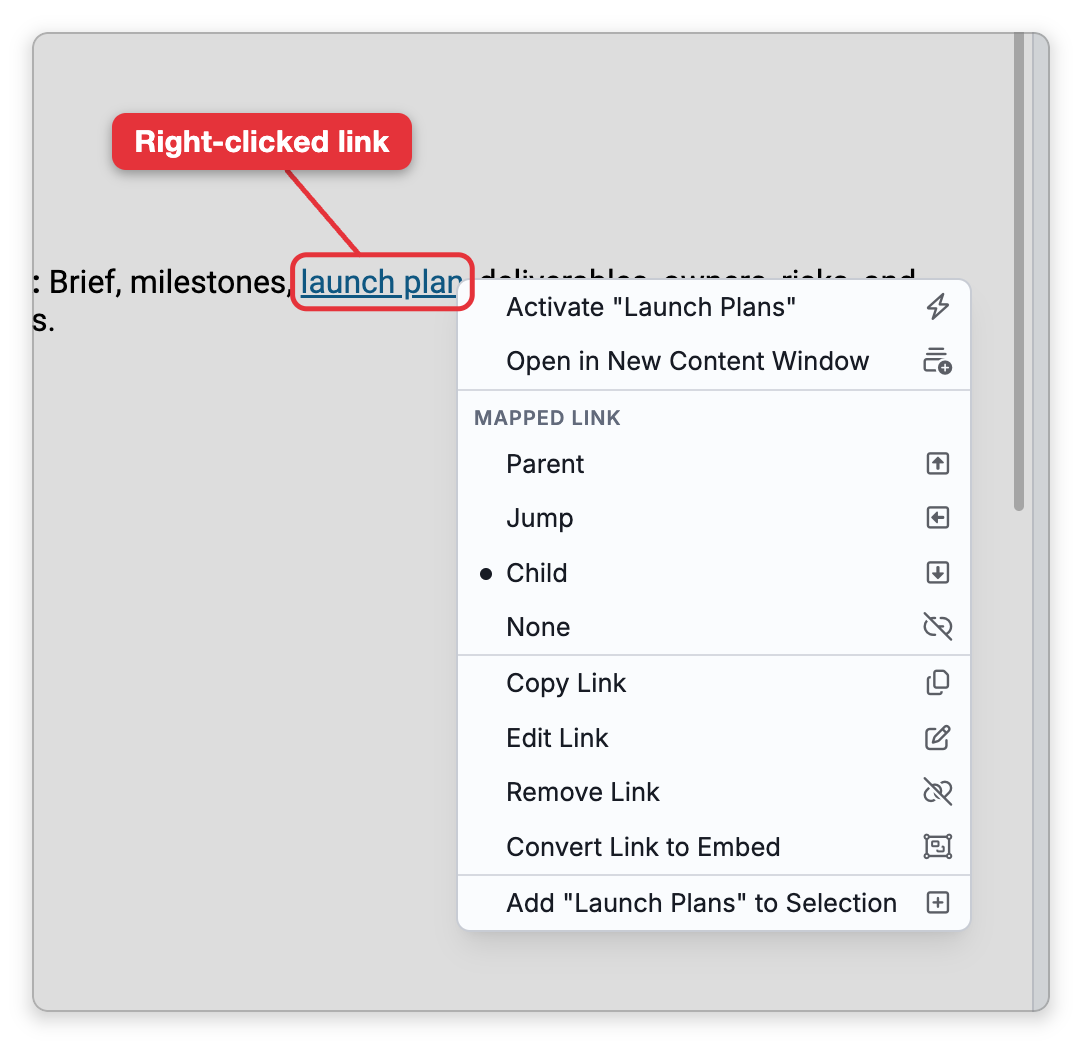
A link's tooltip menu offers actions that fit its kind: a web link gets Open Link, Copy Link, Edit Link, and Remove Link; a thought link gets Activate "<the name>" (jump to the thought), Open in New Content Window (desktop app; see Content Windows), Convert Link to Embed (for a thought in the same brain — it replaces the link with the thought's live note; see Embedded Notes), plus Copy/Edit/Remove. Right-clicking a thought link offers the same actions plus the Mapped link choices below and Add "<the name>" to Selection. In the desktop app, Ctrl+Shift-click a thought link (⇧⌘-click on Mac) to open the thought in a content window of its own, even while you're editing the note.
Pasting a Web Address
By default, when you paste a single web address — one starting with http:// or https://, and nothing else — TheBrain looks up the page and replaces the address with the page's title, as a link to that address. An address that points to an image is replaced by the image itself, and a YouTube or Vimeo address pasted on a line of its own becomes a video player (see Video Embeds in Notes). The same lookup happens when you add a web link with Insert Thought or Web Link when there is no text to link.
To keep the plain address instead:
- Undo once right after the title appears — the default shortcut is
Ctrl+Z(⌘Zon Mac). The swap is its own undo step, so the address you pasted stays. - Paste Without Formatting — the default shortcut is
Ctrl+Shift+V(⇧⌘Von Mac) — inserts the clipboard's text exactly as it is and skips the lookup. - Turn it off — clear Replace pasted URL with page title in Settings > User > Notes, on the Clipboard tab (see Notes Settings). It is on by default.
The title is not looked up inside inline code or a code block, and when a page's title can't be fetched the address is left as it is. Pasting an address while text is selected does something different: the selected text becomes a link to that address.
Linking to a Thought in Another Brain
To link to a thought in a different brain, copy that thought and paste it into your note:
- Open the other brain, right-click the thought, and choose Copy Thought.
- Return to your note, put the cursor where the link should go, and paste.
The thought arrives as a link that shows its name, and following the link opens the other brain at that thought. Because the two thoughts are in different brains, the Mapped link choices and Convert Link to Embed aren't offered for it.
In the desktop and mobile apps this works across tabs and windows. In the web app, a thought copied in one browser tab pastes into a note in another browser tab as its name only, not as a link.
Mapped Links
A link to another thought can also be mapped to a real connection in the Plex, so the relationship you describe in prose becomes part of the brain's structure. Right-click a thought link: its menu has a Mapped link group with four choices (the menu button on the link's tooltip opens a shorter menu without them). The choices act on the actual connection between the active thought (normally the thought whose note you're writing) and the linked thought:
- Parent, Jump, or Child — connects the two thoughts, making the linked thought a parent, a jump, or a child of the active thought. If the two are already connected, the existing connection is changed to the one you pick.
- None — removes the connection between the two thoughts from the brain, including one you made in the Plex rather than from the note. The link itself stays in the note. None can be chosen only while the two thoughts are connected.
The checked choice shows how the two thoughts are connected right now, wherever that connection was made. The choices are offered only when you can edit the brain and the link points to another thought in the same brain.
Extracting a Child Thought from Note Text
You can turn a passage of a note into its own thought. Select the text and choose Extract Child Thought from the note's right-click menu: TheBrain creates a new child of the current thought — using the selection's first line as the new thought's name and the rest as its note — and replaces the selected text with a link to that new thought. It's a quick way to split a growing note into linked pieces. (You can also add the thoughts already linked in a passage to your selection from the same menu.)
Backlinks and Mentions
Three display toggles control what TheBrain shows below a note. They're in the View Options menu (the sliders button at the right end of the notes status bar, or right-click the properties or the area below the note), under Below the note · this brain, and in Settings > Brain > Personal Settings under Note Sections. They apply to the brain you're in; in a shared brain they change only your own view.
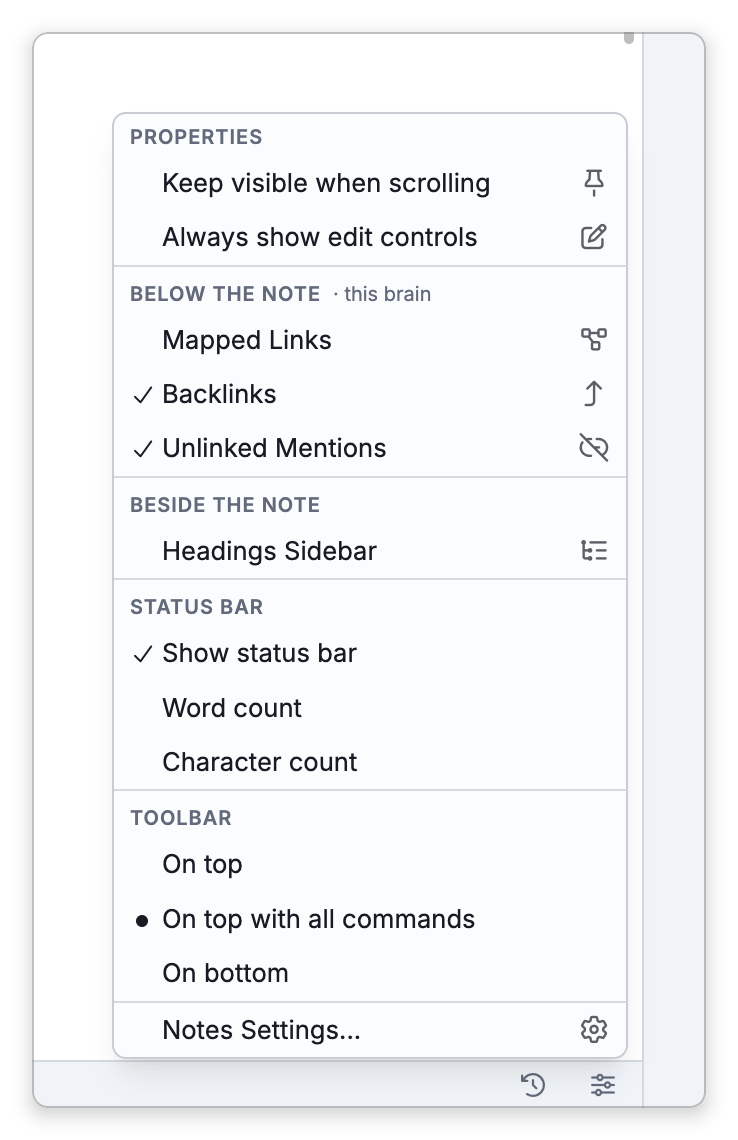
- Mapped Links — show a tree of this thought's own connections: the thought itself, its children, and Parents and Jumps groups (each labeled with a count, such as 2 Parents) that you can expand. Click a thought in the tree to go to it. The tree is built from the thought's connections in the brain, not from the links in the note's text, so it appears even for a note that contains no links. It is off by default. (In the Cards and Tree views this is always on.)
- Backlinks — list other thoughts whose notes link to this thought.
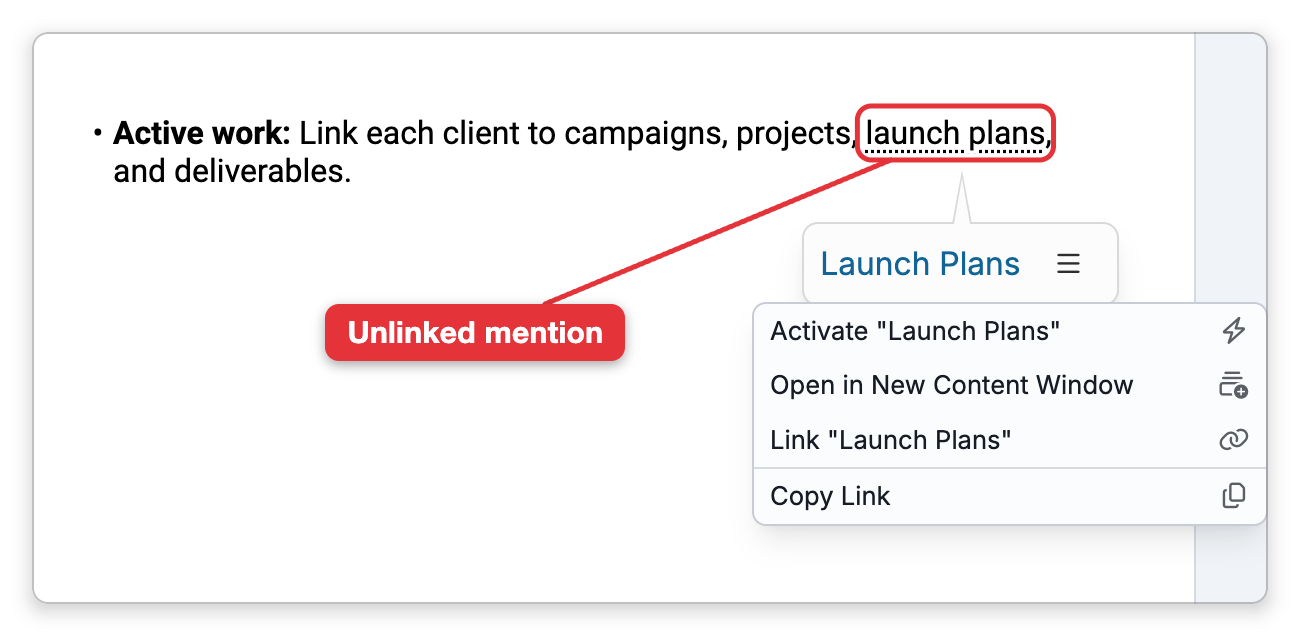
- Unlinked Mentions — point out places where this thought's name, one of its aliases, or its label appears in other notes without being linked.
Notes that embed this thought's note (see Embedded Notes) are listed in the same area under their own Embeds heading, separately from the Backlinks list.

Mentions are detected automatically from thought names, aliases, and labels — you don't type a special character to create one. Matching ignores case and accents, so "Etats-Unis" in a note is recognized as the thought États-Unis. If the same text could belong to more than one thought, a real name wins over an alias, and an alias over a label (see Thought Aliases). When TheBrain shows an unlinked mention, you can turn it into a real link with Link "<the name>" from its menu — and when the same name appears several times in that note, the menu also offers Link All <N> Mentions in This Note to link every occurrence at once. The same all-at-once command appears in the editor when you open a mention's popover or right-click it.
When you can edit the brain, right-clicking a thought's link in the Backlinks or Unlinked Mentions list offers Link As Parent, Link as Jump, Link as Child, and No Mapped Link. They connect that thought to the active thought, or remove the connection, exactly as the Mapped link choices on a link in the note do.
Choosing Which Names Are Marked as Mentions
To stop TheBrain from marking thought names in your notes, or to have it mark fewer of them, open Settings > Brain > Content Settings, go to the Notes tab, and set Show mentioned names:
- Always (the default) — a thought's name, alias, or label is marked wherever it appears. In a brain that uses context-sensitive thought names, the part of a name before its comma is marked too — "Paris" for a thought named "Paris, France" (see Context-Sensitive Thought Names).
- Full matches only — only a thought's whole name, alias, or label is marked.
- Never — thought names are not marked in notes at all.
Ignore common words, just below (hidden when you choose Never), is on by default. It keeps a one-word name that is also an ordinary English word from being marked each time that word turns up in a note; turn it off to have such names marked as well. With Always or Full matches only, a name is recognized in both its singular and plural form.
These settings apply to the whole brain. They control which names are marked inside notes; the Unlinked Mentions list below a note has its own toggle, described above.
- The Mapped Links section below a note and the Mapped link choices on a thought link are two different things: the section lists the thought's connections, while the choices create, change, or remove one connection. Neither is stored in the note's text.
- Renaming a thought updates the links in notes whose text was the old name. A link whose text is an alias keeps that text, and still points at the thought.
- To keep the wording of your links when you rename a thought, turn off Rename thought updates links in Settings > Brain > Content Settings on the Notes tab. It is on by default and applies to the whole brain. With it off, the links still point at the renamed thought; only their text stays as you wrote it.