Link Types and Properties
Overview
Links are the connections between thoughts, and TheBrain has three of them, distinguished by the gate they come from:
- Child links (bottom gate) — organize ideas hierarchically beneath a parent.
- Parent links (top gate) — create broader categories above a thought.
- Jump links (side gates) — connect related ideas laterally, with no hierarchy.
Every thought can have unlimited links of any of these kinds, so your ideas connect in as many ways as they naturally relate. Beyond its direction, each individual link can carry its own properties — a label, a link type, a visual direction, a thickness, a color, and even its own notes — so the connection itself can mean something, not just the thoughts it joins. For how to create links in the first place, see Creating Thoughts and Links.
Editing a Link
- Right-click the link between two thoughts in the Plex.
- Choose Link Properties to open the link edit dialog.
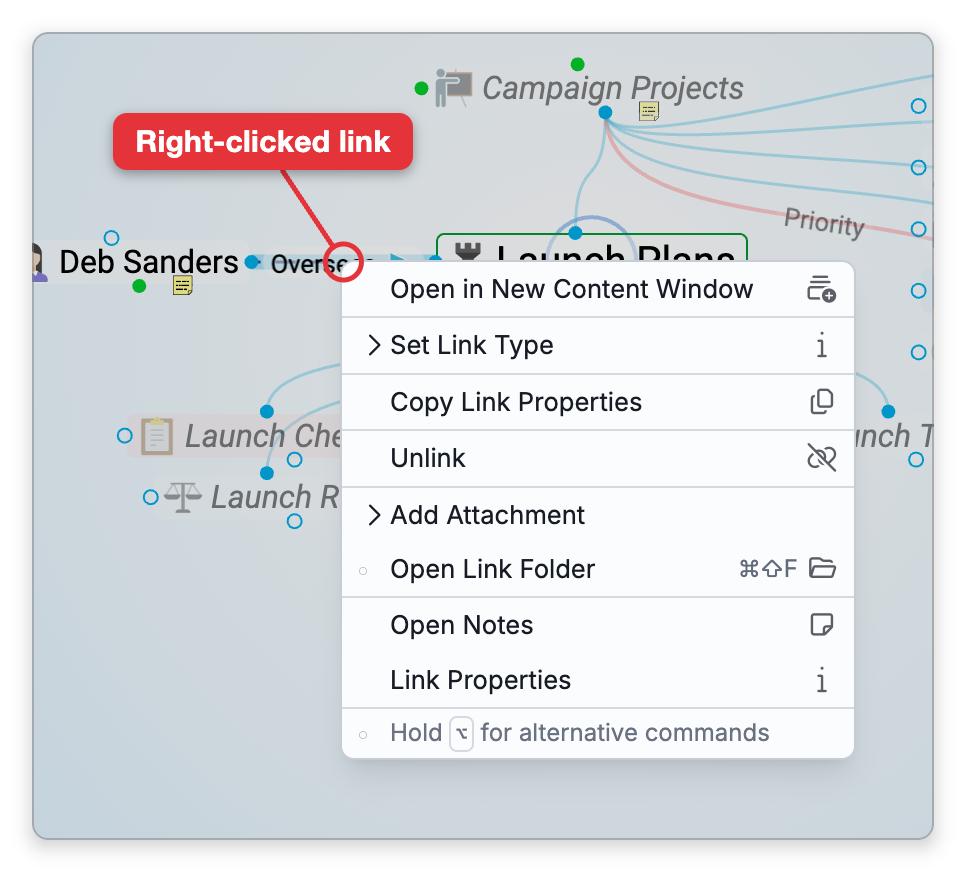
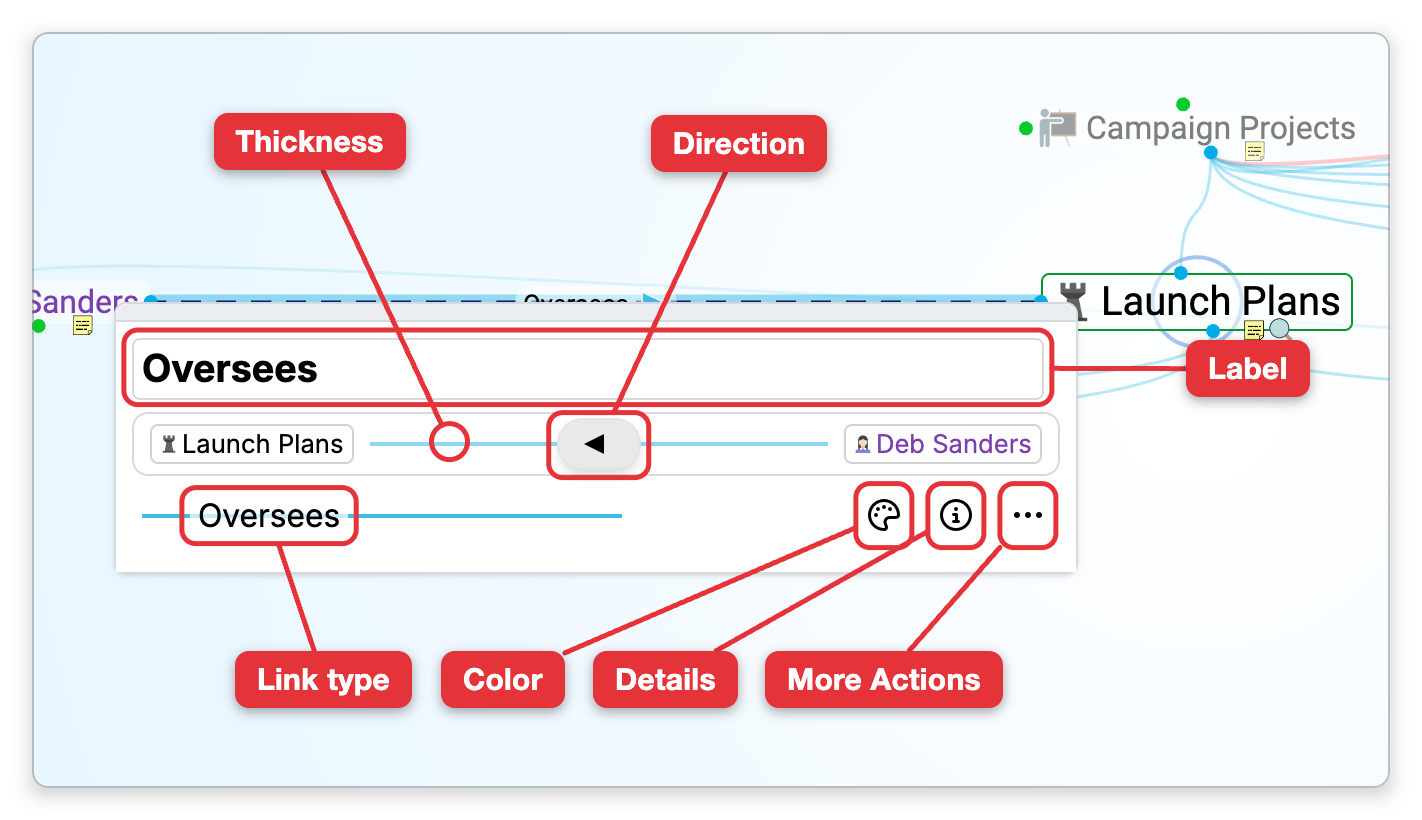
With a mouse there is a quicker way: click the link once to select it, then click it again to open Link Properties directly. Holding Alt (⌥ on Mac) while clicking a link opens the dialog in one step. The dialog opens just below the link.
From top to bottom, the dialog holds:
- Label — A name for the link, such as "reports to" or "depends on", shown along the connection, in the box at the top.
- Thickness — Click the line between the two thought names to show a slider, from Default through 0.5 to 15.
- Link direction — Click the button in the middle of that line to cycle through no direction, an arrow toward one thought, and an arrow toward the other. This sets only the arrow drawn on the link. To make the link One Way, see One-Way Links below.
- Link type — The Type button at the lower left, or the chip of the link's type once it has one; see Link Types below.
- Color — The palette button sets a custom color for the link.
- Details — The info button shows when the link was created and last modified, and its ID.
- More Actions — The … button holds Unlink and Edit Link Types....
One-Way Links
A one-way link can be followed only from its source — the thought the arrow points away from. When the thought the arrow points to is active, the link is left out of the Plex, and so is the thought at its other end if nothing else connects it. From the source thought the link shows as usual. There are two exceptions: a one-way link stays visible when its source is the thought you just came from, and while the link itself is selected.
To make a link one-way:
- Right-click the link in the Plex and choose Link Properties.
- Right-click the direction indicator on the line between the two thought names. On a touch screen, press and hold it.
- Choose One Way from the menu that appears. The item shows a check mark while one-way is on; choose it again to turn it off.
If the link had no direction, turning One Way on gives it an arrow from the thought shown on the left to the one on the right. While One Way is on, clicking the indicator only flips the arrow. There is no separate "Two Way" setting: a link is two-way unless One Way is on.
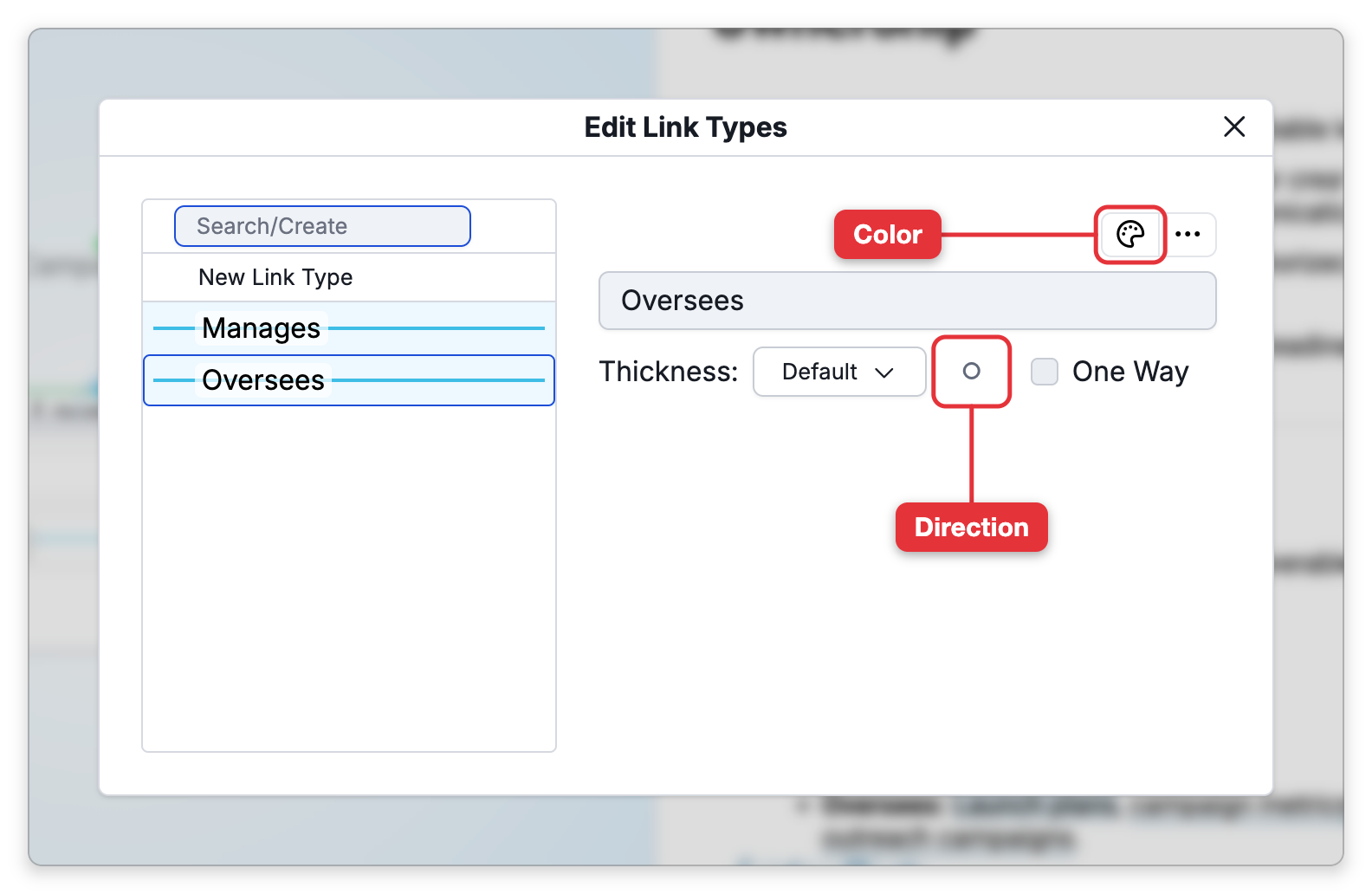
When you edit a link type, the Edit Link Types dialog has a One Way checkbox beside the Link Direction button.
Link Types
A link type is a reusable definition you can apply to many links so related connections look and read the same way.
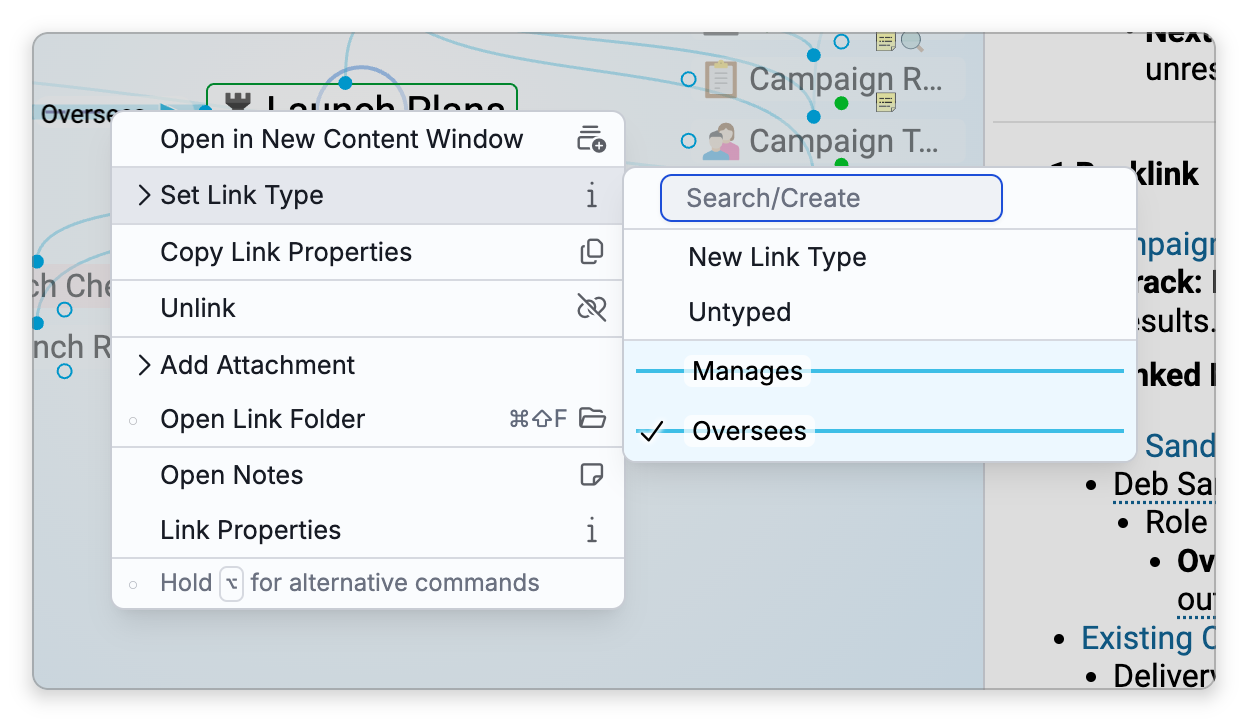
- Set Link Type — Right-click a link and choose Set Link Type, then pick one of the brain's link types, or type a name in the Search/Create box and choose New Link Type to create that type and apply it. Untyped takes the type off the link.
- Edit Link Types — Choose Edit Link Types... from More Actions in Link Properties. The dialog lists the brain's link types; pick one to rename it or set its Thickness, direction, One Way and color. Its … button holds Delete Link Type.
- Copy / Paste Link Properties — Copy the properties from one link and paste them onto another to apply the same look quickly.
Link Notes
A link can hold its own note, independent of the thoughts it connects. Right-click a link and choose Open Notes to write notes about the relationship itself. (This right-click option is available on desktop and web, not on mobile.)
Selecting and Unlinking
- Select a link — The default shortcut to select the link to the active thought is
Ctrl+Shift+L(⇧⌘Lon Mac). - Unlink — Right-click the link and choose Unlink to disconnect the two thoughts. This does not delete either thought: both remain and can still be reached through their other links or by searching. To remove a thought entirely, see Forgetting and Deleting Thoughts. If the link has its own note or attachments, TheBrain warns you before removing it (e.g. This link has a note. Are you sure you want to remove it?).
- Link types are separate from thought types — a thought type classifies thoughts, while a link type classifies the connections between them.