Thought Types
Overview
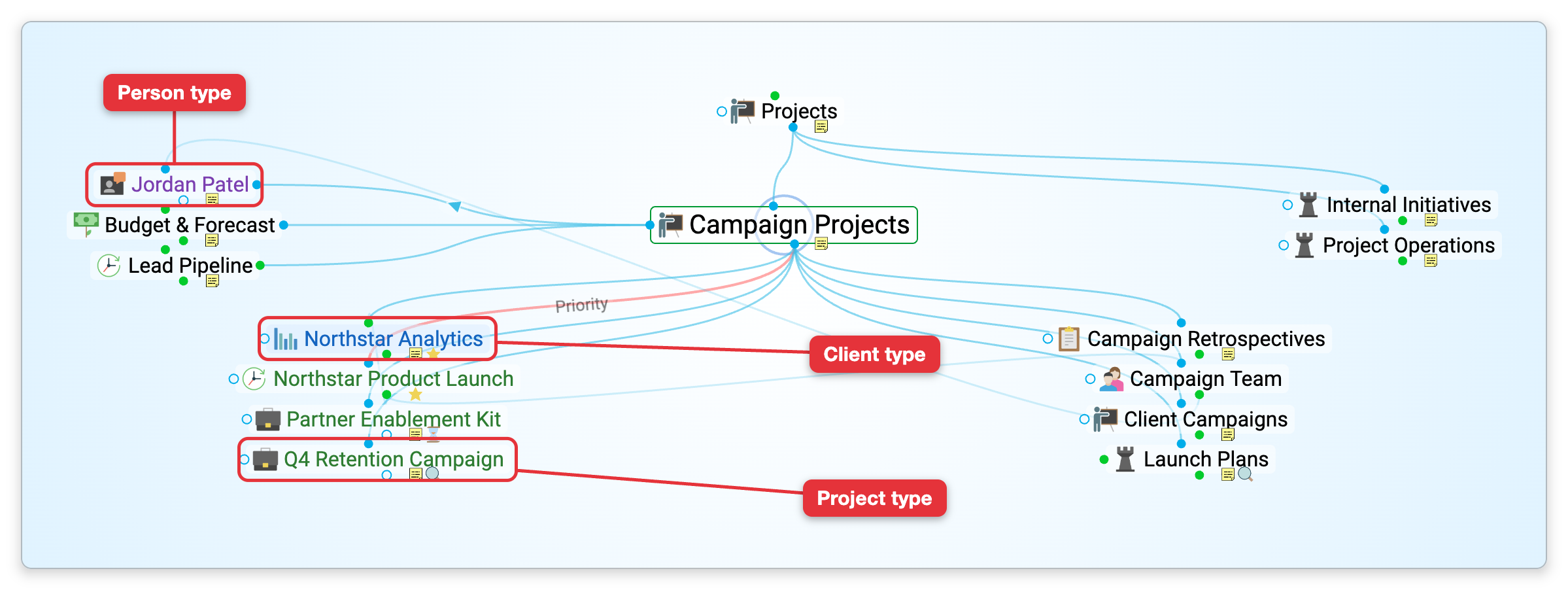
A type is a thought that classifies other thoughts. When you give a thought a type, it inherits that type's icon, label styling, and colors, which makes everything of the same type instantly recognizable across the brain. Types pass their appearance down to their children, so setting up a "Person" type once gives every person you add the same look automatically.
Types are best for broad classes of information that aren't otherwise related to each other — TheBrain's own examples are Person, Organization, and Country. Because a type is itself a thought, it can have its own notes, attachments, and links, and you can navigate to it like any other thought. Reports and the To-Do List can filter by type, so you can list everything of one type (see Reports).
How to Set a Thought's Type
- Right-click the thought (or open it and use the properties header in the content area).
- Choose Set Thought Type.
- Pick one of the brain's types, or type a name in the Search/Create box at the top of the submenu and choose New Type to create that type and apply it in a single step. Typing also narrows the list to the matching types, and a tick marks the thought's current type.
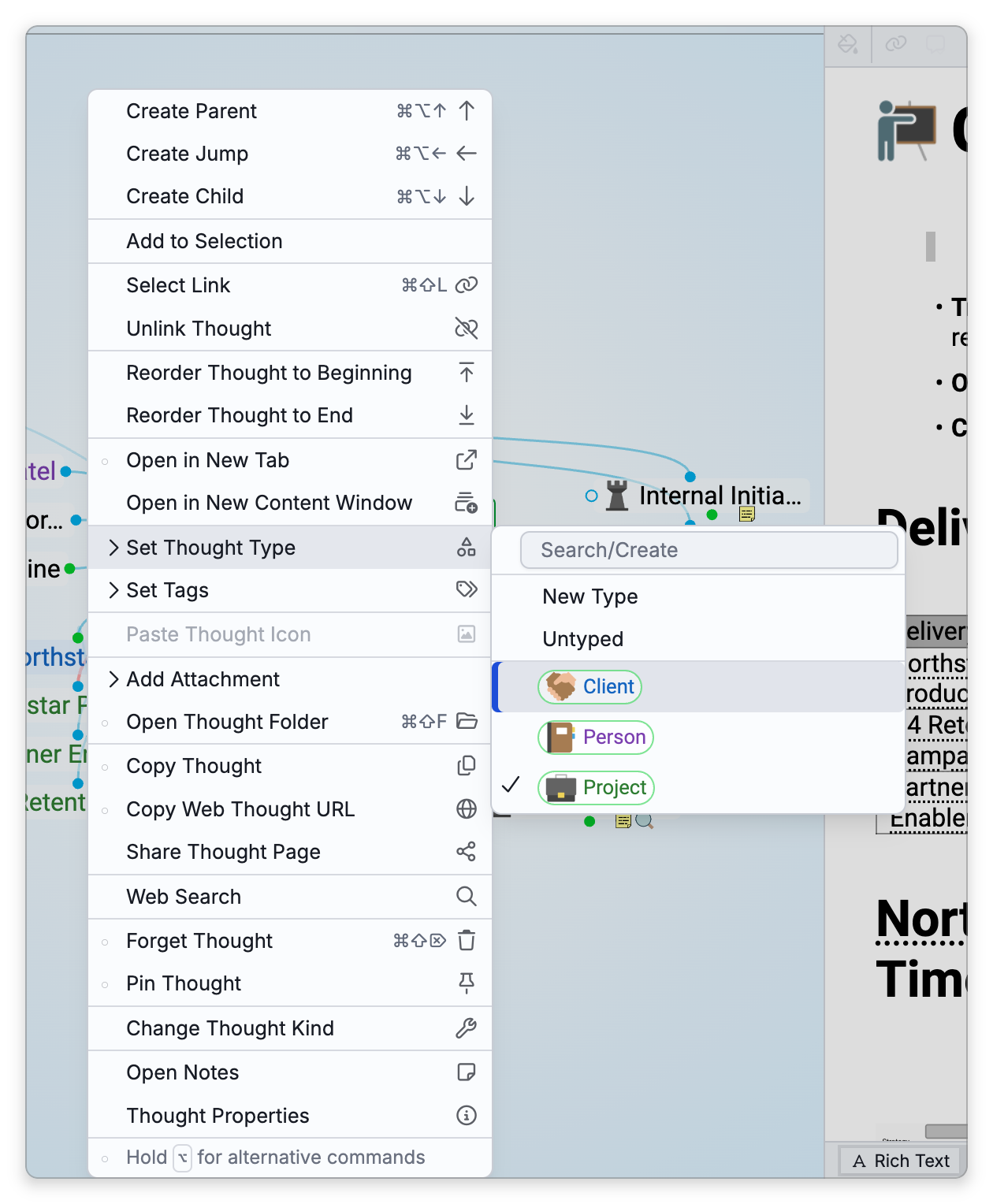
The thought immediately takes on the type's icon and colors. To set the type on several thoughts at once, select them and use Set Type from the selection panel — see Selecting Multiple Thoughts.
How to Remove or Change a Type
You can do both from the typed thought itself:
- From the right-click menu — Right-click the thought, open Set Thought Type, and choose Untyped (just under New Type, above the list of types) to remove its type. To change the type instead, pick a different one from the list; a thought has only one type, so the new type replaces the old one.
- From the properties header — Click the thought's name to show the header's controls, then hover the type chip and click the red × on it; the type is removed straight away. On the active thought you can also right-click the chip and choose Remove Type. (Clicking the chip itself goes to the type.) The header's Type button is shown only while the thought has no type, so to change a type from the header, remove it first and then pick the new one.
- For several thoughts at once — Select them, open Set Type on the selection panel, and choose Untyped. See Selecting Multiple Thoughts.
The thought becomes untyped again and reverts to its own styling. Removing a type from a thought does not delete the type thought itself — other thoughts that share it keep it.
Going to a Type
Because a type is a thought, you can open it to see everything classified under it. There are several ways to get there:
- From a thought of that type — Click the thought's name in the properties header to show the header's controls, then click the type chip.
- From the list of all types — Click the Types button on the brain toolbar. It opens a list of the types in the brain, with subtypes indented under their supertype; click a type to jump to it. The default shortcut is
Ctrl+Alt+T(⌥⌘Ton Mac), the Activate Type command. If you can edit the brain, the list starts with a Search/Create box: type to filter the list, or choose New Type to create a type with the name you typed and go to it. The list shows at most 200 types, so narrow it with the box if the brain has more. On a phone-width screen, the same list is on the Types tab of the side panel. - In Tree View — Expand Types in the tree to see the brain's types.
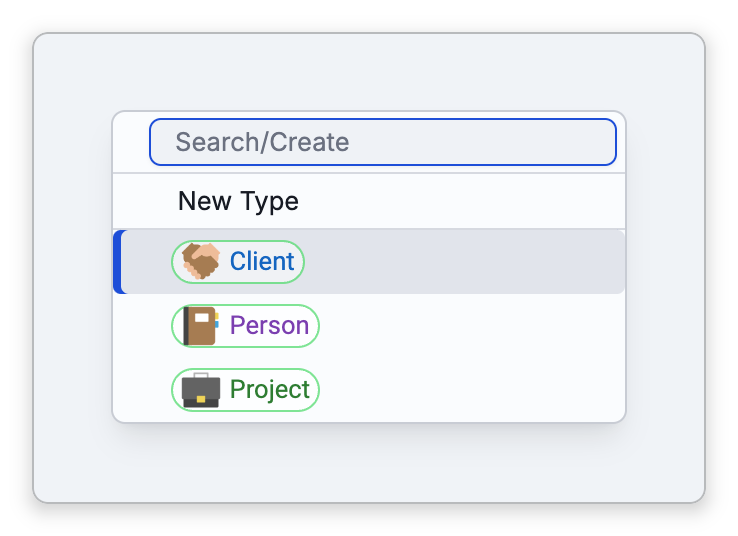
While the Create Thought prompt or the Thought Properties dialog is open, the same shortcut opens the type menu there instead, so you can set the type of the thought you're creating or editing.
Types as Parents
A type can act as a parent of the thoughts it classifies. Because a type can have many members, TheBrain lets you control whether it shows up in the Plex as a parent of the active thought, so type thoughts don't clutter the view:
- Per type — Toggle Visible When Parent of Active Thought on a type (from its menu). When it's on, thoughts of that type stay visible as parents of the active thought; when it's off, they're kept out of the parent area.
- All types at once — From Main Menu > Brain, use Make All Types Visible as Parents or Make All Types Hidden as Parents to flip every type in the brain in a single step.
Giving a Type Its Own Wallpaper
A type can have a dynamic wallpaper: a background image that takes over the Plex background while you're on that type or on anything of that type.
- Right-click the type thought itself and choose Set Dynamic Wallpaper. You can also open the type and use the More Actions (three-dot) button next to Type Thought in its properties header.
- Pick a JPG or PNG image.
The Plex background then fades to that image whenever the active thought is the type, one of its subtypes, or a thought of any of them, and goes back to the brain's normal background when you move elsewhere. Subtypes get the wallpaper too, unless a subtype has a dynamic wallpaper of its own, which is then used for that subtype and its thoughts. Choose Set Dynamic Wallpaper again to replace the image; Remove Dynamic Wallpaper appears in the same menus once the type has one. You need to be able to edit the brain, and converting the type to another kind of thought removes its dynamic wallpaper. For the wallpaper of the brain as a whole, see Plex Theme and Wallpaper.
What Happens When You Delete a Type
Deleting a type thought deletes only the type itself, along with its own notes and attachments. The thoughts that use the type stay in the brain: they become untyped and lose the icon, label, and colors they were inheriting from it. Their link to the type is deleted with it, so a thought whose only parent was the type is left without a parent. Subtypes of the deleted type remain as types. Tags work the same way: deleting a tag thought takes that tag off every thought that carried it, and those thoughts themselves stay in the brain.
Forget Thought isn't offered for a type or a tag, so Delete Thought appears directly on its right-click menu. Undo brings the type back and puts it back on the thoughts that had it, for as long as the brain stays open. See Forgetting and Deleting Thoughts.
- A thought can have many tags, which are shown as icons on their children and are better for cross-cutting characteristics — see Tags.
- A normal thought can be converted into a type (and back) through the Change Thought Kind dialog — see Types vs. Tags vs. Normal Thoughts.