Brain Activity Report
Overview
The Activity Report shows which thoughts in a brain were recently activated — that is, visited — along with when and by which user. It also ranks the thoughts by how many times they were activated. The report is about navigation only; for a record of the changes made to a brain, see Thought History.
The report is for the brain's admin. You have to be signed in and have admin access to the brain. Anyone else who opens the tab sees the message Access to this resource has been denied.
How to Open the Activity Report
- Open the brain's settings: choose Brain Settings... from the brain's right-click menu in the brains list, or from Main Menu > Brain while the brain is open.
- Under Brain, select the Activity Report tab.
In the Mac desktop app you can also choose Brain > Activity Report... in the menu bar.
How to Read the Report
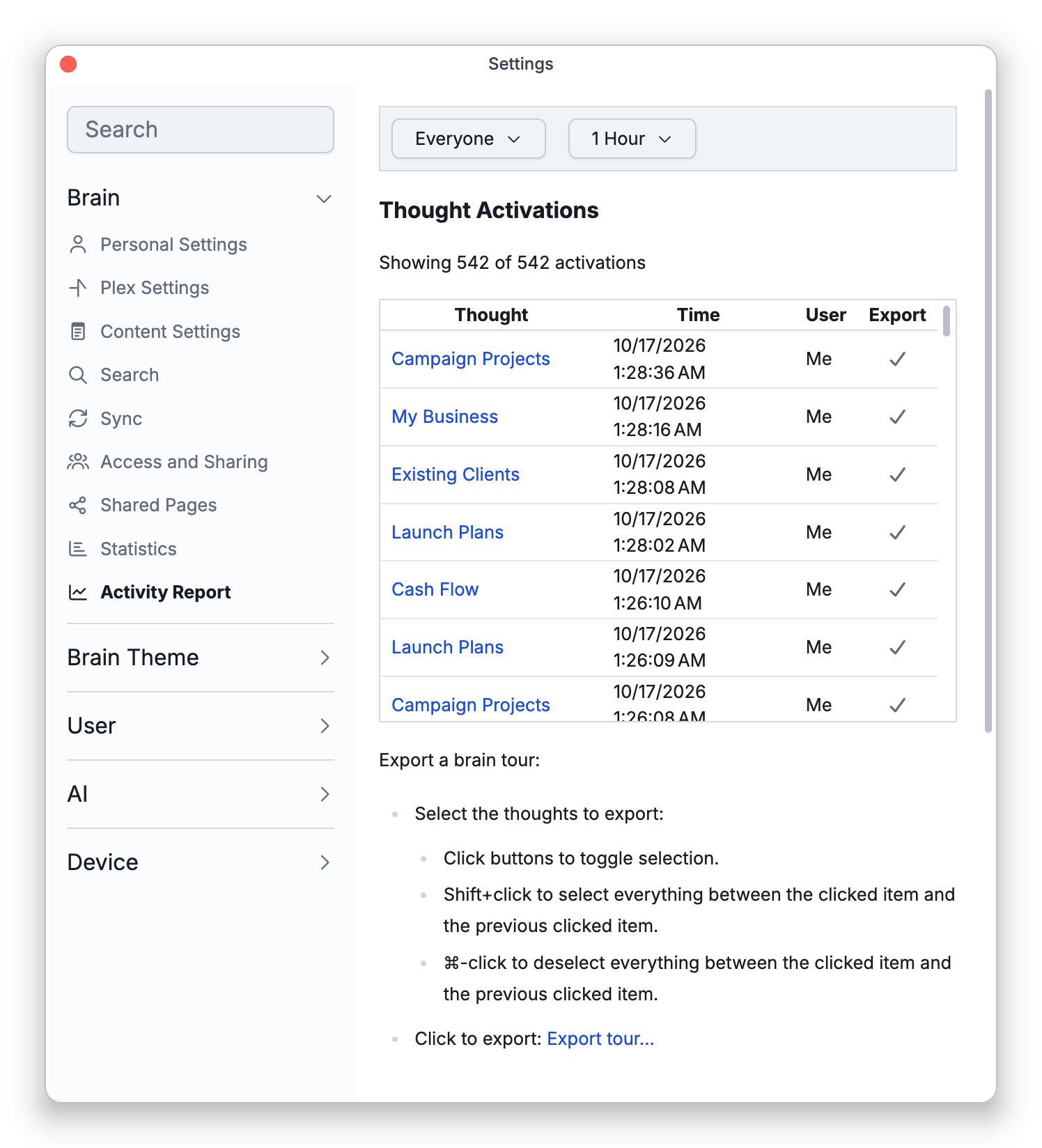
Two menus at the top set what the report covers:
- Whose activity — Everyone, Me, or Custom, which asks for a user ID.
- How far back — 1 Hour, 4 Hours, 12 Hours, 24 Hours, 2 Days, or 7 Days.
The report opens on Everyone and 1 Hour. Below the menus are two tables:
- Thought Activations — one row for each activation, with the thought, the time, and the user. The user is shown as Me, as Anonymous when no signed-in user is attached to the activation, or as a user ID. People are not shown by name. When the same user activates the same thought again within five minutes, with no other activation in between, the repeat is not listed.
- Thoughts Ordered By Activation Count — each thought with the number of times it was activated, the most activated first.
A line above each table gives the number of activations or thoughts found, and the ranking lists at most 1,000 thoughts. Select a thought's name in either table to go to that thought.
What the Report Covers on Each Platform
Where you open the report decides which activity it can see:
- In a browser — the report reads the activity that TheBrain's web service records, so it covers the activations made in the web app by everyone who viewed the brain there. Activations made in the desktop and mobile apps are not included.
- In the desktop and mobile apps — activity is recorded on the device, and the report lists only the activations made in the app on that device. What other people did, and what you did in a browser or on another device, is not included.
How to Export a Brain Tour
A brain tour is a sequence of thoughts that a viewer steps through one at a time. You can build one from the activations in the report:
- In Thought Activations, click the check button in the Export column for each activation you want in the tour. You need at least two.
Shift-click (⇧-click on Mac) selects everything between that row and the row you clicked before, andCtrl-click (⌘-click on Mac) deselects that range. Click a selected row's check button again to deselect just that row. - Below the table, choose Export tour... and enter a name for the tour.
TheBrain creates a new thought with that name and attaches the tour to it. The new thought is not linked to any other thought, so use search to find it by name. A message confirms that the thought was created and tells you to send a link to that thought to share the tour. Whoever opens the link needs access to the thoughts in the tour.
To play a tour, open the tour attachment on that thought. A bar appears with the tour's name, arrows for the previous and next thought, and an Exit Tour button. A tour also starts by itself when the brain is opened directly on that thought — by a link to the thought, or with Open in New Tab — and the tour is the thought's only attachment. In the desktop app, it does not start when you open the brain from the brains list, even if the brain reopens on that thought.
- The report is read-only.
- For counts of what a brain contains rather than what was visited, see Brain Statistics.