Brain Access and Sharing
Overview
Brain Access and Sharing controls who can see and edit an entire brain. You can keep a brain entirely private, share it read-only via a link, publish it for anyone to find, or invite specific people and give each of them a level of access. This is separate from publishing a single thought as a page — see Shared Thought Pages for that.
Whole-Brain Visibility
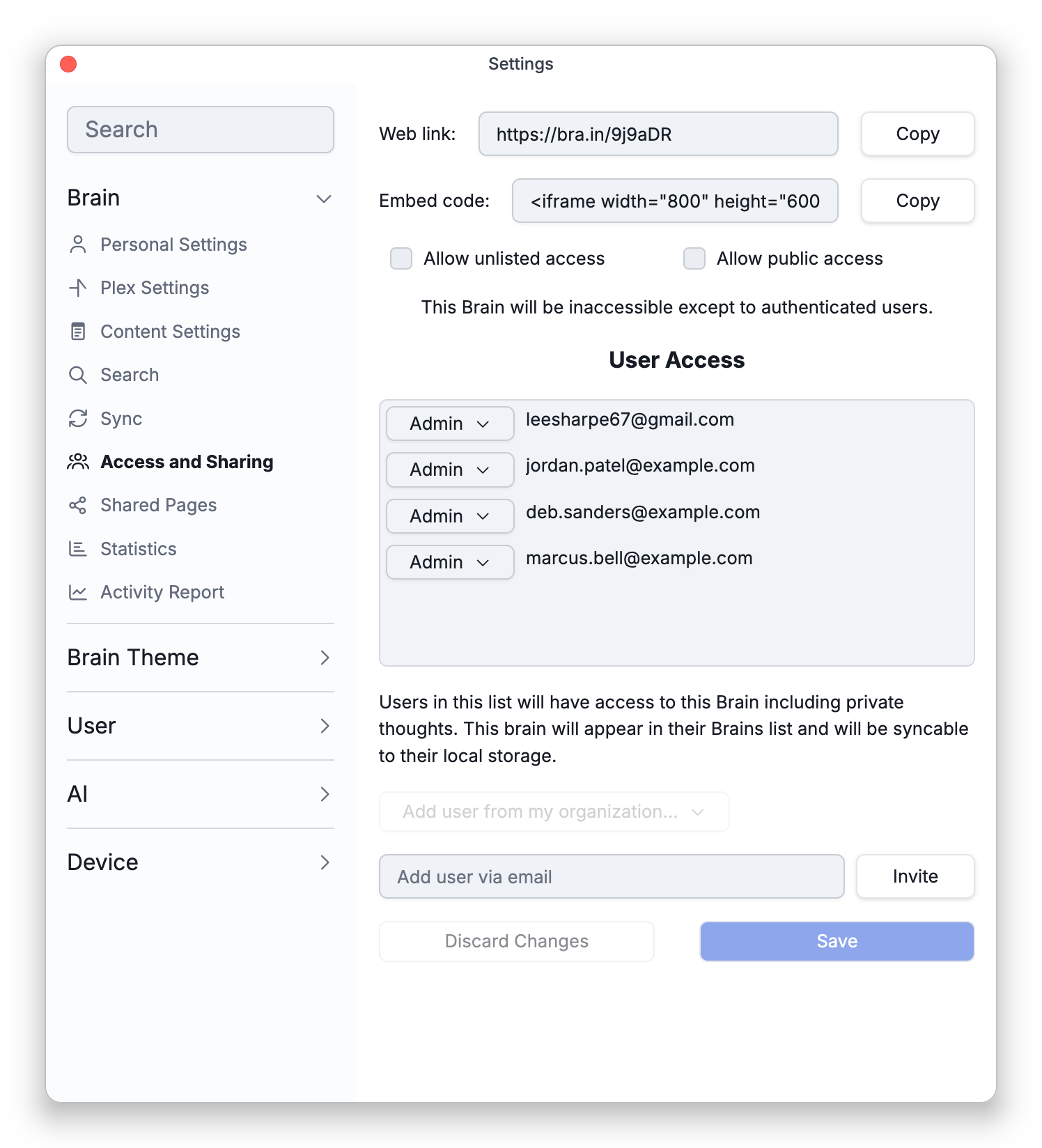
Main Menu > Brain > Brain Access and Sharing... opens these settings, the Access and Sharing page of Settings > Brain. A brain must be synced to the cloud before you can share it: for a local-only brain, Brain Access and Sharing... is unavailable, and the page shows an upload prompt instead of the access list. Two checkboxes there control who can reach the whole brain:
- Allow unlisted access — Anyone with the brain's web link gets read-only access, but the brain isn't discoverable.
- Allow public access — The brain becomes discoverable by others and open to the public, read-only.
Leave both off — the default — to keep the brain private, reachable only by the authenticated users you've granted access. The two options are mutually exclusive: turning one on turns the other off.
Unlisted or Public: What Differs
Both options let anyone who has the brain's link read everything in it that isn't private. The difference is whether people can come across the brain without the link:
- With Allow public access, the brain's public thoughts can also turn up when other people search public brains (see Searching Other and Public Brains). A brain with Allow unlisted access is left out of those searches.
- With Allow public access, search engines such as Google can also list the brain's thoughts in their results, using a preview page of each thought that isn't private or forgotten. The page shows the thought's name, its note, the names of its attachments, and links to its parents, children and jumps, under a bar with the brain's name, a Preview label and an Open in TheBrain button that opens the thought in the brain itself. An unlisted brain is kept out of search engines. When you make a thought private, its preview page goes away, and when you turn public access off, all of the brain's preview pages do. A search engine may still list them until it checks them again.
- To keep a public brain out of other people's searches in TheBrain, open Settings > Brain > Search for that brain and turn off Show search results from public brains. The setting works in both directions: it also stops public-brain results from appearing in searches made in that brain. It doesn't keep the brain out of search engines; to do that, use Allow unlisted access instead.
The brains list uses different words from this dialog. Each cloud brain there has a visibility icon whose hint reads Private (a closed lock) when both boxes are off, Public (an open lock) when Allow unlisted access is on, and Discoverable (a globe) when Allow public access is on. So an unlisted brain labeled Public in the brains list is expected — it has not become searchable. Clicking the icon opens Brain Access and Sharing for that brain. A brain that exists only on your device has no visibility icon.
Whenever a brain is unlisted or public, private thoughts are not available to viewers — they stay hidden. If a note embeds a private thought's note (see Embedded Notes), viewers who aren't logged in with access see Missing thought: followed by the thought's name instead of the private content; you and anyone on the access list see the embedded note as usual. See Private Thoughts. Changing visibility requires admin rights on the brain.
Granting Access to Specific People
The User Access list invites named people and sets each one's level:
- Reader — view the brain (including its private thoughts).
- Writer — make changes.
- Admin — full control, including managing access.
Writer and Admin are offered only on TeamBrain accounts and on company-run servers. Without TeamBrain, the dropdown on each other person's row offers Reader and Remove — plus Make Owner…, which hands the brain over rather than sharing it. A note under the list points this out: Want to add another writer or admin?
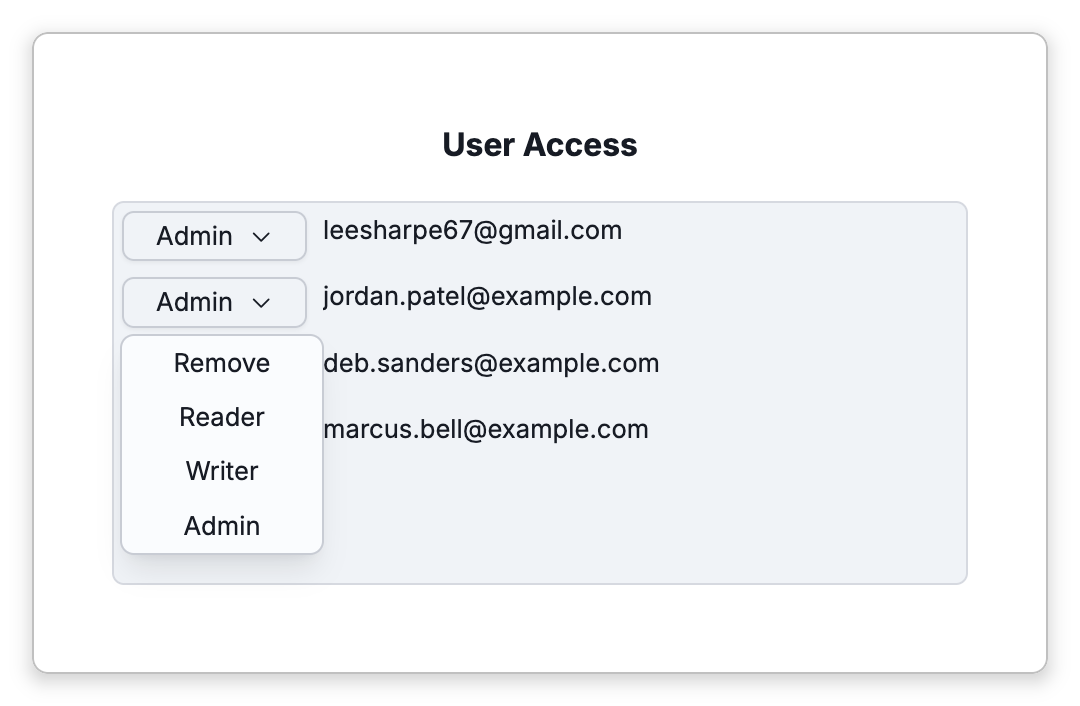
Add people with Add user from my organization… or by email, then Invite them; new people start as Reader. Inviting by email isn't offered on every deployment; where it isn't, add people from your organization instead. Someone you add by email who isn't already known to the brain is marked (Not saved) until you save, because TheBrain can't tell until then whether that address has an account. Once you save, a person who already has an account gets Reader access straight away, and anyone else is marked (Invited) and gets Reader access when they create a TheBrain account from the invitation email they are sent. There is nothing for either of them to accept. To remove someone, set their access to Remove. A brain must keep at least one Admin: TheBrain warns All Admins Removed and won't let you remove the last one. People in this list have access including private thoughts, the brain appears in their own brains list, and they can sync it to their devices.
What the People You Add Receive
TheBrain emails each person you add when you save:
- Someone who already has an account gets a message saying you have granted them access, with a link to log in and open the brain.
- An address with no account gets an invitation with a button to set up an account. The sign-up form it opens has the address filled in, and the new account gets Reader access as soon as it is created.
The invitation belongs to that exact email address. It is taken up when the person creates their account with the sign-up form that the button opens. An account they create any other way doesn't pick the invitation up, and neither does an account they already have under a different address. So add the address the person actually uses for TheBrain.
No email is sent when you later change someone's level or remove them.
Co-editing a brain requires TeamBrain
Sharing a brain read-only works on any account — you can turn on an unlisted or public link, and add as many named Readers as you like, for free.
Letting more than one person edit the same brain is a TeamBrain feature. Because the dialog offers Writer and Admin only with TeamBrain, you can't give a second person edit access without it. Extra Readers never count toward this — only Writers and Admins do. See TeamBrain Overview.
Each person who edits needs TeamBrain on their own account, too. Once a brain has more than one Writer or Admin, each of them needs TeamBrain. Without it, TheBrain shows them This brain cannot be synced without TeamBrain Services.
To fix that, give the person a seat in a TeamBrain subscription — Add User under TeamBrain License Management on the TeamBrain Management page, or in Settings > User > Account > Subscription & License Management (see Inviting and Managing Members) — or have them subscribe to TeamBrain themselves, or to Max, which includes it.
Transferring a Brain to Someone Else
Make Owner… hands a brain over to another person in one step: they become the brain's Admin, and your own access is removed in the same save. TheBrain asks you to confirm under the heading Transfer Ownership first, because afterwards only the new Admin can give you access again.
- Open Main Menu > Brain > Brain Access and Sharing.
- Add the person if they aren't already on the list, and Invite them.
- Save. A row marked (Not saved) or (Invited) only ever offers Reader and Remove, so you can't hand the brain to someone in either state. Saving clears (Not saved); (Invited) clears only once that person creates an account from the invitation email.
- Open their access dropdown, choose Make Owner…, and click Save. Confirm at the Transfer Ownership prompt to save the change.
The brain then closes — it is no longer yours to have open. Make Owner… isn't offered for a group entry or for an account that can only ever read, since neither can act as the brain's administrator.
With TeamBrain, or on a company-run server, the dropdown offers Writer and Admin instead of Make Owner…. To hand a brain over there, set the person to Admin and your own row to Remove, then click Save and confirm at the same Transfer Ownership prompt.
Removing Yourself from a Shared Brain
If someone shared a brain with you and you no longer want it, you can take yourself off its access list. You don't need to be an Admin to do this.
- Open Brain Access and Sharing for the brain — Main Menu > Brain > Brain Access and Sharing while it is open, or click the brain's visibility icon in the brains list.
- In the User Access list, open the dropdown on your own row. For a Reader or Writer it holds a single choice, Remove; the other rows can't be changed.
- Click Save, then confirm at the Remove Access prompt.
The brain closes and is no longer shared with you. Only one of the brain's Admins can give you access again.
- Once a brain is shared, each person's view settings (such as sorting, text scale, navigation mode and the sections shown below notes) are their own. When the brain is public or unlisted and you open these settings from inside it, a Visitor View section here summarizes the default view visitors get; change it with Set default in Settings > Brain > Personal Settings (see Personal Settings).
- For copying links to individual thoughts, see Copy Thought Links; for what viewers actually see, see Shared and Embedded Views.