Find and Replace in Notes
Overview
When a note gets long, Find and Replace lets you jump to any word or phrase inside it and, if you want, swap it for something else. It works within the note you're currently editing — a focused search of one document, separate from searching across the whole brain.
How to Find and Replace
- In the notes editor, open Find and Replace — the default shortcut is
Ctrl+F(⌘Fon Mac) while you're working in a note. If text is selected, it becomes the search term — and pressing the shortcut again with a new selection updates the term while the bar stays open. - Type what you're looking for; matches are highlighted and counted.
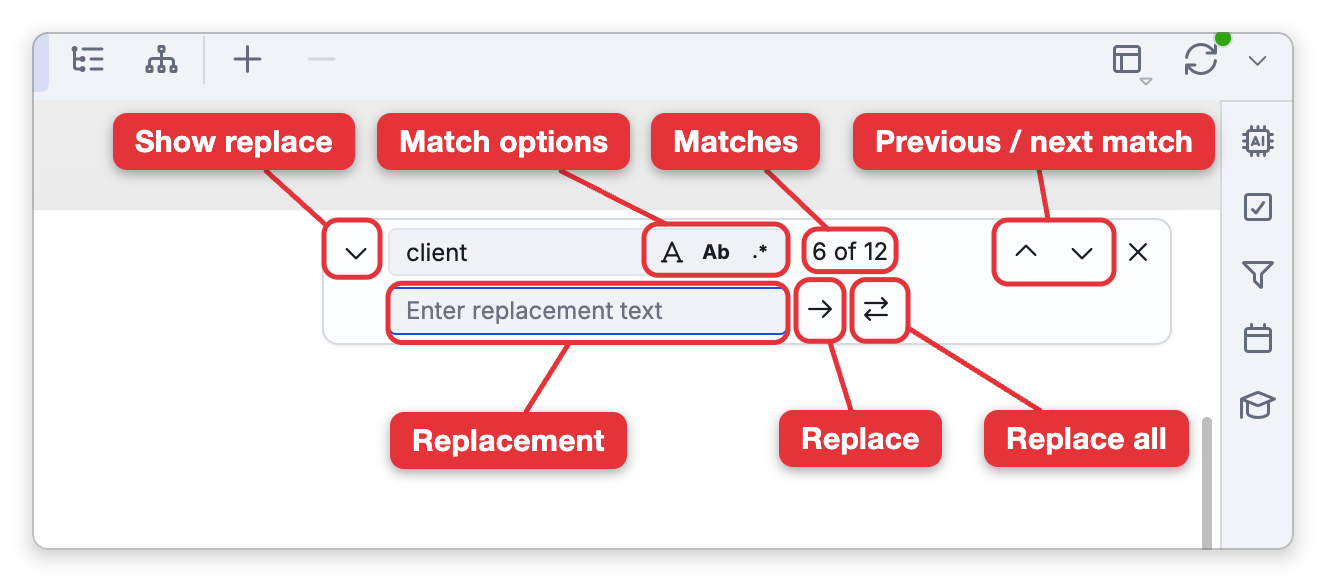
- Move through matches with the Next Match and Previous Match arrows on the bar, or with the keys listed under Keys in the Find Bar. Both directions wrap around at the ends of the note.
- To replace, click the chevron arrow at the left edge of the find bar to reveal the replace field, enter the replacement, and use Replace for one match or Replace All for every match.
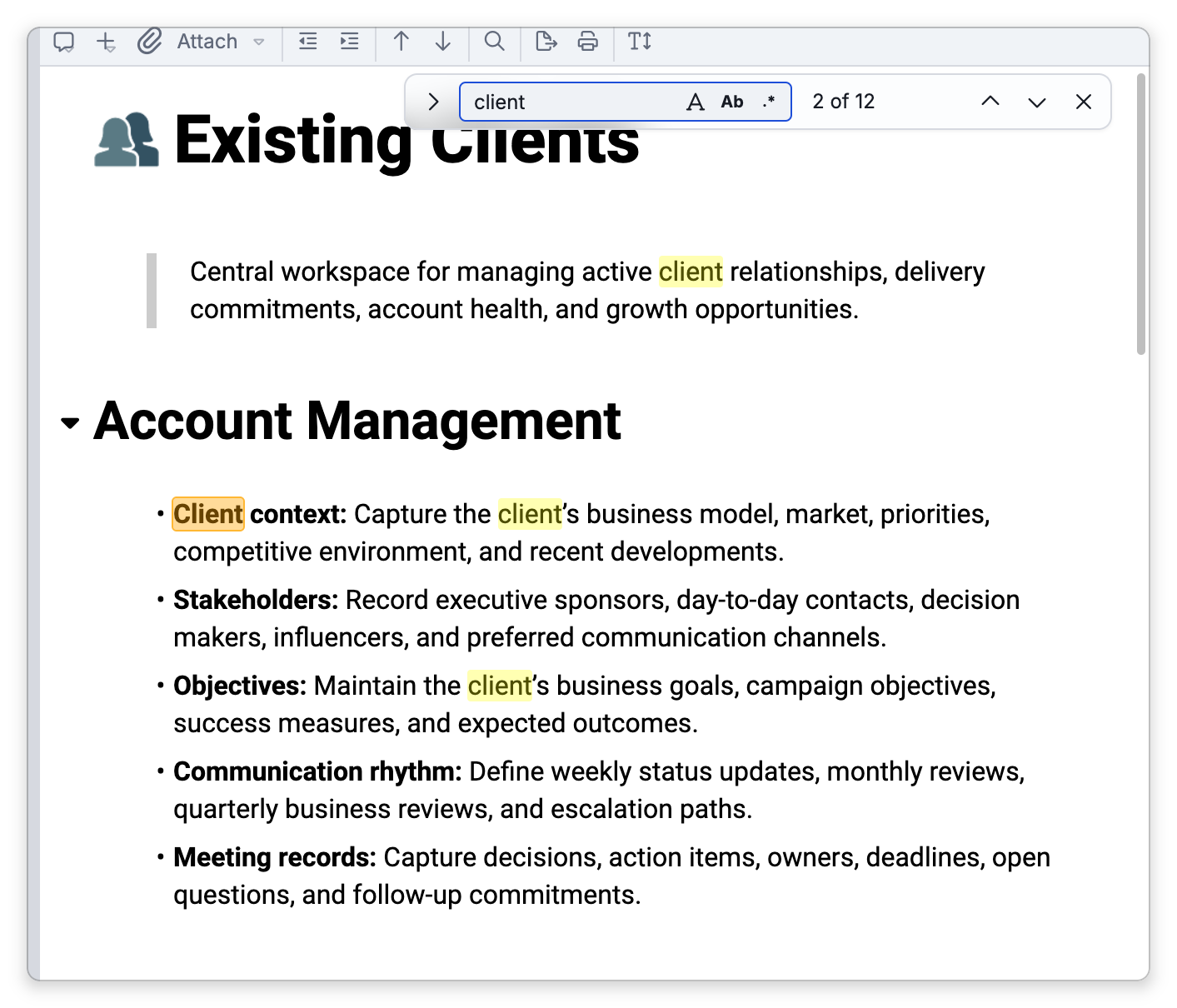
Match Options
- Case sensitive — match exact capitalization.
- Whole word only — match the term only as a complete word.
- Use regular expression — match a pattern rather than literal text.
Keys in the Find Bar
These work while the cursor is in the find box or the replace box:
| Key | What it does |
|---|---|
Enter in the find box | Goes to the next match |
Shift+Enter (⇧Enter on Mac) in the find box | Goes to the previous match |
Enter in the replace box | Replaces the current match and moves on to the next |
Ctrl+H (⌃H on Mac) | Shows or hides the replace row |
Tab | Moves between the find box and the replace box while the replace row is showing |
Esc | Closes the bar |
Regular Expressions and Limits
- Patterns use JavaScript regular-expression syntax.
- The replacement is inserted as plain text.
$1and other capture-group references are not expanded — they're inserted exactly as typed. ^and$don't match at the start and end of each line:^matches only at the very start of the note, and$only at its very end. In the rich editor the note's text always ends with a line break, so a pattern with$straight after a word finds nothing there, even on the last line.- A search that finds more than 10,000 matches stops with a Too many matches found message; narrow the search term or pattern.
- A Replace All can be reversed with Undo.
The keys, the regular-expression rules, and the limit are the same in the rich editor's find bar and in the one the Text and Split views use.
- This in-note Find and Replace acts on the current note only. To replace text across every note in the brain — or across thought names, labels, and attached URLs — use Main Menu > Brain > Replace in Brain instead; see Find in Brain.
- The note's Text and Split views have their own Find & Replace, on the text toolbar and its right-click menu, with the same case, whole-word, and regular-expression options.
Ctrl+F(⌘Fon Mac) opens it whenever one of those views is showing, seeded with your current selection.