Find in Brain
Overview
Find in Brain finds exact text, or a pattern, everywhere it appears in one part of your brain: thought names, labels, link labels, notes, external attachment paths or attached URLs. Each result can be clicked to go to it. With Replace shown, it also changes every match in one step, after showing you each change side by side.
Find and Search
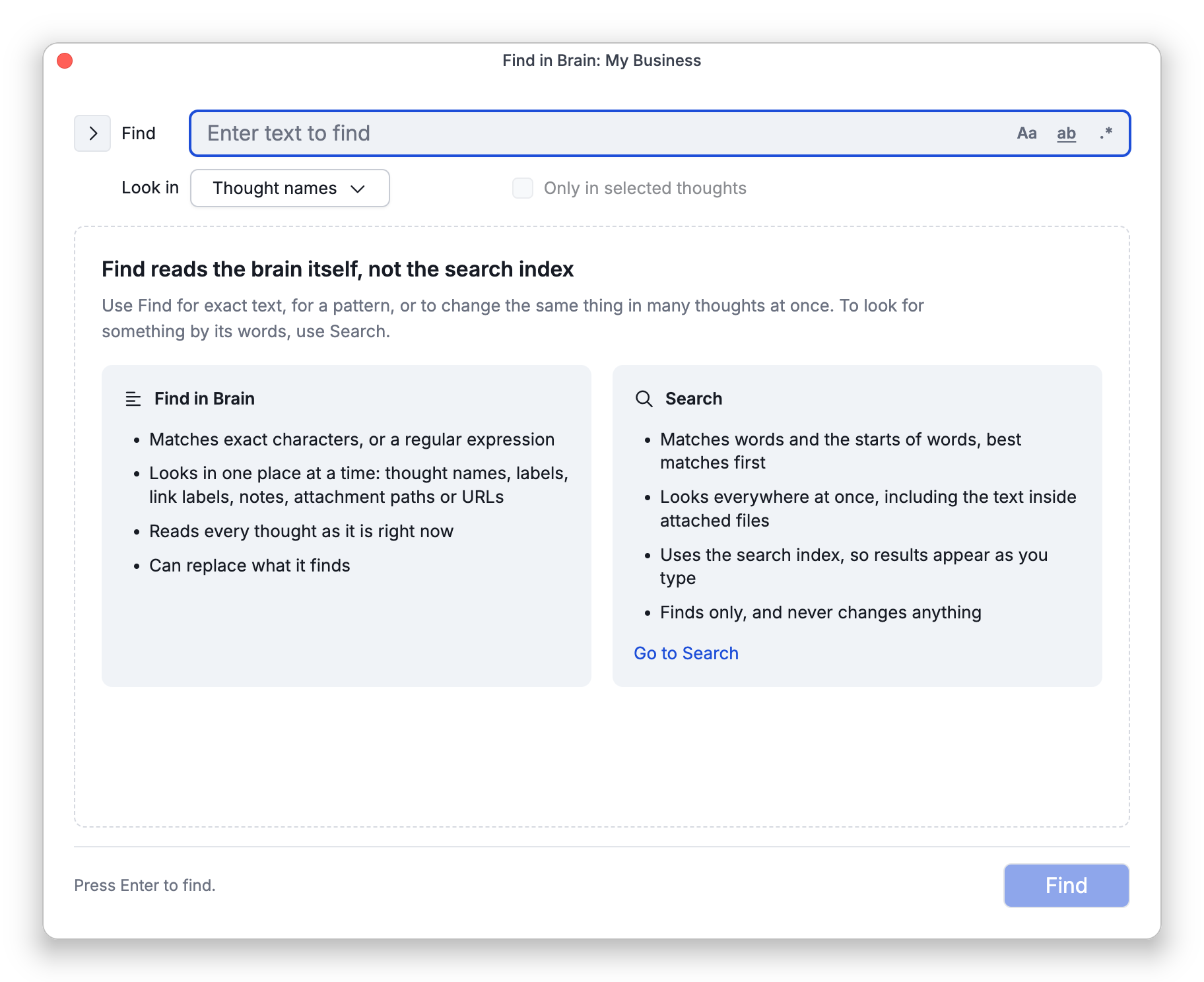
Find in Brain and Search both look for text in the brain, in different ways. Before your first find, the dialog explains the difference:
- Find in Brain matches the exact characters you type, or a regular expression. It looks in one place at a time, reads every thought as it is right now, and can replace what it finds.
- Search matches words and the starts of words, with the best matches first. It looks everywhere at once, including the text inside attached files. It uses the search index, so results appear as you type, and it never changes anything (see Finding and Creating Thoughts).
To move a search over, choose Find Exact Text in this Brain... from Search Options, the gear menu by the search results, while the search box has text in it. Search closes, and Find in Brain opens with your search text already found, looking where Search found it: in thought names, labels, link labels or notes. Go to Search under the explanation does the opposite: it closes the dialog and searches for the text in the Find box.
How to Find Text in a Brain
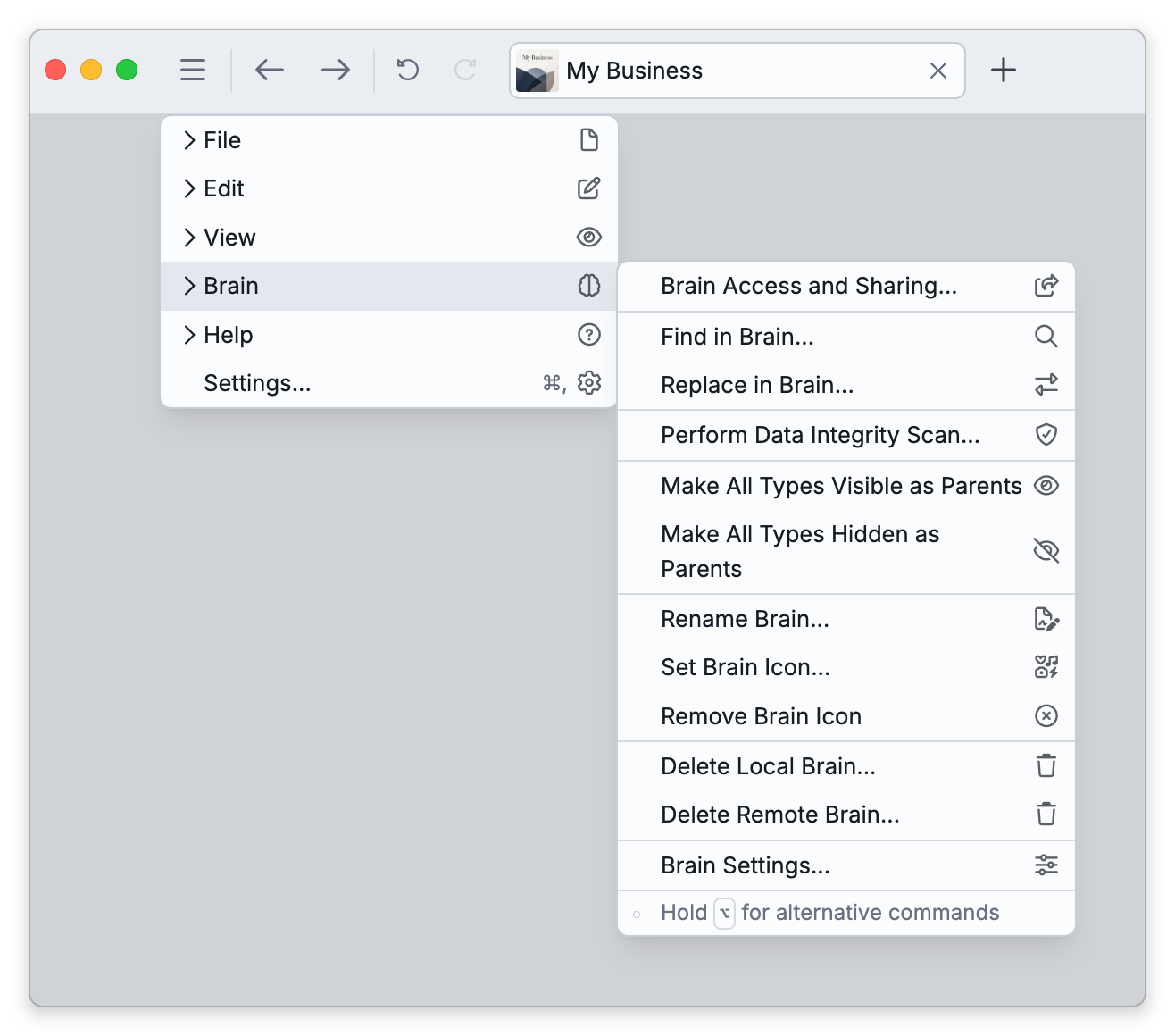
- Open Main Menu > Brain > Find in Brain. In the desktop app on a Mac, it is also in the menu bar's Brain menu. (There is no default keyboard shortcut.
Ctrl+F(⌘Fon Mac) finds text in the note you're editing instead.) - Type the text into Find.
- Choose where to look with Look in: Thought names, Thought labels, Link labels, Notes, External attachment paths or Attached URLs.
- Press
Enteror select Find. - Click a result to go to it in the brain. Use
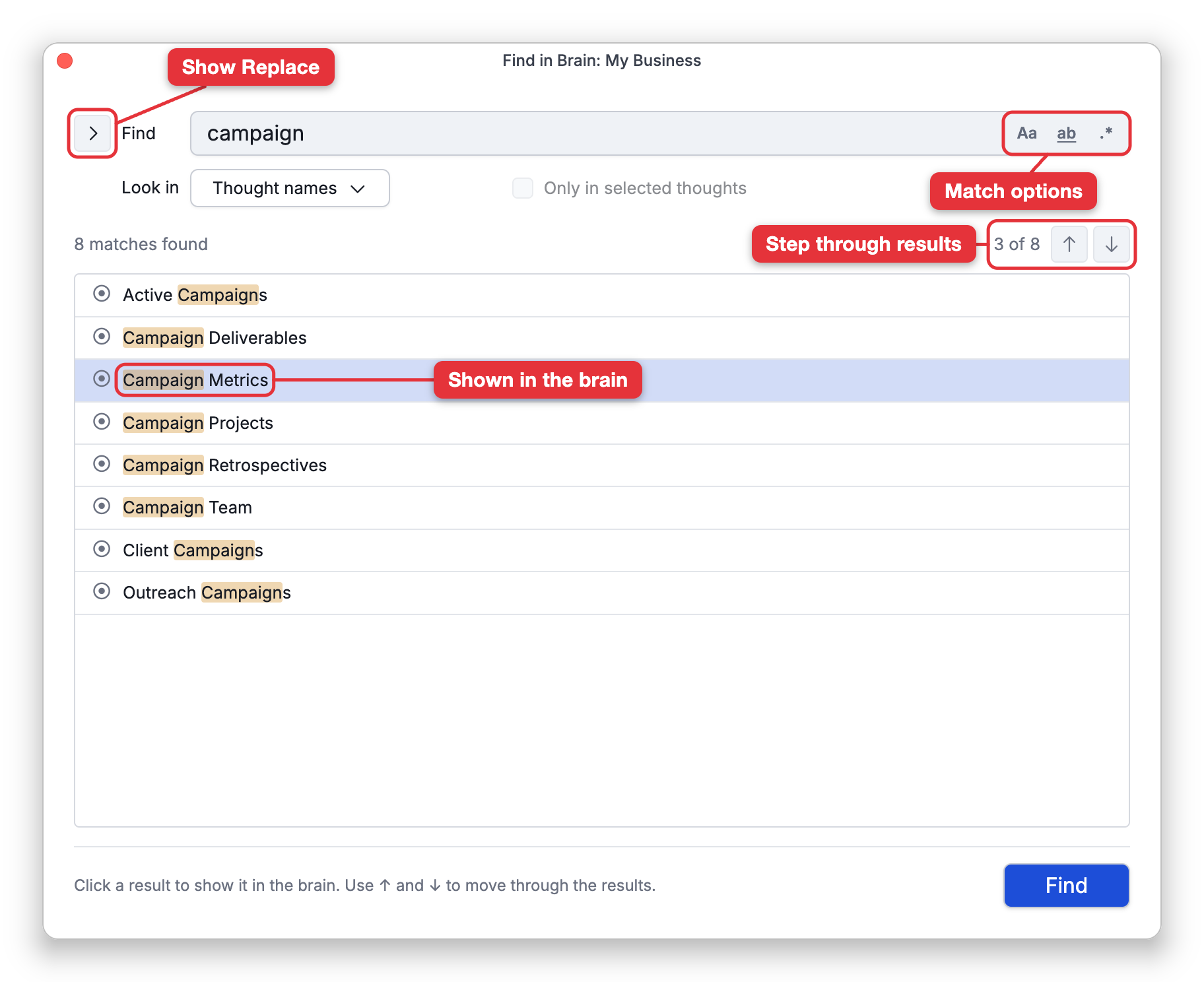
↑and↓, or the arrow buttons above the results, to move from one result to the next.
The results list each match with the found text highlighted, and the count above them says how many there are. The result you went to stays highlighted, and the count beside the arrow buttons says which one it is, such as 3 of 8. The list shows 100 results at a time: select Show More at its end for the next 100, or move past the last listed result with ↓ or the arrow button, which lists them too.
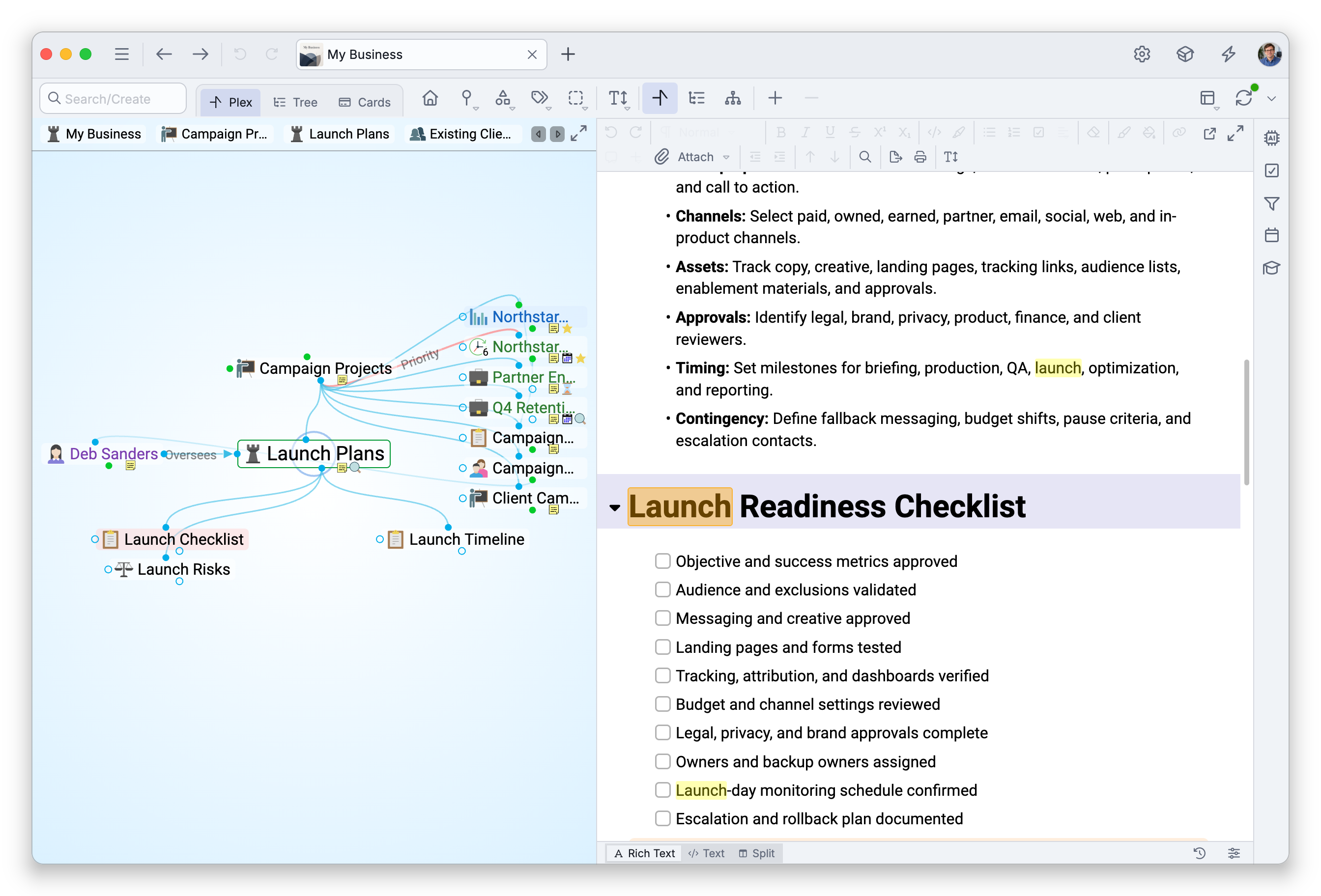
Clicking a result shows it in the tab the dialog was opened from:
- A thought name, label, attachment path or URL — Its thought becomes the active thought.
- A link label — The thought at the start of the link becomes active, with the link selected.
- A line of a note — The note's thought becomes active (for a note on a link, the thought at the start of the link, with the link selected), and the note opens scrolled to that match. Every match in the note is highlighted, and the one you clicked stands out.
When you change the Find text, a match option, Look in or the Replace with text, the results stay listed but dim until you find again. You can still click them.
Match Options
Three switches at the right end of the Find box change how the text is matched. Each one is highlighted while it is on.
- Aa — Case sensitive — Match capital and small letters exactly. It is off by default, so "brain" also finds "Brain".
- ab — Whole word only — Match the text only as a whole word, so "plan" doesn't find "planning".
- .* — Use regular expression — Read Find as a pattern instead of literal text (see Regular Expressions and the Replacement Text). A pattern that isn't valid, or one that takes too long to match, shows a message in red under the Find box until you change it.
Whole word only and Use regular expression can't be on together. Turning one on turns the other off.
Only in selected thoughts, beside Look in, limits the find to the thoughts selected in the brain. It is turned on when you open the dialog with thoughts selected, and it isn't available when looking in link labels, which belong to no thought.
How to Replace Text Across a Brain
- Open Main Menu > Brain > Replace in Brain, or select the arrow button to the left of Find to show Replace with in a dialog that is already open. The same button hides it again.
- Type the text to Find and the text to Replace with, and choose where to Look in.
- Press
Enteror select Find. Each result now shows the text Before and After the change, with the old text struck through and the new text highlighted. - Check the changes, then select Replace All. The button shows how many items it will change.
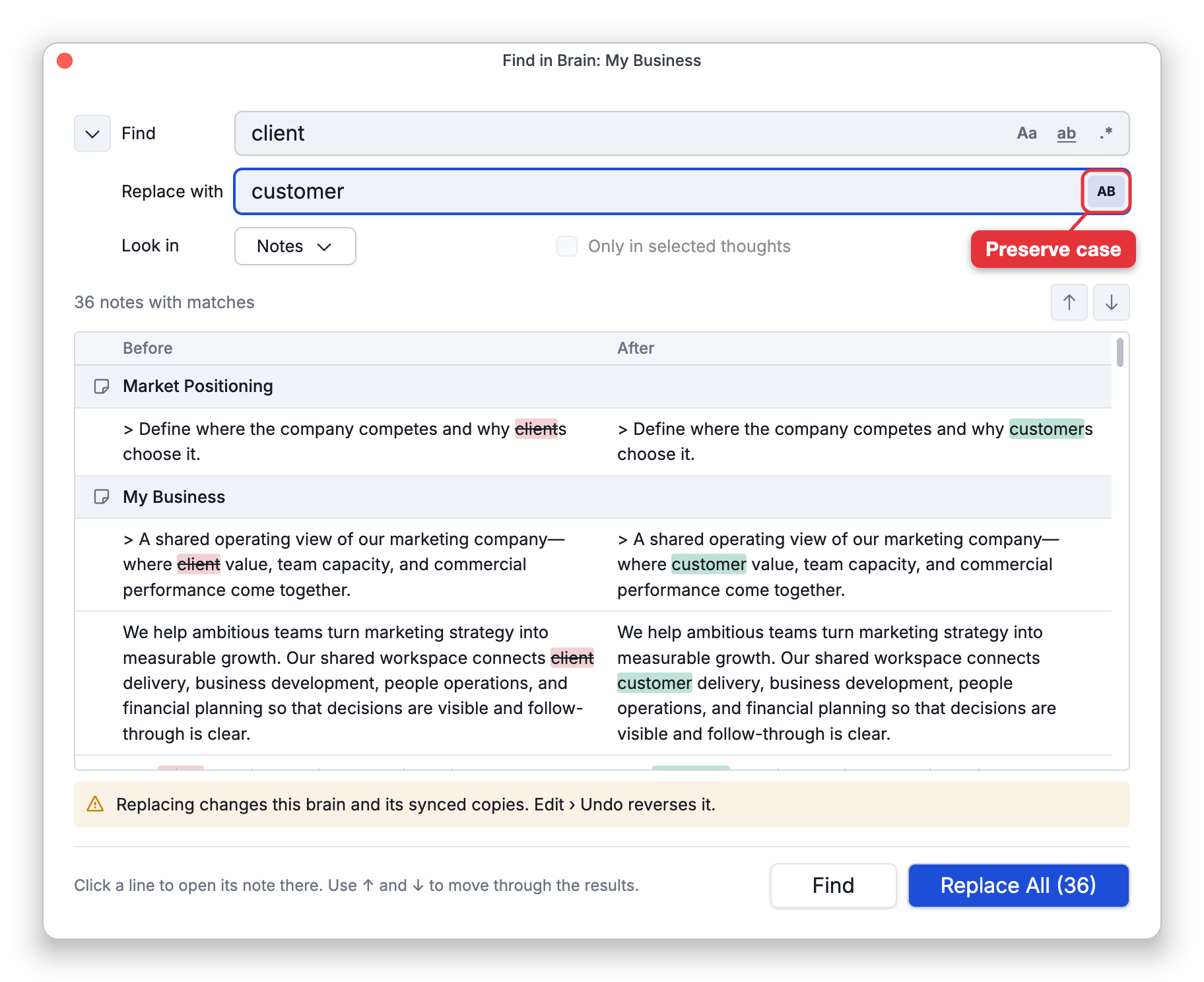
Nothing is changed until you select Replace All. Above it, a reminder says that replacing changes this brain and its synced copies, and that Edit > Undo reverses it: the whole replace is a single undo step, named "Find and Replace". Consider a backup first (see Backup to Brain Archive). When the replace finishes, the dialog closes.
Preserve case, the AB switch at the end of the Replace with box, makes each replacement copy the capitalization of the text it replaces, so "client" becomes "customer" and "Client" becomes "Customer". It is on by default. It is available when Case sensitive is off and you're looking in thought names, thought labels, link labels or notes.
Regular Expressions and the Replacement Text
With Use regular expression on, Find is read as a regular expression in the .NET syntax, and Replace with can reuse what was matched: $1, $2, and so on for numbered groups, ${name} for a named group, and $& for the whole match.
Replace with is read for these substitutions even when Use regular expression is off. If you want a literal dollar sign in the replacement — a price, for example — type $$.
What Each Search Covers
- Thought names and Thought labels — every thought in the brain, including types, tags, and forgotten thoughts.
- Link labels — link type names as well as the labels on links.
- Notes — notes on links as well as notes on thoughts.
- External attachment paths — linked folders as well as linked files.
What Is Left Alone in Notes
When looking in Notes, TheBrain changes the text you read and leaves the parts that make a note work, so a replace does not break links, images or formatting:
- The address of a link or an image — the part in parentheses after the link text — is never changed, and neither is a
brain://thought link. The visible text of a link is replaced like any other text. - HTML tags and comments, such as the ones that color text or align a block, are never changed.
- Inline code and fenced code blocks, including diagrams, are skipped.
Notes are matched one line at a time, so a match cannot run across a line break.
Note Results
When looking in Notes, the results are grouped by note, and the count says how many notes have matches. Each note shows up to five of its matching lines, with a "+N more" row when it has more. Lines are shown as the note stores them, in Markdown. The list shows 100 notes at a time, and Replace All changes every note that was found.
Rows Shown in Red
With Replace shown, an After shown in red is a change that TheBrain will skip, and the message Some results have validation errors and cannot be replaced appears under the results. A change is skipped when the result would be longer than 1,024 characters, or when it would leave a thought name, an external attachment path, or a URL empty. (A thought label or a link label may be emptied.) Every other result is still replaced.
Items Changed After the Find
Replace All changes only what is still as the find saw it. An item that changed after you found it, such as a note you edited in the meantime, is left alone, and the notification that reports the replace says how many items were left as they are. Find again to include them. Notes that are open with unsaved edits are saved first, so those edits count as changes.
- Once you select Replace All, it runs to the end. There is no cancel, and closing the dialog does not stop it: progress carries on in a notification titled Replacing in followed by the brain's name, and a dialog reopened for that brain follows the same run. You can't start another replace in that brain until it finishes.
- Replacing requires write access to the brain; on a read-only brain the replacement will not apply.
- To find and replace within just the note you're editing, use the in-note find bar instead — see Find and Replace in Notes.
- The dialog's title names the brain it looks in. Results can be clicked only while that brain is open in the tab the dialog belongs to; otherwise the dialog says to open the brain in a tab.
- On the desktop app the dialog opens in a window of its own beside the brain window, and the brain stays usable while it is open, so you can change the selection or look at a result. It closes when you close its tab or switch to another tab.
- In a browser the dialog sits over the brain without darkening it, and you can drag it aside. On a phone it fills the screen, and it closes when you tap a result, to show it. On a phone, Find in Brain and Replace in Brain are also on the Actions tab of the panel that the menu button (☰) opens (see Using TheBrain on a Phone).