Brain Themes Overview
Overview
Every brain can look the way you want it to. Open Settings > Brain Theme (or Main Menu > View > Brain Theme...) to browse galleries of ready-made looks and apply one with a click, or to customize the open brain's look element by element. A theme applies only to the brain that is open. Anyone with access to the brain can browse the galleries and manage their own theme library; applying a theme to the brain — and the Customize tabs — require admin rights on that brain.
The Brain Theme Tabs
- Complete Themes — a gallery of paired looks: each entry couples a plex theme with a matching content theme, shown as two thumbnails side by side. Click one to apply both halves at once. You can build your own pairs, swapping either half with the Change button.
- Plex Themes — a gallery of looks for the visual map. Click a card to apply it. See Plex Theme and Wallpaper.
- Customize Plex — edit the open brain's plex colors, wallpaper, fonts, and link style directly. See Plex Theme and Wallpaper.
- Content Themes — a gallery of looks for the notes/content area. See Content Theme.
- Customize Content — edit the brain's current note styling, from body text to headings to callouts. See Content Theme.
- Navigation Theme — the backdrop behind the Cards and Tree views, and the opacity of the cards in Cards view. See Navigation Theme.
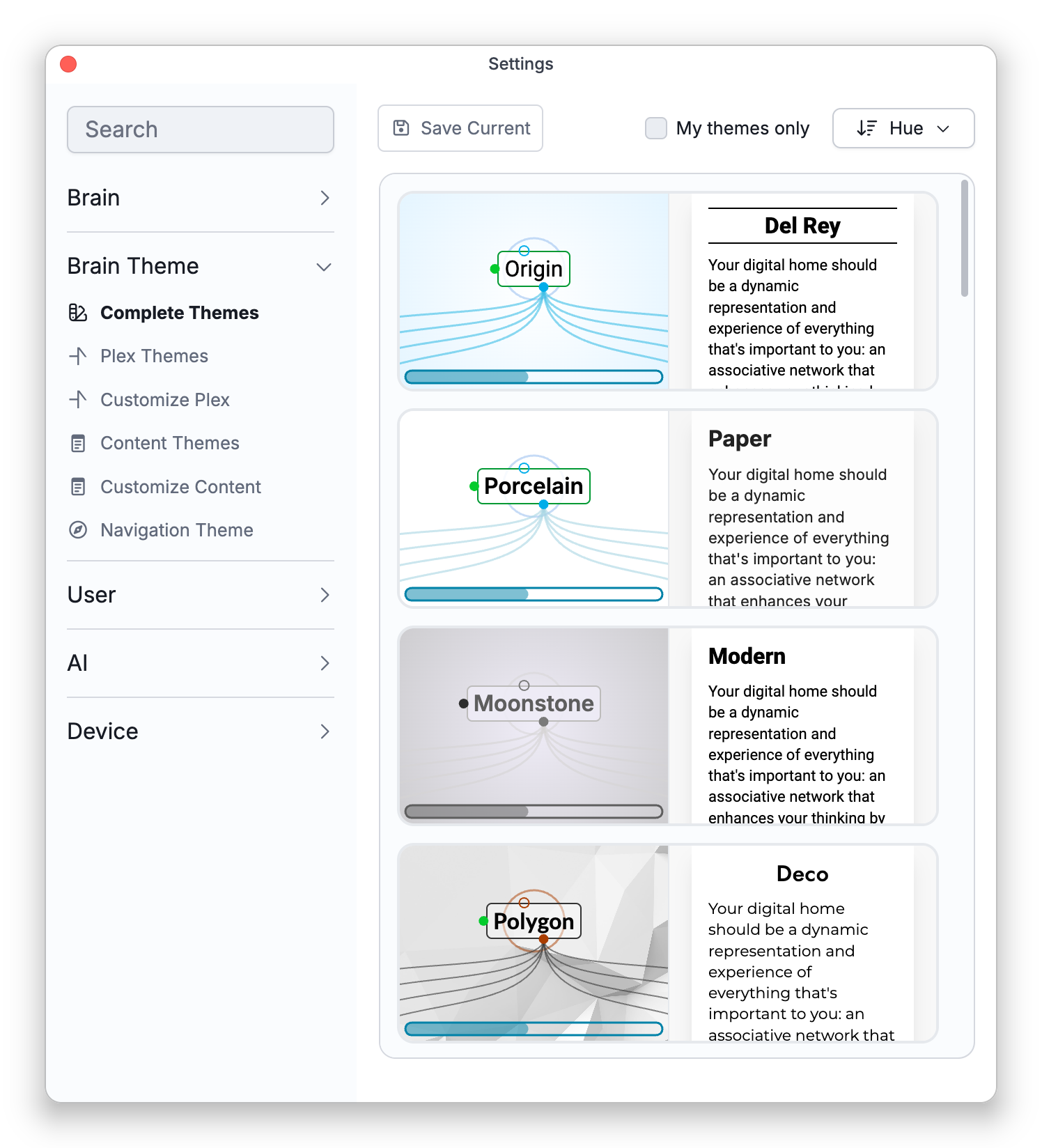
Galleries and Your Theme Library
The galleries mix built-in themes with ones you've saved — yours carry a small badge. A shared sort control orders every gallery by Alphabetical, Brightness, Hue, or Recent, and a My themes only checkbox filters to your own.
When the brain's current look doesn't match any gallery entry, the gallery offers Save Current to keep it as a theme of your own; when it does match, the button becomes Show Selected and scrolls to it. Saved themes belong to your account — they're available in every brain and sync across your devices, the web included.
Undoing Theme Changes
Trying themes is safe, because changes to a brain's theme are brain edits that can be undone. How you undo one depends on how you made the change:
- You applied a theme from a gallery — If you applied a theme from Complete Themes, Plex Themes, or Content Themes while Settings was open, closing Settings shows a Theme changed notification with an Undo button. The notification stays for about 12 seconds. Its Undo takes the brain's plex and content look, wallpaper included, back to what it was before the first theme you applied in that Settings session, so it also reverses any Customize Plex or Customize Content edits you made after that. It does not change the Navigation Theme settings.
- You only edited in Customize Plex, Customize Content, or Navigation Theme — These edits do not show the notification. Each change is recorded as its own step in the brain's undo history, so after you close Settings use Main Menu > Edit > Undo once for each change (the default shortcut is
Ctrl+Z, or⌘Zon Mac), or Undo Multiple Actions to step back through several changes at once. - The notification has gone — Each theme you applied is also a single step in the same undo history, so Undo still steps back through the applied themes one at a time. See Undo and Redo.
The separate UI Theme setting (light/dark for the app's interface) is in General and Appearance. Its Follow Brain Theme option takes the interface's colors from the brain's content theme, not from the plex theme.