Content Theme
Overview
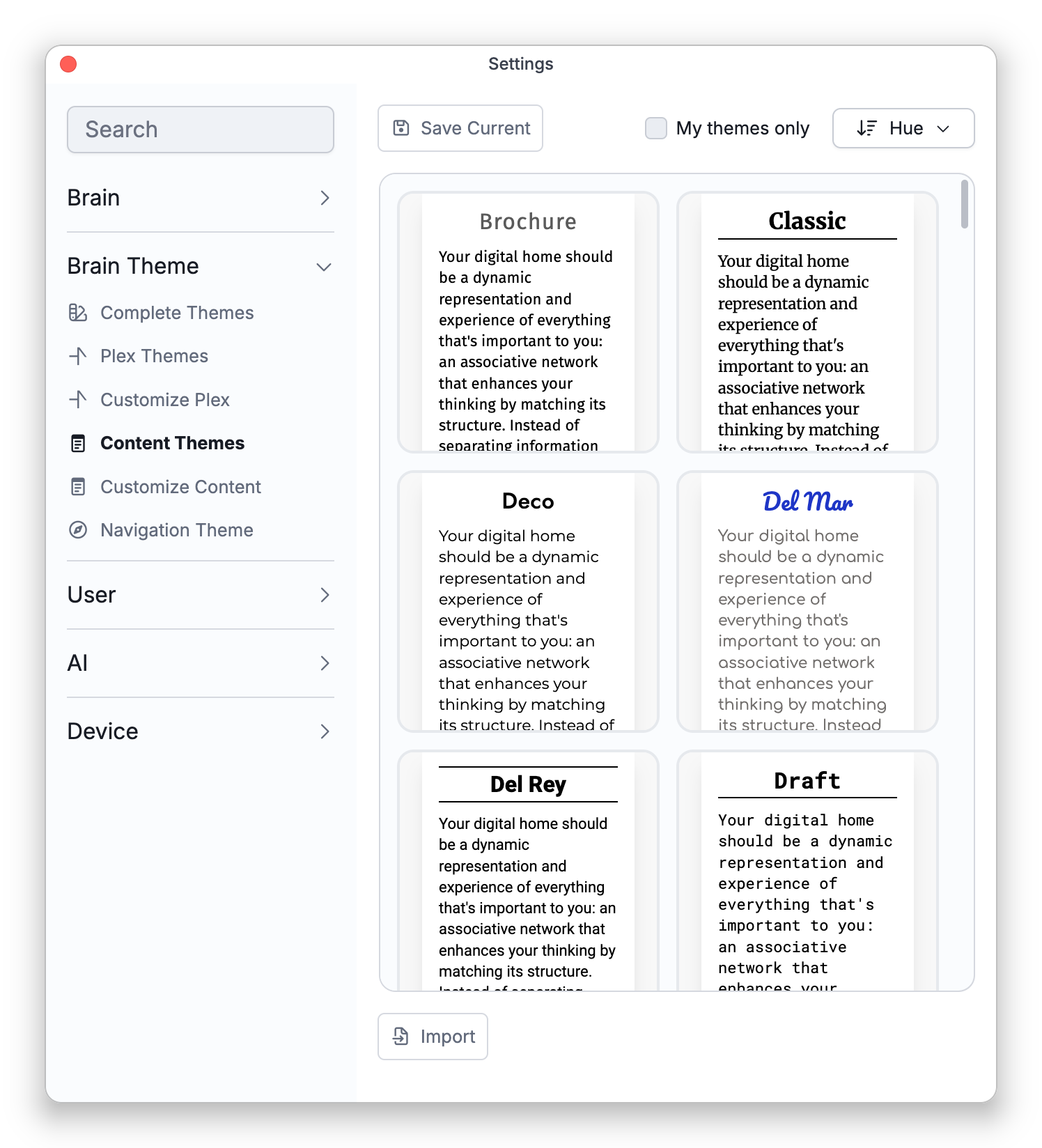
The content theme styles the notes/content area — the background, text, links, and typography of your notes. Two tabs under Settings > Brain Theme cover it: the Content Themes gallery for picking a ready-made look, and Customize Content for fine-tuning the brain's current styling, so your writing reads the way you like across the brain.
Choosing from the Gallery
The Content Themes tab shows dozens of ready-made themes and any you've saved, as live preview cards. Click a card to apply it to the brain (applying needs admin rights on the brain). Sort the gallery by Alphabetical, Brightness, Hue, or Recent, or filter to My themes only. Right-click a card — or use the buttons under the gallery — to Rename or Delete your own themes, Export any theme as an .nstyle file, or Import one.
Customizing the Current Theme
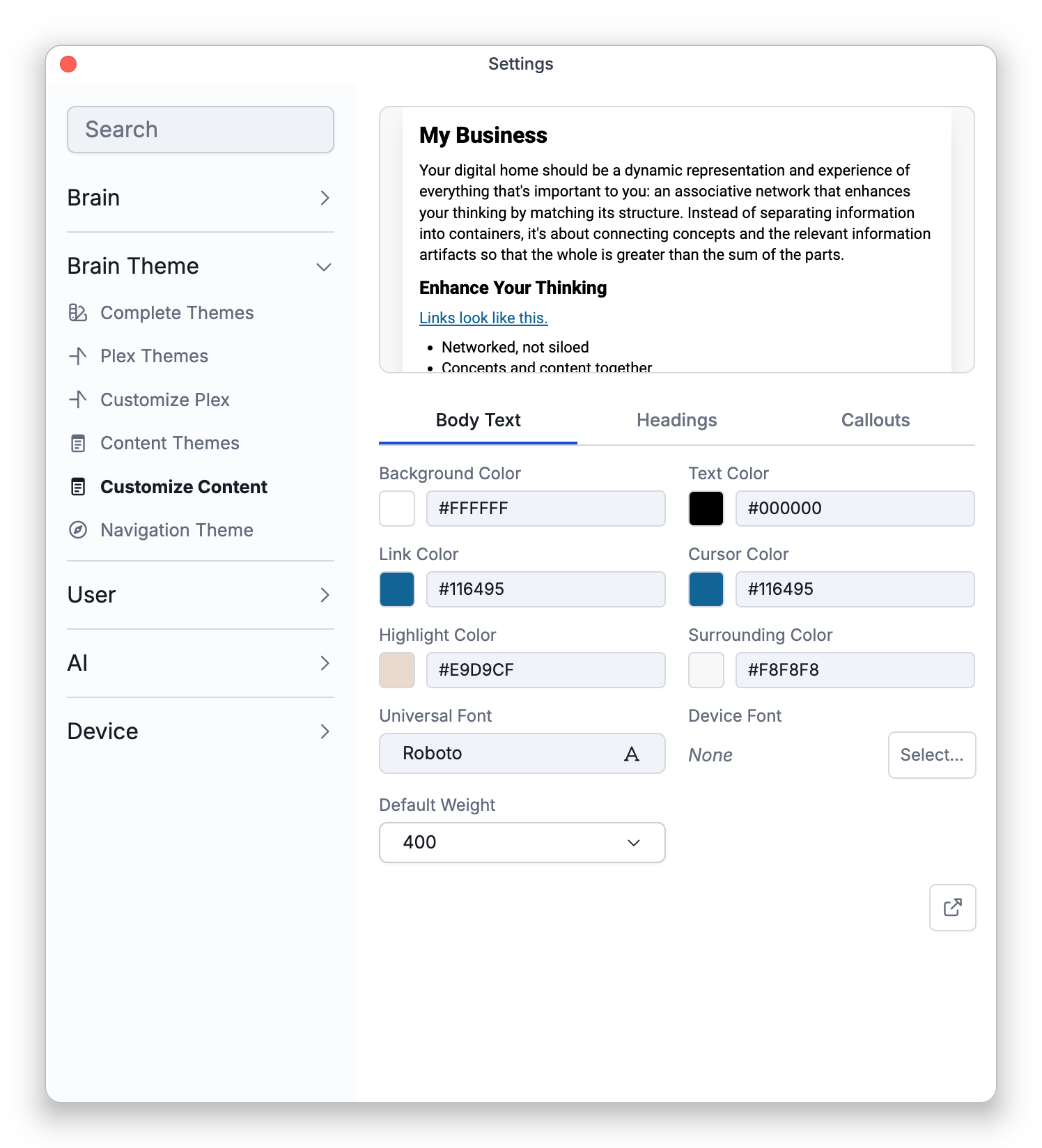
The Customize Content tab shows a live preview beside an editor with three sections:
- Body Text — background, text, link, cursor, and highlight colors; the Surrounding Color (the backdrop around the note page — leave it unset for an automatic shade derived from the background); and the font of your note text — a Universal Font, its Default Weight, and, in the desktop app, an optional Device Font installed on your computer.
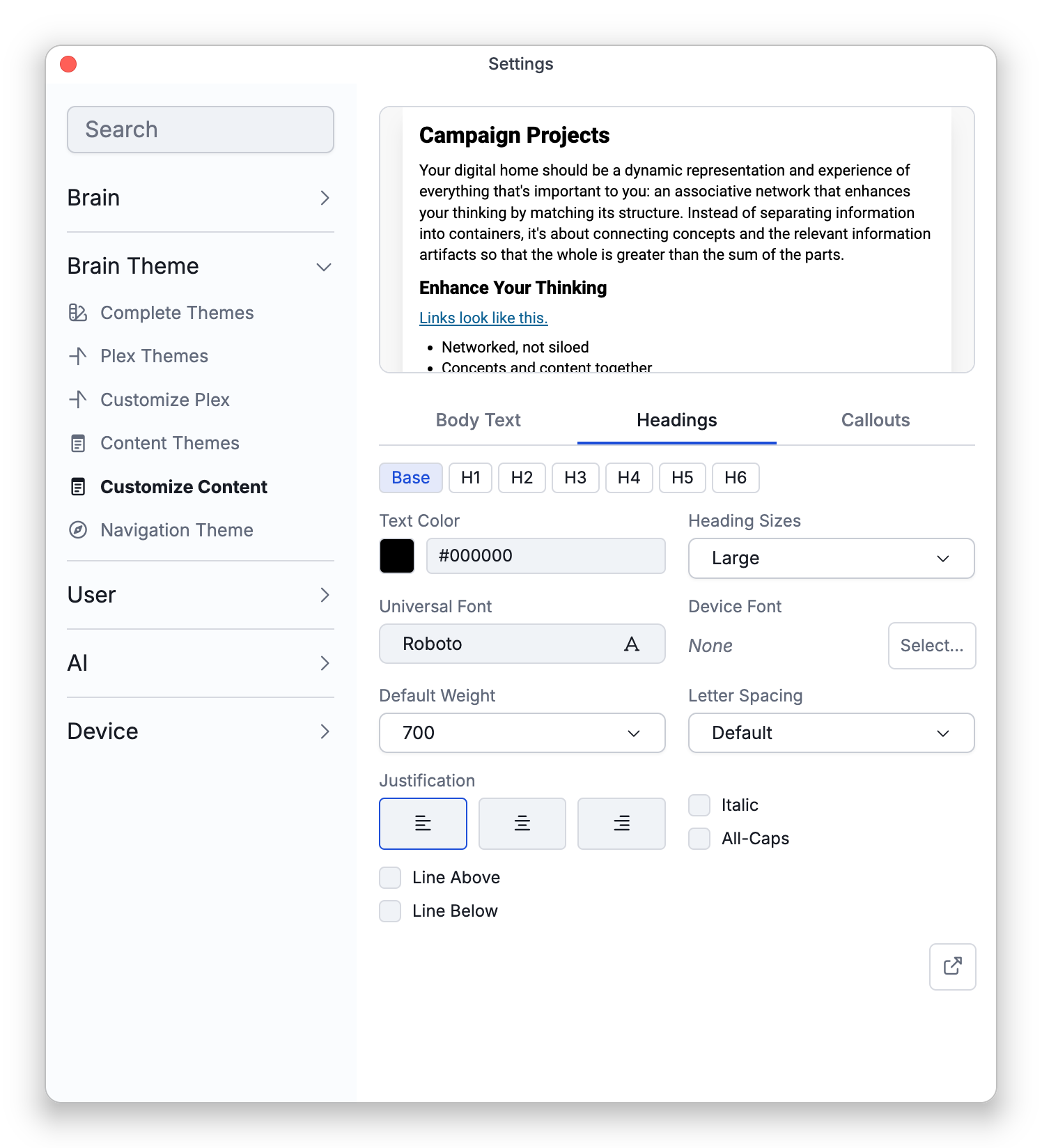
- Headings — typography for headings, either for all of them at once (Base) or per level (H1–H6), plus overall heading sizes.
- Callouts — per-type styling for callout blocks: accent, background, icon, and text colors, the icon itself (standard, emoji, or none), and the callout title style. See Callouts in Notes.
Your edits apply to the brain as you make them. Save Current keeps the result as a theme of your own — if you started from one of your saved themes, saving offers Replace it or Save as New. On everything but phones, a button opens the same editor in a larger dialog, where you can also click any element in the preview to jump to its settings.
How to Change the Font of Your Notes
- Open Settings > Brain Theme > Customize Content. This tab needs admin rights on the brain.
- Under Body Text, use Universal Font to pick the font for your note text, and Default Weight to make it lighter or heavier.
- To give headings a font of their own, go to Headings, choose Base for all headings or one level (H1–H6), and pick its Universal Font.
The font is part of the brain's content theme, so it applies to the notes of the whole brain, not to a single note. Applying another theme from the Content Themes gallery replaces the fonts along with the rest of the note styling.
Universal Font and Device Font
Every font in Customize Content, for body text and for headings, is set with a Universal Font, and you can also give it a Device Font.
- Universal Font — A font from the Google Fonts library. TheBrain downloads it when it's needed, so your notes look the same on every computer, phone and browser.
- Device Font — A font that is already installed on the computer you're using, such as one that came with the operating system, one you bought, or your organization's own font. A device that has this font installed shows your notes in it. A device that doesn't have it shows the Universal Font instead.
A device font has advantages:
- More choice — You can use fonts that the Universal Font list doesn't offer, such as fonts that come with macOS or Windows, fonts you've bought, or a brand font your organization uses.
- Nothing to download — The font is already on the computer, so notes don't wait for it to download.
It also has drawbacks:
- Not everyone sees it — Your phone, your other computers, and the people you share the brain with see the Universal Font unless the same font is installed on their device.
- Notes look different from device to device — Fonts differ in width and spacing, so where lines wrap and how long a note looks change with the font.
- Desktop only to choose — You can choose a device font only in the desktop app.
If your notes need to look the same everywhere, use only a Universal Font. If you use a device font, pick a Universal Font that looks similar to it, so that devices without the device font show something close.
To choose a device font:
- In the desktop app, open Settings > Brain Theme > Customize Content.
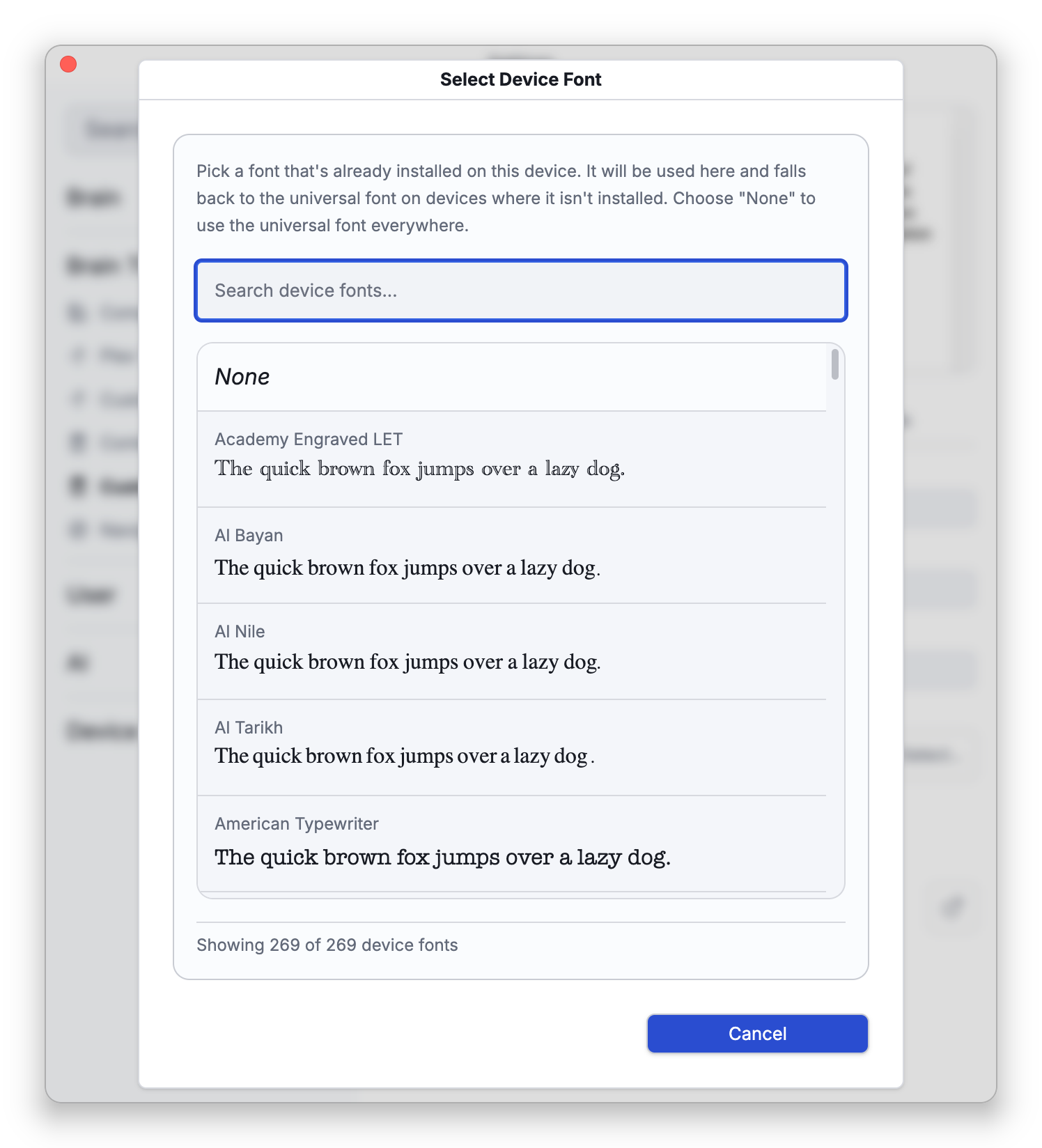
- Under Body Text, select Select... beside Device Font. For headings, go to Headings, choose Base or one level, and select Select... there.
- Find a font by typing part of its name into the search box, or scroll the list. Each font shows a sample sentence written in it.
- Click the font to use it. None goes back to the Universal Font everywhere.
To stop using a device font, select the × (Clear) button beside its name.
- The content theme styles the notes area; the map is styled separately by the plex theme (see Plex Theme and Wallpaper), and ready-made pairings of the two live on the Complete Themes tab.
- Importing and exporting themes works on every platform, including the web. Plex themes use
.BrainThemefiles. - Line spacing and Line gap are not part of the content theme. They are settings of the brain, on the Notes tab of Settings > Brain > Content Settings — see Brain Content Settings.