Plex Theme and Wallpaper
Overview
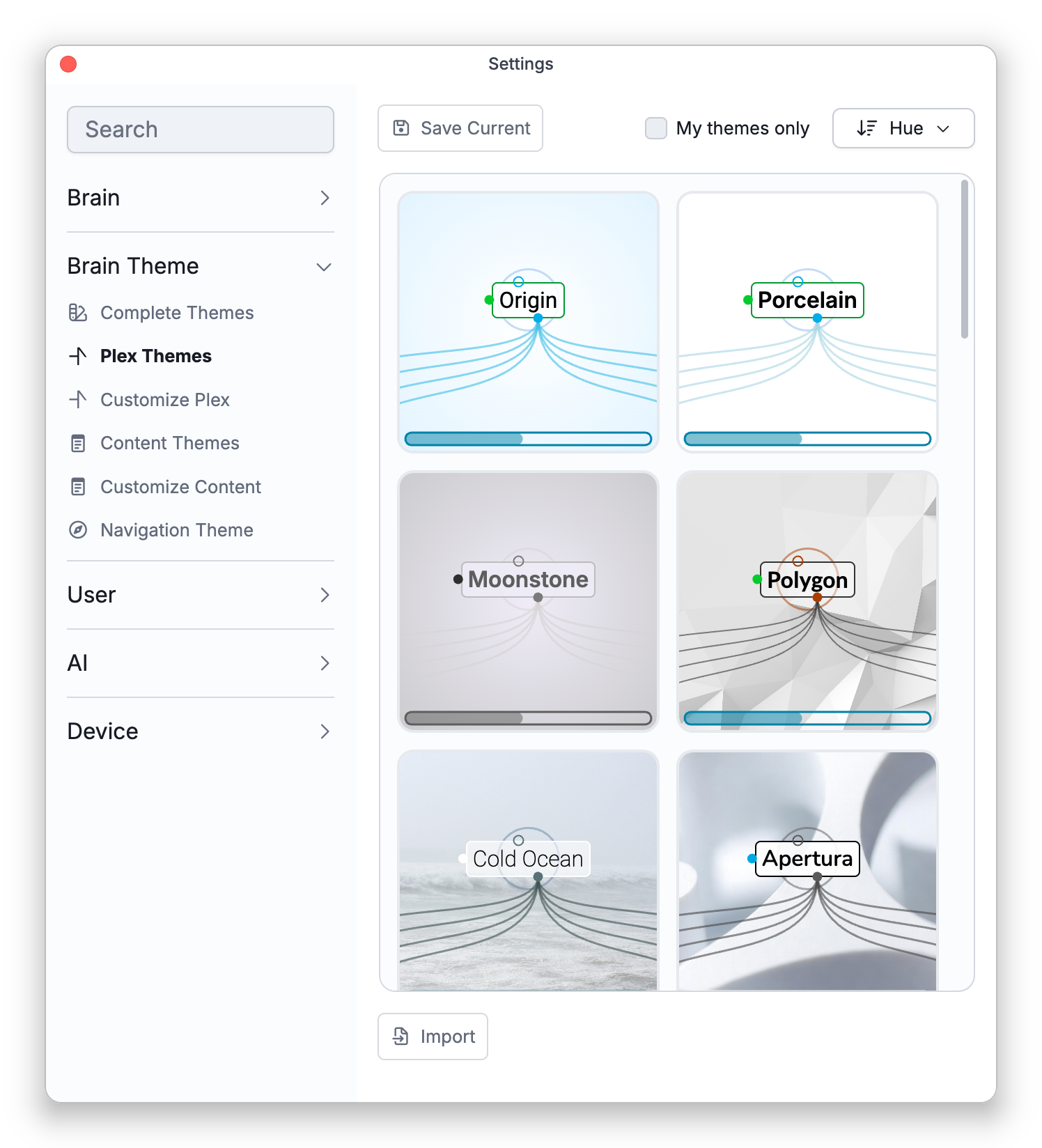
The plex theme controls how the visual map looks — the colors of thoughts, links, and gates, the background behind them, the fonts, and how connections are drawn. It's the most visible part of a brain's look, so it's where most personalization happens. Two tabs under Settings > Brain Theme cover it: the Plex Themes gallery for picking a ready-made look, and Customize Plex for editing the open brain's settings directly.
Choosing from the Gallery
The Plex Themes tab shows ready-made themes and any you've saved, as preview cards. Click a card to apply it to the brain (applying needs admin rights on the brain). Right-click a card — or use the buttons under the gallery — to Rename or Delete your own themes, Export any theme as a .BrainTheme file, or Import one. Save Current keeps the brain's current plex look as a theme of your own. A theme's wallpaper travels with it and syncs across your devices.
Applying a plex theme replaces the brain's whole plex look, not only its colors: the plex colors, the universal font and the device font, the font weight, the wallpaper and its alignment, the background gradient, the fill opacity, and the link thickness, opacity, and style. If the theme has no wallpaper, the brain's current wallpaper is removed — several of the built-in themes have none. An older theme file may not carry the weight, gradient, opacity, or link settings; applying one leaves those as they are. The content theme is not touched unless you apply a pair from Complete Themes, and the Navigation Theme settings are not part of any theme, so applying one leaves them as they are. To keep the look you have now, use Save Current before you apply another theme. Each apply is a single undo step — see Brain Themes Overview for how to undo theme changes.
What You Can Set in Customize Plex
Customize Plex has four tabs:
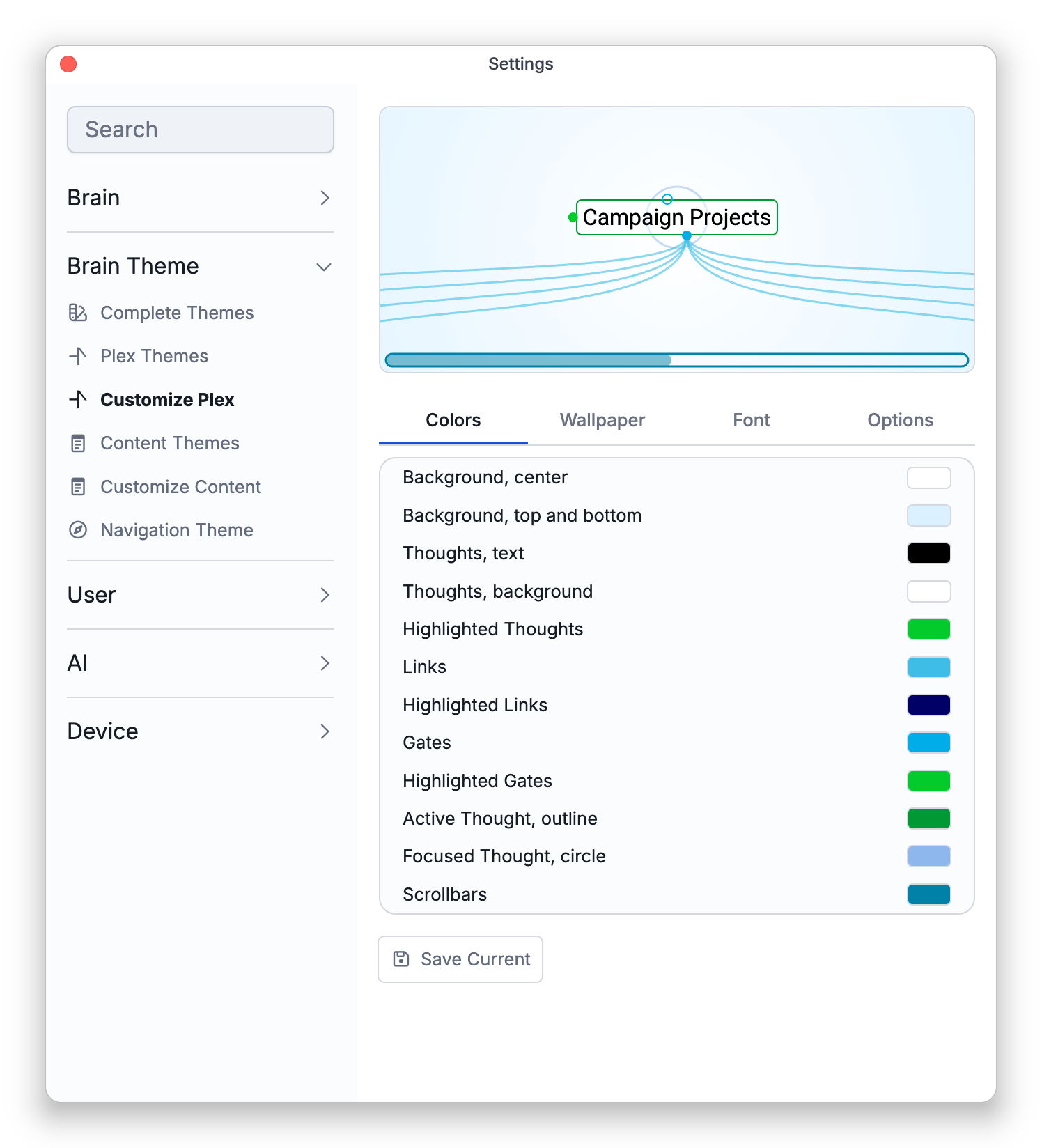
- Colors — Individual colors for the background (center and edges), thought text and background, highlighted and active thoughts, links, gates, the focused-thought circle, and scrollbars.
- Wallpaper — Upload an image (PNG/JPG) to sit behind the Plex, with horizontal and vertical alignment. (The background colors are hidden while a wallpaper is set.) See How to Set, Change, or Remove the Wallpaper below.
- Font — Choose a universal font (downloaded automatically so it looks the same everywhere) and set its weight. In the installed desktop app, but not the web app, you can also pick a device font installed on your machine, which falls back to the universal font where it isn't available.
- Options — The Background Gradient behind the map (Radial or Horizontal), the Fill Opacity of thoughts, and how links are drawn: their Thickness, Opacity, and Style (Curved or Straight). See How to Make Links Straight, Thicker, or Fainter below.
How to Set, Change, or Remove the Wallpaper
- Open Settings > Brain Theme > Customize Plex and choose the Wallpaper tab. Customize Plex needs admin rights on the brain.
- Click Add Wallpaper and pick a PNG or JPG image. It becomes the background image behind the brain's Plex.
- Once a wallpaper is set, the tab shows Change and Remove in place of Add Wallpaper. Change picks a different image; Remove takes the wallpaper away and brings back the background colors and gradient.
The wallpaper always fills the whole Plex and keeps its proportions, so whatever part of the image doesn't fit the shape of the Plex area is cropped. Horizontal Align (Left, Center, or Right) and Vertical Align (Top, Center, or Bottom) choose which part of the image stays in view. Center is the default for both; the brain keeps the alignment it was last given, even after its wallpaper is removed.
The More Actions menu beside these buttons offers Copy Wallpaper once a wallpaper is set and, in the installed apps, Paste Wallpaper.
How to Make Links Straight, Thicker, or Fainter
- Open Settings > Brain Theme > Customize Plex and choose the Options tab. Customize Plex needs admin rights on the brain.
- Under Links, set Style to Curved (the default) or Straight.
- Drag Thickness to make links thinner or thicker, from 0.5 to 5 px, and Opacity to make them fainter or stronger, from 0 to 100%.
- Under Thoughts, Fill Opacity (0 to 100%) sets how solid the background of each thought is.
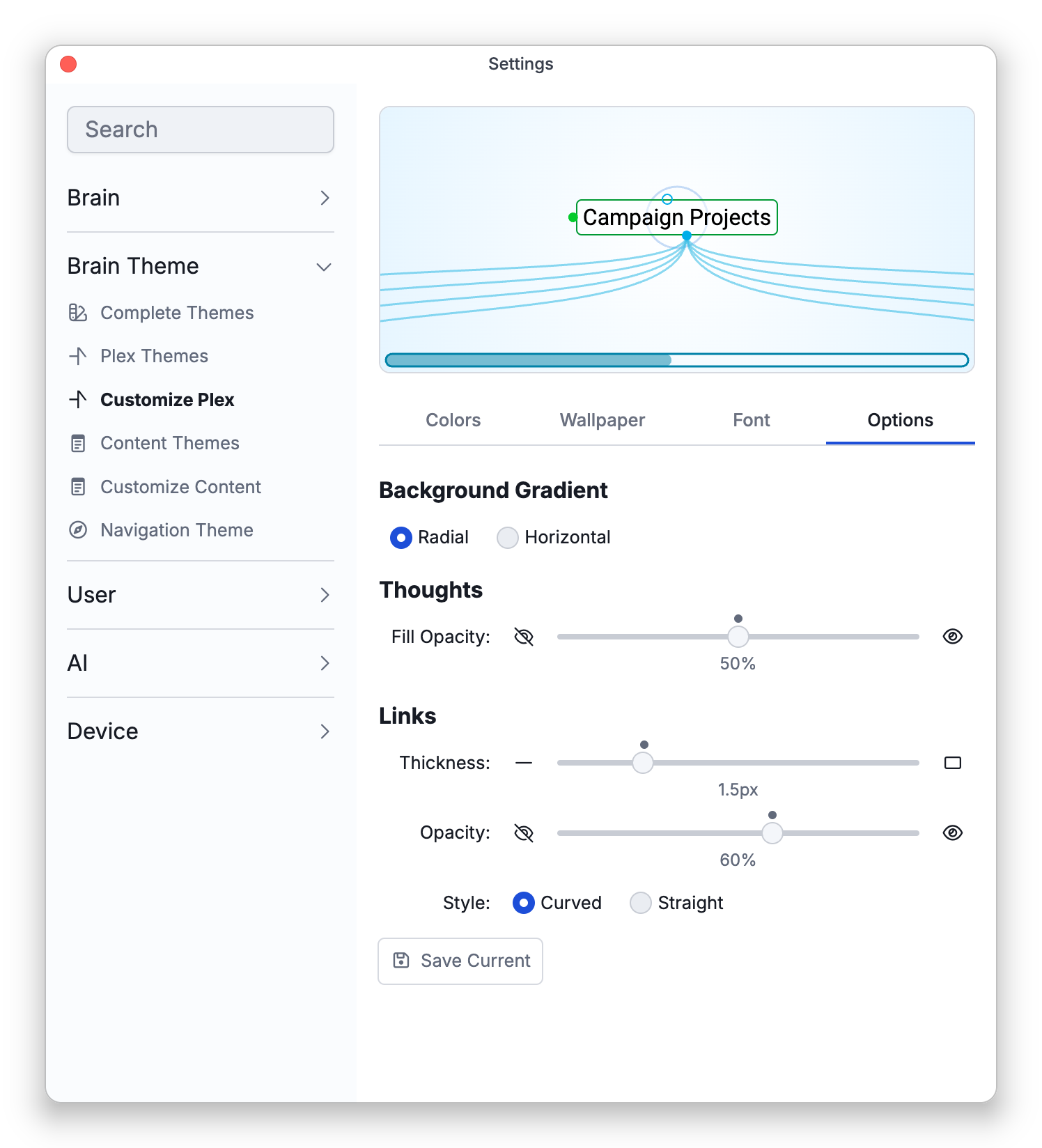
A small dot above each slider marks its default: 1.5 px for link thickness, 60% for link opacity, and 50% for fill opacity. These settings are part of the brain's plex theme, so they change the brain for everyone who uses it.
Dynamic and Pasted Wallpaper
Beyond the single Plex wallpaper above, there are two more ways to set a background:
- Dynamic Wallpaper (per type) — Give a type its own wallpaper so that, whenever a thought of that type is the active thought, the Plex background switches to that image and then reverts as you navigate away. Set it from the type's menu with Set Dynamic Wallpaper (you upload an image), and clear it with Remove Dynamic Wallpaper. See Thought Types.
- Paste Wallpaper — If you've copied an image to your clipboard, right-click the Plex and choose Paste Wallpaper to set it as the brain's wallpaper directly. (It uses your device's clipboard, so it's on the installed apps.)
- Customize Plex also carries a Save Current row: when your edits started from one of your saved themes, saving offers Replace it or Save as New. Very large wallpaper images are compressed when a theme is saved.
- Ready-made pairings of a plex theme with a matching content theme live on the Complete Themes tab — see Theme Templates and Complete Themes.