Timeline and Calendar
Overview
The Timeline is TheBrain's calendar view. It comes in two presentations: the Timeline Bar, a horizontal strip of your events along the bottom of the brain page, and the Day Navigator, a side panel with a scrollable list of your events grouped by day and an optional mini month calendar at the top. It's where you see what's coming up and jump to any date.
Opening the Timeline
Click the Timeline button in the tools panel, alongside the other side panels (AI Chat, To Do List, and Report). By default it opens the Timeline Bar, a strip along the bottom of the brain page — not the side panel.
To get the panel with the calendar and the day-by-day list instead, click Switch to Day Navigator in the bar. In the Day Navigator, Switch to Timeline Bar in the header takes you back to the bar.
Whichever one you switch to becomes the one the Timeline button opens from then on. The same choice is the Timeline style setting under Settings > User > Options, which offers Timeline bar (the default) and Day navigator panel. Changing the setting while the Timeline is open swaps it on the spot. See Options Settings.
The Day Navigator panel shows:
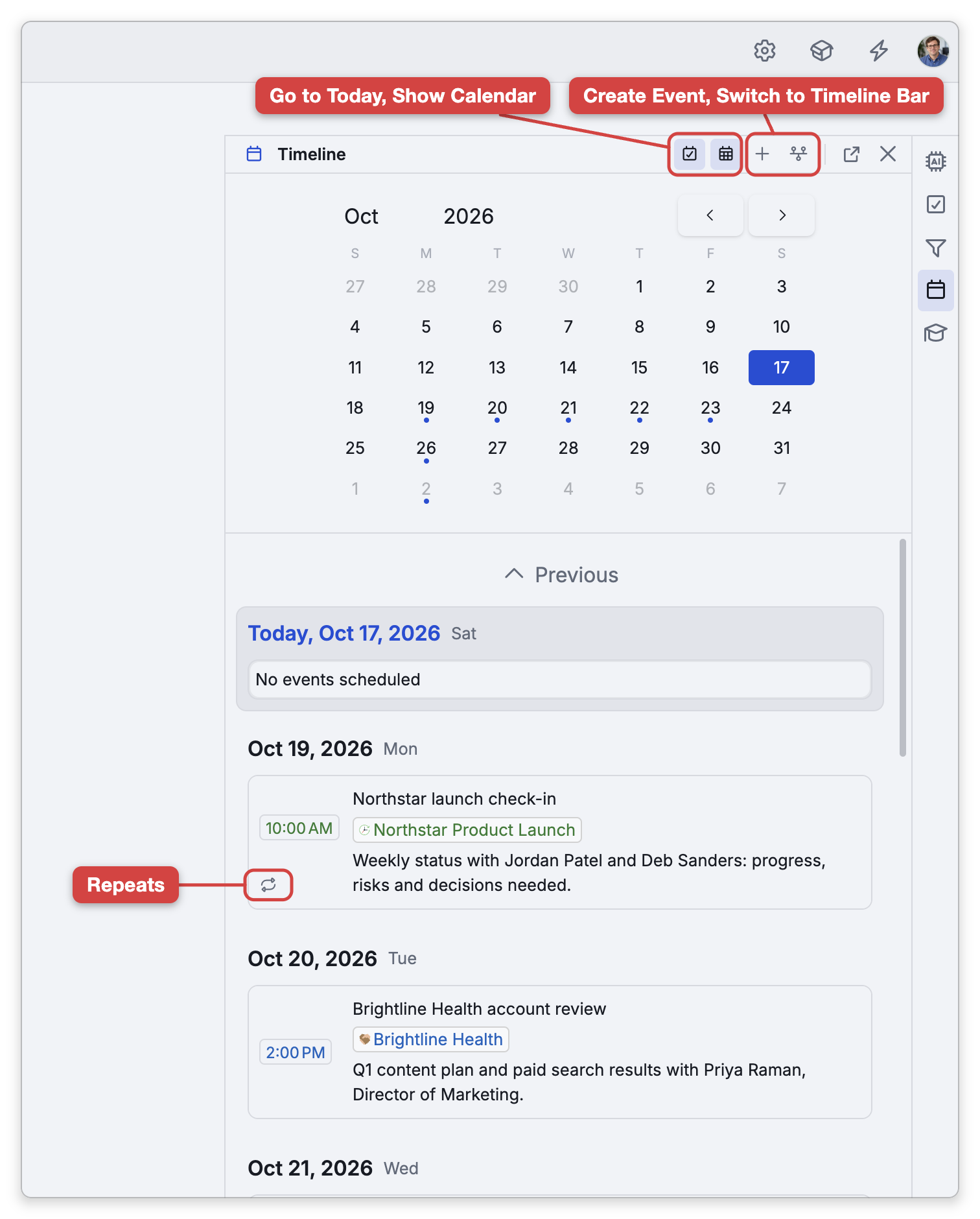
- A mini calendar at the top (toggle it with Show Calendar), marking days that have events. The mini calendar, the first day of the week (Auto, Monday, or Sunday) and week numbers are also set under Settings > User > Options (see Options Settings).
- A day-grouped list of events below, which you scroll through by date.
Moving Around
In the Day Navigator:
- Go to Today jumps the list and calendar back to the current day.
- Click a day in the mini calendar to focus the list on that date.
- Days with nothing scheduled show No events scheduled.
When the Timeline is wide enough — for example in a wide floating window — the calendar sits on the left and the days scroll beside it, instead of the days appearing below the calendar.
The Timeline Bar
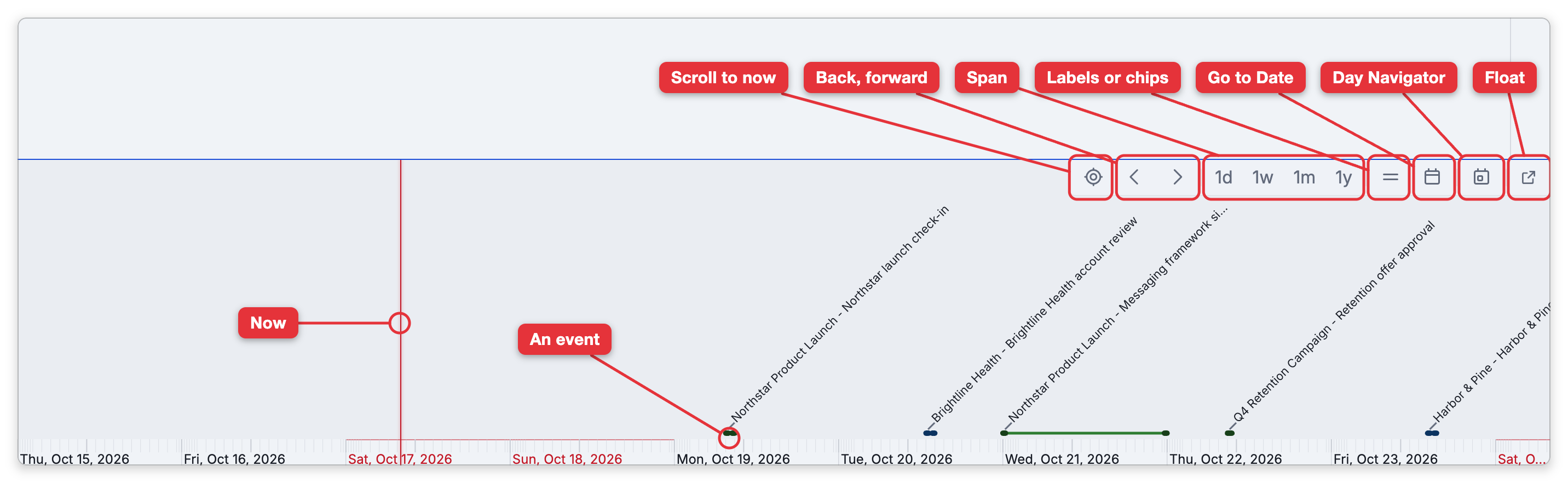
The Timeline Bar is a horizontal strip of your events along the bottom of the brain page, which you can make taller or shorter by dragging its top edge. The date and time scale runs along the bottom of the bar, and your events are drawn above it. The buttons in the bar's top-right corner, from left to right:
- Scroll to Now — Brings the current time into view.
- Scroll Back and Scroll Forward — Move through time.
- 1d, 1w, 1m and 1y — Show a day, a week, a month or a year across the bar.
- Switch to Event Chips / Switch to Flag Labels — Draws each event as a chip along the scale, as long as the event lasts, or as a slanted flag with its thought's name and its summary (the default). On a phone the bar always uses chips.
- Go to Date... — Opens a calendar for jumping to a day.
- Switch to Day Navigator — Changes to the side panel.
- Open in separate window — Floats the Timeline (see Floating the Timeline below).
On phones the bar isn't docked along the bottom of the brain page; the same horizontal timeline opens in a sheet instead, as described under The Timeline on Phones below.
Creating, Moving, and Zooming in the Timeline Bar
The Timeline Bar has no Create Event button. You work on the bar directly:
- Create an event — Click the date and time scale along the bottom of the bar to start a new event at that time, or drag along the scale to cover a range of time. The event dialog opens with those times filled in. A click starts a one-hour event; when the bar is zoomed out so far that it works in whole days, it starts an all-day event.
- Go to an event's thought — Click an event. If the event has no thought, or its thought is already the active thought, the event dialog opens instead.
- Move an event to another time — Drag it left or right. For a repeating event, only the occurrence you drag is moved.
- Edit, set a reminder, or delete — Right-click an event and choose Edit Event, Set Reminder, or Delete Event.
- Zoom — Roll the mouse wheel, or drag up or down in the bar with the mouse.
- Scroll through time — Drag left or right on an empty part of the area above the scale, or scroll sideways.
- On a touch screen — Drag to scroll and pinch to zoom. To move an event, press and hold it and then drag; press and hold and then let go to open its menu.
When you zoom out very far, events are no longer shown; zoom in again to see them.
The Timeline on Phones
On a phone there are two ways to see the Timeline:
- The sidebar's Timeline tab shows the Day Navigator — the mini calendar and the day-by-day list.
- More Actions > Timeline on the action bar opens the horizontal timeline in a sheet titled Timeline. You can pin Timeline to the action bar like any other button.
In the sheet, drag to scroll through time and pinch to zoom. Tap an event for a card with Go to Thought (when the event has a thought) and Edit; going to the thought closes the sheet. Press and hold an event and then drag to move it, or let go to open its menu. Tap the date scale to start a new event.
Floating the Timeline
The Timeline can float instead of staying in the sidebar: click Open in separate window in its header, or in the Timeline Bar's top-right corner. It floats as one tool, so switching between the Day Navigator and the Timeline Bar keeps it floating; when the Timeline Bar floats, its buttons move into the window's header. See Floating Tools Panels.