Floating Tools Panels
Overview
The brain page's tools sidebar holds five tools: AI Chat, To Do List, Report, Timeline, and Interactive Tutorials. Normally one of them shows in the sidebar at a time. Any of them can instead float, so you can keep several open at once and put each one where you want it.
In the desktop app, each floating tool opens in a window of its own, which you can move outside the brain window or onto another display. On the web, a floating tool floats over the page: drag it by the empty part of its header and resize it from its edges and corners. Tools don't float on phones.
How to Float a Tool
- Open the tool from the sidebar's toolbar (or from Main Menu > View).
- Click Open in separate window near the right end of the tool's header, just before its Close button.
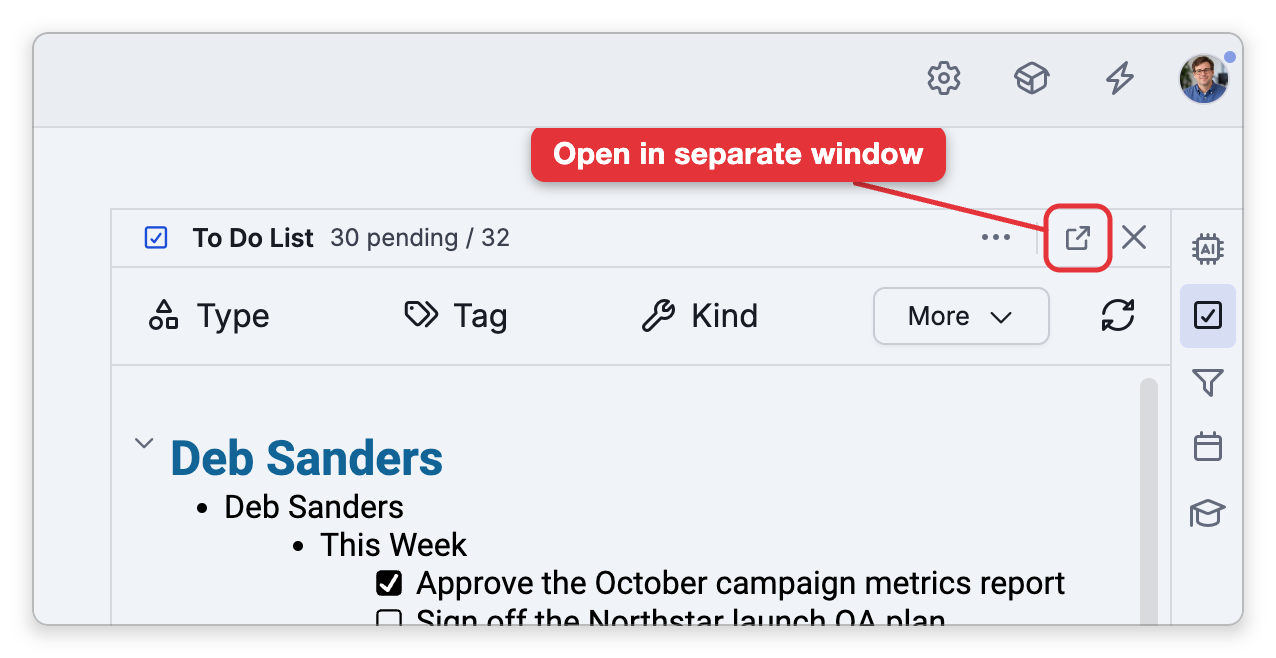
You can also choose Float Panel from Main Menu > View (on a Mac, also in the menu bar under View > Panels). It floats the tool shown in the sidebar.
The tool leaves the sidebar, and the sidebar closes. While a tool floats, its button in the sidebar's toolbar shows a dot; clicking the button brings the floating tool to the front, or closes it if it's already in front.
How to Dock a Tool
Click Dock to sidebar in the floating tool's header (in the same place as the float button). The tool goes back into the sidebar, in place of whichever tool was showing there. Main Menu > View > Dock Panel (the same menu item as Float Panel, renamed when it will dock) does the same for the floating tool you're working in, or, when the sidebar shows no tool, for the floating tool in front.
Closing a Floating Tool
Closing a floating tool — with its Close button on the web, or its window's close button in the desktop app — hides it but doesn't dock it. The next time you open that tool, it opens floating again, where it was. To return it to the sidebar, dock it instead.
The Timeline Floats as One Tool
The Timeline floats as a single tool that shows either the Day Navigator or the Timeline Bar. Switching between them with Switch to Timeline Bar or Switch to Day Navigator keeps it floating. The Timeline Bar, when docked along the bottom of the brain page, has its own Open in separate window button; when it floats, its buttons move into the window's header, and docking it returns it to the bottom of the page.
Floating Tool Windows in the Desktop App
In the desktop app, a floating tool's window can be moved and resized, and it stays in front of its brain window. Its only window button is the close button: it can't be minimized, maximized or made full screen, and Esc doesn't close it.
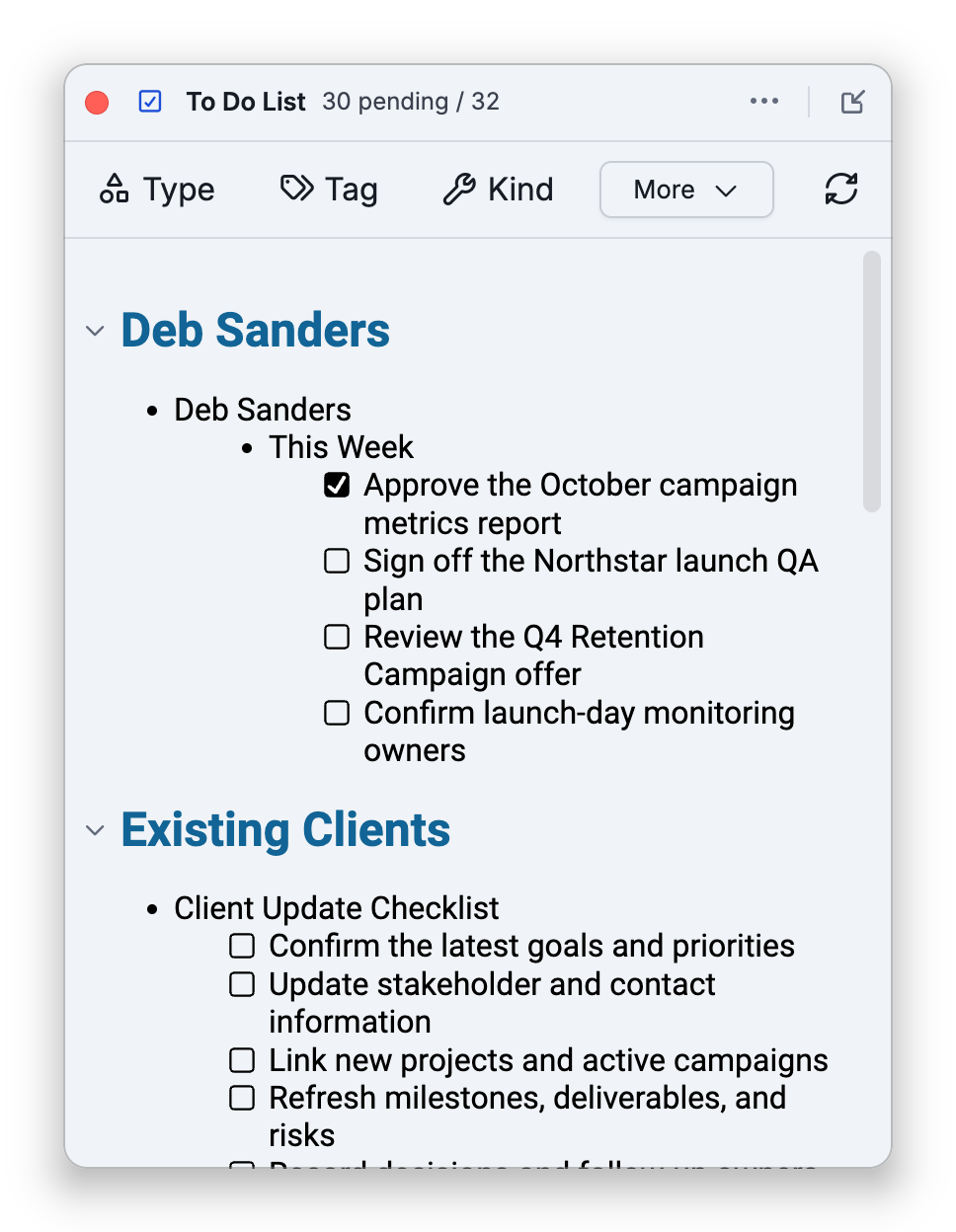
The window belongs to its brain tab, so it shows only while that brain is in front:
- It hides when you switch to another tab, bring another brain window to the front, or minimize its brain window. It comes back, where it was, when you return to that brain. That is why a floating tool seems to disappear when you click another brain window.
- It stays showing when you switch to another app, so you can keep AI Chat beside a browser. It isn't kept above the other app's windows, though, so they can cover it.
- It closes when you close the tab.
Reset Window Positions
Reset Window Positions... in Main Menu > File (on a Mac, in the menu bar's Window menu) closes floating windows and forgets where they were. It asks whether to reset For this brain (offered when a brain is open in the current tab) or For all brains. For the brains you choose, every open tab closes its floating tools, docks its floating content area, and forgets their window positions, so the next time you float something it opens in its default place. Your brain windows themselves stay where they are.
- Which tools float, which are open, and where they are is remembered for each brain on each device, and isn't synced. If a brain is open in more than one tab, each tab keeps its own arrangement.
- In the desktop app, the notes and attachments of the active thought can float too — see Floating the Content Area.
- A tool you can't open (for example AI Chat when AI is turned off) can't float either.