Selecting Multiple Thoughts
Overview
Most actions in TheBrain work on one thought, but you'll often want to do the same thing to many at once — tag a dozen thoughts as "Important", link a group under a new parent, or forget a batch you're done with. Selecting multiple thoughts lets you act on all of them together.
How to Select Thoughts
- Add to a selection — Hold
Ctrl(⌘on Mac) and click two or more thoughts in the Plex. Selected thoughts get an animated dashed outline. - Rubber-band select — Hold
Ctrl(⌘on Mac) and drag across empty Plex space to draw a rectangle around several thoughts. - Select through a gate — Hold
Ctrl(⌘on Mac) and click a thought's gate to select every thought linked to it through that gate. If any of them is already selected, the same click takes them all out of the selection instead. - On a touch screen — Clicking with a key held and the rubber band need a mouse and keyboard, so choose Add to Selection from a thought's right-click menu instead.
- From search results — Run a search, then use the More Actions (…) button on the Thoughts and Links or Notes and Attachments header of the results and choose Add Results to Selection (or Remove Results from Selection) to add or remove everything in that section at once — see Finding and Creating Thoughts.
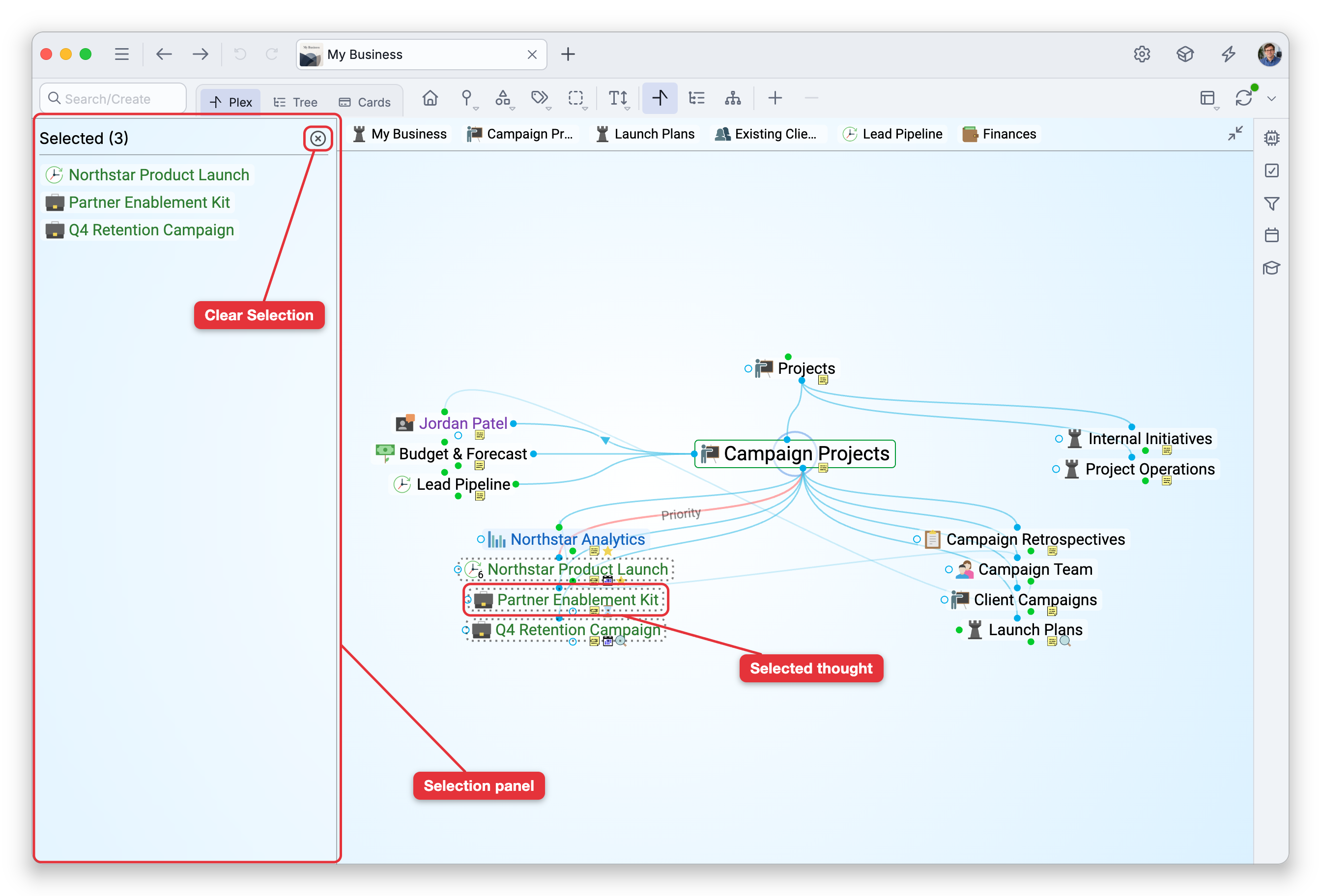
- Selection panel — Once you've selected thoughts, a selection panel appears listing them, so you can see and manage what's selected.
- Clear Selection empties it again.
Select Related
Rather than clicking each one, Select Related… builds a selection by relationship. In the Select Related Thoughts dialog you can:
- Choose a Direction — child, parent, and/or jump thoughts.
- Set how far to reach — up to N click(s) away from the active thought.
- Exclude thoughts with other parents, and choose whether to include the active thought, types, and tags.
- Add to or remove from the current selection.
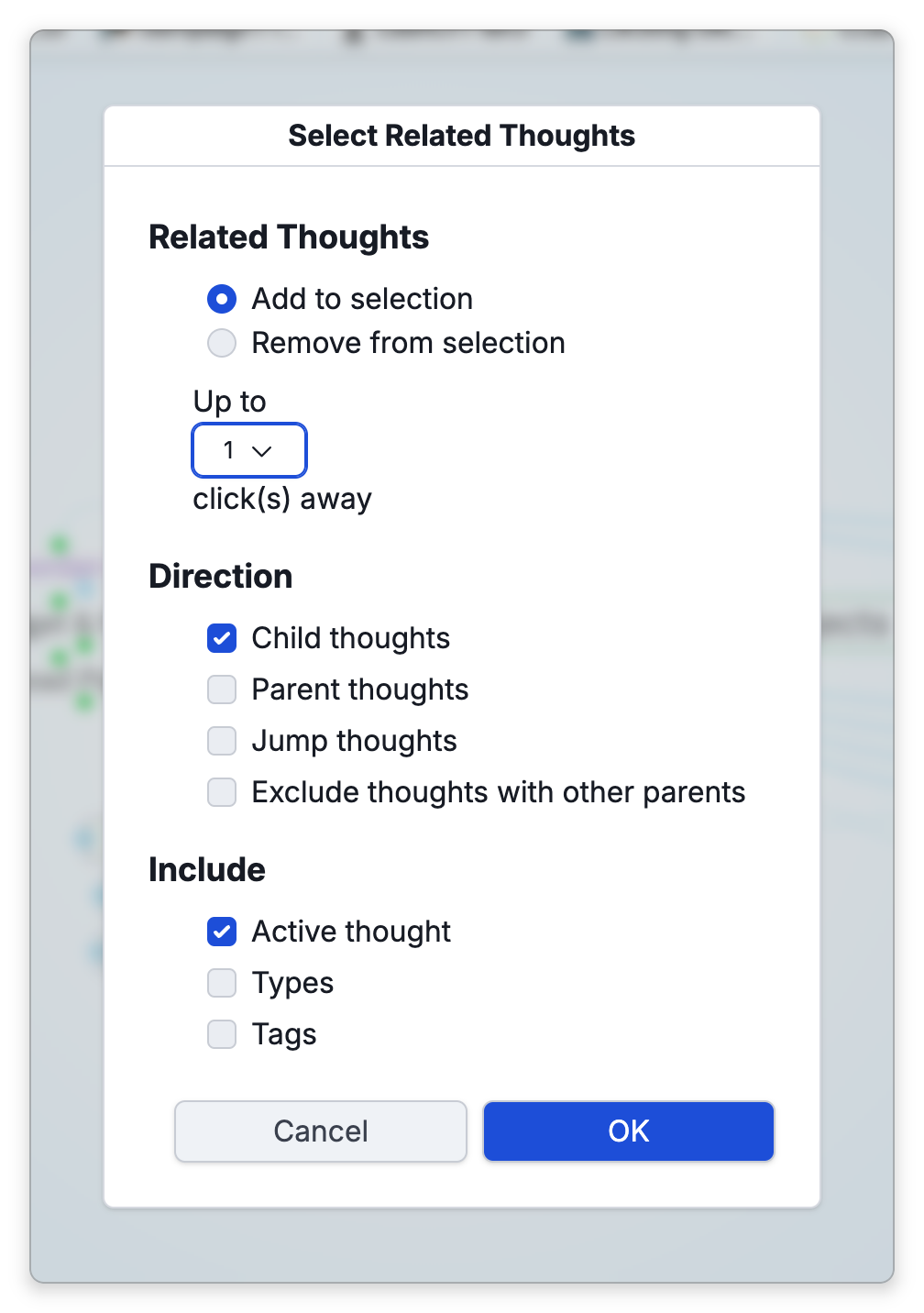
The dialog remembers the options you last used to select, and they follow your account to your other devices. Canceling leaves the remembered options as they were.
Acting on a Selection
With thoughts selected, the selection panel appears on the left side of the Plex and lists them. (On phone-width screens the panel is hidden.)
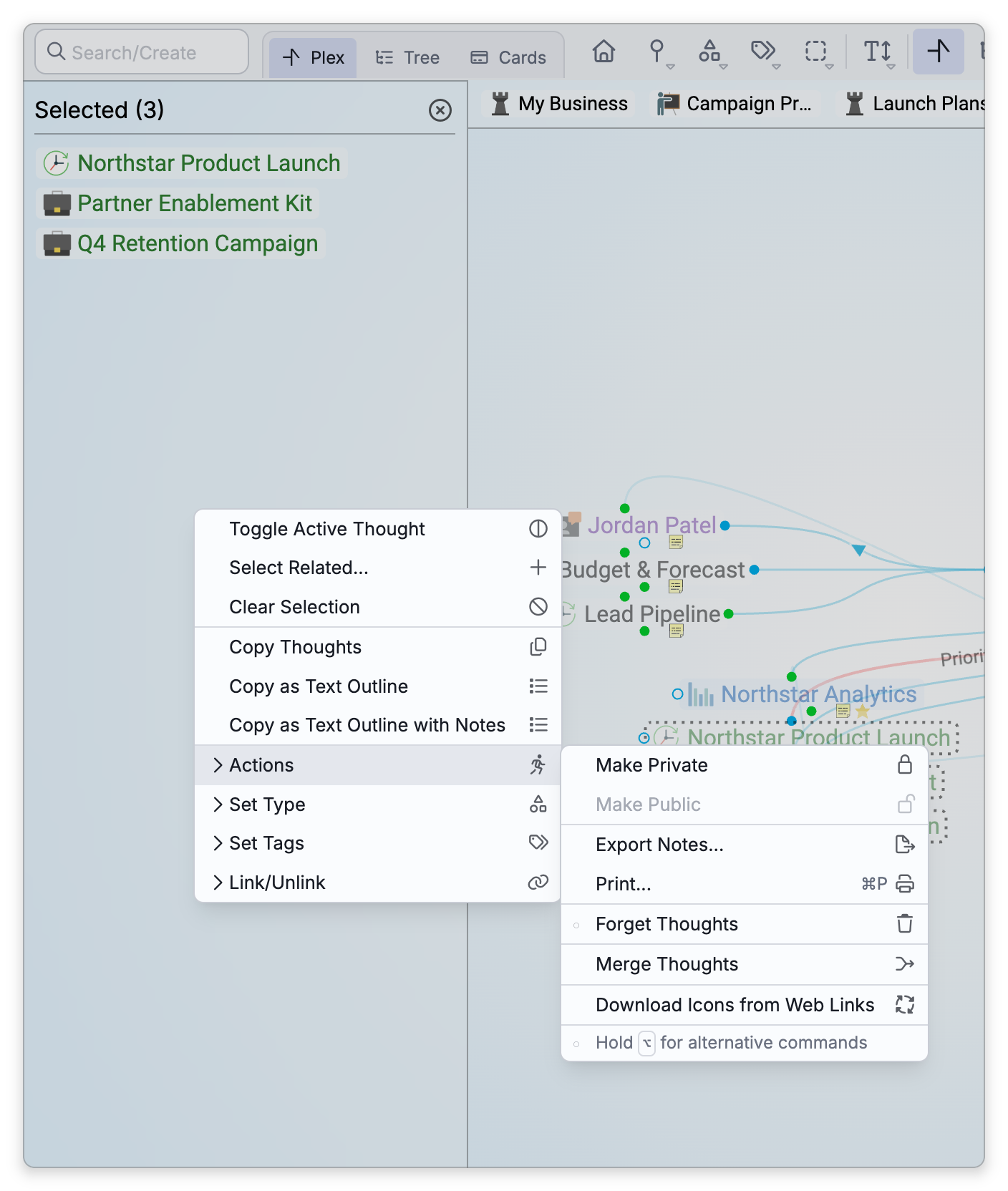
Right-click anywhere in the panel to open the selection menu. It begins with three items that change the selection itself: Toggle Active Thought adds the active thought to the selection, or takes it out; Select Related... opens the dialog described above; and Clear Selection empties the selection. The other top-level items act on all selected thoughts:
- Set Type / Set Tags.
- Copy Thoughts, Copy as Text Outline, Copy as Text Outline with Notes (there is no Markdown-list copy; see Copying and Duplicating Thoughts).
- Paste Thought Colors — Gives every selected thought the text and fill colors of a thought you copied with Copy Thought (desktop app only; shown only while a copied thought is on the clipboard). See Thought Properties.
- The Link/Unlink options (below).
An Actions submenu groups the rest:
- Make Private / Make Public.
- Forget Thoughts, Remember Thoughts, Delete Thoughts. As with Delete Thought, Delete Thoughts is shown only while you hold
Shift(⌥on Mac), and it deletes at once without asking for confirmation; Undo brings the thoughts back for as long as the brain stays open. See Forgetting and Deleting Thoughts. - Export Notes... (formerly Create Document — export the selection's notes as one PDF, HTML, Markdown, or text document) and Print... (the default print shortcut is
Ctrl+P,⌘Pon Mac). Export Notes... is offered in the installed apps only, and Print... in the desktop app and in a browser on a computer (see Exporting and Printing Notes). - Merge Thoughts (see below).
- Download Icons from Web Links — For each selected thought that has a web link attached, TheBrain fetches an image from the linked page, as it does when you first paste a web address, and makes it the thought's icon. Only the icons change. A notification shows the progress and can cancel it. At the end it says how many icons were updated, how many thoughts had no web link, and which thoughts it could not fetch an icon for.
Linking and Unlinking a Selection
The Link/Unlink options connect a whole selection to one thought at once:
- Link Selection as Children of a thought, as Parents of it, or as Jumps of it.
- Unlink Selection removes those links.
Merging Thoughts
Merge Thoughts combines a selection into a single thought, gathering their links and content. If the thoughts have conflicting attributes (type, icon, color), the Resolve Merge Conflict dialog asks you to pick a primary thought to define the result. Some thoughts can't be merged — TheBrain will tell you if, for example, a type or tag, the home thought, or thoughts with light-synced (not-yet-downloaded) attachments are in the selection.
- A selection is temporary — it's a working set for the next action, not a saved group.
- Bulk actions follow the same rules as their single-thought versions.