Tags
Overview
A tag is a thought used to mark a characteristic that can apply to many other thoughts. Unlike a type, a thought can carry as many tags as you like. Tags show up as small icons on the lower-right of each thought they're applied to, so you can see a thought's tags at a glance, but otherwise they stay out of the way and don't clutter the Plex unless you activate them. You can also show tag names, resize the tags, or hide them — see Showing Tag Names, Resizing, or Hiding Tags in the Plex below.
Tags are ideal for characteristics you want to apply across a variety of thoughts that aren't otherwise related to each other. TheBrain's own examples are Important, To Do, and Favorite — a project, a person, and a document could all be tagged "Important" without having anything else in common. Reports and the To-Do List can filter by tag, so you can list everything that shares one (see Reports).
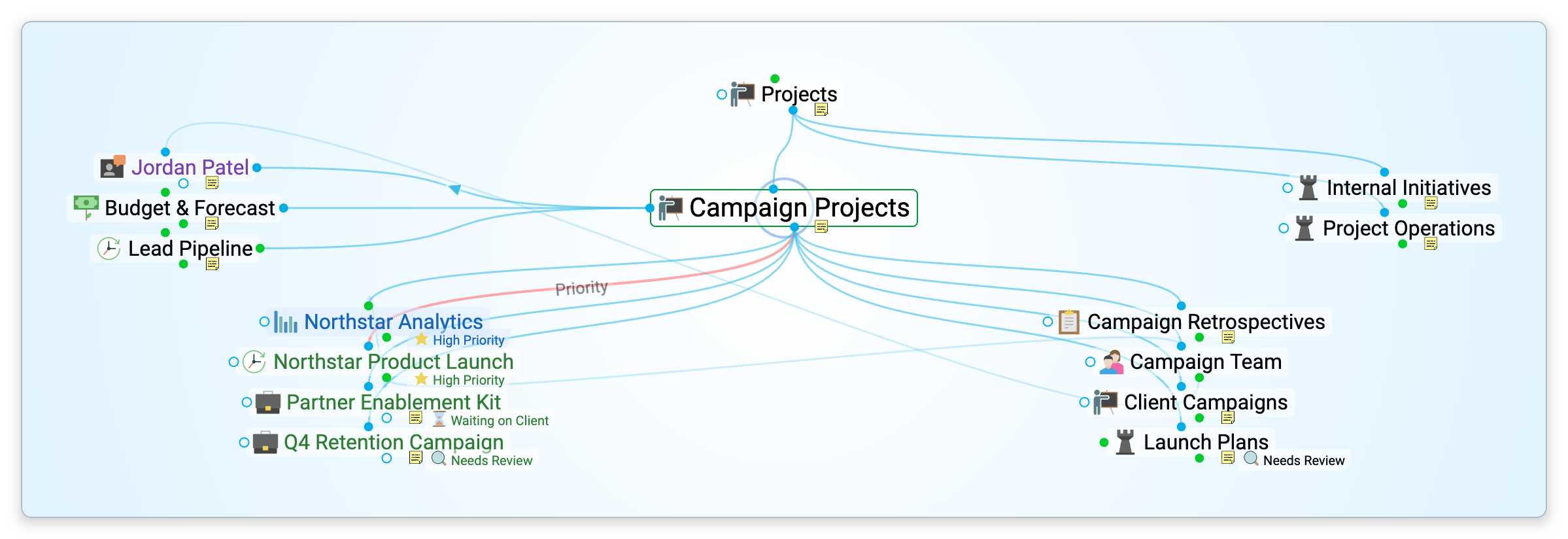
How to Set Tags on a Thought
- Right-click the thought (or open it and use the properties header in the content area).
- Choose Set Tags.
- Pick one of the brain's tags, or type a name in the Search/Create box at the top of the submenu and choose New Tag to create that tag and apply it. Typing also narrows the list to the matching tags, and a tick marks the tags the thought already has.
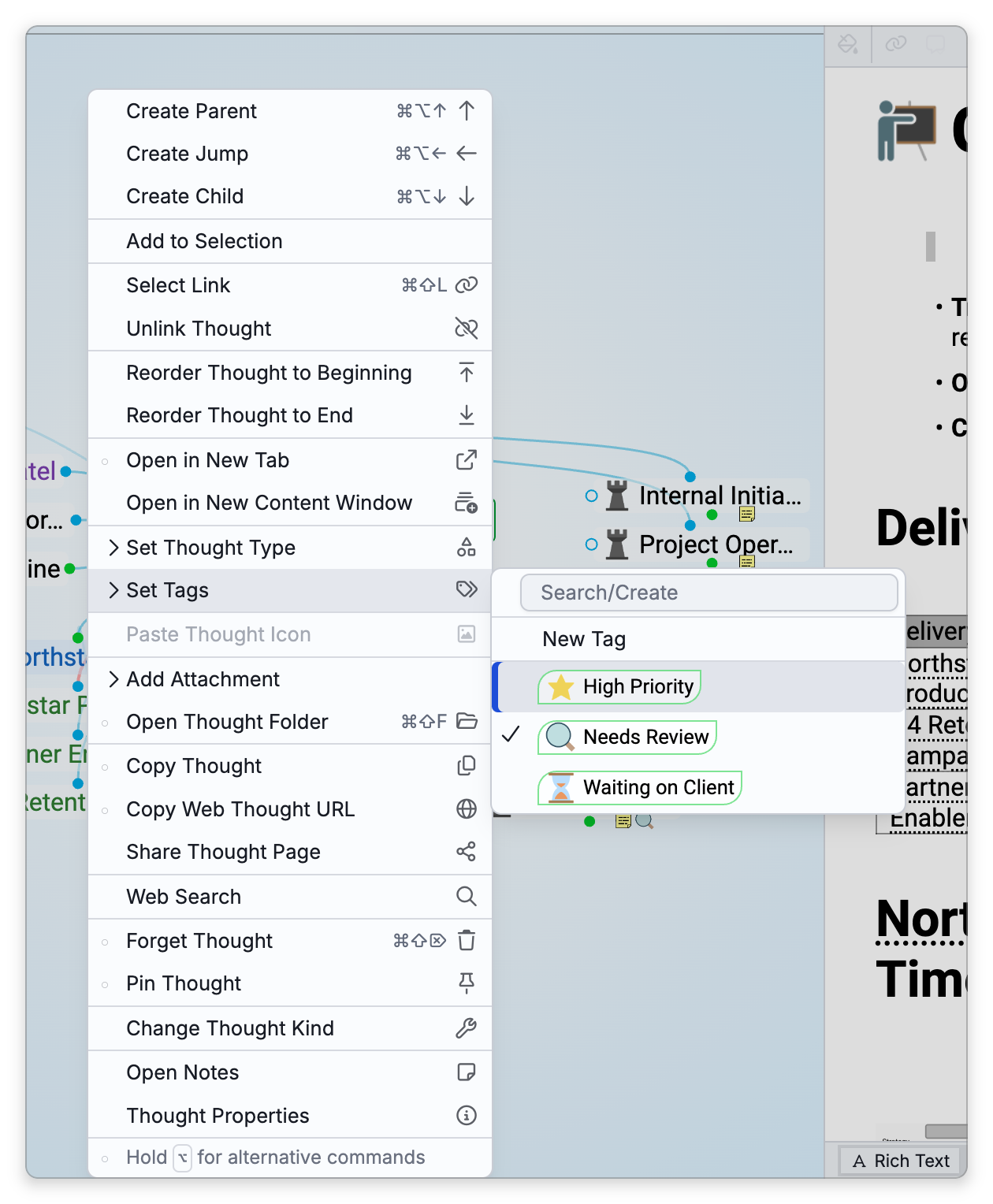
To tag several thoughts at once, select them and use Set Tags from the selection panel — see Selecting Multiple Thoughts.
How to Remove or Replace a Tag
You manage a tag by acting on the tag itself — its icon on the thought, or the tag where it appears as a relative — not from the tagged thought's own right-click menu.
- Remove a tag — Right-click the tag and choose Remove Tag; you can also un-toggle it from the Set Tags menu.
- Replace a tag — Right-click a tag and choose Replace Tag to swap it for a different one.
- Tag properties — Right-click a tag and choose Show Tag Properties to open the Properties dialog for the tag, where you can change its name, its Tag Abbreviation, its icon, and its colors. This does not take you to the tag.
Going to a Tag
Because a tag is a thought, you can open it to gather everything that carries it: when a tag is the active thought, the thoughts that have it are its children. There are several ways to get there:
- From a tagged thought in the Plex — Click the tag's icon on the thought. This works with a mouse; on a touch screen, tapping a tag icon activates the thought it sits on instead.
- From the properties header — In the header of a thought that has the tag, click the thought's name to show the header's controls, then click the tag's chip.
- From the list of all tags — Click the Tags button on the brain toolbar and pick the tag. The default shortcut is
Ctrl+Alt+G(⌥⌘Gon Mac), the Activate Tag command. If you can edit the brain, the list starts with a Search/Create box: type to filter the list, or choose New Tag to create a tag with the name you typed and go to it. On a phone-width screen, the same list is on the Tags tab of the side panel. - In Tree View — Expand Tags in the tree to see the brain's tags.
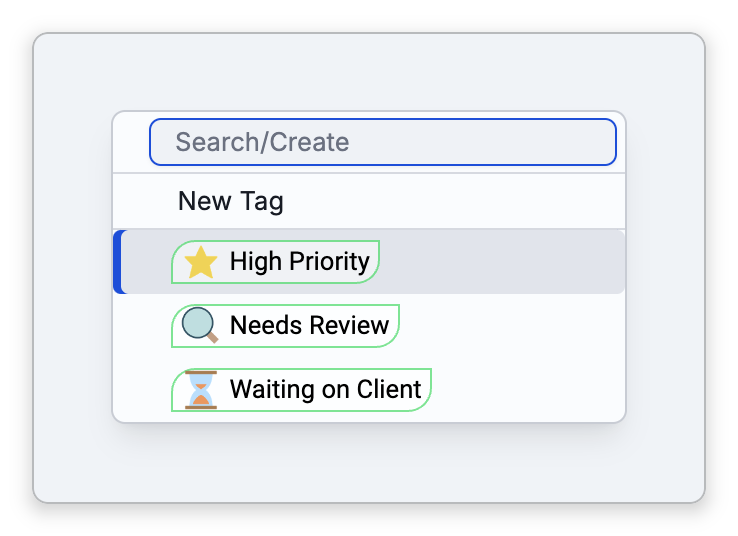
While the Create Thought prompt or the Thought Properties dialog is open, the same shortcut opens the tag menu there instead, so you can set tags on the thought you're creating or editing.
Showing Tag Names, Resizing, or Hiding Tags in the Plex
By default a thought's tags show in the Plex as icons only. To change that, open Settings > Brain > Plex Settings and look under Display:
- Tag Text — Whether tag names are shown: Do not show (the default), Show on hover (shown when you point at the thought), or Show always.
- Tag Icons — The same three choices for the tag icons. The default is Show always.
- Tag size — Makes the tags in the Plex bigger or smaller, from 75% to 150% (100% by default).
Setting both Tag Text and Tag Icons to Do not show hides tags in the Plex altogether. These settings are saved with the brain, so in a shared brain they apply to everyone who uses it.
A tag thought's label field is called Tag Abbreviation. When tag text is shown, a tag that has an abbreviation shows it in place of its full name, and pointing at the tag shows the full name.
- Tags vs. types: use a type for what a thought fundamentally is (Person, Project), of which it can have only one, and tags for characteristics layered on top (Important, To Do). See Thought Types and Types vs. Tags vs. Normal Thoughts.
- A normal thought can be converted into a tag through the Change Thought Kind dialog.
- Deleting a tag thought takes that tag off every thought that carried it; those thoughts themselves stay in the brain. Forget Thought isn't offered for a tag, so Delete Thought appears directly on its right-click menu.