Reports
Overview
A report is a filtered list of thoughts that match conditions you set — for example, every thought of a given type, tagged a certain way, or modified in the last week. Reports answer "show me all the thoughts that…" questions, and you can run one on the spot or save it to rerun whenever you like.
Building a Report
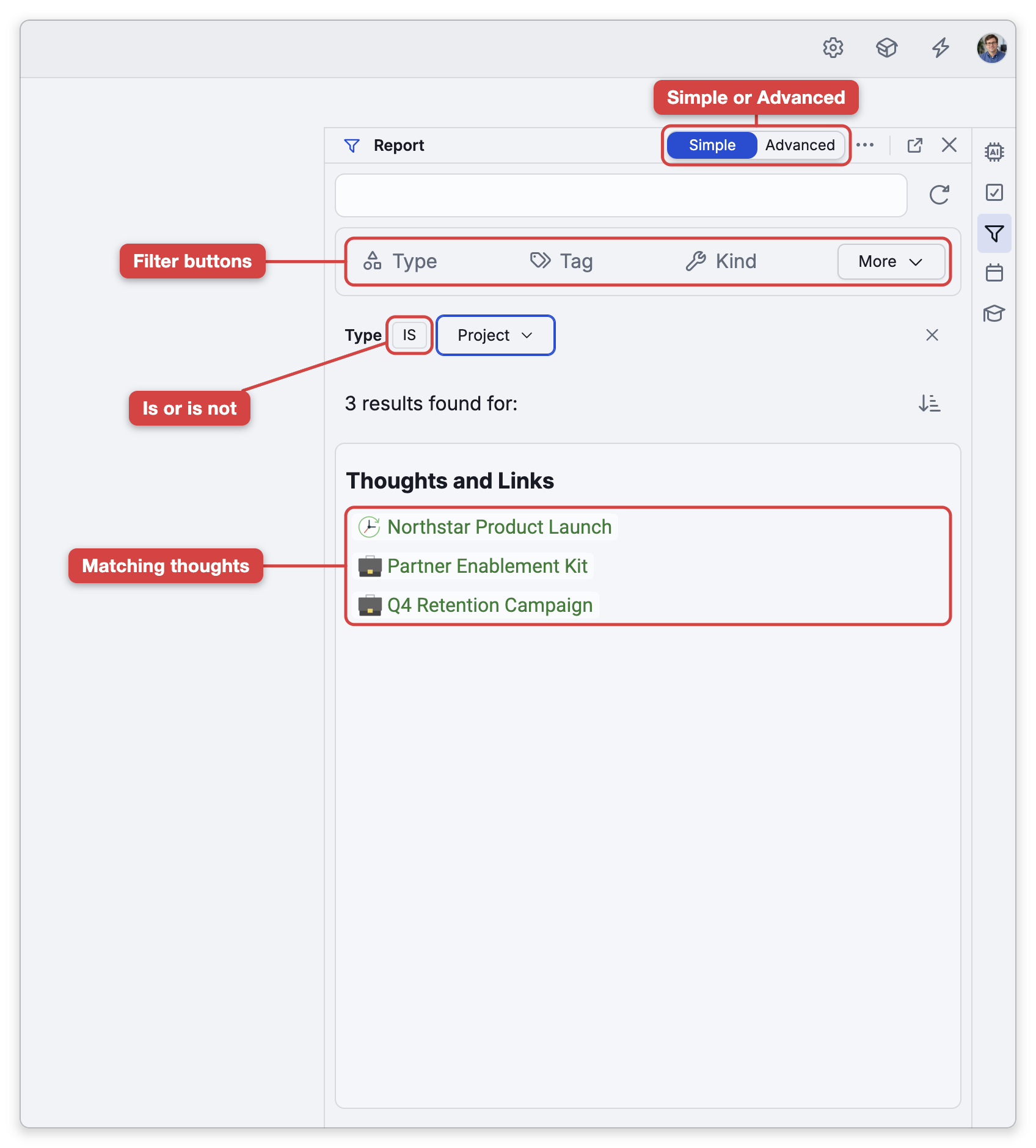
Open the Report panel from the tools panel or with Main Menu > View > Report. Add filter conditions to describe what you want — a Simple mode for quick filters and an Advanced mode for more. In Simple mode, Type, Tag and Kind are buttons below the search field and the remaining filters are in the More list beside them; in Advanced mode every filter is an icon button above the field. Filters include:
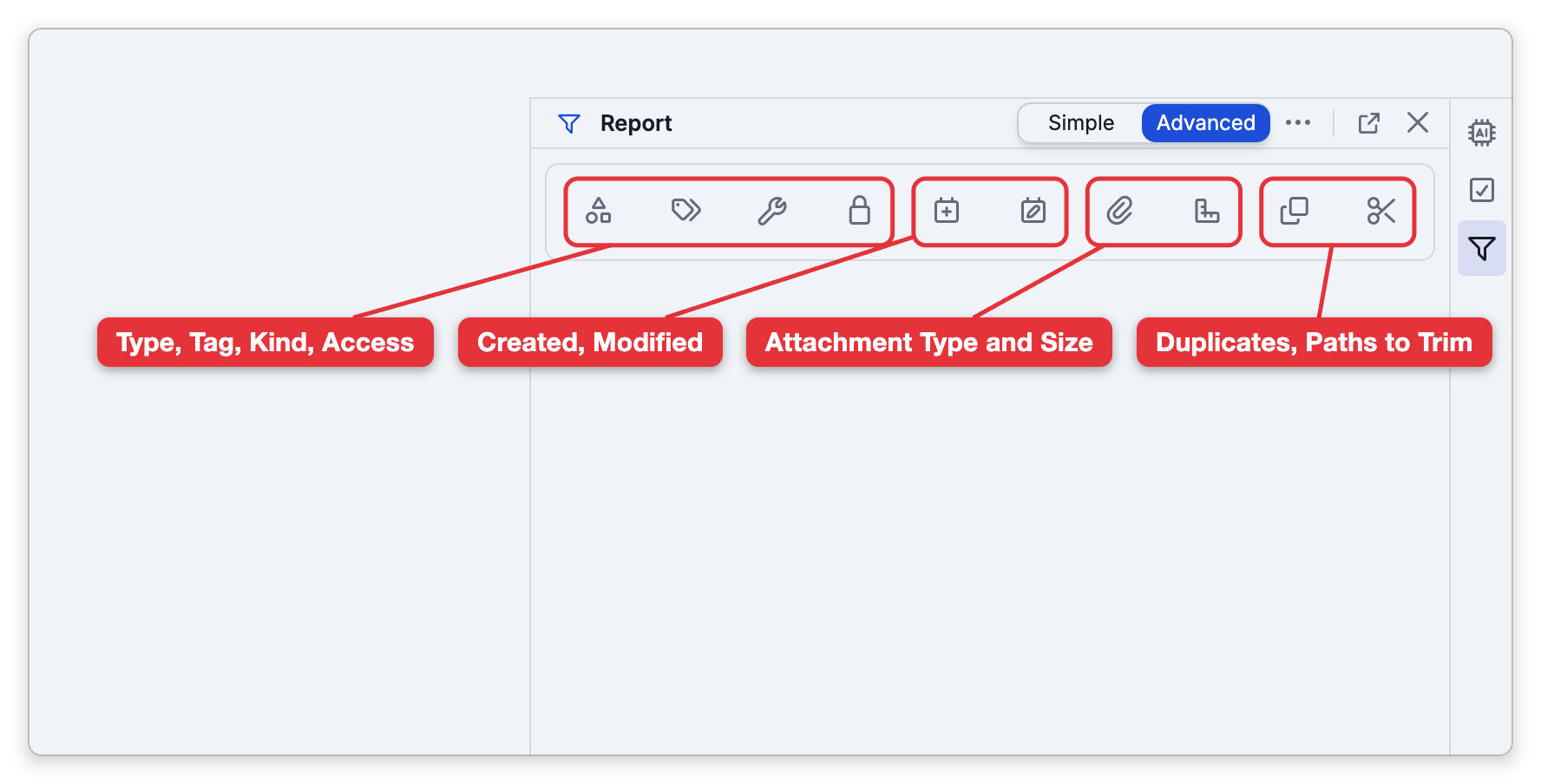
- Type, Tag, Kind, and Access.
- Created and Modified dates.
- Attachment Type and Attachment Size.
- Duplicate Thought Names and Paths to Trim, which each run a ready-made report instead of adding a condition (see Special Reports).
Each condition can be is or is not (in Simple mode, the IS / IS NOT button beside a chosen filter switches between them), and you can combine several. The report lists the matching thoughts, which you can act on (for example, add to a selection — see Selecting Multiple Thoughts).
What Each Filter Offers
| Filter | Values to choose from |
|---|---|
| Kind | Thought, Orphan, Parentless, Forgotten, Untagged, Link |
| Type | Untyped, any thought type (its sub-types are included), and link types when the brain has them |
| Tag | Any tag in the brain |
| Access | Public, Private |
| Attachment Type | Internal File, External File, Url, With Notes, Paths to Trim |
| Attachment Size | Tiny (<100 KB), Small (<1 MB), Medium (<10 MB), Large (<100 MB), Huge (100+ MB) |
These cover the questions people most often bring to a report:
- Orphan thoughts — Kind: Orphan lists normal thoughts that aren't linked to any other thought.
- Thoughts with no parent — Kind: Parentless lists normal thoughts that have no parent. They may still have children or jumps.
- Thoughts with no tags or no type — Kind: Untagged lists normal thoughts without a tag, and Type: Untyped lists thoughts without a type.
- Large attachments — Attachment Size: Large or Huge. Each size starts where the one before it ends, so Large means 10 MB up to 100 MB and Huge means 100 MB and over.
Saving and Reusing
Use Save As… to name and keep a report. Saved reports appear in a list to rerun; a loaded report can be renamed, deleted, or cleared, and while you're editing one you can Save Changes or Discard Changes. Use Rerun Query to refresh results as your brain changes.
Special Reports
The last two filters are housekeeping reports of their own. Duplicate Thought Names (the clone icon) lists the thoughts that share their name with another thought, and Paths to Trim (the scissors icon) lists the thoughts with an attachment whose name or path is too long to sync — the report to use when sync says an attachment path is too long. In Simple mode they are in the More list, and in Advanced mode they are the last two icon buttons above the search field. Neither combines with the other filters. In Simple mode, a row under the filter buttons names the report that is on, with an × that turns it off. And when you filter by Kind: Forgotten on its own, a Delete Forgotten Thoughts action appears to clear them out in bulk (with a confirmation).
Paths to Trim: When Sync Says an Attachment Path Is Too Long
The name of a file or folder stored in a brain, or the path of a file inside an attached folder, can be at most 150 characters. A longer one can't be synced. When you start a sync in the desktop or mobile app and the brain has any, TheBrain stops with the message Sync cannot continue because one or more attachment paths exceed the 150-character limit, and the message's Open Report button opens the Report panel on Paths to Trim. A sync can also fail with One or more attachment paths are too long. The Paths to Trim report can be used to find the attachment(s).
To fix it:
- Open the Report panel and choose Paths to Trim. In Simple mode it is in the More list; in Advanced mode it is one of the icon buttons above the search field.
- The report lists every thought that has an attachment with an over-long name or path. Open each thought and look at all of its attachments.
- Rename or move the long ones so that they fit within the limit.
- Sync again.
- Most reports use the brain's search index, like search and the to-do list — see Rebuilding the Search Index if results look incomplete. (The Duplicate Thought Names and Paths to Trim reports read the brain directly and don't depend on the index.)
- Filtering search results as you type is covered in Search Filters; Reports are the saved, panel-based version of the same idea.