Tree View
Overview
Tree View displays the brain as a familiar expandable outline — parents containing children, which you open and close like folders in a file tree. When you want to work top-down through a hierarchy, or see a branch's full depth in one place, the tree is often clearer than the radial Plex.

Switching to the Tree
Click Tree among the navigation mode buttons in the brain toolbar, or choose Main Menu > View > Navigation Mode > Tree. The Tree toolbar then provides the actions below. See Navigation Modes.
What the Tree Shows
The tree starts with a few sections, each under its own heading:
- Home — The brain's home thought.
- Pins — Your other pinned thoughts. This section appears when you have pins besides the home thought.
- Types and Tags — A Types row and a Tags row; open one to list the brain's thought types or tags. The heading reads Types or Tags when the brain has only one of the two, and the section is left out when it has neither.
- Current Context — Added at the top when the thought you activate can't be reached from anything already showing in the tree, so that the active thought still has a place in it.
Open a thought to list its children. Under the children come rows such as 2 Parents and 3 Jumps: open one to browse upward to the thought's parents or sideways to its jumps. A single parent isn't listed when it is the thought you opened this one from, since it is already showing just above.
Click a thought to activate it. The tree also follows the active thought by itself: when you activate a thought some other way, the tree opens the branch that leads to it and highlights it.
Reordering Thoughts in the Tree
Drag a thought up or down within its group to reorder it. A group is one thought's children, the thoughts under one Parents or Jumps row, or the Pins section. On a touch screen, press and hold the thought first and then drag. Press Esc to cancel a drag.
Reordering this way sets a custom order, just as dragging thoughts in the Plex does. Thoughts that have no custom order are listed in the order of your Sort by setting — see Sorting and Arranging Thoughts.
Expanding and Collapsing
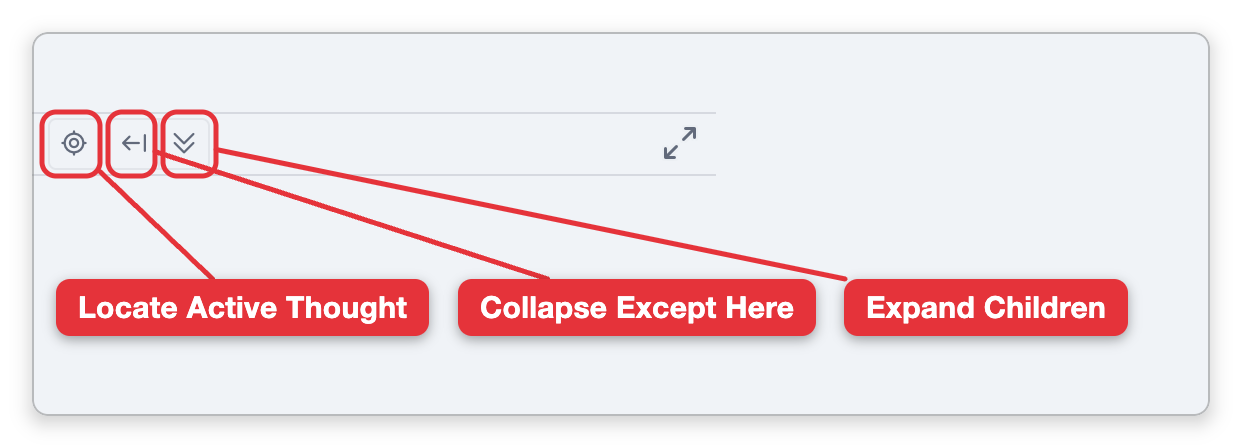
- Expand Children opens the children of the current thought. Very large branches expand the first 100 nodes and let you know if there were more.
- Collapse Except Here collapses other branches so you can focus on the current one.
- Click the expand/collapse handle next to any thought to open or close just that branch.
Finding Your Place
Locate Active Thought scrolls the tree to your currently active thought and highlights it — handy after you've scrolled away or navigated from another view.
- The tree shows the same thoughts and links as every other view; expanding a branch doesn't change the brain, only what's visible.
- Because a thought can have multiple parents, the same thought can appear under more than one branch in the tree.