Getting Help and Support
Overview
TheBrain's help commands are in two places that share most of their items: Main Menu > Help, and the Help group of the account menu at the top right. From there you can open TheBrain's help on the web, open the tutorials, send feedback, see which version you are running and read its release notes. When TheBrain support asks for a log file, the same menus get you to it. TheBrain support's address is support@thebrain.com.
Where the Help Commands Are
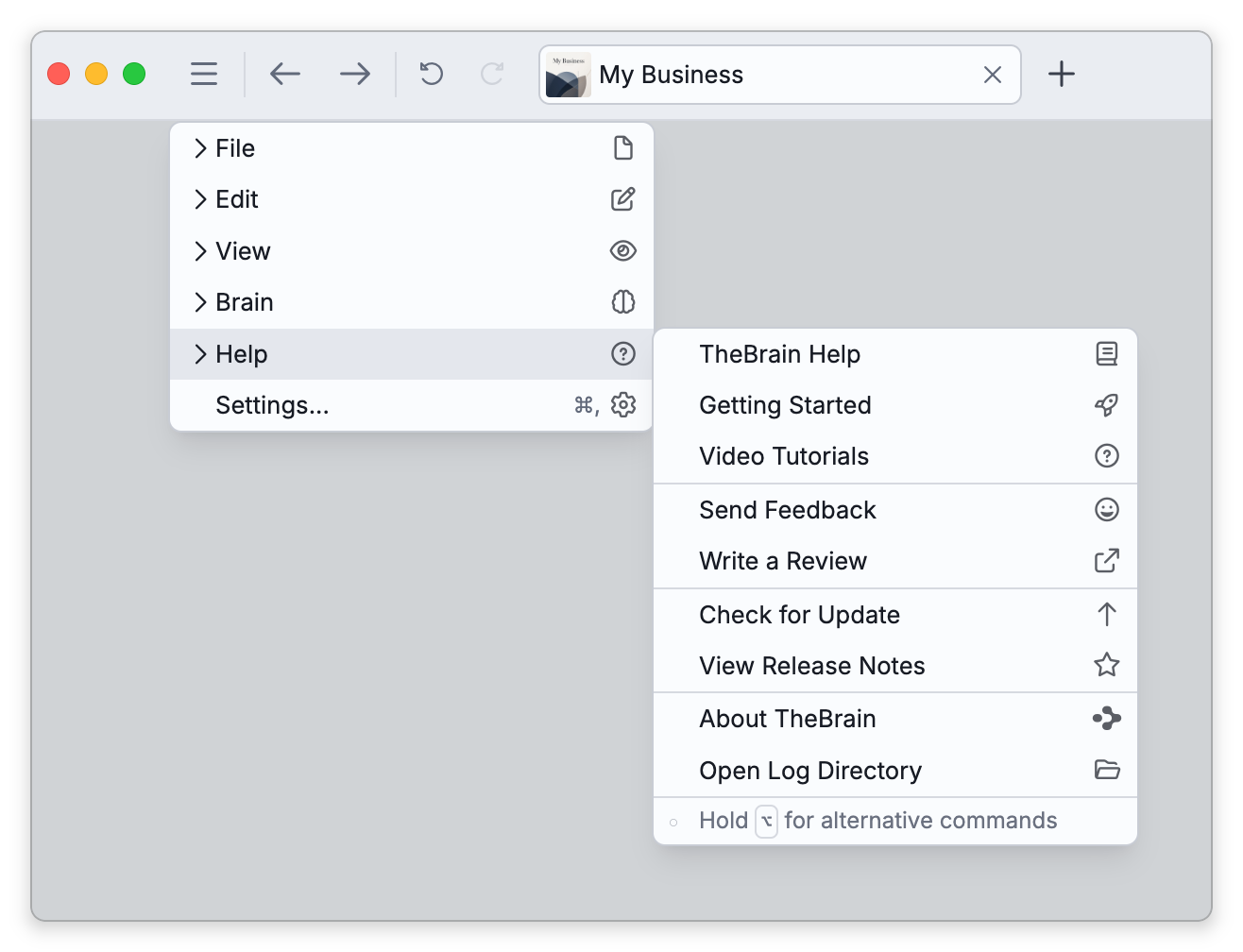
- Main Menu > Help — TheBrain Help, Getting Started, Video Tutorials, Send Feedback, View Release Notes, and About TheBrain. The desktop app adds Write a Review, Check for Update (see App Updates) and Open Log Directory.
- The account menu — Under its Help heading: TheBrain Help, Video Tutorials, Send Feedback, and About TheBrain. The desktop app adds Write a Review, and the mobile app adds Email Log File.
- On a phone — Tap the settings button (the gear icon at the right end of the toolbar). The menu that opens has a Support group with TheBrain Help, Interactive Tutorials (while a brain is open), Video Tutorials, Send Feedback, and, in the mobile app, Email Log File. About TheBrain is just below that group.
- The Mac menu bar — On the Mac desktop app, the Help menu has TheBrain Help, Getting Started, Video Tutorials, Send Feedback, Write a Review, and Open Log Directory. About TheBrain, Check for Updates..., and View Release Notes are in the TheBrain menu.
TheBrain Help opens TheBrain's help brain, also named TheBrain Help, in your browser, at its thought User Guide. The help brain holds every help topic as a thought of its own, and User Guide holds all of them in one note, to read from start to finish, with a PDF of it attached. Getting Started starts the interactive walkthrough (see Onboarding Walkthrough), and Video Tutorials opens TheBrain's tutorial videos on the web. Write a Review, in the desktop app, opens a web page in your browser where you can write a review of TheBrain. Now and then the desktop app also asks Review TheBrain?, with Write a review, Don't ask again and Not now; once you have chosen one of the first two, or used Write a Review in the menu, it stops asking. The mobile app instead asks now and then for a rating, with the App Store's or Google Play's own prompt, which the store decides whether to show.
How to See Which Version You Are Running
- Choose About TheBrain from the account menu or from Main Menu > Help (on a phone, from the menu the settings button opens; on the Mac desktop app it is also in the TheBrain menu of the menu bar).
- Read the line under the logo: Version followed by the number. A beta build of the desktop or mobile app shows Beta and the number instead, with the number of days until that build expires.
The same dialog has links to Release Notes, License Agreement, and Third Party Notices.
How to Read the Release Notes
Choose Main Menu > Help > View Release Notes, or click Release Notes in About TheBrain. When the desktop app offers you an update, the prompt also shows the release notes for the version on offer — see App Updates.
How to Send Feedback
Choose Send Feedback. It opens TheBrain's forums, forums.thebrain.com, in your browser. On TeamBrain enterprise servers, Send Feedback is not shown.
How to Send a Log File to Support
The installed apps keep a log file that helps support work out what went wrong. How you send it depends on the app.
On the Desktop App
- Choose Main Menu > Help > Open Log Directory.
- Your file manager opens and shows the log file, named
Output.log, in its folder. - Attach that file to an email to support@thebrain.com.
Open Log Directory only shows you the file. It does not send anything.
On Phones and Tablets
- Choose Email Log File. It is in the account menu, on a phone it is under Support in the menu the settings button opens, and it is also on the sign-in screen, for when you can't sign in.
- TheBrain starts an email to support@thebrain.com with the log file attached. Add a description of the problem and send it.
If no mail account is set up on the device, TheBrain tells you so and opens the share sheet instead, so you can send the log file with another app.
- If the mobile app has saved note recovery files because a note could not be saved, you send those to support separately — see Note Recovery Files.