Brain Content Settings
Overview
Content Settings (under Settings > Brain) holds the options that shape notes and attachments in a brain. The page has three tabs: Notes, Note Format, and Attachments.
These are brain settings, so each brain has its own values. They are saved with the brain rather than with your personal view of it, so in a shared brain a change made by anyone with write access applies to everyone who uses the brain, as a note at the top of the page says. Settings that are yours alone, such as sorting and the text scales, are in Personal Settings.
How to Change the Spacing of Notes
- Open Settings (the default shortcut is
Ctrl+,,⌘,on Mac) and choose Brain > Content Settings. - Pick the Notes tab.
- Set Line spacing and Line gap. Their values and defaults are listed under The Notes Tab.
The note you have open updates right away, and so do the brain's notes wherever they're shown: in previews and cards, in Note Versions, and in notes you export or print.
Line spacing (also called line height) is the space between the lines of text, including the lines that a long paragraph wraps into. Line gap adds extra space between two lines that both have text, such as two list items, or two lines you separated with Enter:
- The lines that a long line wraps into don't get the gap, and neither does a line break made with
Shift+Enter(⇧Enteron Mac), so those lines sit closer together. - An empty line gets no gap and is one line tall. To start a new paragraph, leave an empty line, as you would in a word processor. The gap always stays well under an empty line, so a new line never looks like a new paragraph.
- A heading gets half a line of extra space above it, whatever the gap, so it sits closer to the text it introduces.
- Code blocks, horizontal rules, tables, diagrams, videos and embedded notes are spaced like lines of text. With Line gap at 0%, headings and these blocks keep the spacing the content theme gives them.
Neither setting is part of the content theme: Customize Content under Settings > Brain Theme sets the colors, fonts, and heading styles of notes, but not the space between lines. To make note text larger or smaller instead, use Note text scale in Personal Settings.
The Notes Tab
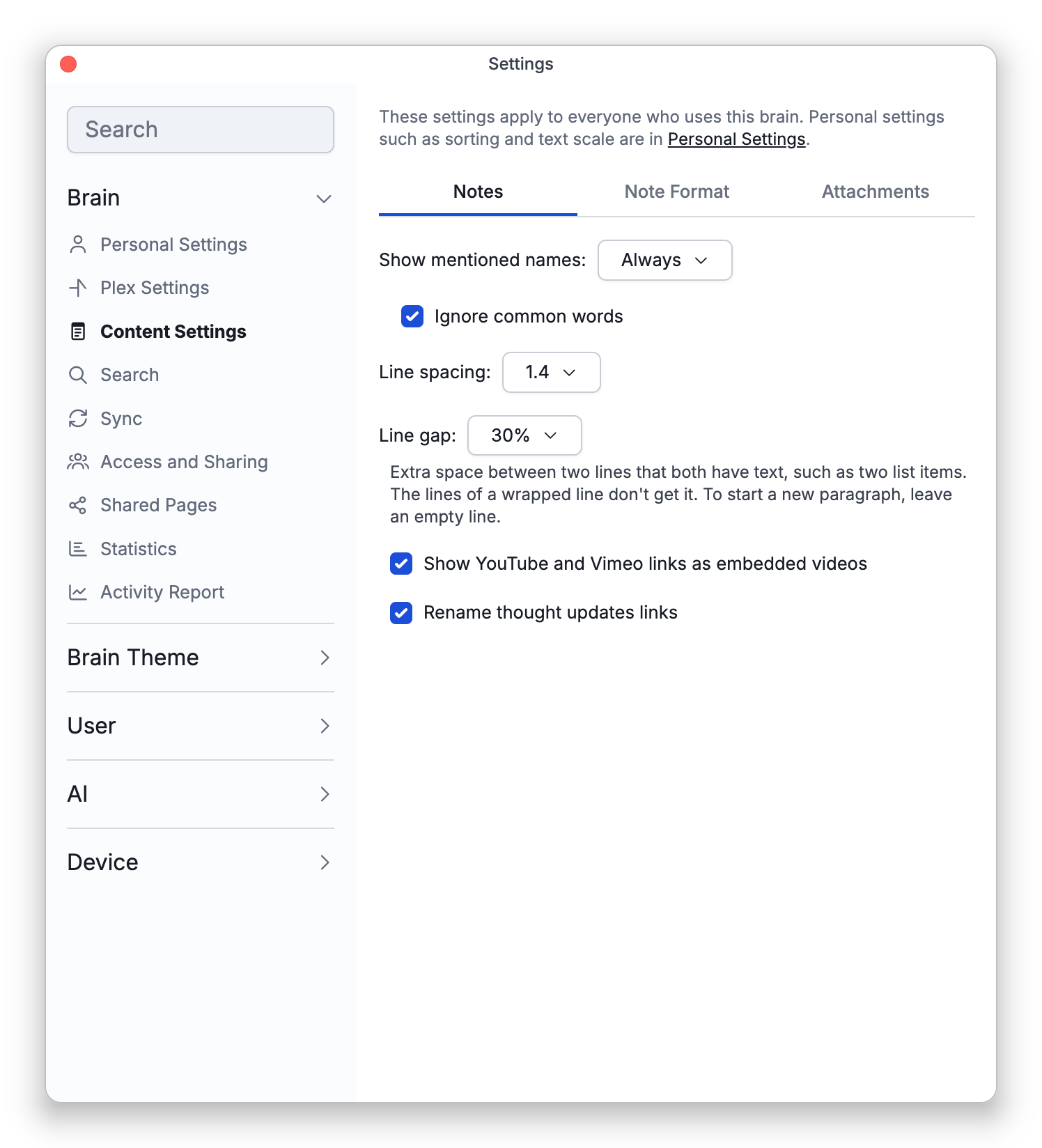
- Show mentioned names — Whether TheBrain recognizes the names of other thoughts in a note's text as mentions: Always (the default), Full matches only, or Never. Full matches only recognizes a thought only where its whole name appears. See Links in Notes for what mentions are and how to turn one into a link.
- Ignore common words — Shown unless Show mentioned names is Never (on by default). With it on, a thought whose name is a single common English word is not picked up as a mention.
- Line spacing — The space between the lines of note text: 1.2, 1.4, 1.6, 1.8, or 2.0 (the default is 1.4).
- Line gap — Extra space between two lines that both have text: 0%, 10%, 20%, 30%, or 40% of a line (the default is 30%).
- Show YouTube and Vimeo links as embedded videos — On by default. See Video Embeds in Notes.
- Rename thought updates links — On by default: renaming a thought also updates the note links whose text was its old name. See Links in Notes.
The Note Format Tab
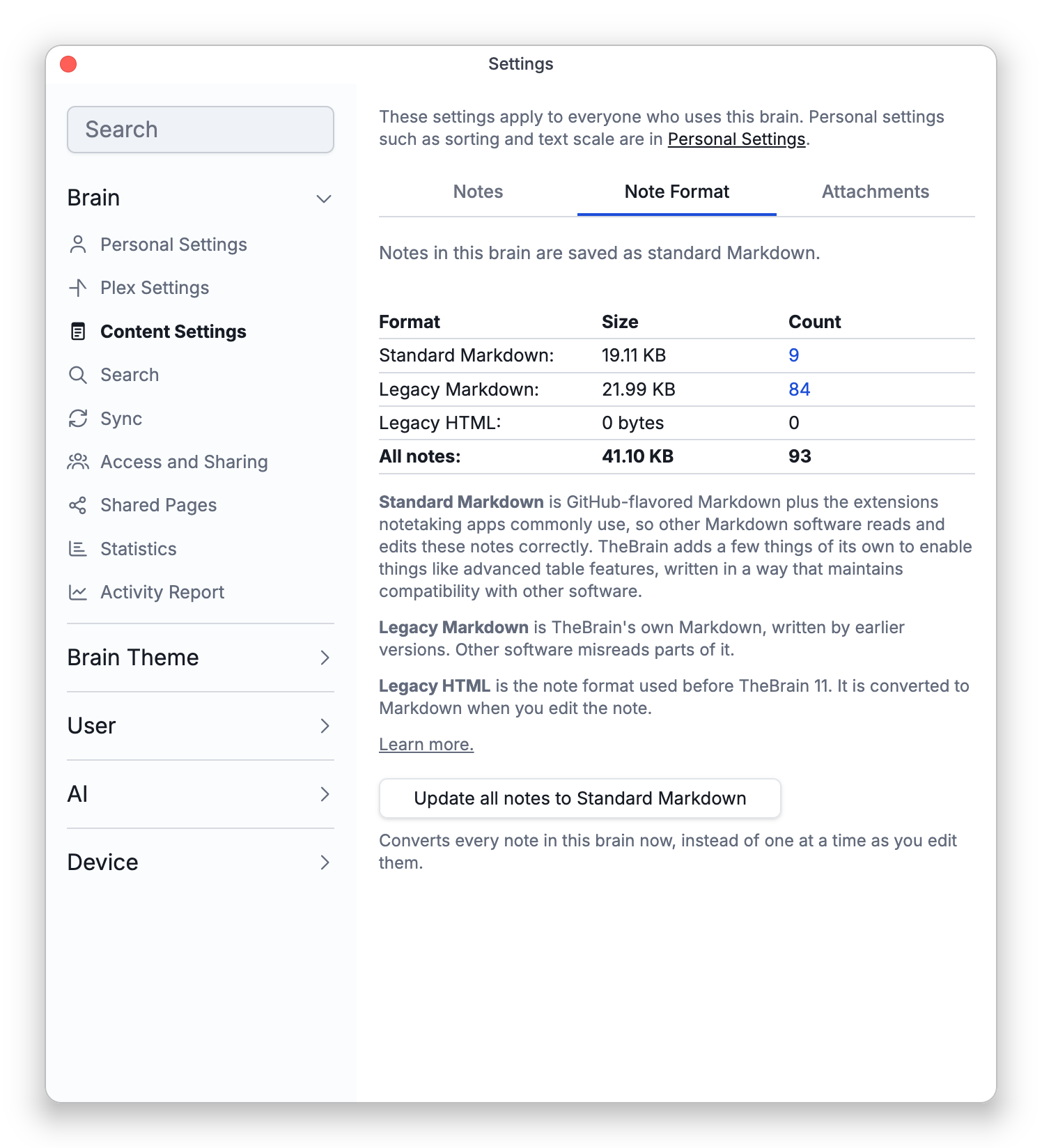
This tab lists the brain's notes by format, and it is where you switch the brain to standard Markdown with Switch to Standard Markdown…. See Standard Markdown Notes.
The Attachments Tab
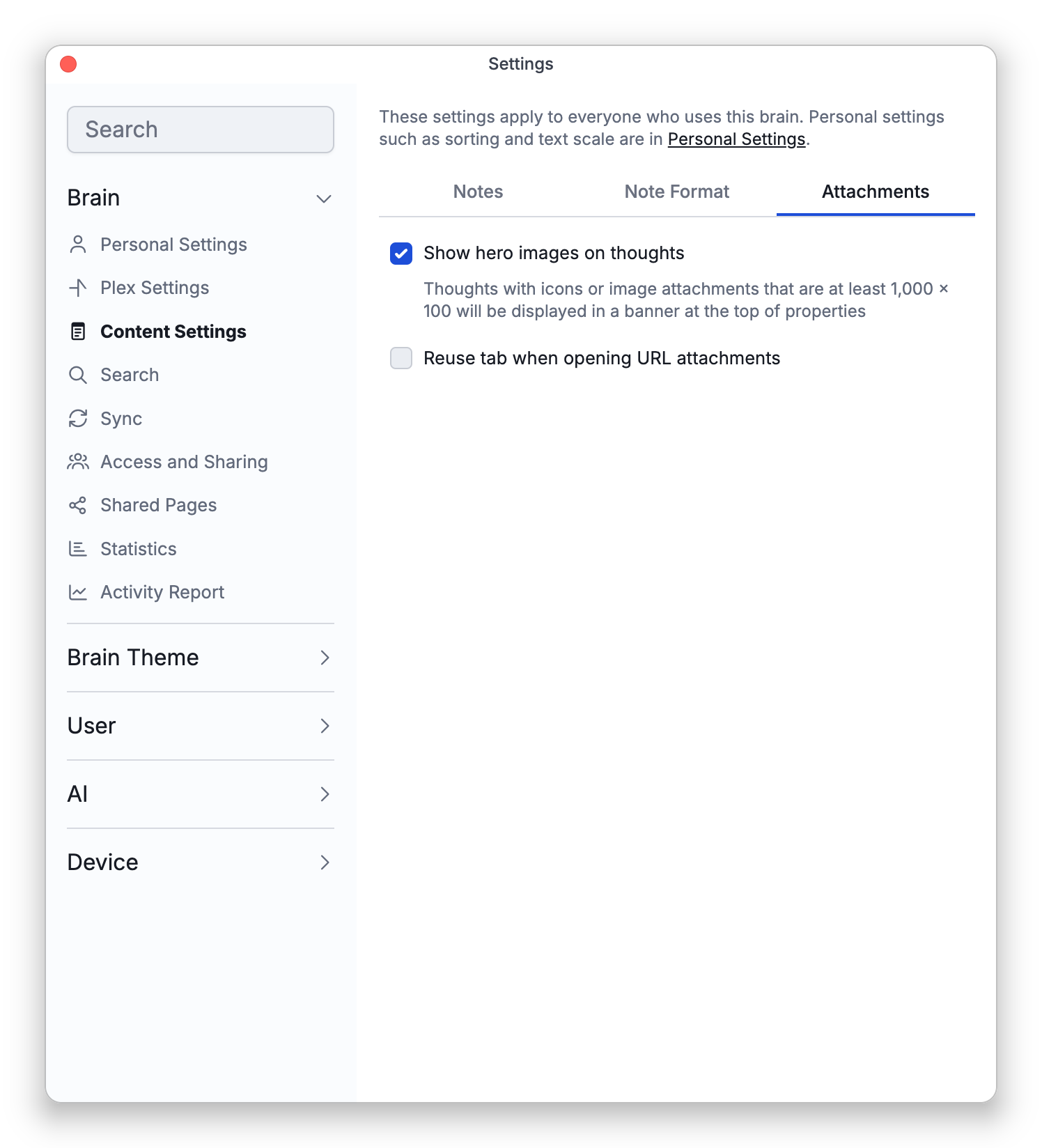
- Show hero images on thoughts — On by default. When a thought's icon or image attachment is a large enough picture, it is shown as a banner at the top of the thought's properties in the content area.
- Reuse tab when opening URL attachments — Off by default, and not shown on phones and tablets. It works only in the web app: with it on, the URL attachments and the web links in notes, backlinks and mentions that you open there go to one browser tab that is reused, instead of a new tab each time. The desktop app shows the option but doesn't use it, because it has its own setting for where web pages open (see Content Area Settings).
- The options for the sections below a note (mapped links, backlinks, and unlinked mentions) and for the attachment layout are not on this page. They are in Personal Settings.
- Options for the notes editor itself, such as spellcheck, pasting, and outlining, are personal and are in Notes Settings.