Callouts in Notes
Overview
A callout is a highlighted block that sets important information apart from the rest of your note — a tinted, rounded panel with an accent color and an icon in its left margin. Use callouts to flag warnings, capture tips, mark open questions, or give a summary its own visual weight.
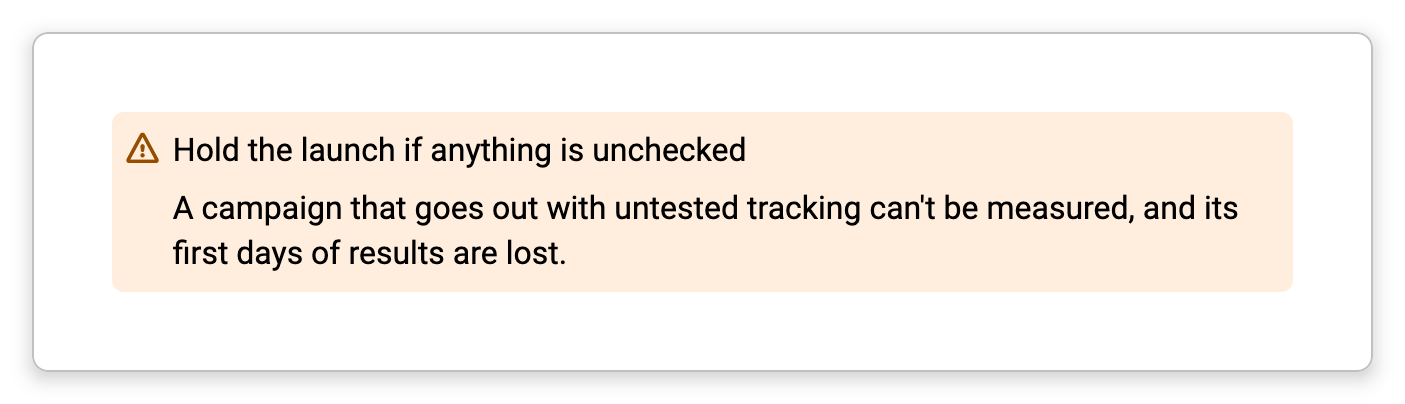
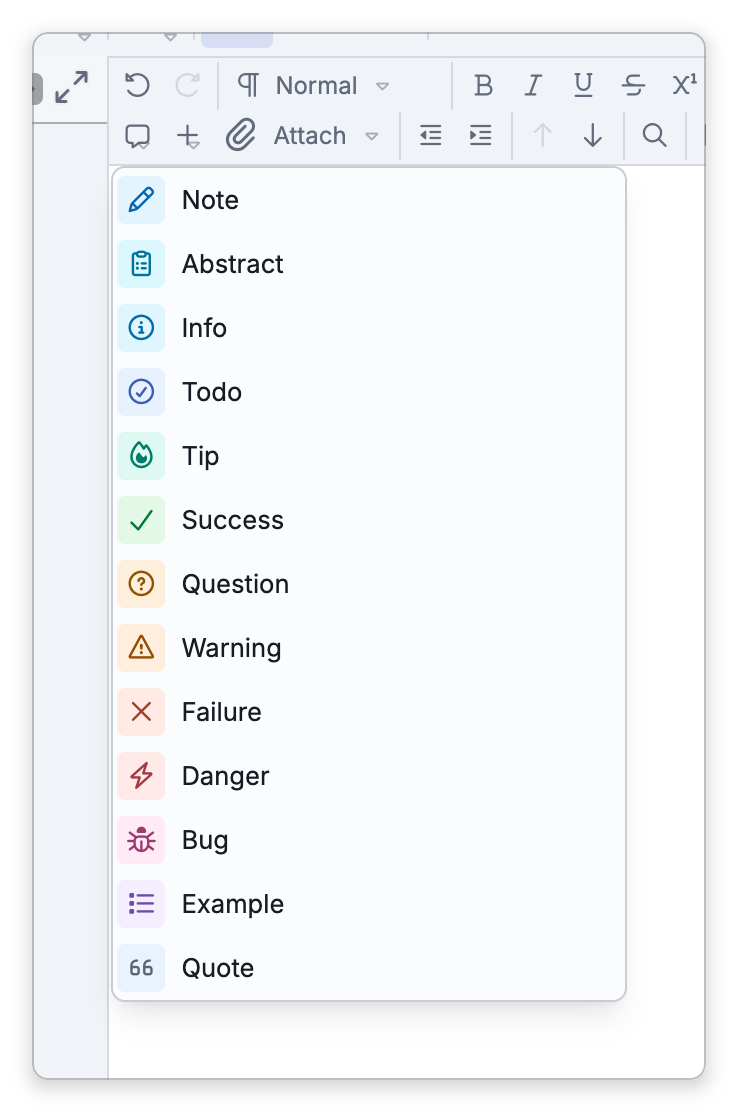
TheBrain offers thirteen callout types, each with its own color and icon: Note, Abstract, Info, Todo, Tip, Success, Question, Warning, Failure, Danger, Bug, Example, and Quote. The colors adapt automatically to light and dark themes, and you can restyle any type — its accent, background, icon, text color, and title typography — in the content theme editor's Callouts section.
How to insert a callout
- Place the cursor where you want the callout, or select the lines you want to convert — inserting turns the current or selected lines into the callout's body.
- Click the Callout button on the notes toolbar (just left of Insert), or right-click in the note and choose Insert Callout.
- Pick a type from the menu. Each row shows a color swatch so you can see the block's look before choosing.
Insert Callout and the toolbar's Callout button are unavailable while the cursor or selection is inside a code block, in a table cell, or on a line holding a table. A callout inside a table cell is saved as a plain quote.
You can also type the marker directly: type [!warning] (or > [!warning] on a plain line) at the start of a line and press Space. Any of the thirteen type names works, and so do common aliases like hint, important, summary, error, and caution — an alias keeps its spelling but renders in its parent type's style. An unrecognized type name still becomes a callout, styled like Note.
New callouts start without a title line. To add one, press ↑ while on the first line of the callout — an editable title row appears above the body. Leaving an empty title row removes it again.
How to change or remove a callout
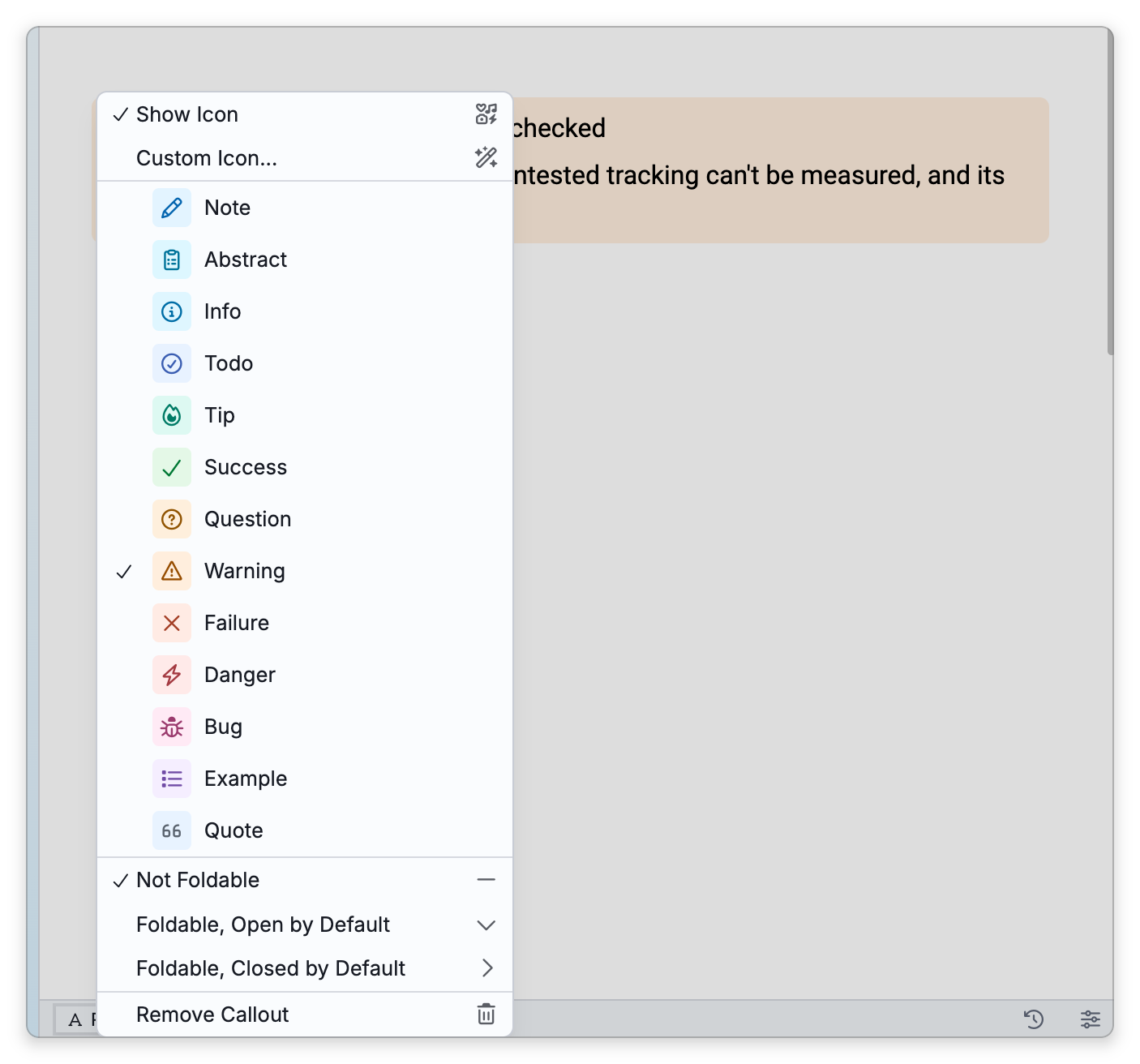
Click the callout's icon — or right-click anywhere in the callout's margin — to open its controls menu. On touch screens, tap the margin. The menu offers:
- Show Icon — toggle the icon in the left margin.
- Custom Icon... — replace the default icon with any standard icon or an emoji, for this callout only.
- The thirteen type rows — click one to change the whole callout's type in place.
- Not Foldable / Foldable, Open by Default / Foldable, Closed by Default — a foldable callout shows a chevron so readers can collapse it to its title. Collapsing one is remembered on the device you're using, like other collapsed sections of a note, without changing the note. A callout set to Foldable, Closed by Default opens closed every time, so expanding one isn't remembered; choose Foldable, Open by Default if you want it to stay open.
- Remove Callout — unwraps the callout while keeping its content as ordinary text.
Pressing Backspace at the very start of a callout also unwraps it, one step at a time: if the first line is an indented list item, Backspace first moves it out a level, and if it's a heading, list item or code block, Backspace first turns it into an ordinary line. Only then does it remove the callout. Callouts can be nested inside each other: with the cursor on any line of a callout below its first line, inserting another callout creates one a level deeper.
How to leave a callout and type below it
Enter does not take you out of a callout. An empty line is ordinary callout content, so pressing Enter just adds more lines inside it. (On an empty list item inside a callout, Enter ends the list, and the cursor stays in the callout.)
To get out and keep typing below the callout, put the cursor on its last line and press ↓:
- When an ordinary line follows the callout, the cursor moves down to it.
- When there is no such line, TheBrain adds a new empty line outside the callout for you to type on. This happens when the callout ends the note, and when it is followed directly by another callout, a quote, a code block, a table, a divider, a diagram, a video, an embedded note or a table of contents. If you move away from the new line without typing on it, it is removed again.
In a nested callout, each press of ↓ steps out one level. ↑ on a callout's first line works the same way above the callout. On a callout that has no title, the first ↑ adds the title row instead.
Indenting and outdenting a callout
On an ordinary line of a callout, Tab does not indent just that line. It moves the whole callout the cursor is in, every line of it, one quote level deeper. Shift+Tab (⇧Tab on Mac) moves the whole callout back out one level. The Indent and Outdent commands do the same; their default shortcuts are Ctrl+. and Ctrl+Shift+. (⌘. and ⇧⌘. on Mac).
Pressing Shift+Tab (or Outdent) in a callout that is not inside another callout or a quote removes the callout and leaves its content as ordinary text, the same as Remove Callout. If your callout disappeared this way, Undo puts it back.
Some lines behave differently. On a list item inside a callout, Tab and Shift+Tab change the item's list level, and on a heading they change the heading level. On a line of a code block inside a callout they do not move the callout.
Callouts in markdown
Callouts use the same markdown as Obsidian and GitHub: a blockquote whose first line is a type marker, with an optional title after it.
> [!warning] Watch out
> This paragraph is the callout body.
The marker's spelling is preserved exactly as you (or another app) wrote it, so notes exchanged with Obsidian or GitHub keep working in both directions. A - right after the marker makes the callout foldable and closed by default, and a + makes it foldable and open by default. Callouts are written the same way in both note formats — standard Markdown and TheBrain's deprecated dialect.
- A callout's body can hold more than text: code blocks, tables, dividers, diagrams and math blocks can all sit inside it. Inserting a table or typing a divider while the cursor is in a callout puts it inside the callout, and selecting a code block before inserting a callout wraps the code block into it.
- When exporting notes with Export Notes, a Callouts section shows a button for each callout type found in the content, with a check mark while it is on — turn a type off to leave all callouts of that type out of the exported document. The plain Text format always drops the callout markers themselves, keeping titles and body text.
- A fourteenth type, Conflict (red, with a merge icon), is written by sync, not by you: when a note was edited in two places and both changed the same lines, the merged note shows each version in its own Conflict callout, titled with whose version it is and when it was edited (in UTC). It isn't offered when inserting a callout or switching a callout's type, but you can restyle it in the content theme editor like the others. To resolve a conflict, delete the callout you don't want and use Remove Callout on the one you keep. See Working Offline and Sync Recovery.