Network and Proxy Settings
Overview
Some company and school networks only allow connections to the internet through a proxy server. The Network page (under Settings > Device), which only the desktop app has, is where you tell TheBrain to connect through one. Until you do, TheBrain follows your operating system's proxy settings, which is right for most people.
The proxy is used for TheBrain's own internet connections and for web pages shown inside the app. It is a setting of the computer you are on, not of your account.
How to Connect Through a Proxy Server
- Open Settings (the default shortcut is
Ctrl+,,⌘,on Mac). - Choose Device > Network.
- Turn on Use proxy server.
- Enter the proxy's Address and Port. Your network administrator can tell you both.
- If the proxy asks for a login, turn on Proxy requires authentication and enter the Username and Password. The eye button beside the password shows or hides it.
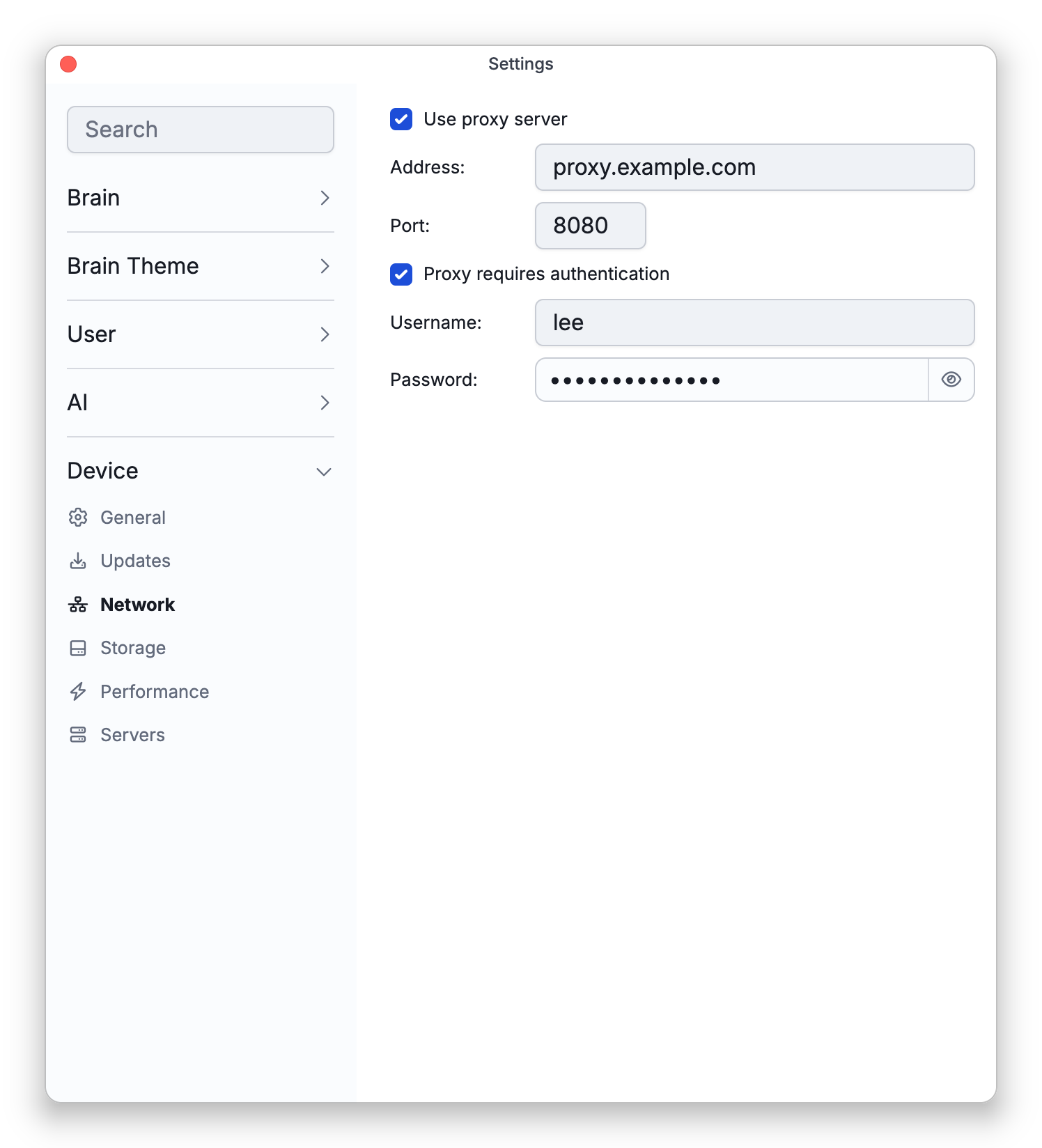
Changes take effect right away. You don't need to restart TheBrain.
How to Stop Using the Proxy
- Open Settings and choose Device > Network.
- Turn off Use proxy server.
TheBrain goes back to your operating system's proxy settings. The address, port and login you entered are kept for the next time you turn the option on.
How to Switch the Proxy with a Keyboard Shortcut
TheBrain has a command named Use Proxy Server that turns the proxy on and off without opening Settings. It has no default shortcut, so you give it one yourself:
- Open Settings and choose User > Keyboard.
- Search for Use Proxy Server and assign the keys you want (see Keyboard Shortcuts).
Each time you press the shortcut, a notification tells you whether the proxy is now On or Off.
To sign in to your organization's own TeamBrain server instead of TheBrain Cloud, see Signing In to a Private Server.