Tables in Notes
Overview
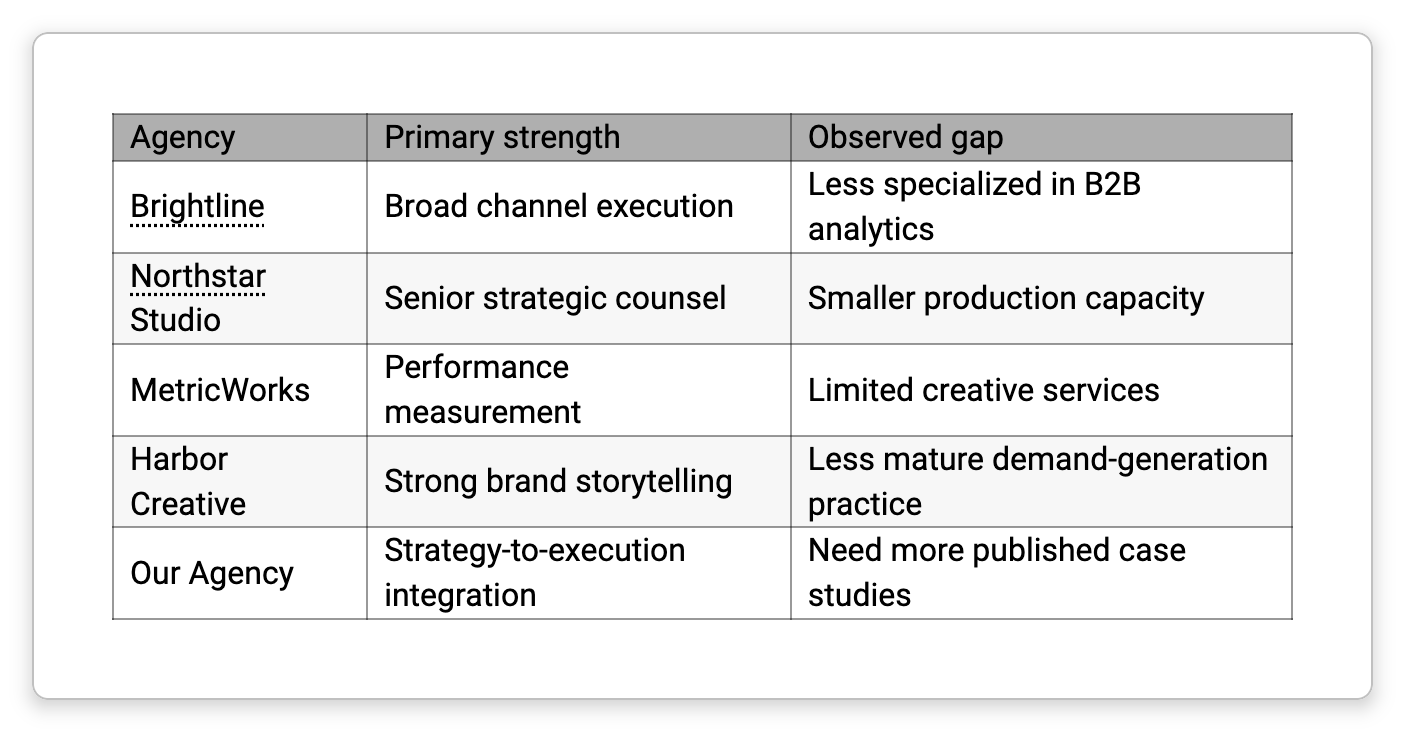
Notes can hold tables for anything grid-shaped — comparisons, schedules, simple data. Insert a table, then build it out by adding and rearranging rows and columns, aligning content, and applying a visual theme so it looks the part. The table controls appear automatically whenever your cursor is inside a table.
Inserting a Table
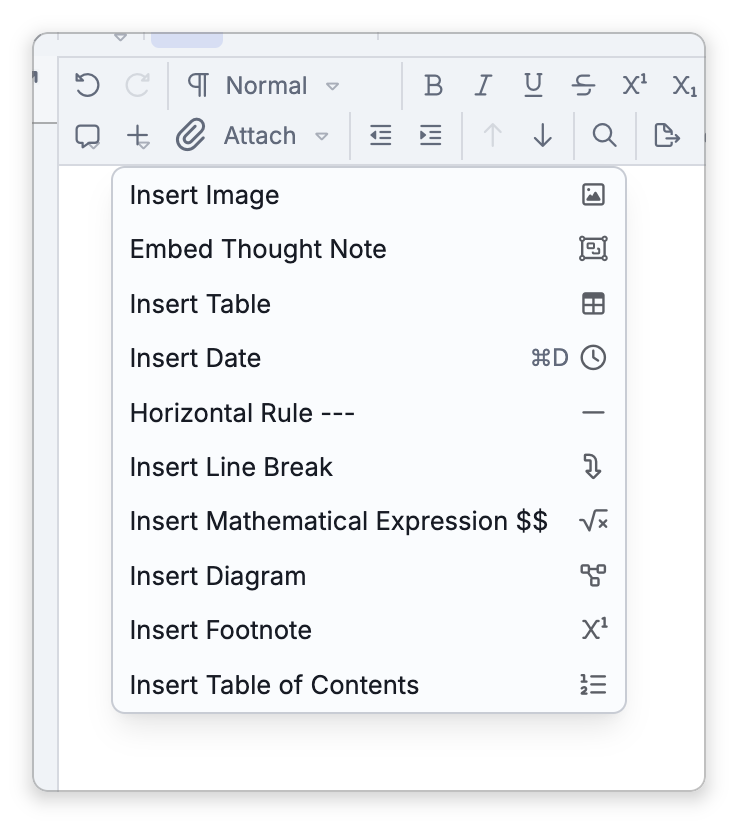
Place your cursor where you want the table and choose Insert Table from the notes toolbar's Insert menu. A grid picker appears — sweep across it to choose the size (up to 8 rows by 10 columns) and click to insert. (You can't insert a table inside another table.)
Editing Rows, Columns, and Cells
With the cursor in a table, right-click it and open Table on the menu. When you have selected several cells, right-clicking them shows these commands directly. The commands are grouped by what they act on:
- Cell — Move Up, Move Down, Move Left, Move Right, and Align.
- Row — Duplicate, Move Up, Move Down, Delete, and Align.
- Column — Duplicate, Move Left, Move Right, Delete, and Align.
- Table — Split, Merge with Table Above, Merge with Table Below.
- Position — Left, Center, Right for the whole table.
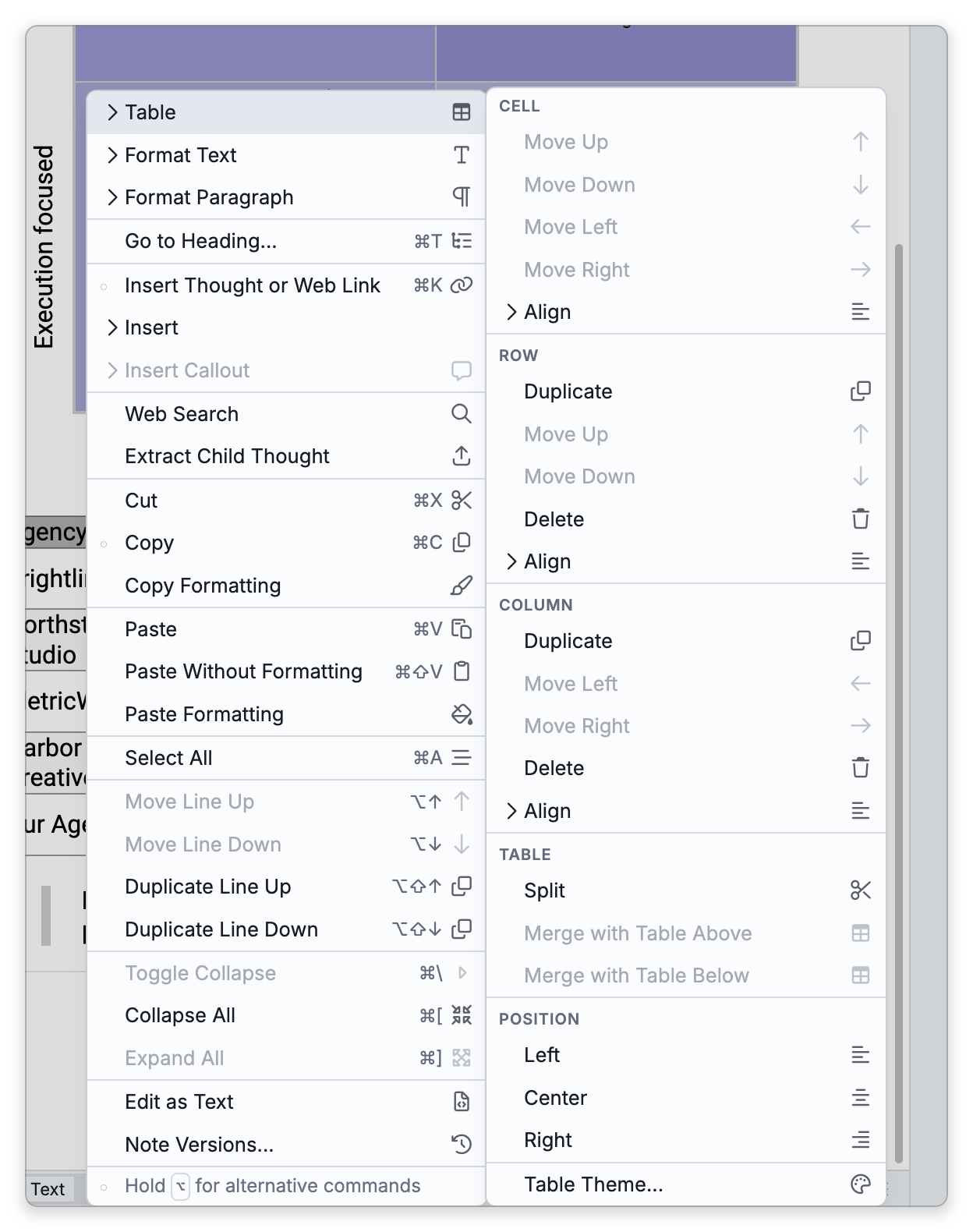
The menu on a row's handle offers that row's Duplicate, Move Up, and Move Down and the Table commands, and the menu on a column's handle offers Duplicate, Move Left, and Move Right. Each ends with Delete Row or Delete Column.
Adding a Row or Column
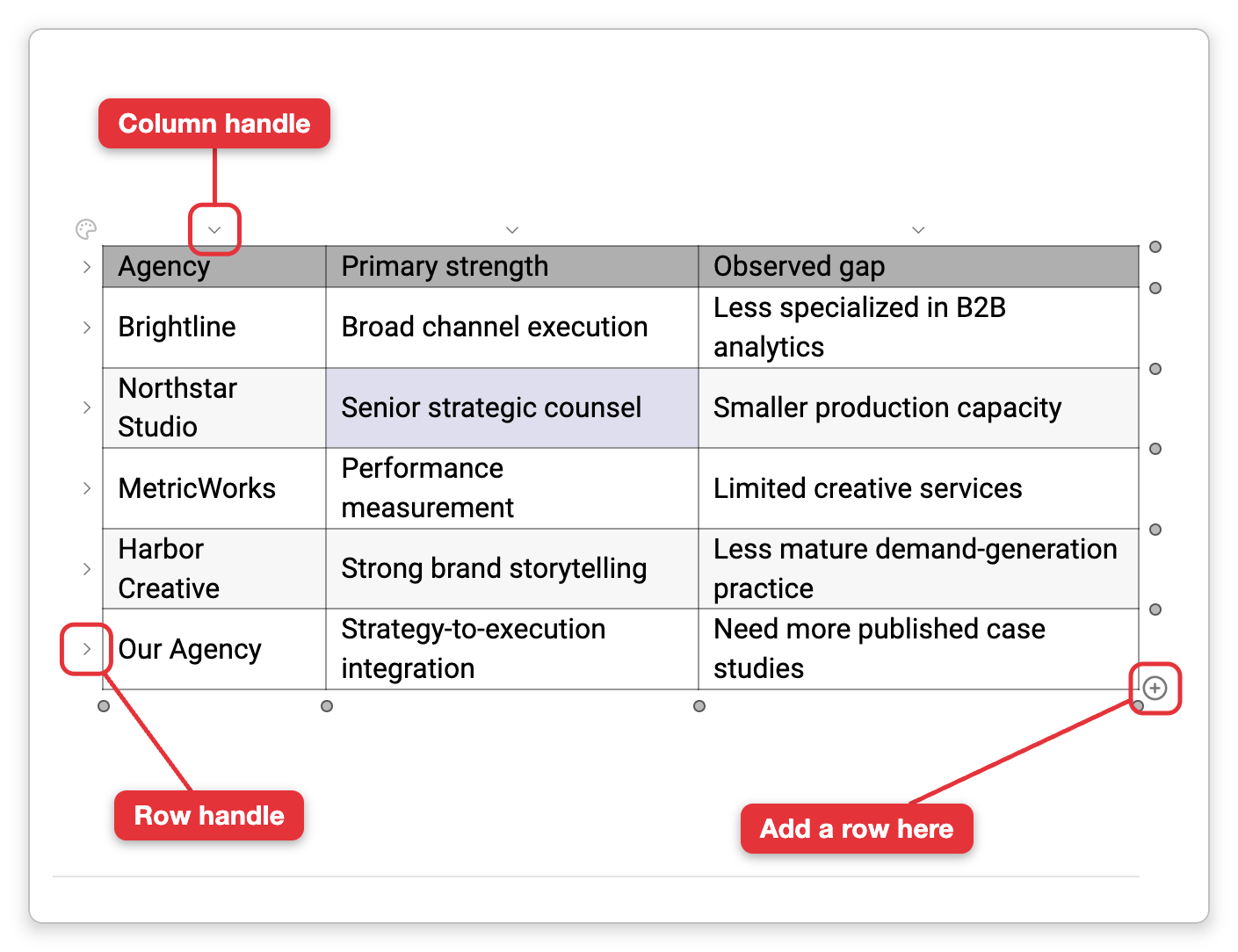
Click in the table so its controls appear. Small round markers sit along the table's right edge, one at every row boundary, and along its bottom edge, one at every column boundary — including before the first row or column and after the last. Point at a marker and it turns into a plus; click it to insert an empty row (right edge) or an empty column (bottom edge) at that boundary.
Duplicate in the Row or Column group is the other way to grow a table: it adds a copy of the current row or column right after it. Pressing Tab in the last cell does not add a row.
Moving Between Cells and Selecting Them
Tabmoves to the next cell andShift+Tab(⇧Tabon Mac) to the previous one, carrying on from the end of one row to the start of the next.- The arrow keys cross into the neighboring cell when the cursor is at the edge of the cell it's in.
- Select a block of cells by dragging across them. From the keyboard, hold
Shiftand press an arrow key at the edge of a cell to start a selection, then keep going to extend it.Escclears the selection. - Select a whole row or column by clicking its handle — the small arrow at the left of each row and at the top of each column. Right-click the handle for that row's or column's menu.
Deleting Cells, Rows, Columns, or a Whole Table
Select cells, then press Delete or Backspace. What is removed depends on what is selected:
- Whole rows or whole columns — those rows or columns are deleted. Clicking a row's or column's handle selects it whole.
- Every cell in the table — the whole table is deleted.
- Any other block of cells — the cells are emptied and the table keeps its shape.
Every table has a space below it, one empty line tall, the way other Markdown apps show tables. The space isn't a line of the note, so text you type after a table goes on the line below the space.
To delete a whole table without selecting its cells by hand, put the cursor at the start of the line directly below the table and press Backspace twice: the first press selects the whole table, and the second removes it. (Delete, pressed at the end of the line directly above the table, works the same way.) If you select by dragging or with Shift and the arrow keys instead, start at the top-left cell and end at the bottom-right cell, so that the selection counts as whole rows, whole columns, or the whole table.
To remove a single row or column, you can also use Delete in the Row or Column group, or Delete Row or Delete Column on its handle's menu.
Alignment
You can align content at several levels:
- Position — Left, Center, or Right places the whole table.
- Align in the Cell, Row, or Column group sets left/center/right alignment for a single cell, a row, or a column.
Table Themes
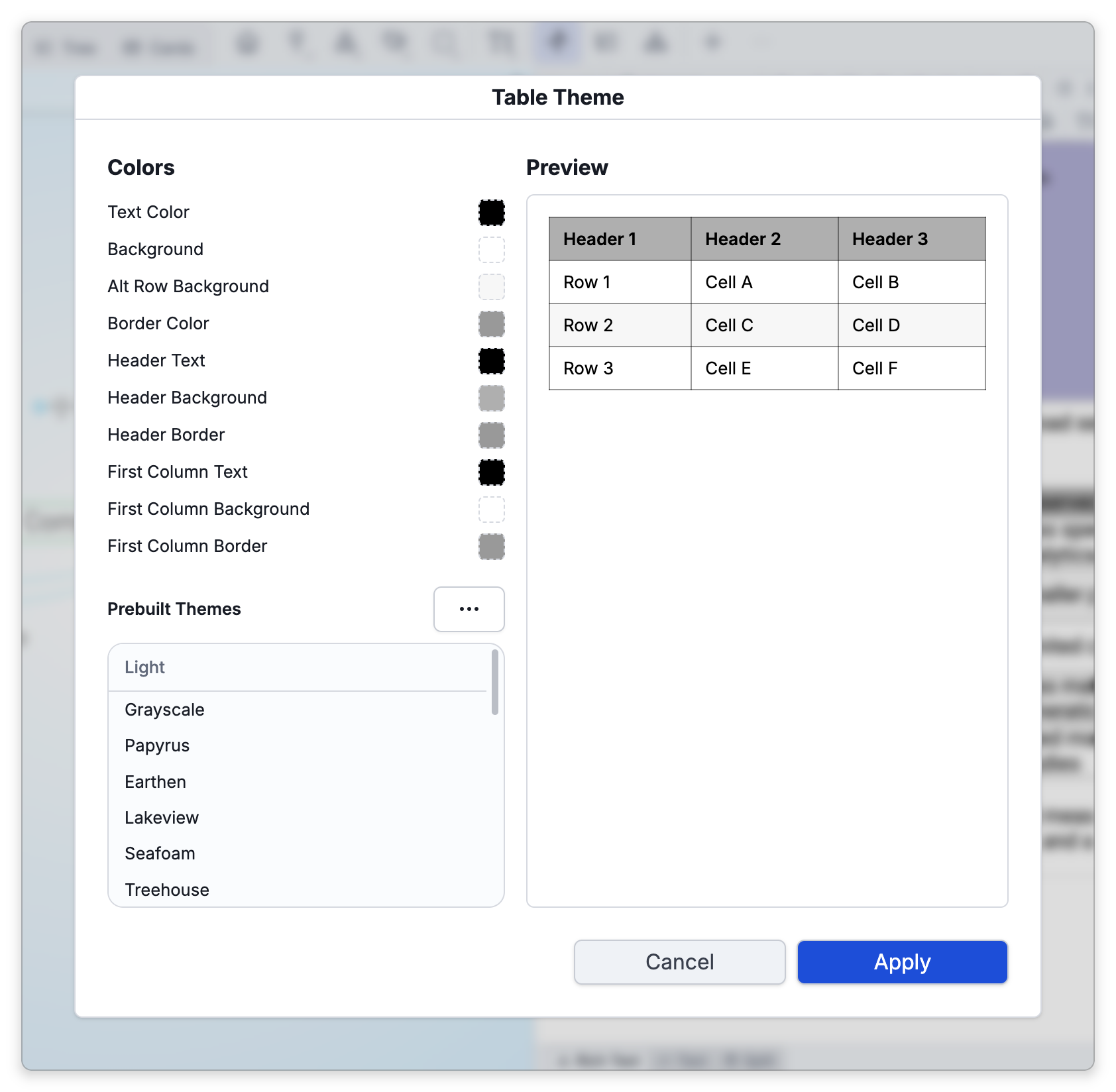
Table Theme..., at the end of the Table menu, opens a styling dialog with a live preview: ready-made looks in the Prebuilt Themes list, grouped as Light, Dark, and Fun, alongside a Colors panel where you set individual colors yourself — text, background, alternating-row background, and borders, with distinct header and first-column styling. From the … menu beside Prebuilt Themes you can Copy Theme, Paste Theme, Import Theme, and Export Theme, or Clear All Colors to start over. Click Apply to style the table.
- A table is stored in the note's Markdown as a pipe table, so you can also write and edit it as text; see Standard Markdown Notes for how a table and its column widths and colors are written.
- Themes restyle a table's appearance only; they don't change its contents.