Markdown in Notes
Overview
You don't have to reach for the toolbar to format a note — TheBrain's editor understands Markdown as you type. Start a line with # and it becomes a heading; start one with * and it becomes a bulleted list. The Markdown markers disappear and the text takes on the formatting, so you keep your hands on the keyboard and your note stays clean. TheBrain also adds a few extensions of its own for things plain Markdown can't express, like highlights and text color.
Markdown That Formats as You Type
Starting at the beginning of a line, these convert automatically:
| Type this | To get |
|---|---|
# … ###### + space | Heading 1 through 6 |
* (asterisk) + space | A bullet list item |
1. + space | A numbered list item |
- (dash or hyphen) + space | An unchecked checkbox |
+ (plus sign) + space | A checked checkbox |
> … >>>>>> + space | A blockquote (deeper with more >) |
[ ] (or []) / [x] | An unchecked / checked checkbox (GitHub style), as soon as you type the ] |
A code block (leave it with ↓ from its last line, or ↑ from its first) |
A dash and a space make a checkbox, not a bullet. In TheBrain's editor the dash (hyphen, or minus sign) gives an unchecked checkbox, the plus sign a checked one, and the asterisk a bullet — in every brain, including brains that save their notes as standard Markdown. For a bullet, type an asterisk and a space, or use Bullet List on the toolbar.
Inline, you can use `inline code` , **bold**, *italic*, ~~strikethrough~~, and ==highlight==, which all convert live as you type, and typing $$ opens the math editor (see Math Expressions). A horizontal rule (---) and other standard Markdown also work.
Keeping What You Typed (Undoing a Conversion)
To keep a literal #, 1., -, or > at the start of a line, press Undo once, straight after the conversion — the default shortcut is Ctrl+Z (⌘Z on Mac). The formatting is removed and the characters you typed, including the space, come back as plain text, so you can carry on typing. This works for headings, quotes, bulleted and numbered lists, the - and + checkboxes, and the alignment markers.
There is no setting that turns the automatic conversion off.
TheBrain's Markdown Extensions
TheBrain's own Markdown dialect is deprecated. A future release will stop saving notes in it, though notes already written in it stay readable. The forms below are what that older dialect looks like; Editing the Raw Markdown says which brains still save it, and Standard Markdown Notes shows what each form becomes.
Beyond standard Markdown, TheBrain adds:
- Highlight —
==highlighted text==. - Underline —
_{underlined}_; strikethrough —-{struck}-. - Superscript —
^; subscript —~. - Alignment prefixes at the start of a line —
:--(left),:-:(center),--:(right). - Color and style spans —
:{text:(style="…"):}:to set foreground/background color, font, or size. Colors are written as hex inRRGGBBAAorder. - Checkbox markers differ from classic Markdown:
+is checked,-is unchecked, and*is an ordinary bullet. - Single line breaks are kept as you typed them (unlike classic Markdown, which collapses them).
- Escape a Markdown character by preceding it with a backslash
\.
These extension forms describe how a note is stored and pasted — most don't convert as you type. (Typing ~text~, for example, produces strikethrough, not subscript; the ~ subscript marker applies to pasted or loaded Markdown.)
Tables are written differently in the two dialects too: in TheBrain's own, a table has no separator row of dashes below its header. See Standard Markdown Notes for how each dialect writes a table, and Tables in Notes for working with tables in the editor.
Editing the Raw Markdown
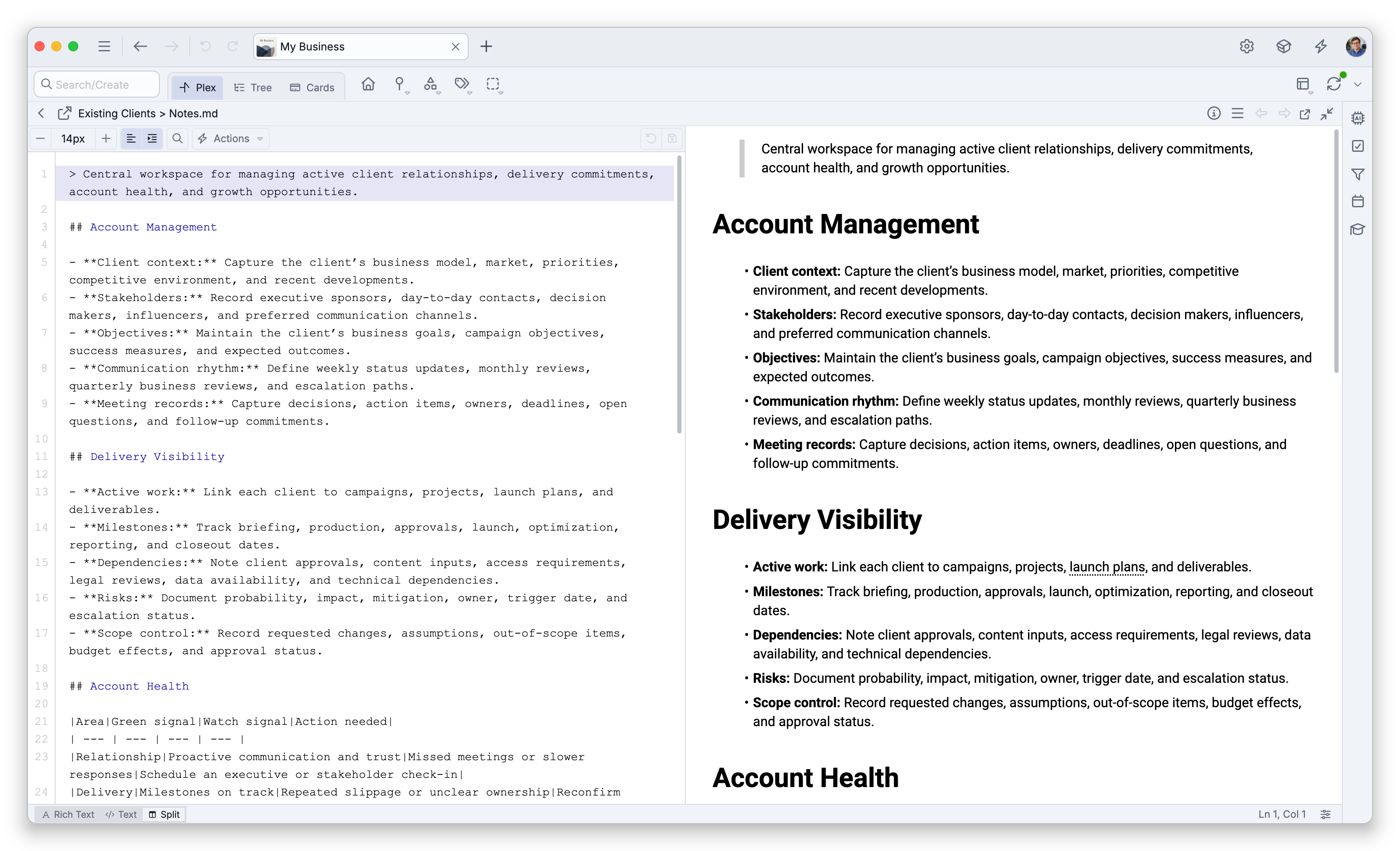
A note's text is stored as Markdown, and pasting Markdown into a note formats it on the spot. To work on the raw text itself, right-click the note and choose Edit as Text, or use the Text button in the status bar under the note — the note's Markdown opens in a plain-text editor with syntax highlighting, including any YAML frontmatter at the top of the file, which the rich view keeps hidden. The Split button shows the raw text side by side with a live preview. Neither view is available on phones; see Writing and Formatting Notes for what they offer. Edits made there are saved in the dialect the view shows.
Notes can be stored in either of two Markdown dialects: TheBrain's own, described above, or standard Markdown — GitHub-flavored Markdown plus the note-taking extensions that apps such as Obsidian, Joplin, and Typora commonly implement, which other Markdown tools read and edit correctly. A brain you create yourself starts out in TheBrain's dialect and stays that way until you choose Switch to Standard Markdown… on the Note Format tab of Settings > Brain > Content Settings; a brain created by an import (from Obsidian, Notion, Evernote, a folder of Markdown files, and so on) uses standard Markdown from the start, except that a brain created by the TheBrain 8 Brain import starts out on TheBrain's dialect, and one restored from a brain archive keeps whatever the archived brain used. The Note Format tab shows which dialect a brain saves. The extension forms listed above describe that older dialect; in a standard-Markdown brain, underline is written <u>text</u>, checkboxes are - [ ] and - [x], tables carry a separator row, and so on. What you type in the editor is the same either way. The Text and Split views always show the brain's own dialect: in a standard-Markdown brain, a note still stored in the older dialect is displayed converted, and editing it there saves it converted. See Standard Markdown Notes for the full comparison and how to switch a brain.
- The same results are available from the toolbar if you prefer clicking — see Writing and Formatting Notes.