Thought Icons
Overview
A thought can carry a custom icon, and once set, that icon shows up everywhere the thought appears — in the Plex, in search results, in lists, and on links. Icons make a brain far easier to scan: a recognizable picture catches the eye faster than text. You can choose from a large library of stock icons (including emoji and flags), or supply your own image, such as a logo or a photo.
How to Set an Icon
- Open the thought, click its name to show the properties header's controls, then click the Icon button.
- Choose from the icon menu:
- Select Stock Icon — Open the stock icon library. The default shortcut is
Ctrl+Alt+I(⌥⌘Ion Mac). - Upload Icon — Pick an image file from your device (PNG, JPG/JPEG, GIF, or WEBP).
- Paste Thought Icon — Use an image you've copied to the clipboard (desktop app only).
- Select Stock Icon — Open the stock icon library. The default shortcut is
The Stock Icon Library
The Select Stock Icon dialog lets you Browse by category or Search by keyword. It offers:
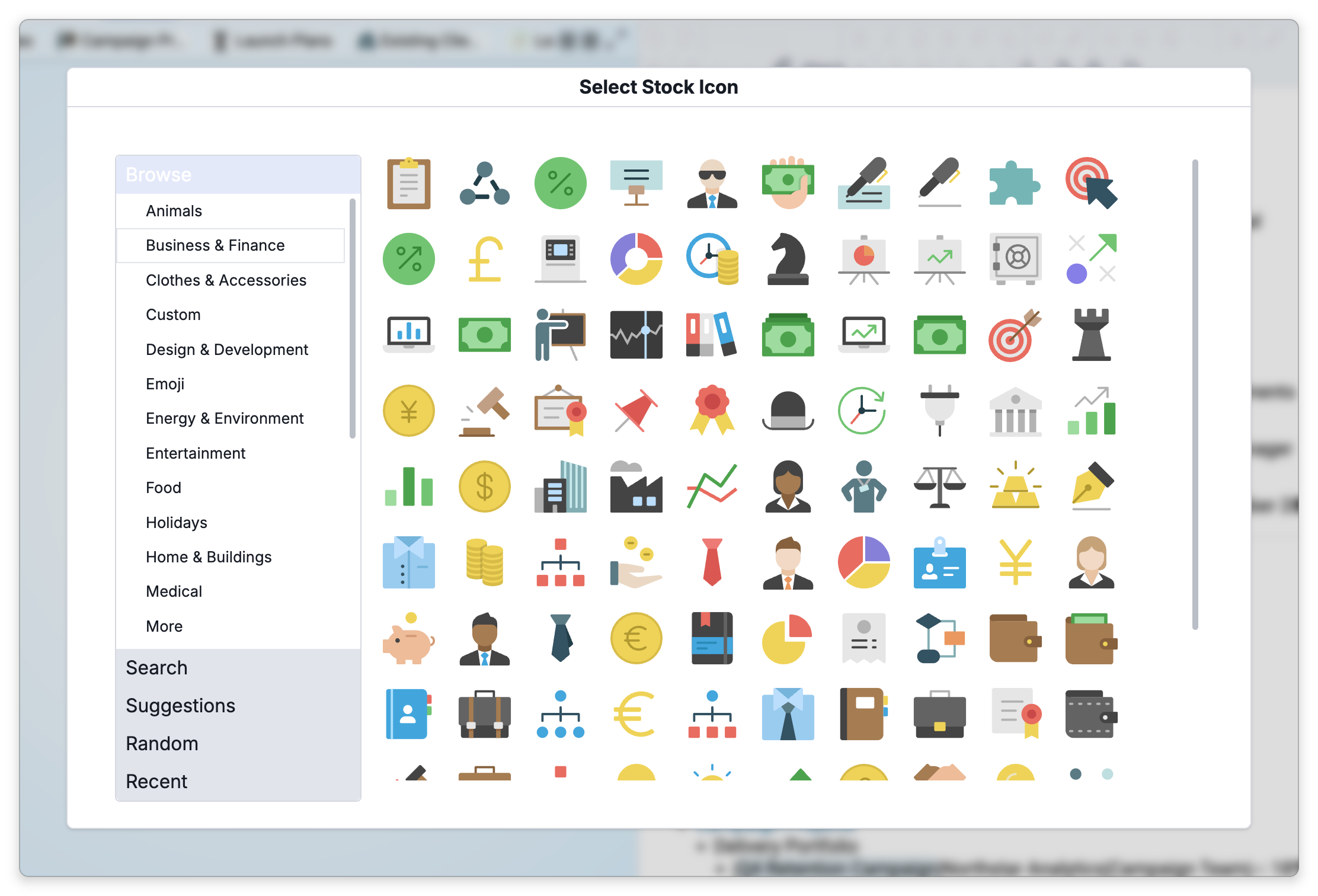
- Suggestions based on the thought's name and label.
- Recent icons you've used, and a Random / Shuffle option to discover ideas.
- Categories spanning Animals, Business & Finance, Food, People, Technology, Travel, Weather, Emoji, World Flags, and more.
Click any icon to assign it. In the desktop app you can also add your own by placing SVG or PNG files into TheBrain's Custom Icons folder (subfolders supported). To open that folder, hold Shift (⌥ on Mac) in the Icon menu and choose Add Stock Icons....
Copying, Pasting, and Viewing
- View Icon opens the current icon at full size.
- Copy Icon copies the thought's icon so you can Paste Thought Icon onto another thought (both desktop app only).
- Paste Thought Colors applies the text and fill colors of a thought you copied with Copy Thought (desktop app only). See Thought Properties.
Removing an Icon
To clear a thought's icon, open the Icon menu and choose Delete Icon. This removes an icon that was set on the thought itself. Afterwards the thought shows its type's icon if its type has one, or else an automatic icon from its attachments (see Automatic Icons below), or no icon at all.
Automatic Icons
A thought that has attachments but no icon of its own gets an icon automatically from them, which is why a thought can have an icon you never set. Notes don't count as attachments here.
- One attachment — A web link shows the website's own icon (an email link shows a mail icon), an image file shows the image itself, any other file shows the icon of its file type, and a folder shows a folder icon.
- Several attachments — Web links that all go to the same site show that site's icon, and links to different sites show a general link icon. Files that are all of one type show that file type's icon, or one of the images if they are images. Any other mix shows an image from among the attachments, or a general icon for multiple attachments when there is no image.
If the thought has a type that has an icon, the type's icon is shown in place of these automatic icons. An icon you set on the thought with the Icon button takes the place of both.
To get rid of an automatic icon, set your own icon, give the thought a type that has an icon, or remove the attachment the icon comes from. Delete Icon does not remove an automatic icon.
Hero Images
When a thought's icon is a large picture, TheBrain shows it as a wide banner across the top of the content area — a hero image — with the thought's name and label drawn over it, in place of the small icon beside the name. The picture can be an icon you set, an image attachment that TheBrain is using as the icon automatically, or an icon the thought inherits from its type. Small images stay ordinary icons, and website icons and SVG icons are never shown as a banner.
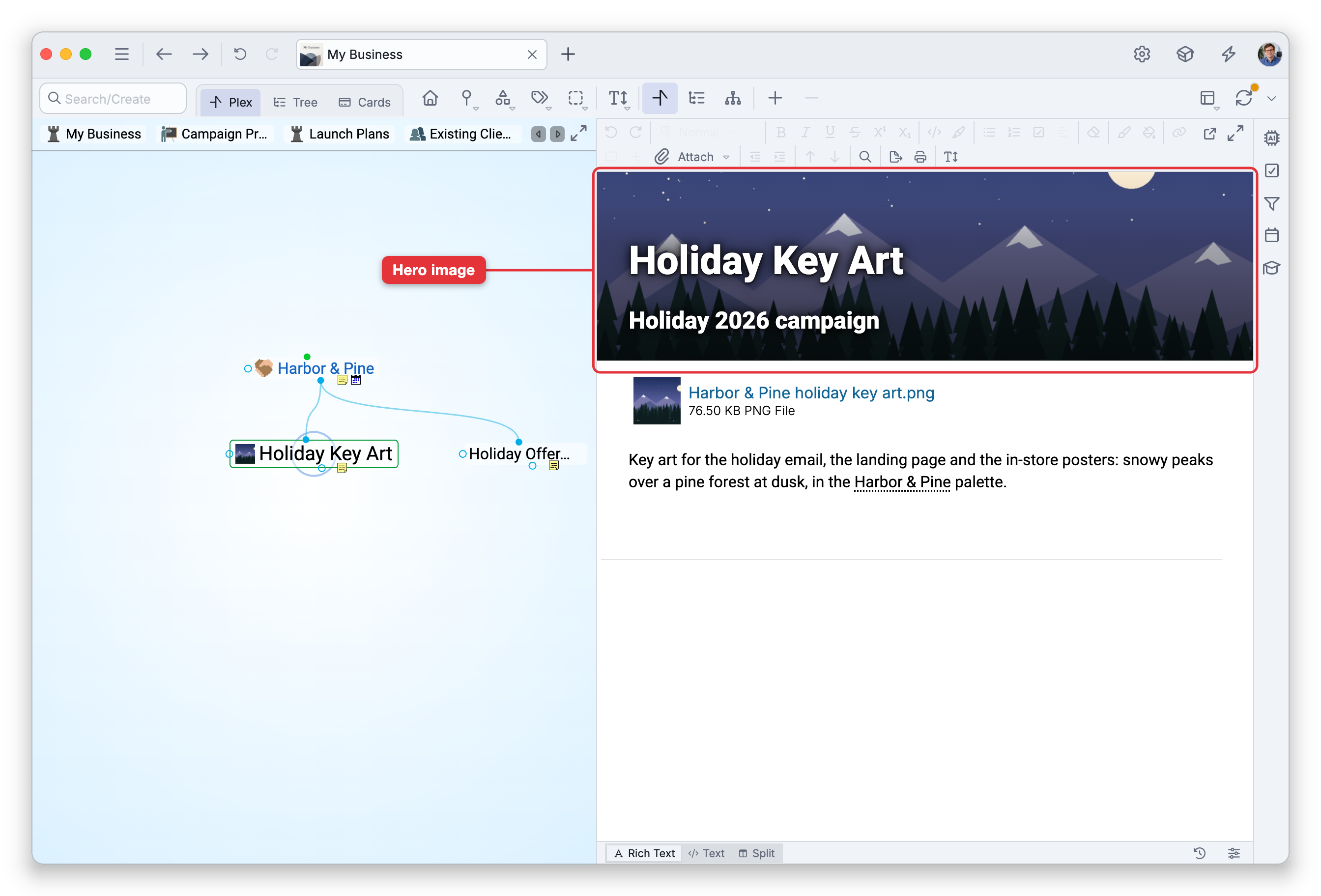
To turn the banner off, open Settings > Brain > Content Settings, choose the Attachments tab, and clear Show hero images on thoughts. The option is on by default. It is saved with the brain, so in a shared brain it applies to everyone who uses it. The banner is not used in the Thought Properties dialog. See Brain Content Settings.
Using an Attachment as an Icon
On the desktop app, you can set an attachment as the thought's icon with Set as Thought Icon from the attachment's menu. See Managing Attachments.
- Image attachments — The image itself becomes the icon.
- Web link attachments — The website's own icon (its favicon) becomes the thought icon. This works for
httpandhttpslinks. If the site doesn't provide a usable icon, TheBrain shows a message and leaves the thought's icon unchanged.
Types pass their icon down to their children — setting an icon on a type styles everything of that type at once. See Thought Types.