Thought Properties
Overview
When you open a thought, its properties header sits at the top of the content area. It shows the thought's icon, name, and label, and gives you a row of controls for everything about the thought — its type, tags, color, privacy, and details — all in one place. The edit controls appear when you click the name; you can keep them always visible if you prefer.
Name and Label
A thought has both a name and an optional label:
- The name is the primary text — what shows in the Plex and search.
- The label is a short subtitle or description shown beneath the name, for extra context at a glance.
Edit either one inline by clicking it in the header. If you ever want to switch them, use Swap Name and Label (shown when a label is present).
Beneath the label, a thought can also have an Aliases row: alternate names, separated by semicolons, that search and unlinked-mention detection treat like the name. The row appears only once the thought has aliases or you've asked for it with the Aliases button in the control row. See Thought Aliases.
While editing these fields in the content area, Enter moves you to the next one — name, then label, then aliases when that row is shown — and past the last field it takes you into the note. In the Properties dialog, Enter in the name or label field saves it and closes the dialog. Esc saves and returns you to the Plex.
Names and labels written in a right-to-left language such as Hebrew or Arabic are laid out right to left automatically, wherever they appear — the Plex, search results, tabs, and the properties fields — based on the first letter of the text. There's no manual direction override for names and labels; that exists only for paragraphs in notes (see Writing and Formatting Notes).
How to Rename a Thought
- Click the thought's name in the properties header at the top of the content area.
- Type the new name. It is saved when you press
Enteror click somewhere else.
On a computer you can also rename a thought in the Thought Properties dialog, which opens with the name already selected, so you can just type the new name and press Enter. To open it, click the active thought in the Plex a second time, Alt-click (⌥-click on Mac) any thought in the Plex, press Alt+Enter (⌥Enter on Mac), or right-click the thought and choose Thought Properties. On a phone, tapping the active thought again switches to the content view and puts the cursor in the name.
If the brain's Context sensitive thought names option is on, renaming a thought can bring up a Rename Related Thoughts? prompt — see Context-Sensitive Thought Names.
The Control Row
The header's controls (grouped roughly into type/tag/icon and color/lock/info) are:
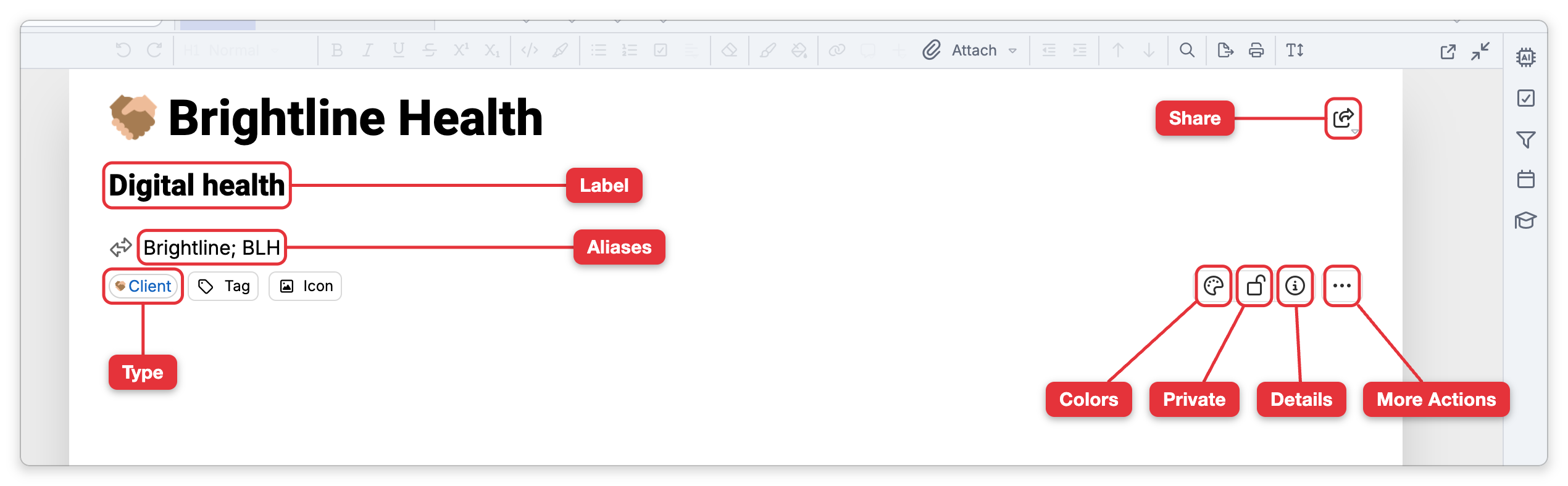
- Type — Set the thought's type. Once a type is set, its chip takes the button's place. See Thought Types.
- Tag — Add or remove tags. See Tags.
- Icon — Set a custom icon. See Thought Icons.
- Aliases — Show the aliases row and start typing alternate names. Shown only while the row is hidden. See Thought Aliases.
- Colors — Set the thought's text color and its fill (background) color, or reset them. See How to Change a Thought's Colors below.
- Lock — Toggle the thought between Public and Private (a lock icon). Disabled on the home thought and on type/tag thoughts, which are always public. See Private Thoughts.
- Info (Show Thought Details) — Reveal the thought's Created date, Modified date, and ID (which you can copy).
- More Actions — A three-dot overflow menu with the rest: show history, create linked thoughts, copy/duplicate, copy web/local URLs, share, web search, forget/delete, pin, set as home, and change thought kind.
- Share — The share button next to the name. See Shared Thought Pages.
How to Change a Thought's Colors
- Open the thought and click its name to show the properties header's control row, then click the Colors button (the palette icon) in that row.
- Choose what to color: Text (selected to begin with) or Fill, the thought's background. The Swap Colors button between them exchanges the two colors.
- Pick a color from the palette, click Custom to choose any other color, or type a hex value such as
#RRGGBB. Where it is available, the eyedropper button picks a color from the screen.
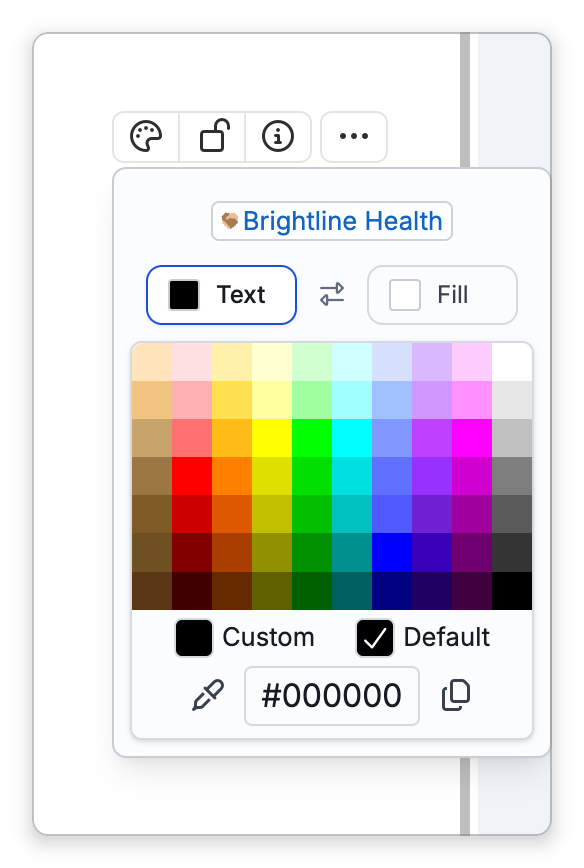
To reset a color to normal, select Text or Fill and click Default. This removes the thought's own color for that one target, so the thought goes back to the color of its type if the type has one, and otherwise to the brain theme's color.
To copy one thought's colors to another in the desktop app, use Copy Thought on the source thought, then choose Paste Thought Colors on the target thought, from its right-click menu or its Icon menu. The target gets the source thought's own text and fill colors. If thoughts are selected, the colors are applied to the whole selection. Paste Thought Colors is shown only while a copied thought is on the clipboard.
The Properties Dialog
The same header content is also available as a standalone popup, the Thought Properties dialog; How to Rename a Thought lists the ways to open it. This is a convenience on desktop and web; on mobile the properties live in the header itself.
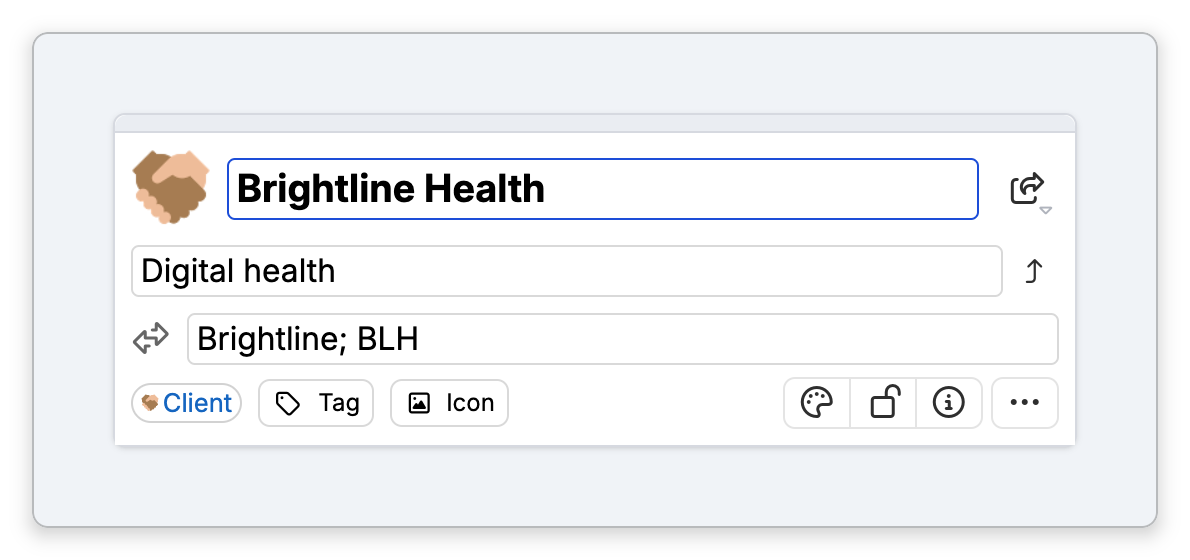
- By default the edit controls appear when you click the thought's name. Right-click the header (or use the View Options button at the right end of the notes status bar) for the Properties options Keep visible when scrolling and Always show edit controls.
- When the content area is narrow, the Type, Tag, Icon, and Aliases buttons drop their text and show only their icons. In the Properties dialog the labels stay visible.
- The header is also where mapped links, backlinks, and unlinked mentions can be toggled for the note below — see Links in Notes.