Exporting Brains
Overview
Exporting gets your content out of TheBrain in a portable format — for backups, for moving data elsewhere, or for sharing a copy. Different formats keep different amounts of structure, from a complete archive down to plain text. Exporting requires admin rights on the brain.
How to Export
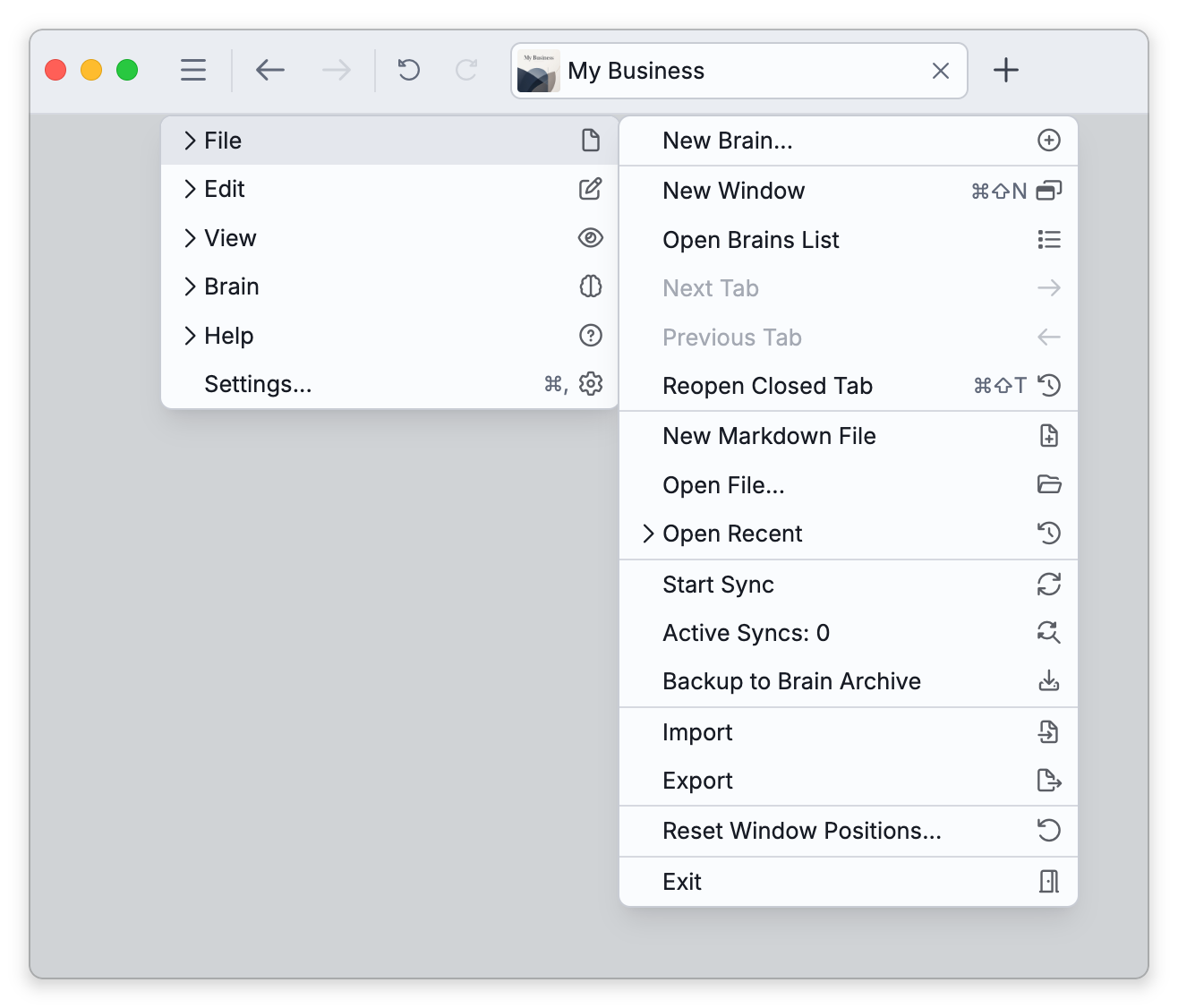
- Open Main Menu > File > Export (this opens the Import/Export dialog on the Export side). In the Mac menu bar the command is the File > Export Brain submenu, which has an item for each format.
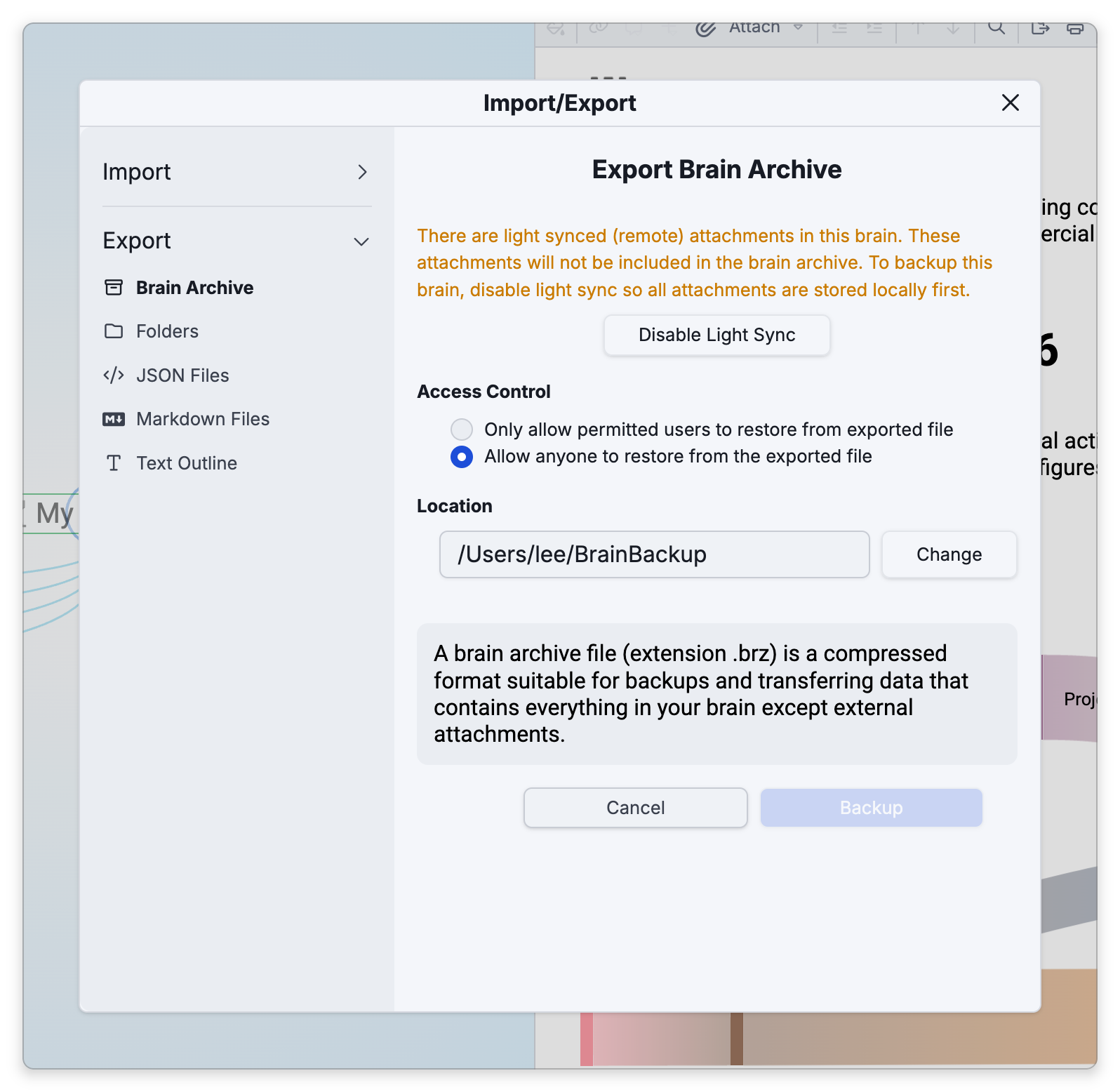
- Choose a format from the list on the left of the dialog.
- Set any options, then click Export (Backup for a brain archive).
Formats
- Brain Archive (
.brz) — a compressed copy of everything in the brain except external attachments; best for a faithful backup you can import again, and for transfers. (See Backup to Brain Archive.) - Markdown Files — one
.mdfile per thought that has a note, all in one folder, with note images and attachments in subfolders. The details are under What the Markdown Files Export Creates in this topic. - JSON Files — a complete, structured export of your data. Markdown and JSON are the formats for using your data in other tools.
- Text Outline — an indented outline where indentation is the hierarchy.
- Folders — thoughts as folders and files on disk. External files are fully represented, as shortcuts or symbolic links, only in the desktop app.
Options
The options depend on the format:
- Only export the selection — limit the export to the thoughts you have selected (see Selecting Multiple Thoughts). Available for Markdown Files, Folders, and Text Outline (not JSON or Brain Archive).
- The box is ticked for you when you open the dialog with thoughts selected in that brain, and it is grayed out when nothing is selected.
- Exactly the selected thoughts are exported. The children of a selected thought are not included unless they are selected too.
- In Text Outline and Folders, a selected thought whose parent isn't selected is placed at the top level.
- Markdown Files adds the most options: Include title (on to start with) and, under it, Link title to thought (off); Convert to CommonMark (off); Include attachments (on); and Export thought links as — Relative links to exported files, Local
brain://links (the one selected to start with), or Web URLs. - JSON Files exports with no extra options; Brain Archive has its own settings (see Backup to Brain Archive).
What the Markdown Files Export Creates
Everything goes into one folder. The brain's structure is not turned into subfolders.
- Notes — Each thought that has a note gets a file named after the thought,
<thought name>.md. A thought without a note gets no file. Characters that aren't allowed in file names are replaced with underscores, and thoughts that share a name get(2),(3), and so on added. - Images — Images used in notes are saved in an
md-imagessubfolder. - Attachments — With Include attachments on, attached files that are stored in the brain are copied into an
attachmentssubfolder, web links are saved there as.urlfiles, and links to a thought's attached files are listed at the top of its note. Attached folders and linked external files are not copied. - Title — Include title puts the thought's name at the top of the file as a
# Heading. Link title to thought makes that heading a link to the thought's web address. - Thought links inside notes — These are written the way Export thought links as says. Relative links to exported files points a link at the other thought's
.mdfile when that thought is part of the export, and leaves the link as it was when it is not. - Front matter — A note's YAML frontmatter is kept at the top of the exported file.
- Not exported — The parent, child, and jump links between thoughts are not written anywhere in this format. Only the links inside notes are kept.
Standard Markdown and Convert to CommonMark
Exported Markdown is not always standard Markdown, because each note is exported in the Markdown format it is stored in:
- A note that is already saved as standard Markdown is exported as standard Markdown.
- A note that is still stored in TheBrain's older Markdown format is exported in that older format, unless you tick Convert to CommonMark. That option converts those notes to standard Markdown in the exported files, and leaves notes that are already standard as they are. It does not change the notes in your brain.
Convert to CommonMark is off to start with. A brain that uses standard Markdown can still hold notes in the older format that haven't been edited since the switch, so tick the option whenever the files are meant for other Markdown tools. See Standard Markdown Notes for the two formats.
Where the Export Is Saved
- Desktop app — When you click Export, a folder picker opens. It starts at the folder you last exported to on this computer, or at your Documents folder the first time.
- A Text Outline is saved in the folder you pick as one file, named
<brain name> YYYY-MM-DD_HH-MM-SS.txt. - Markdown Files, JSON Files, and Folders write their files straight into the folder you pick. If that folder isn't empty, TheBrain asks whether to save the export in a new subfolder named
<brain name> YYYY-MM-DD_HH-MM-SSinstead. - When the export finishes, the Export complete. notification has an Open Export Location link.
- A Text Outline is saved in the folder you pick as one file, named
- Web — There is no folder to choose. When the export finishes, the Export complete. notification has a Download link. A Markdown Files, JSON Files, or Folders export is delivered as a single zip.
A Brain Archive is saved differently — see Backup to Brain Archive.
- In the desktop and mobile apps, light-synced attachments that aren't stored locally are left out of a JSON export — the JSON panel shows a warning when this applies — and a brain archive can't be made at all until light sync is off (see Backup to Brain Archive). To include everything, disable light sync so all attachments are stored locally first.
- To export the notes of a thought or selection as a single document (PDF, HTML, Markdown, or text), use Export Notes from the notes editor's toolbar or the selection's Actions menu instead — it has its own preview with page size, margins, page numbers (offered on the desktop app only; the mobile apps' PDF export has no page-number option), text and image scale, per-type callout filtering, and (for PDF and HTML) a Side bars on embeds option for any embedded notes in the content (see Embedded Notes). On the web it directs you to the installed app. See Exporting and Printing Notes for every option.