Notifications
Overview
TheBrain uses notifications to tell you what just happened or what's going on in the background: the Undid Create Thought confirmation after an undo, Attachments added, a copied-link confirmation, the notice with an Undo button after you change a theme, an import that has finished, or an error that needs your attention. Some are brief confirmations that fade on their own after a few seconds; others stay until you deal with them.
On Desktop and Tablets
Notifications appear as cards at the top right of the window as they arrive, except low-priority ones, which wait in the Notifications dialog instead. Each card has an icon, a title, and a description. When a notification carries a link — for example to open a brain that just finished importing — the description is the link. A card that stays until you deal with it has two controls, and they do different things. The small circle (Mark Read) marks the notification read and puts the card away, but keeps the notification in the Notifications dialog. The X (Delete) removes the notification altogether. Following a card's link also marks it read and puts the card away. A notification for a running background process also offers Cancel. Brief confirmations have only the X, and they remove themselves after a few seconds; you don't need to touch them.
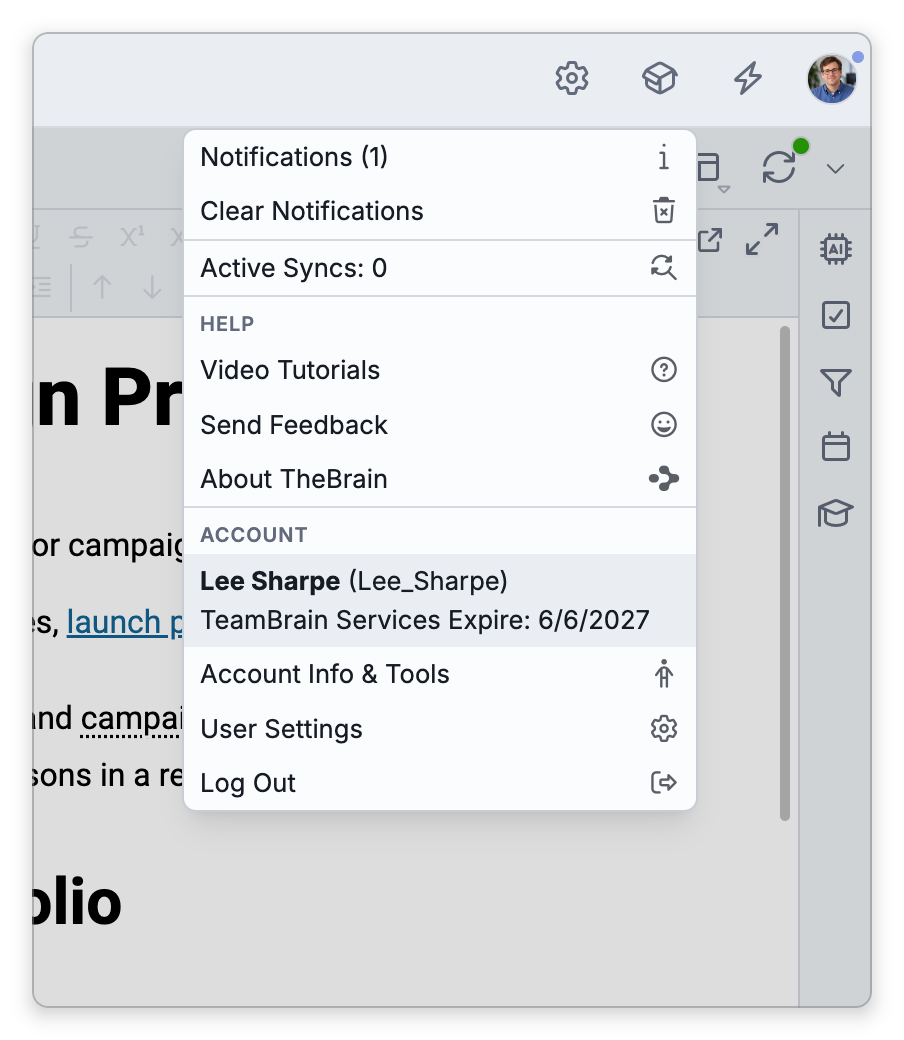
Your account button at the top right of the toolbar (your avatar or initials) shows a badge with the number of unread notifications, or a small dot when only low-priority ones are waiting. Open the account menu and choose Notifications — the item shows the count, for example Notifications (3) — to open the Notifications dialog. The item only appears while there is at least one notification.
On Phones
There's no room for cards on a phone, so brief confirmations show as a compact strip just under the top toolbar — a line or two with the message and an X to dismiss it — and leave on their own when their time is up. Up to three can stack; when more arrive, the oldest goes first.
- Hold a finger on the strip to pause its timer while you read it; letting go resumes the countdown, with at least a moment left to act.
- Swipe it sideways to dismiss it right away, or tap the X.
- Tap the strip to follow its link if it has one; a strip with no link is dismissed by the tap. Buttons inside a strip, such as the Undo on a theme-change notice, work as usual.
These brief strips don't count toward the unread badge and aren't kept in the list afterwards. Notifications that persist are reached through the settings button at the right end of the toolbar (a gear icon): it shows the unread badge, and tapping it opens a menu whose Notifications item opens the Notifications dialog.
The Notifications Dialog
The Notifications dialog lists every notification that's still around. When some are from earlier days, they're grouped under date headings (for example Yesterday), newest group first. Each entry has the same circle and Delete button as the cards, and its link still opens. In the dialog the circle only switches the entry between read and unread (Mark Read / Mark Unread) and leaves it in the list; Delete removes it. A filled circle marks an unread notification. Read notifications are shown faded, and so are low-priority ones, such as a search index that finished rebuilding; a low-priority notification that has been read is fainter still. Clear All at the top removes them all at once — if any notification belongs to a still-running background process, TheBrain asks first whether to cancel those processes too. When nothing is left, the dialog reads No notifications.
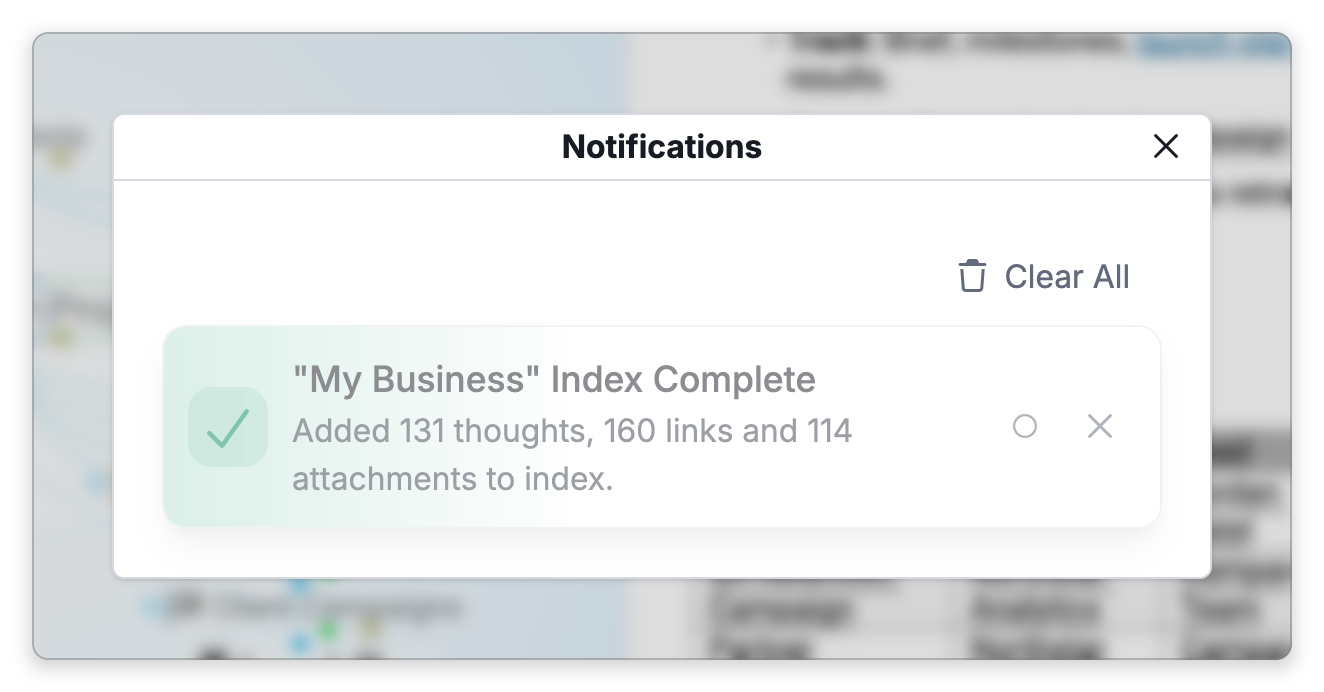
- Opening the dialog also closes any notification cards that are currently showing.
- Some notices belong to a particular tab and only appear in that tab; general ones appear in every tab.
- The list of notifications is kept separately on each device or browser you use, so marking one read or deleting it in one place doesn't change another.
- In the desktop and mobile apps, notifications you haven't deleted are still listed in the Notifications dialog after you restart the app, but they don't pop up as cards again. Brief confirmations that fade on their own aren't kept, and neither is the progress notification of a background process that was running.
- Signing out clears your notifications.