The Brains List
Overview
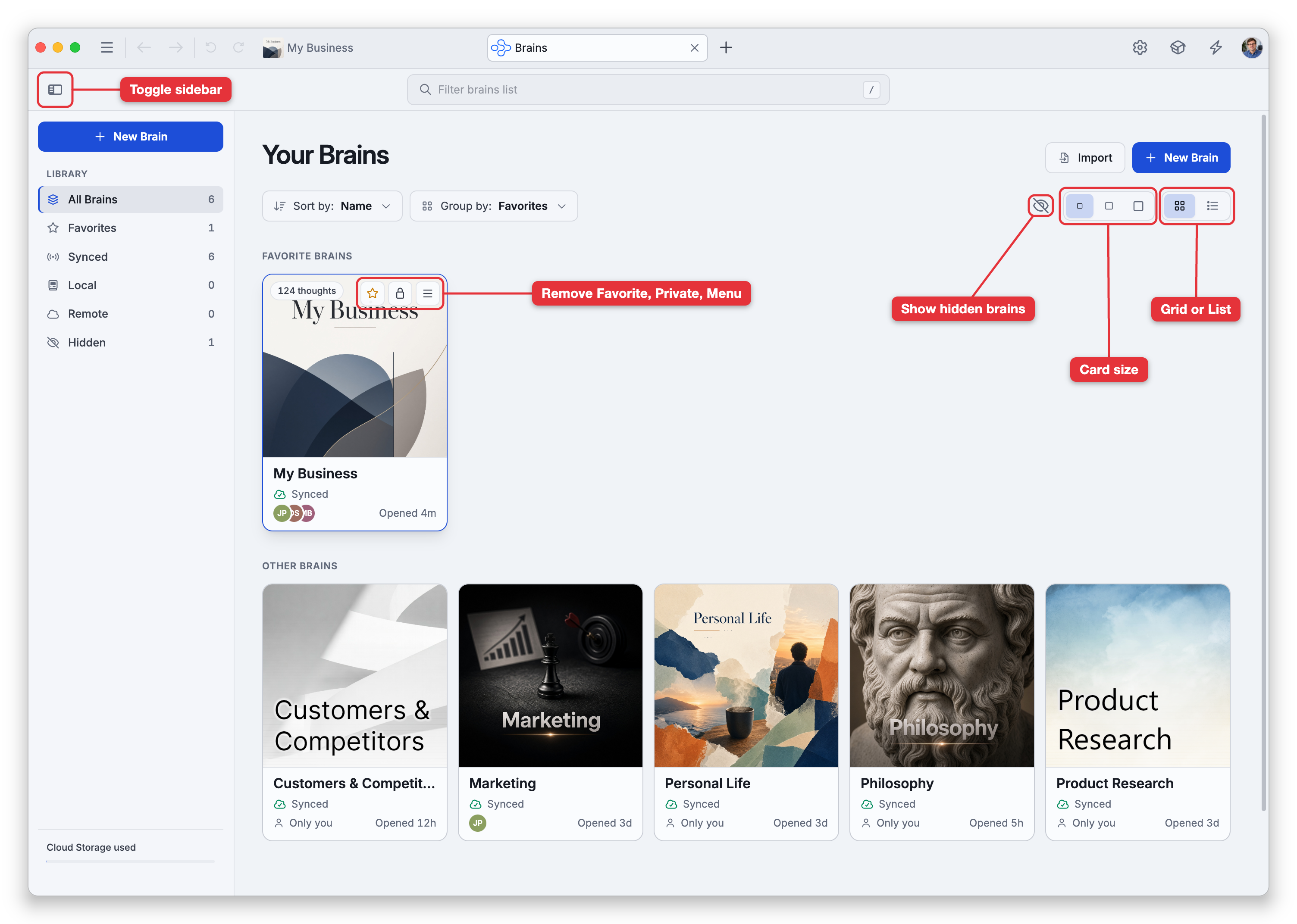
The brains list is the home screen you land on outside of any single brain — the place to open an existing brain or start a new one. A Library sidebar on the left focuses the view, a search box in the top toolbar narrows it as you type, and the main area shows your brains as a grid of cards or a detailed list.
Opening and Creating
From the list you can:
- Open a brain by selecting it. Right-click a brain — or use the ☰ button on its card or row — for more ways to open it and its full menu (see Opening a Brain).
- New Brain — the button at the top of the sidebar, and again in the page header (see Creating a Brain).
- Import — the page-header button opens the Import/Export dialog, where you can import a brain archive (a
.brzfile) or content from other apps (see Importing Brains). A narrow window or a phone doesn't show this button. - BrainBox — on the web, the top toolbar also has a BrainBox button for your quick-capture inbox (see BrainBox).
When a Brain Is Unavailable
A brain whose local data can't be opened stays in the list, marked Unavailable brain with a short reason: No access, Files missing, Damaged, or Can't read. Selecting the brain, right-clicking it, or using its ☰ menu opens a Brain Unavailable dialog that explains what happened rather than trying to open it.
- No access — the same brain was imported or synced by another account on this computer, so this account can't reach its local data. Signing back in as the account that owns that copy is what makes it available again.
- Files missing — the brain's folder couldn't be found. The dialog shows the path TheBrain expects; quit the app, put the data back there, and start it again. If you moved the data on purpose, point TheBrain at the new place in Settings > Device > Storage.
- Damaged / Can't read — the local database can't be opened or read.
In the installed apps the dialog also offers Remove from This Device, which takes the brain off this computer's list and deletes its local files. You have to tick the confirmation box before the button becomes available. Copies in your cloud account, in other accounts, or on your other devices aren't touched — but if a brain was never synced, removing it is the last of it, so contact support first if you aren't sure.
The Library Sidebar
The Library sidebar filters which brains you see. Each entry shows a count:
- All Brains — your whole collection.
- Favorites — brains you've starred.
- Shared with Me — brains someone else administers (appears once you have any).
- Synced / Local / Remote — desktop and mobile apps only: filter by where each brain lives.
- Hidden — brains you've hidden (appears once you've hidden any).
- Featured Public Brains — web only: a collection of public brains to explore, listed when there are brains to feature (see Featured and Public Brains).
At the bottom, a Cloud Storage used meter shows how much of your cloud allowance you're using. The Toggle sidebar button at the left edge of the toolbar collapses the sidebar; its sections then appear as tabs across the top of the list. Narrow windows and phones switch to those tabs automatically.
Viewing and Arranging
A controls row above your brains tailors the view, and your choices are remembered on your account:
- Sort by — Name or Recent.
- Group by — Favorites, Access, or (desktop/mobile) Status — groups the brains within whatever the sidebar is showing.
- Show/hide hidden brains — an eye button that appears once you have hidden brains.
- Grid or List — cards, or a detailed table with columns for when each brain was last Opened, its Status (in the desktop and mobile apps), its Visibility, and its ID.
- Density — in Grid view, choose between three card sizes.
Grid cards show who has access to each brain (member avatars), when you last opened it, and — if you've assigned the brain a color — a colored dot next to its name (see Renaming and Brain Icon). Pointing at a card with a mouse also shows the brain's thought count; touch screens don't show it. Each brain that is in the cloud also has a visibility icon whose hint reads Private, Public (the brain has Allow unlisted access on) or Discoverable (it has Allow public access on); click it to open Brain Access and Sharing. On the desktop and mobile apps, a brain that needs attention shows a sync badge under its name — Unsynced changes, Update available, or Sync blocked (see Syncing Brains).
Favoriting a Brain
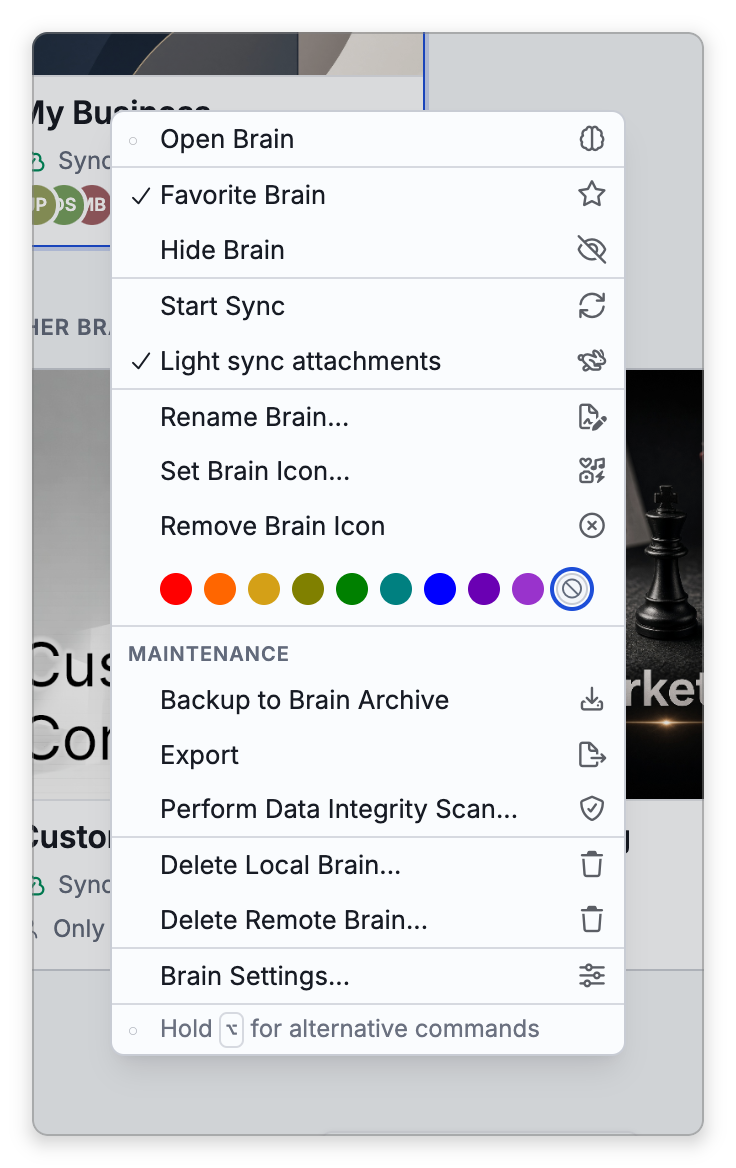
To mark a brain as a favorite, right-click it (long-press on a touch screen) and choose Favorite Brain. The item is ticked while the brain is a favorite, and choosing it again removes the brain from your favorites. With a mouse you can also click the star that appears on a brain's card when you point at it (Make Favorite or Remove Favorite), or the star beside the brain's thumbnail in List view. Touch devices don't show the buttons on the cards, so use the long-press menu or List view there.
A favorite brain is easier to get to:
- It is listed under Favorites in the Library sidebar.
- When you group by Favorites, it appears in a Favorite Brains section above Other Brains.
- It is listed first in the brain switcher.
Favorites are saved with your account. On the web, favoriting a featured public brain also adds it to your own brains list.
Hiding and Unhiding a Brain
To hide a brain, right-click it (long-press on a touch screen) and choose Hide Brain. The brain leaves every section of the brains list except Hidden, and it leaves the brain switcher.
Hiding changes only where the brain is listed. The brain stays on your device and in your cloud account, you can still open it, and hiding it has no effect on syncing: a synced brain with Sync automatically on keeps syncing while it is hidden. Hiding doesn't delete anything or free any storage.
To see your hidden brains, do any of these:
- Select Hidden in the Library sidebar.
- Click the eye button in the controls row above the list (Show N hidden brain(s)).
- Click Show Hidden beside the line that says how many brains are hidden, at the bottom of All Brains.
While hidden brains are being shown they appear dimmed in the list, and they are listed in the brain switcher again. Click the eye button again (Hide N hidden brain(s)) to put them out of sight.
To get a hidden brain back for good, right-click it and choose Hide Brain again — the item is ticked while the brain is hidden. Which brains are hidden is saved with your account.
Filtering
Type in the Filter brains list box in the top toolbar to narrow the list to matching brains — the header counts how many match while a filter is active.
Returning to the Brains List
When a brain is open, how you get back to the brains list depends on your platform:
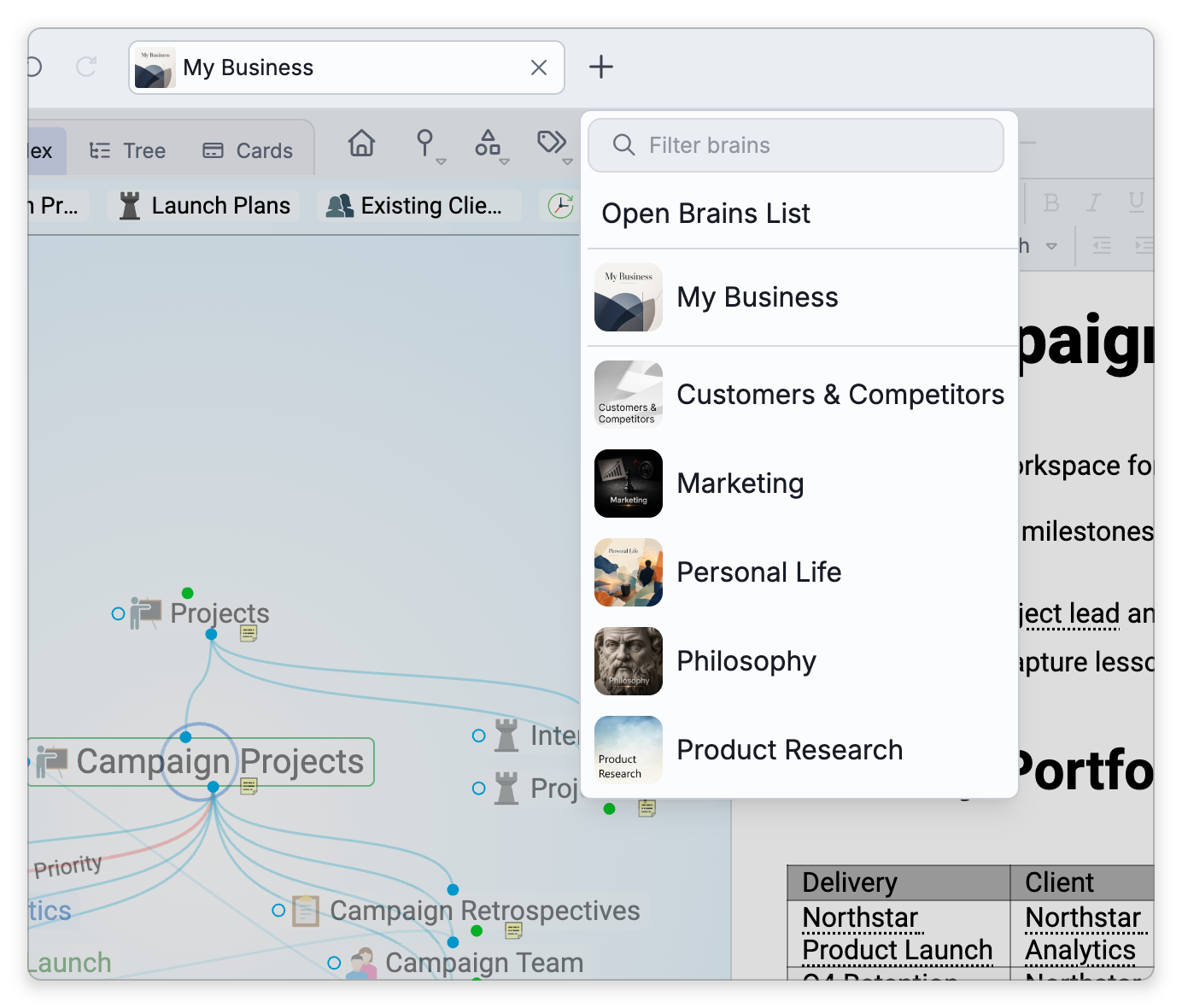
- Desktop client — Either close all open tabs in the tab bar, or click the
+button in the tab bar and choose Open Brains List from its dropdown. That dropdown is the brain switcher: alongside Open Brains List it lists your other available brains so you can jump straight to one instead. Main Menu > File > Open Brains List opens the list in a new tab. - Web — There is no tab bar. Click the × button beside the brain's name in the toolbar (its hint reads Return to Brains List), or choose Main Menu > File > Open Brains List.
- Mobile — Tap the ☰ menu at the top-left of the main toolbar to open the left drawer. From there you can tap the
<icon to go back to the brains list, or tap the active brain's thumbnail and title to open the brain switcher — the same menu the desktop+button shows, with Open Brains List plus your other downloaded brains to switch between.
- The right-click (or touch long-press) menu on a brain also offers Start Sync (in the desktop and mobile apps), Rename Brain, Set Brain Icon, a row of color swatches that sets the brain's color, Backup to Brain Archive, Export, Perform Data Integrity Scan, the commands that delete the brain, and Brain Settings. Holding
Shift(⌥on Mac) while the menu is open adds Rebuild Brain Search Index and, in the desktop app, Assign Brain New GUID, which gives a copied brain an identity of its own when the server reports that it shares one with another brain. - Whether you see Open in New Window, Open in Desktop Client, and similar depends on your platform — see Opening a Brain.