Note Versions
Overview
TheBrain keeps earlier versions of each note, so text you deleted or rewrote isn't gone for good. The Note Versions dialog lists them, newest first, and shows any one of them read-only, with its changes marked, so you can see what the note said then and copy what you need back into the note.
Versions are kept automatically — there's nothing to turn on (see Which Saves Become Versions). TheBrain keeps up to 20 of the versions saved at syncs and up to 20 of those kept before editing.
Versions are kept only for a thought's own note, so there is nothing to show for a thought that has no note. A Markdown (.md) file attached to a thought has no version history, even though it opens in the notes editor, and Note Versions always shows the versions of the thought's note, never of an attached file.
How to Open Note Versions
Open the thought whose note you want, then do any of these:
- Click the clock button at the right end of the notes status bar, under the note (when the status bar is showing — it isn't shown on phones).
- Or right-click in the note and choose Note Versions... at the end of the menu.
- Or, in the thought's properties, open the More Actions menu — the … (ellipsis) button — and choose Note Versions....
On the desktop app the dialog opens in a window of its own beside the note, so you can keep it open while you edit and copy passages across. It closes with the tab it was opened from. On a phone it fills the screen: tap a version to open it, use Versions to go back to the list, and Older and Newer to step between versions.
Reading the List
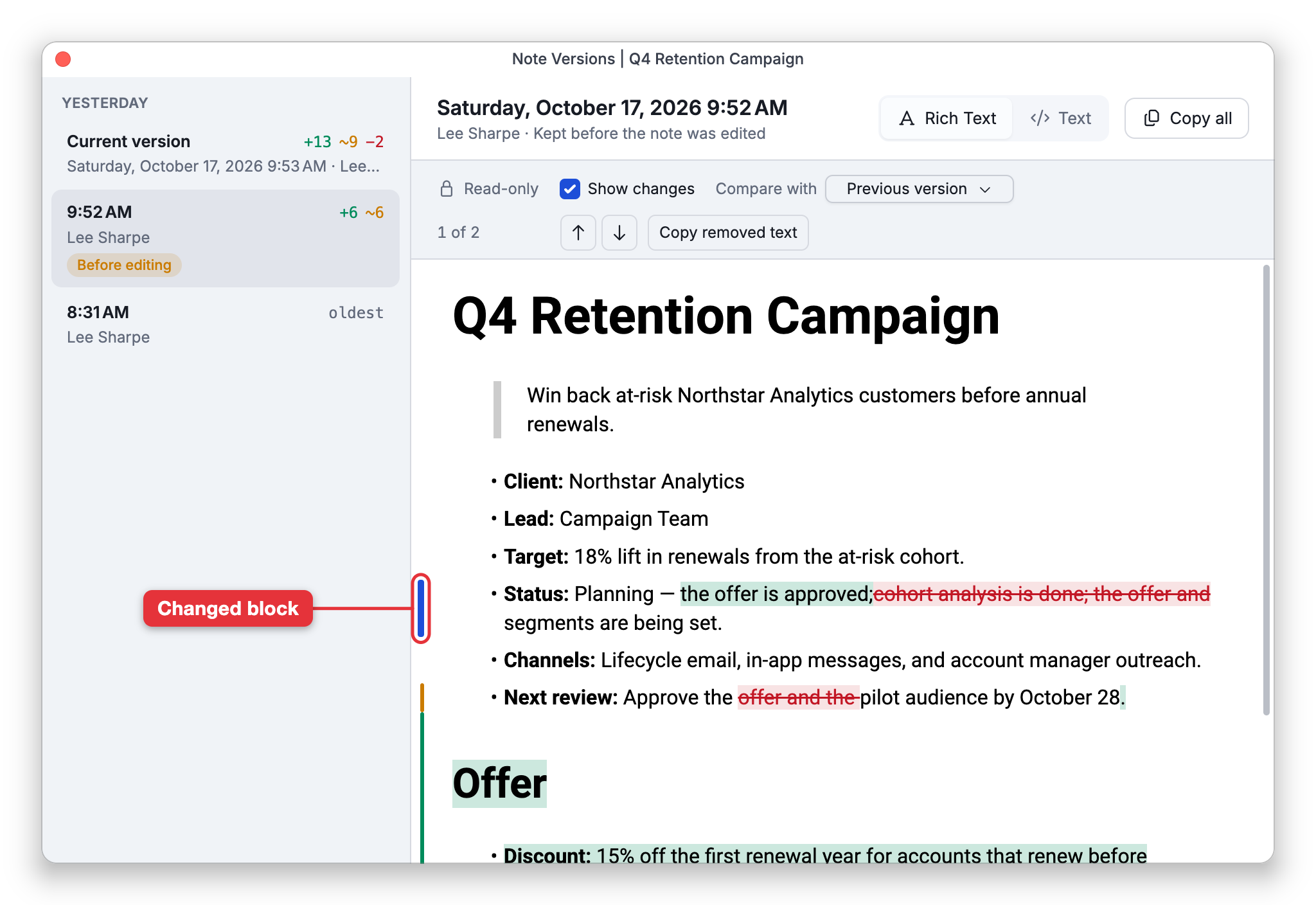
The list starts with the Current version — the note as it is now — followed by the earlier versions grouped under Today, Yesterday, and then the month and year. Each version shows when it was edited and, where TheBrain knows it, who edited it. Some are tagged:
- Before editing — Kept just before the note was edited, so it's the note as it was before that editing session.
- Merged — The result of a sync combining this note with changes made elsewhere (see Working Offline and Sync Recovery). When a sync merge changes the note, both versions it combined are kept in the list too — the note as it was here and the version that arrived — so you can compare either one with the merged result.
Each version also shows how many lines it added, changed, and removed compared with the version below it — for example +3 ~1 −2; hover over the numbers for the words. The oldest version, with nothing below it to compare with, is marked oldest.
If the note has no earlier versions yet, the dialog says so. The list reloads after the note is saved, so a dialog left open stays up to date.
Viewing a Version
Select a version to show it. Switch between Rich Text, which shows it formatted with your notes theme, and Text, which shows its Markdown source.
A version is read-only: you can't edit it in place or put it back in place of the note, but you can select any part of it and copy it, or click Copy all to copy the whole version. Copy all copies the version's Markdown source exactly as it's stored — the same text the Text view shows — whichever view you're in. In a brain that uses TheBrain's own note format, that source is in TheBrain's format rather than standard Markdown.
Showing Changes
Show changes is on when the dialog opens. In Rich Text view, text the version added is highlighted in green, text it removed is shown struck through in red where it used to be, and a bar in the margin marks each changed block. In Text view you see a line-by-line comparison with the line numbers of both versions.
Use Compare with to choose what the version is compared against:
- Previous version — The version below it in the list, so you see what that version itself changed.
- Current note — The note as it is now. Struck-through text is then what the note has lost since that version — handy for finding something that has since been deleted.
Step through the changes with the Previous change and Next change arrows; the counter shows which change you're on, such as 2 of 7. Copy removed text copies the text the current change removed, ready to paste back into the note. Selecting only struck-through text and copying it works too; if your selection mixes kept and removed text, only the kept text is copied.
Turn Show changes off to read the version plainly.
Which Saves Become Versions
A note is saved many times while you write, and most of those saves don't get a version of their own. That's why the list doesn't show every save. A sync adds versions of its own when it brings in changes made somewhere else. For your own edits, TheBrain decides at each save whether to keep the text that the save is about to replace:
- The brain has synced since the note was last saved — The text is always kept, because it is the version the sync saw. In a brain that syncs, this gives you a version each time you edit a note that a sync has already seen.
- The note was last saved an hour or more ago — The text is kept, so each new editing session starts with a version.
- The save is a large change — The text is kept when the save changes more than ten lines, adds more than ten, or removes more than ten, or when it adds or removes more than half as many lines as the note had. These are lines of the note's Markdown text as the Text view shows them, so a long paragraph usually counts as one line. Each save is measured on its own, so text typed a little at a time doesn't add up to a large change, while a big paste or deletion is one.
- The note's format changes — The text in the old format is always kept.
A smaller edit made within the hour, with no sync in between, is saved into the note without a version.
If You Delete Everything in a Note
A note with nothing left in it isn't kept as an empty note. When you delete everything in a note, TheBrain removes the note from the thought, and Note Versions then shows This thought has no note. instead of a list.
In the desktop and mobile apps, removing a note this way also deletes the earlier versions kept for it on that device. Note Versions can't give the text back there.
To get the text back, use Undo right away (see Undo and Redo). Undo brings back the note's text. It doesn't bring back earlier versions that were deleted with the note.
If you want to start a note over and keep its history, leave some text in the note instead of clearing all of it. The note then stays, and so do its versions.
- The list can differ from one device to another, and between the apps and the web.
- For recent edits in the current session, Undo is quicker (see Undo and Redo). For a record of who changed a thought's name, links, and other properties, see Thought History.