Storage Location
Overview
On the desktop app, your brains are stored in a folder on your computer, and the Storage settings (under Settings > Device) show you where — and let you move it. This matters because where brain data lives affects its safety: TheBrain has specific guidance about which kinds of folders to avoid. The web app and the mobile apps have no Storage settings: the web app keeps brains in the cloud, and the mobile apps manage their own storage.
Where Brains Are Stored by Default
Until you move it, the desktop app keeps your brains in a folder named Brains:
- Windows — In your user folder, for example
C:\Users\<your name>\Brains. If aBrainsfolder in Documents already holds brains, that folder is used instead. - Mac — In Documents if a
Brainsfolder there already holds brains. Otherwise in your home folder if aBrainsfolder exists there, and otherwise in the Application Support folder of your user Library (~/Library/Application Support/Brains). - Linux — In your home folder.
Viewing and Changing the Folder
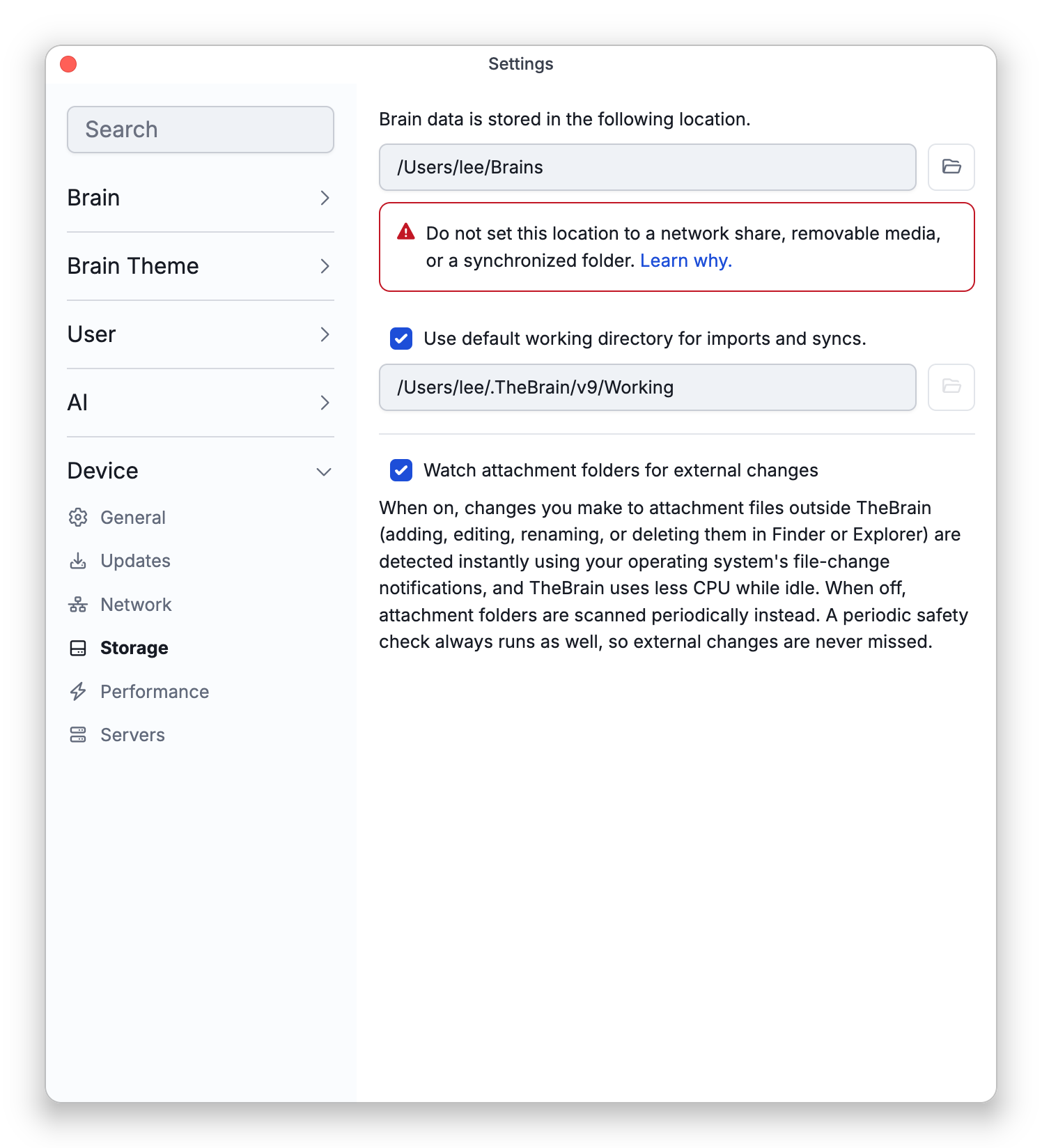
The Storage settings display the current brain-data location. To move it, choose a new folder; TheBrain warns you that changing location isn't recommended and asks you to tick two acknowledgements — that you have backups if needed, and that you won't interrupt the process by closing the app. It then relocates the data in a maintenance state that must not be interrupted, and asks you to restart the app for the change to take effect (it doesn't restart on its own).
Which Folders TheBrain Accepts
TheBrain refuses the folder you pick when it doesn't meet these rules, and the storage location stays as it was:
- The folder must be empty. TheBrain moves all of your brain data into it. A folder with other files in it is refused with a message such as The selected folder is not empty. To move existing brains, please choose an empty folder.
- A folder that already holds brain data is accepted when your current location has no brains in it. TheBrain then uses the brains it finds there and moves nothing. When both places hold brains, the change is refused with Cannot merge existing brains. Both the current and new locations contain brain data.
- The path must be short. The folder's full path can be at most 50 characters on Windows, and 100 on Mac and Linux. A longer one is refused with The selected path is too long. Please choose a shorter path.
If moving the data fails, the storage location is not changed, and a message suggests checking file permissions and available disk space.
Attachment Folder Watching
Watch attachment folders for external changes (on by default) uses your operating system's file-change notifications to notice instantly when you add, edit, rename, or delete attachment files outside TheBrain — in Finder or Explorer — and it lowers idle CPU use. When off, attachment folders are scanned periodically instead; a periodic safety check always runs either way, so external changes are never missed. After toggling it, restart the app for the change to take effect. Either way, a file whose name starts with a dot, ~, or $, or ends with ~lock~ or .Ignore, is never picked up as a new attachment, although one you attached yourself is kept up to date — see Files Left Out of a Folder in Adding Attachments.
The Storage settings also show the working directory, the folder that imports and syncs work in. The Use default working directory for imports and syncs checkbox stays on until you choose another folder. To choose one, turn the checkbox off and click the folder button beside the path. TheBrain then works in a Working folder inside the folder you pick, which keeps its files apart from what the folder already holds.
Where Not to Put It
Do not set the storage location to a network share, removable media, or a synchronized folder (such as Google Drive, Dropbox, iCloud, or OneDrive). Those services can corrupt brain data by syncing files underneath TheBrain. If you pick a network location anyway, TheBrain warns you first and moves the data there only when you choose Override. To access your brains across devices, use TheBrain's own cloud sync instead — see Syncing Brains.
Before moving data, a backup is wise — see Backup to Brain Archive.