Viewing Attachments
Overview
A thought's attachments appear in the attachments section of the content area, where you can preview them in place or open them in their own app. You can also change how the section is laid out to suit how many attachments a thought has.
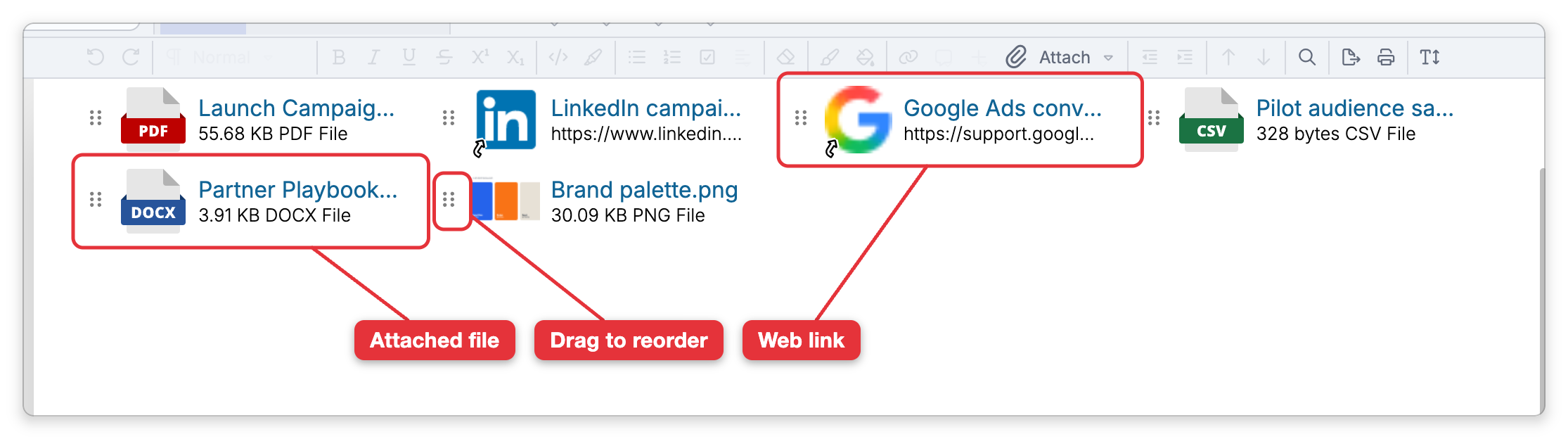
Previewing and Opening
- View Attachment previews a supported attachment inline in the content area.
- Open Attachment opens the attachment externally — in the app or browser that handles that file type. The default shortcut is
Ctrl+O(⌘Oon Mac).
When you view from the thought and it has more than one viewable attachment, TheBrain shows a Select an attachment to view picker so you can choose which one.
Which Files Preview Inside TheBrain
On the desktop app, clicking one of these opens a preview in the content area:
- Images — PNG, JPG/JPEG, GIF, WEBP, BMP, and SVG.
- PDFs, HTML files, and web links — shown in the embedded browser.
- Markdown (
.md) files — opened in the notes editor, where you can edit them (see Markdown Files below). - Plain-text and code files — such as
.txt,.log,.json,.xml,.ini, and.cs, shown as text. - Video and audio — played in a built-in media player. Video files include MP4, MOV, WEBM, and M4V; audio files include MP3, WAV, M4A, AAC, FLAC, and OGG. If a particular file won't play there, use Open to play it in another app.
Other types, such as Word, Excel, or ZIP files, have no preview: clicking one opens it in its default app.
In the web app, images, Markdown and .txt files, video, and audio preview in the content area, and a PDF opens in a preview window. A web link opens in a new browser tab, and a file such as a Word or Excel document is downloaded instead.
In the mobile app, on phones and tablets alike, an image opens in the device's own image viewer rather than in a preview. PDFs, web pages, and HTML files preview in the embedded browser on tablets, as on the desktop app, but on phones they open in another app, and on Android a PDF always opens in the system viewer.
What a click does also follows the File attachments and URL attachments settings — see Content Area Settings.
The Preview Toolbar
A preview in the content area has a toolbar across its top:
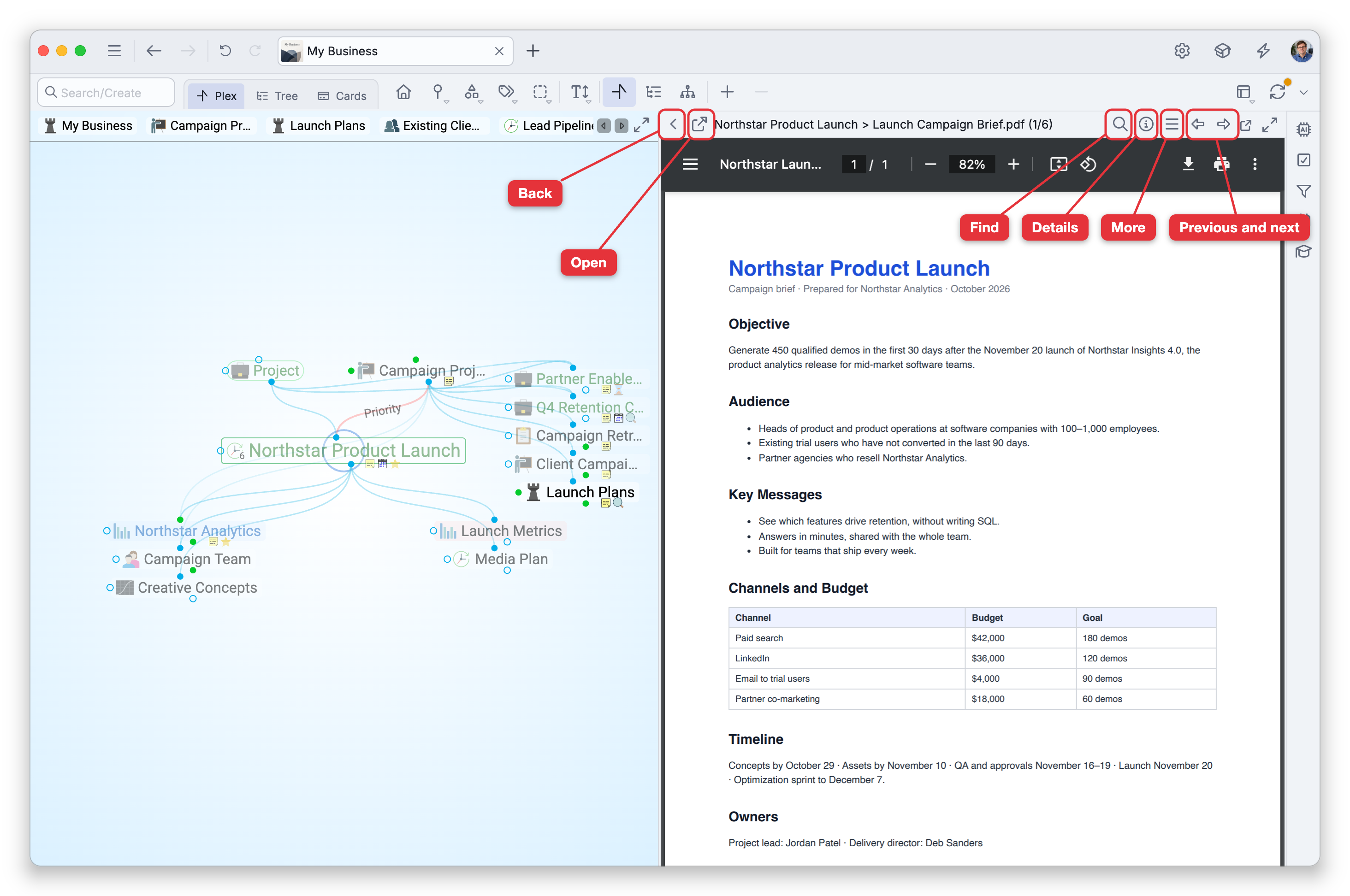
- Back (the arrow at the left) — Closes the preview and returns you to the thought's notes and attachments. Changes you made to a previewed Markdown file are saved first.
- Open — Opens the attachment in its own app. In the web app this button is Download.
- The title — Shows the thought and the attachment's name. When the thought has more than one attachment, it also shows where you are among them, such as (2/5).
- Find (the magnifying glass) — Shown for PDFs, web pages and HTML files in the desktop app; it opens the preview's find bar (see Finding Text in a Preview).
- Details — Shows the attachment's name, type, size, and modified and created dates, plus the address or path of a link.
- More — A menu with the attachment's other commands, such as Rename Attachment and Delete.
- Previous and Next — Move to the thought's previous or next attachment without closing the preview. They wrap around at either end, and are unavailable when the thought has only one attachment. An attachment that can't be previewed shows its details instead.
A web page preview adds a second row with back, forward, and reload buttons and an address field, where you can type an address and press Enter.
Editing a File You Opened in Another App
On the desktop app, Open Attachment opens the brain's own copy of the file in its usual app, such as Word or Excel, so saving there changes the attachment itself. TheBrain notices the changed file, updates the attachment's size and date, and syncs the change like any other. A linked file is the original on your disk, so your edits go straight to it.
If you have only read access to the brain, the change isn't kept in the brain: TheBrain renames your edited copy, adding _modified_ and the date to its name, and an Unauthorized File Change message tells you the change won't be synced.
In the web app, a file such as a Word or Excel document is downloaded to your computer, so changes to that download are not in the brain. To update the attachment, attach the edited file to the thought again and choose Replace when asked — see Adding Attachments.
Markdown Files
A Markdown (.md) file attached to a thought is more than a preview — it opens in the same editor your notes use, and you can edit it in place.
- Everywhere but on phones, its status bar offers the same three views a note has: Rich Text, Text (the file's raw Markdown), and Split (both side by side). Switching to Rich Text returns to the file's formatted editor with the preview still open. You need write access to the brain for the switcher to appear.
- The file opens in whichever Markdown format it was written in, so a file written elsewhere reads correctly. Once you edit and save it, it is written back as standard Markdown.
- A file whose paragraphs are hard-wrapped (broken into lines of about the same width) shows each paragraph whole and is wrapped the same way again when saved, as Wrapped lines in Settings > User > Markdown Files decides. Join Wrapped Lines in the file's view options changes this for one file, for everyone who uses the brain (see Markdown Files Settings).
- Print prints the Markdown file you are looking at, rather than the thought's notes.
- Creating a document from the file — HTML, PDF, CommonMark, or plain text — uses the file's own format, so its styling carries through.
Layout Options
From View Options you can set how the attachments section looks:
- View Attachments as List — a compact list.
- View Attachments as Grid — larger tiles, good for images.
- Compact Attachments Display — tighten the section to take less room.
The same choices are in an attachment's right-click menu under Show attachments as, labeled Grid, List and Compact, and in Settings > Brain > Personal Settings under Attachments. The layout is kept for each brain; in a shared brain it's your own choice and doesn't change what others see.
Finding Text in a Preview
On the installed desktop app, previews of PDFs, web pages, and HTML files have their own find bar: press Ctrl+F (⌘F on Mac) while the preview is open, or click the magnifying-glass button in the preview's header. Type to search — the bar shows a match counter and Next match / Previous match buttons. Opening a search result that matched inside a file attachment opens that attachment's preview with the find already running.
Searching Inside Attached Files
Search looks inside attachments, not only at their names: for common document types such as PDF, Word (.docx), and plain text, TheBrain reads the text of a file that is stored in the brain, and lists the matches under Notes and Attachments in the search results. Linked files and files inside an attached folder are found by name only. See Finding and Creating Thoughts for the full list of file types and the limits.
- On the desktop app, if TheBrain isn't allowed to read a linked folder, opening it shows an Access Denied message with the folder's path. Check the folder's permissions, or ask its owner or an administrator for read access. On a Mac, you can also give TheBrain access in System Settings > Privacy & Security > Files and Folders.