The Text Editor (Text and Split Views)
Overview
The note's Text view (and the text pane of the Split view) is a real plain-text Markdown editor, not just a raw file display. It has the editing behaviors you'd expect from a code editor — smart indentation, Markdown list continuation, bracket pairing, line moves and duplication, go-to-line, and visual aids like line numbers, indent guides, and whitespace markers. The same editor is used when you open an editable text attachment.
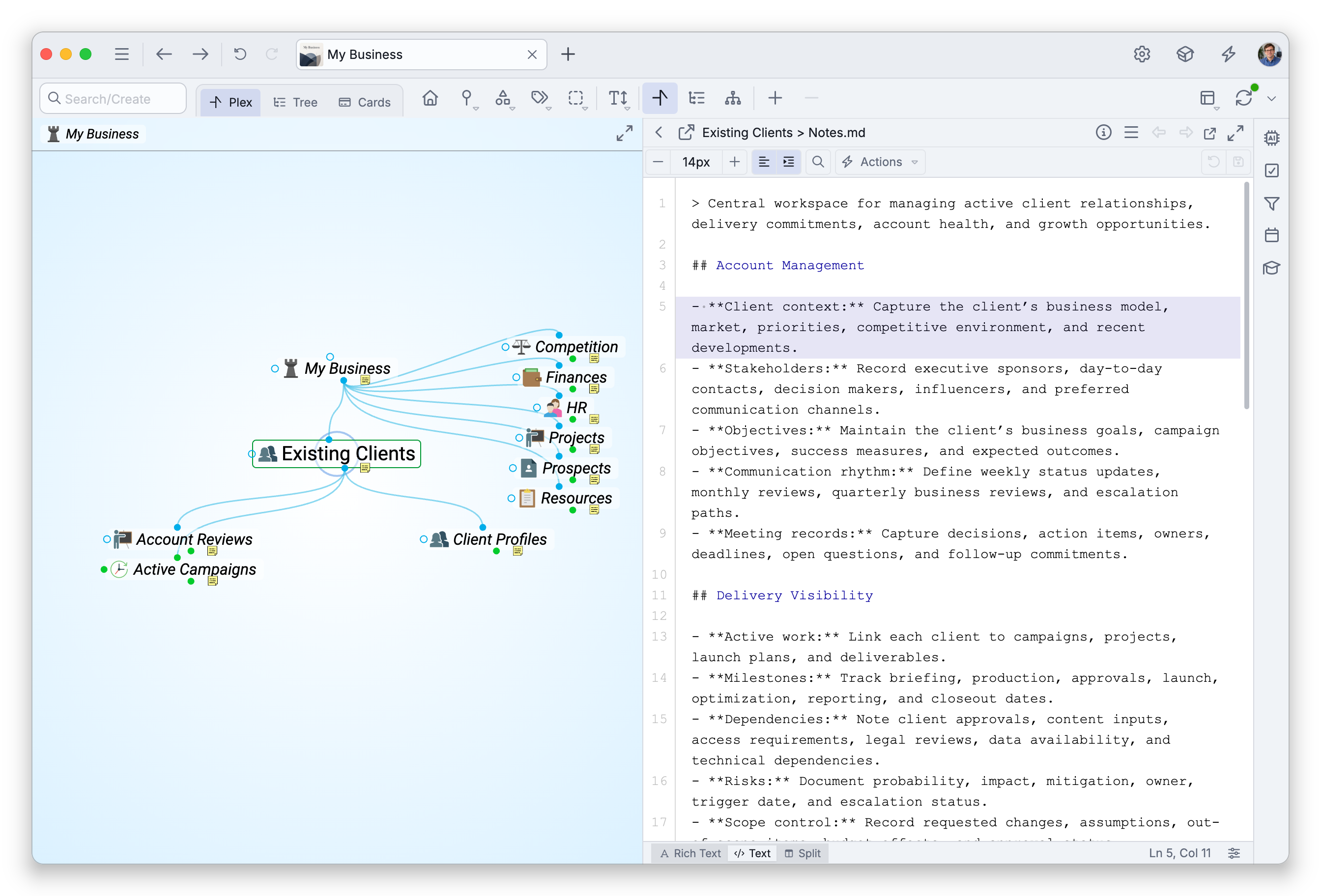
Switch views with the status bar under the note (see Writing and Formatting Notes), or right-click the note and choose Edit as Text. The Text and Split views aren't available on phones; on tablets, the shortcuts described here need a hardware keyboard. Most of the behaviors below can be turned on or off in Settings > User > Notes > Text Editor — see Notes Settings.
Typing and Indentation
Tabtypes indentation at the caret instead of moving focus — a tab character by default, or spaces if you've set Indent using to Spaces.Shift+Tab(⇧Tabon Mac) removes one level of indentation to the left of the caret.- With a multi-line selection,
Tabindents every selected line andShift+Taboutdents them. Entercarries the current line's leading indentation onto the new line (Auto-indent new lines, on by default).- In a note (Markdown),
Enteralso continues lists: bulleted (-), numbered (numbers increment automatically), checklist (- [ ]), and quoted (>) lines continue onto the new line, and pressingEnteron an empty list item clears it — the same feel as the rich editor. This is the Continue lists automatically option, which works only while Auto-indent new lines is on.
Brackets, Quotes, and Comments
- Typing an opening bracket or quote —
(,[,{,",', or a backtick — inserts the closing one and puts the caret between them; typing the closing character moves past it instead of doubling it, andBackspaceinside an empty pair removes both. This is the Auto-close brackets and quotes option. - With text selected, typing a bracket or quote wraps the selection instead of replacing it; in notes,
*and_wrap the selection too, for Markdown emphasis. This is the Wrap selection when typing ( [ { " ' ` * _ option. Ctrl+/(⌘/on Mac) toggles a comment on the current line or selection — in a note this wraps it in an HTML comment (<!-- … -->), which standard Markdown renderers hide.
Moving and Duplicating Lines
- Move Line Up / Down — the default shortcut is
Alt+↑/Alt+↓(⌥↑/⌥↓on Mac). The selected lines move as a block. - Duplicate Line Up / Down — the default shortcut is
Alt+Shift+↑/Alt+Shift+↓(⌥⇧↑/⌥⇧↓on Mac). Duplicate Down puts the caret in the copy; Duplicate Up leaves it on the original.
These are the same commands the rich editor uses, so a shortcut you customize in Settings > User > Keyboard applies in both views — as do the shortcuts for Cut, Copy, Paste, Select All, and Find & Replace.
Navigation
- Go to Line — press
Ctrl+G(⌃Gon Mac, with the Control key), or right-click and choose Go to Line, then enter a line number. Homefirst jumps to the line's first non-space character, then to the true start of the line if pressed again.- Find & Replace —
Ctrl+F(⌘Fon Mac); see Find and Replace in Notes.
Visual Aids
- Line numbers — shown in a gutter (on by default; toggle from the editor's right-click menu or Settings > User > Notes > Text Editor).
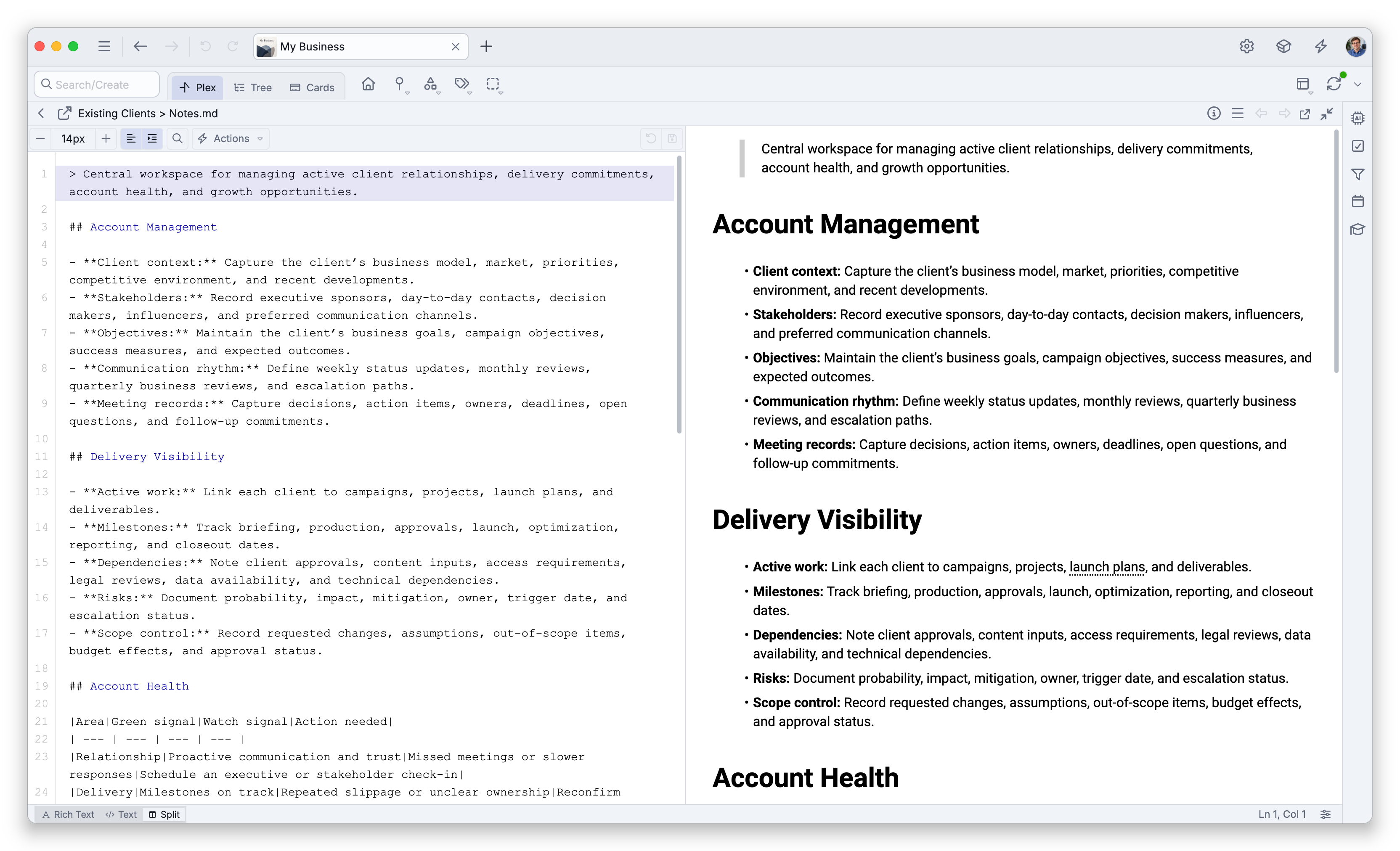
- Highlight current line — the line the caret is on is tinted, following the Highlight current line of text setting on the Options tab of Settings > User > Notes. In the Split view, the matching block in the rich preview is highlighted too, so you can see where you are in the rendered note; when the caret is inside a diagram's code, the rendered diagram is outlined instead.
- Indent guides — faint vertical lines at each indentation stop (on by default).
- Highlight all occurrences — selecting a word highlights its other occurrences in the text (on by default).
- Render whitespace and Render newlines — show dots for spaces, arrows for tabs, and return marks for line endings. By default both appear only inside a selection; you can set them to always show, or off. Render whitespace also offers Boundary (all whitespace except single spaces between words) and Trailing (only line-end whitespace).
All of the others have options in Settings > User > Notes > Text Editor; word wrap and auto-indent also have quick toggles on the text editor's toolbar.
The Split View and Diagrams
The Split view keeps the text pane and the rendered preview scrolled together, anchored on your caret. When the caret is inside a Mermaid diagram's code, the preview centers the rendered diagram and stops following your caret so you can study the drawing while you edit — scroll the preview freely; normal following resumes when the caret leaves the diagram, and returning to it re-centers.
Saving in the Text and Split Views
The rich editor saves by itself shortly after you stop typing. The Text and Split views do not: there is no timed save while you type in them. Your edits are saved when you:
- click Save on the text editor's toolbar,
- switch views — between Text, Split, and Rich Text,
- go to another thought, or
- close the brain's tab or quit the app.
Until one of those happens, Discard Changes returns the text to the last saved version, after asking you to confirm. Save and Discard Changes are available only while there are unsaved edits.
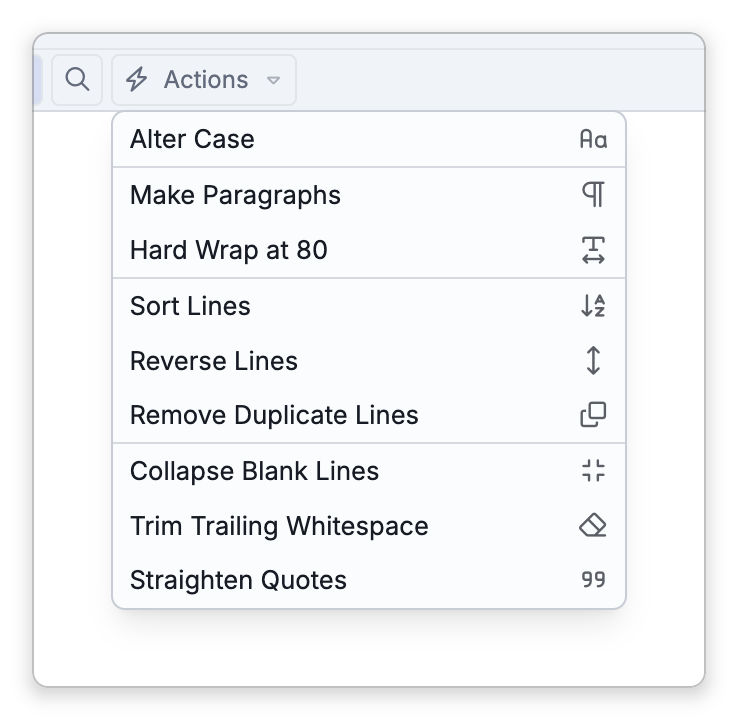
The text editor's toolbar also offers font size controls and the Actions menu of whole-text transformations — see Writing and Formatting Notes for the full toolbar and status bar description.