Notes Settings
Overview
The Notes settings (under Settings > User) tune how the notes editor works — where its toolbar sits, spellchecking, the status bar and its counters, how dates are formatted, how lists are edited, how pasting behaves, and how the plain-text editor edits. The tab has four sub-tabs: Options, Outlining, Clipboard, and Text Editor. These are personal settings that follow your account, so you set them once and they apply across your notes.
Options
On phones, where the status bar and the Text and Split views don't apply, the toolbar placement, the status bar, the word and character counts, and the split-view option are hidden.
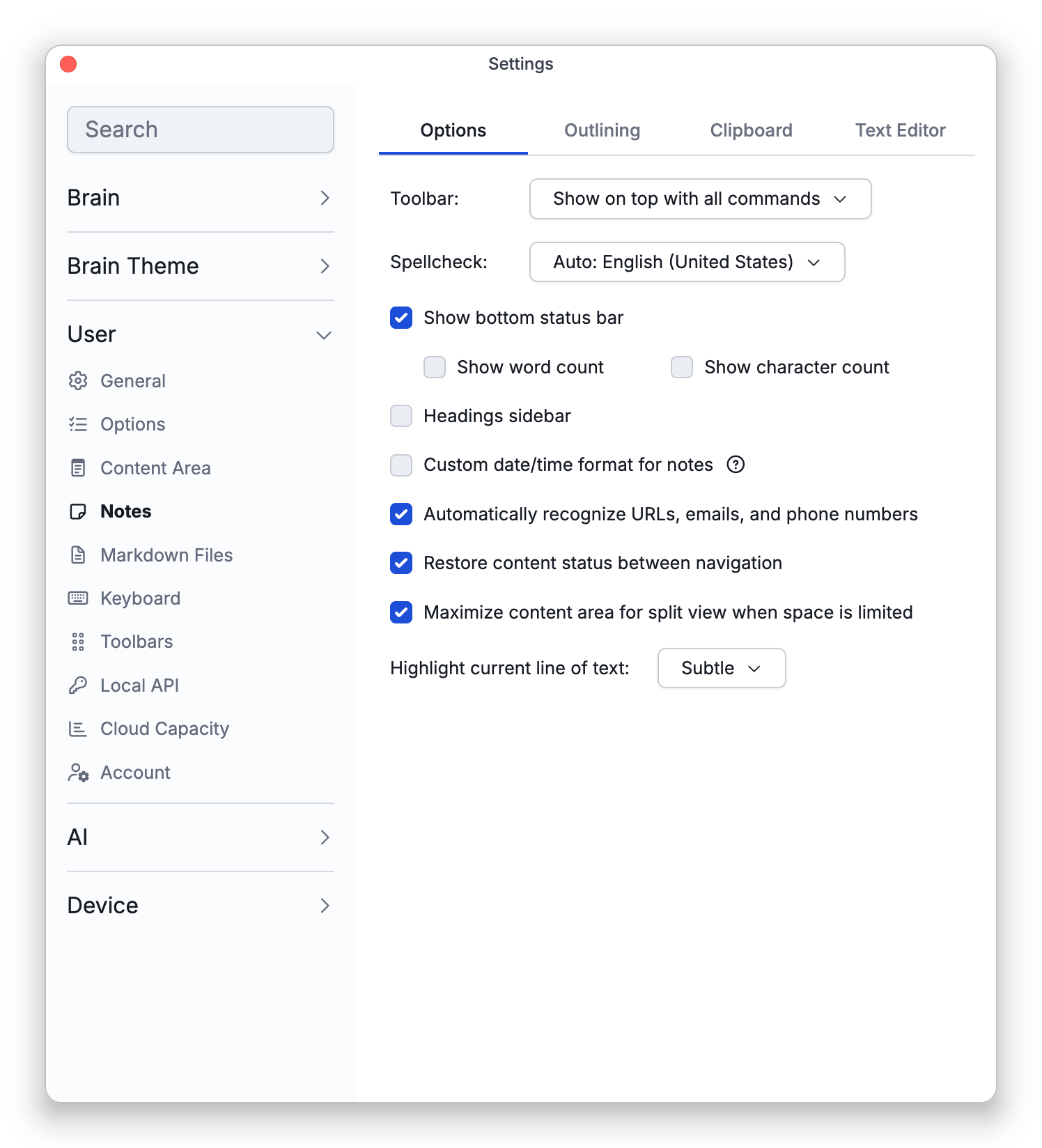
- Toolbar — Where the notes toolbar sits: Show on top (condenses when narrow), Show on top with all commands (never condenses), or Show on bottom (hosted inside the bottom status bar; available only while the status bar is on).
- Spellcheck — Disabled, Automatic, or one or more language dictionaries. Automatic checks against the dictionary for TheBrain's interface language (the Language setting in Settings > User > General), not the language you write in, so tick the language you write in if it is a different one. See Spellcheck for the details and for fixing flagged words.
- Show bottom status bar — The bar under the note holding the Rich Text / Text / Split view switcher and the counters (on by default).
- Show word count and Show character count — Display counters in the status bar (both off by default; they need the status bar on).
- Headings sidebar — Show a list of the note's headings beside the note (off by default). It is the same setting as Headings Sidebar in the status bar's View Options menu (see Table of Contents). It isn't offered on phones.
- Custom date/time format for notes — Define exactly how inserted dates look (see Dates and Times in Notes).
- Automatically recognize URLs, emails, and phone numbers — Typed web addresses, email addresses, and phone numbers become clickable links automatically (on by default). Turning this off stops new auto-linking and also removes previously auto-recognized links; links you inserted yourself are not affected. The change applies immediately to the note you have open.
- Maximize content area for split view when space is limited — Entering the note's Split view temporarily maximizes the content area when the window is tight (on by default).
- Restore content status between navigation — Returning to a thought restores where you were in its note — caret, scroll position, and view (on by default).
- Highlight current line of text — Tint the line the cursor is on in the note editors: Subtle (the default), Strong, or Disable. In the note's Split view the highlight shows in both the text pane and the rendered preview.
Outlining
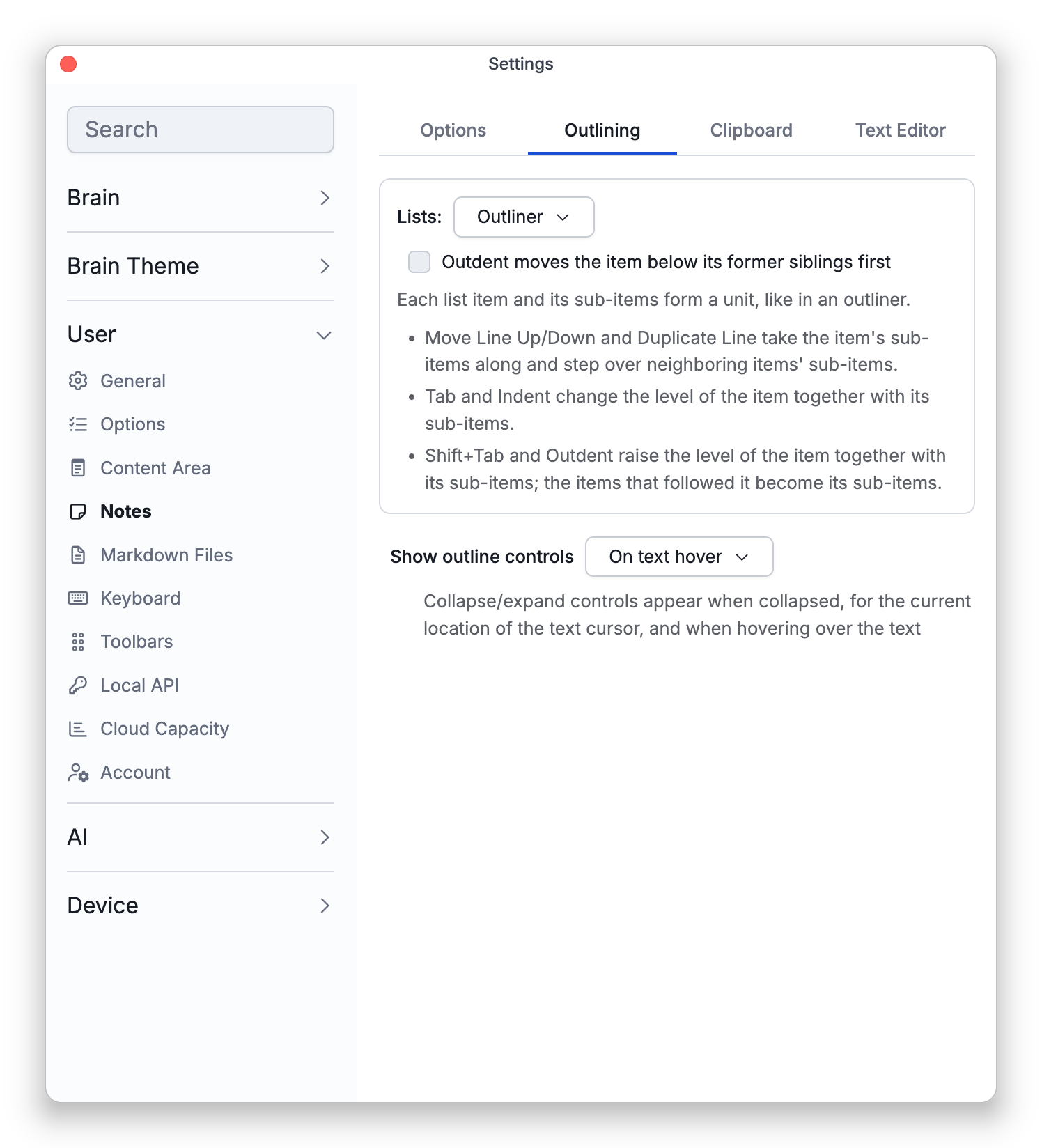
- Lists — How list items are edited: Outliner (the default) treats each item and its sub-items as a unit, so Move Line, Duplicate Line,
Tab/Indent, andShift+Tab/Outdent (⇧Tabon Mac) all carry the sub-items along; Separate lines edits each line on its own, like ordinary text, leaving the lines below where they are. The panel spells out what the chosen mode does to each command, and a change applies at once to open notes. See Outline Lists for the details. - Outdent moves the item below its former siblings first — Shown only in Outliner mode (off by default). Normally
Shift+Tab(⇧Tabon Mac) raises an item in place, so the items that followed it become its sub-items; with this on, the item is first moved below its former siblings and then raised, so those siblings stay where they are. - Show outline controls — Choose when the list collapse/expand controls appear: Always, On text hover (the default), Minimally, or Never. Phones and tablets have a separate choice of their own, which offers only Always and Never and starts as Never. That is why the collapse and expand controls can show on your computer and not on your phone or tablet: to see them there, open this setting on the phone or tablet and choose Always. Changing it there leaves your computers as they are. With Never, notes open with nothing collapsed and the collapse commands, such as Toggle Collapse and Collapse All, do nothing; the collapsed sections remembered on this device are kept, and they come back in notes you open after choosing another option.
Text Editor
These options shape the plain-text editor used by the note's Text and Split views and by editable text attachments — see The Text Editor for what each behavior does in practice:
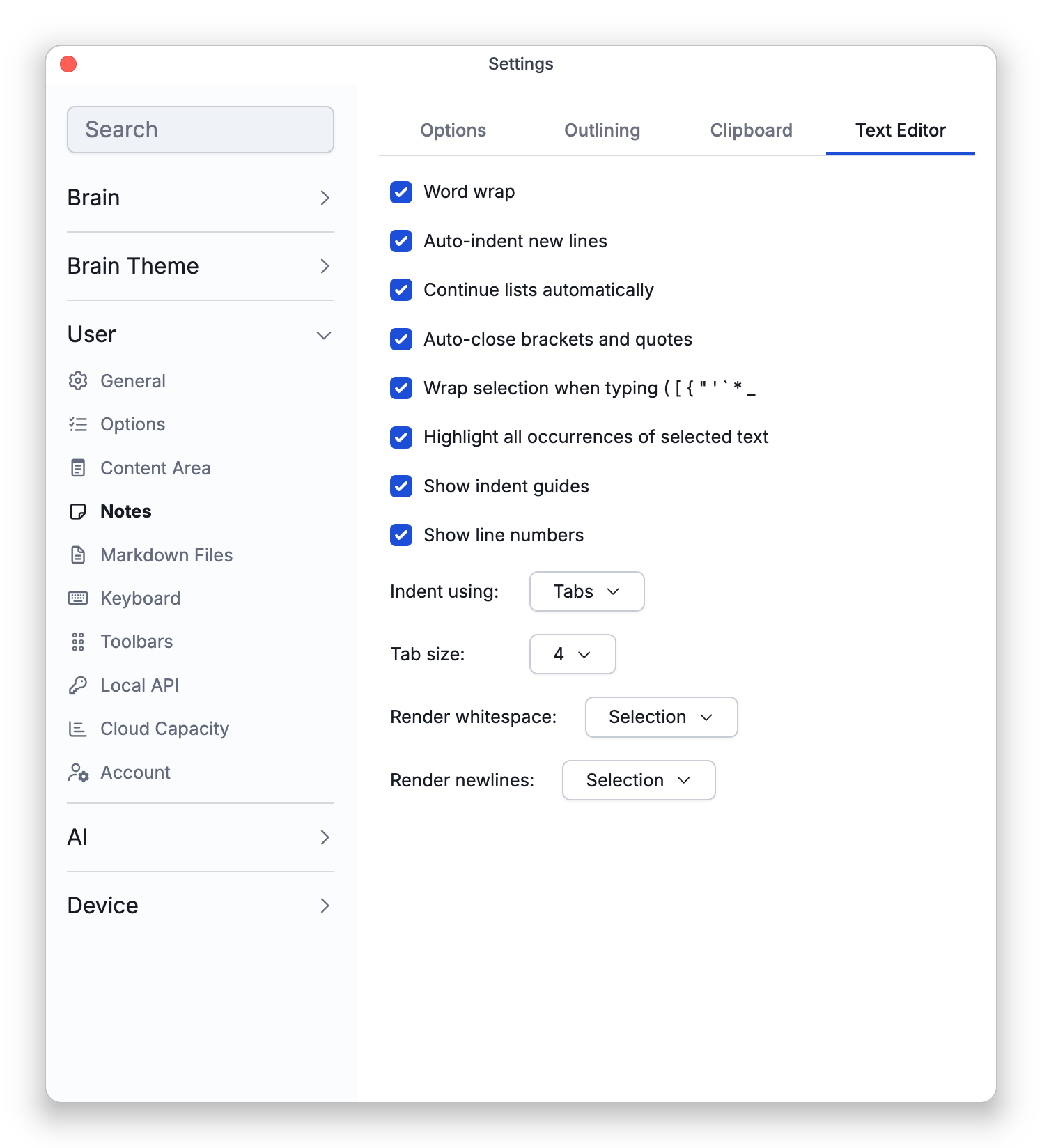
- Word wrap — Wrap long lines instead of scrolling sideways (on by default).
- Auto-indent new lines — New lines keep the previous line's indentation (on by default).
- Continue lists automatically —
Entercontinues Markdown bulleted, numbered, checklist, and quoted lines (on by default). - Auto-close brackets and quotes — Typing an opening bracket or quote inserts its partner (on by default).
- Wrap selection when typing ( [ { " ' ` * _ — Typing one of those characters with text selected wraps the selection instead of replacing it (on by default;
*and\_wrap in notes, where they mean emphasis). - Highlight all occurrences of selected text — Selecting a word lights up its other occurrences (on by default).
- Show indent guides — Vertical guide lines at each indentation stop (on by default).
- Show line numbers — The line-number gutter along the editor's left edge (on by default).
- Indent using — Whether the
Tabkey types Tabs (the default) or Spaces. - Tab size — How wide a tab stop is: 2, 4 (the default), or 8 characters.
- Render whitespace — Show dots for spaces and arrows for tabs: None, Boundary, Selection (the default), Trailing, or All.
- Render newlines — Show a return mark at line endings: None, Selection (the default), or All.
Clipboard
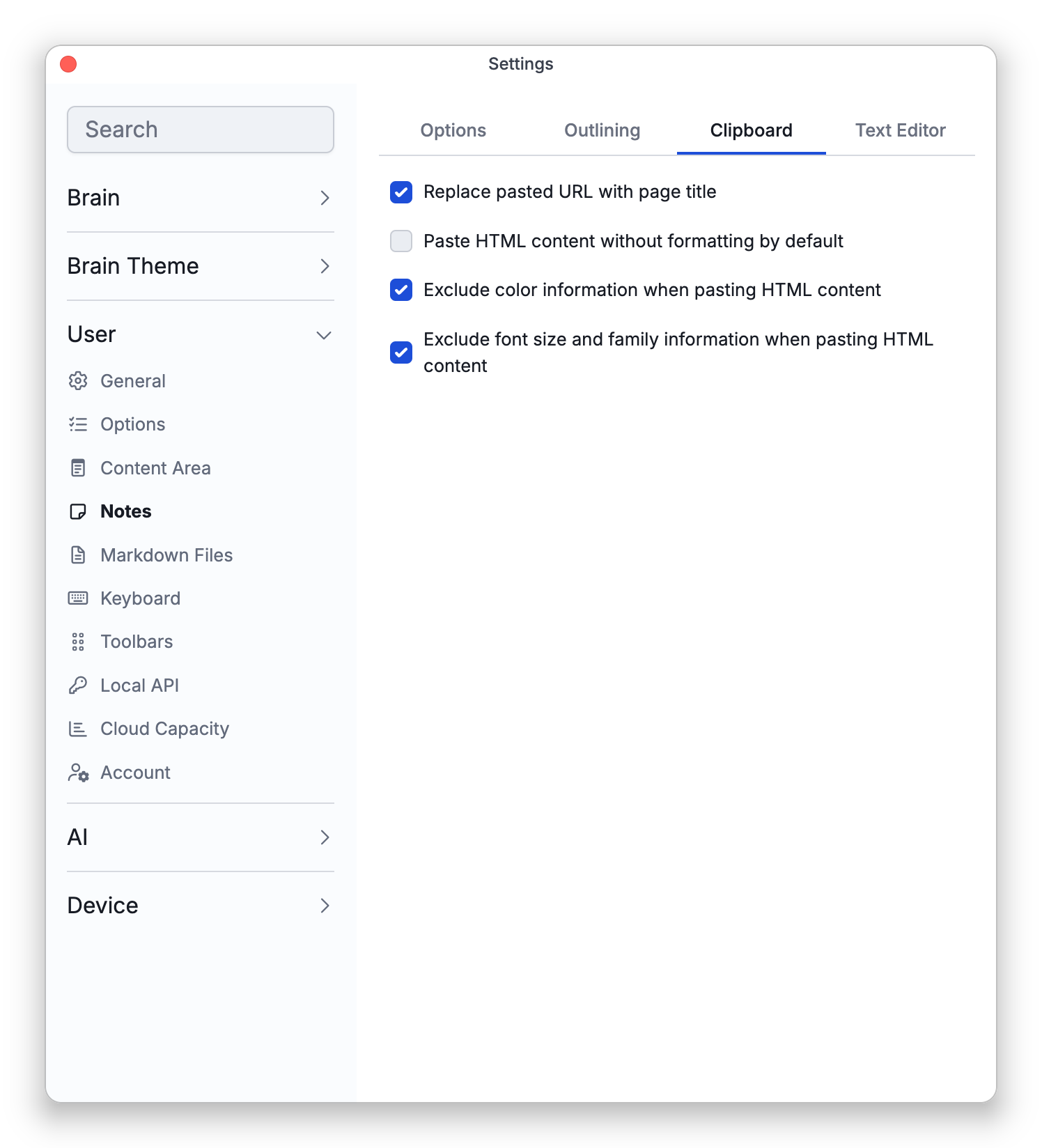
- Replace pasted URL with page title — On by default. When what you paste is a single web address (starting with
http://orhttps://) and nothing else, TheBrain looks up the page and replaces the address you see with the page's title; the link still points to the address. An address that points to an image is replaced by the image itself, and a YouTube or Vimeo address on a line of its own can become an embedded video instead (see Video Embeds in Notes). The replacement is its own undo step, so one Undo right after it (the default shortcut isCtrl+Z,⌘Zon Mac) brings back the plain address without removing what you pasted. Nothing is replaced inside inline code or a code block, and if the page's title can't be fetched the address stays as it is. Turn the option off to keep a pasted address as it is. A YouTube or Vimeo address on a line of its own still becomes an embedded video; the brain's Show YouTube and Vimeo links as embedded videos setting controls that (see Brain Content Settings). - Paste HTML content without formatting by default — Off by default. Turn it on to have an ordinary paste of HTML content drop all of its formatting.
- Exclude color information when pasting HTML content — On by default, which is why pasted content arrives without its text colors and highlight colors. Turn it off to keep them.
- Exclude font size and family information when pasting HTML content — On by default, which is why pasted content arrives without its fonts. Turn it off to keep the fonts. Font sizes are not kept with either setting.
The last three apply only to HTML content — what you copy from a web page, a word processor, or another rich-text editor. Markdown you paste always arrives as fully formatted content, whatever these are set to.
Paste Without Formatting, in the notes right-click menu, is separate from these: it inserts the clipboard's text exactly as it is, with no Markdown conversion at all, so a web address pasted this way stays a plain address and is not replaced by a page title. Its default shortcut is Ctrl+Shift+V (⇧⌘V on Mac).
If text is selected when you paste a single web address, the selected text becomes a link to that address instead.
- Spellcheck can also be flipped with a bindable toggle command — see Spellcheck.
- The line spacing and line gap of note text are not set here. They are settings of each brain, under Settings > Brain > Content Settings on the Notes tab — see Brain Content Settings.