Exporting and Printing Notes
Overview
You can take notes out of TheBrain as a document. Export Notes saves a thought's note as a PDF, HTML, Markdown, or plain text file, and it can join the notes of several thoughts into one document. Print sends the same content to a printer. Both show a preview, so you can see the result before you commit to it.
Where each one is available:
- Export Notes needs the installed TheBrain app, on a computer, phone, or tablet. In a browser, the notes toolbar's Export button tells you to download and install TheBrain, and the selection menu does not offer Export Notes....
- Print is offered in the desktop app and in a browser on a computer. It is not offered on phones and tablets.
How to export notes
- Choose what to export:
- The note you're looking at — Click Export on the notes toolbar. When the toolbar is narrow, Export is in its More (…) menu. If you are viewing a Markdown file attached to the thought, that file is exported instead of the thought's note.
- Several thoughts — Select the thoughts, open the selection menu by right-clicking the selection panel, and choose Actions > Export Notes... (see Selecting Multiple Thoughts). The notes are joined in the order you selected the thoughts. With nothing selected, Export Notes... exports the active thought's note. In the desktop app on a Mac, Selection > Export Notes... in the menu bar does the same.
- In the Export Notes dialog, choose a format with the buttons at the top: PDF, HTML, Markdown, or Text. The preview on the right shows the document and updates as you change the options. The buttons under it zoom the preview.
- Set the options you want. They are listed below.
- Choose what happens once the file is saved in After export, next to the Export button: Do nothing, Show in folder, or Open file. Show in folder is not offered on phones and tablets.
- Click Export and choose where to save the file.
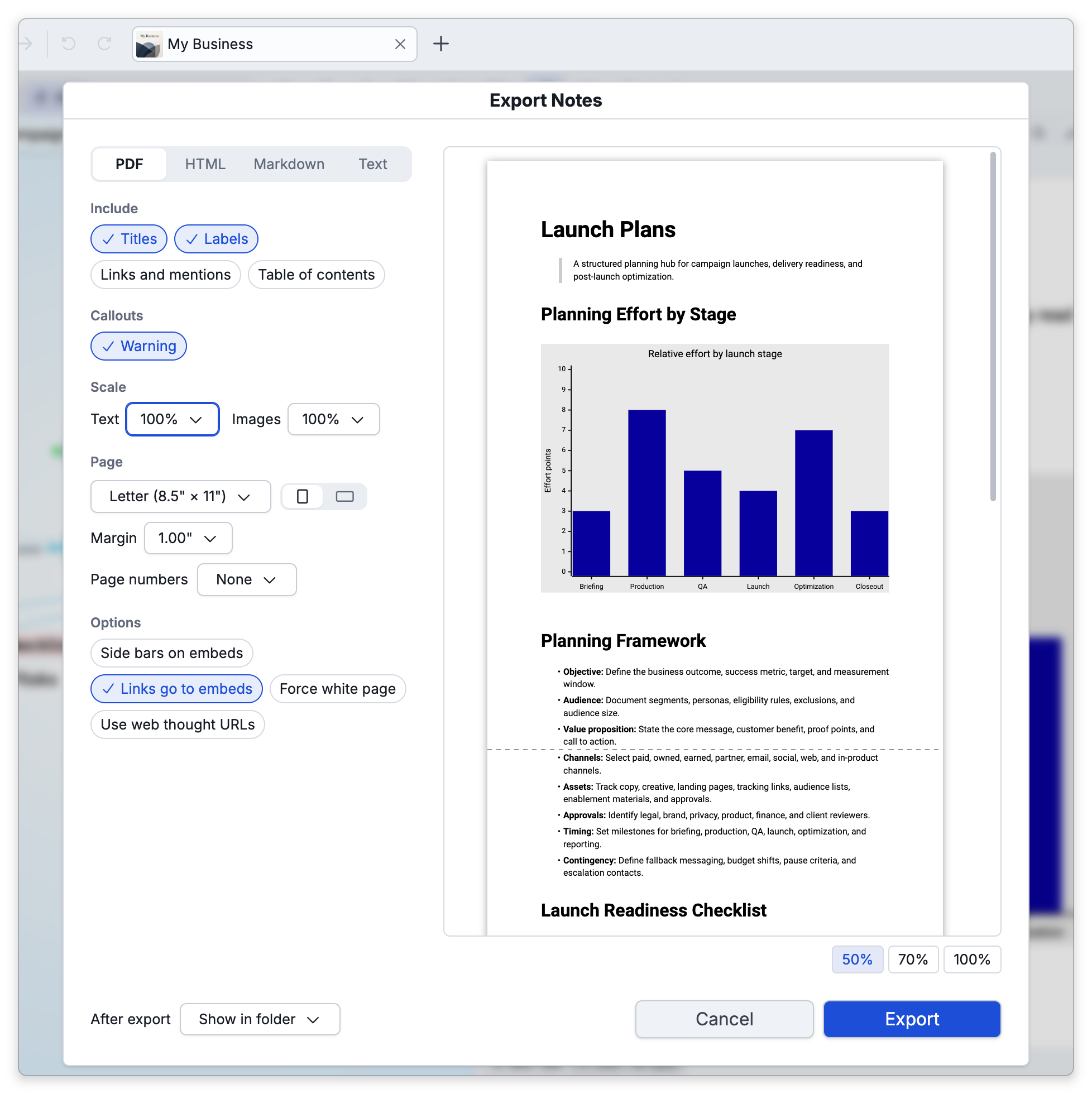
The dialog remembers most of the options as you last left them, whether you exported or closed it with Cancel. Table of contents and Side bars on embeds are not remembered.
Export options
Which options you see depends on the format and on what you are exporting. Under Include, Callouts, and Options, each option is a button that shows a check mark while it is on. Click it to turn it off, and click it again to turn it back on.
| Option | What it does | Offered for |
|---|---|---|
| Include > Titles | Puts each thought's name above its note as a heading. | All formats |
| Include > Labels | Adds each thought's label under its name. | All formats |
| Include > Links and mentions | Adds the thought's links and mentions after its note. | PDF, HTML, Markdown |
| Include > Table of contents | Puts a table of contents at the start of the document. In a PDF made in the desktop app, each entry also gives the page its heading is on. When the notes have no headings for it to list, the document has no table of contents. | PDF, HTML, Markdown. For PDF it is not offered on iPhone or iPad |
| Include > Lines between thoughts | Draws a line between one thought's note and the next. | PDF, HTML, Markdown, when exporting more than one thought |
| Callouts | Shows a button for each callout type found in the notes. Turn a type off to leave all callouts of that type out of the document. | All formats, when the notes contain callouts |
| Scale > Text | Makes the text smaller or larger, from 50% to 140%. The images keep their size. | PDF, HTML |
| Scale > Images | Makes the images smaller or larger, from 25% to 150% of their size in the notes, and leaves the text as it is. An image never gets wider than the text. | PDF, HTML |
When you export an attached Markdown file, the Include options are not shown, because they are about thoughts.
PDF adds a Page section:
- A page size: Letter, A4, Legal, A3, A5, or Tabloid, and next to it a button for an upright page (portrait) and one for a page turned sideways (landscape).
- Margin — Sets the margin on all four sides.
- Page numbers — None, Bottom Center, Bottom Alternating Corner, Bottom Right, Top Center, or Top Alternating Corner. Page numbers are offered in the desktop app only.
- New page for each thought — Starts each thought's note on a new page. It is shown when you export more than one thought. Turning it on turns Lines between thoughts off, and the other way round.
Other options
The Options section has the rest of the options.
| Option | What it does | Offered for |
|---|---|---|
| Options > Side bars on embeds | Draws a bar down the left of each embedded note. It starts off, so embedded content flows as if it had been typed in place. | PDF, HTML |
| Options > Links go to embeds | Makes a link to a thought that the document embeds go to that embedded note in the document, even a link inside another embedded note. On by default. | PDF, HTML |
| Options > Force white page | Uses a white page with black text instead of the colors of your notes theme. | PDF, HTML |
| Options > Use web thought URLs | Writes links to thoughts as web addresses instead of links that open in the TheBrain app. | PDF, HTML, Markdown, when exporting thoughts |
| Options > Convert to CommonMark | Writes the file in CommonMark, the standard form of Markdown. | Markdown |
How to print notes
- Start printing in one of these ways:
- Click Print on the notes toolbar to print the note you're looking at, or the attached Markdown file you are viewing. When the toolbar is narrow, Print is in its More (…) menu.
- Select thoughts and choose Actions > Print... in the selection menu.
- Press the default shortcut,
Ctrl+P(⌘Pon Mac). In the desktop app on a Mac you can also choose File > Print... from the menu bar.
The selection menu, the shortcut, and the Mac menu bar print the notes of the selected thoughts, joined in the order you selected them. With nothing selected, they print the active thought's note.
- In the desktop app, the Print Notes dialog opens with a preview. Choose a Printer, or leave (Default Printer). Include, Callouts, Scale, and Options work as they do for an export, except that Table of contents isn't offered. The Page section has a page size, the portrait and landscape buttons, Margin, the number of Copies, and Print in color. When you print more than one thought, New page for each thought is offered too. Force white page, under Options, starts turned on for printing.
- Click Print.
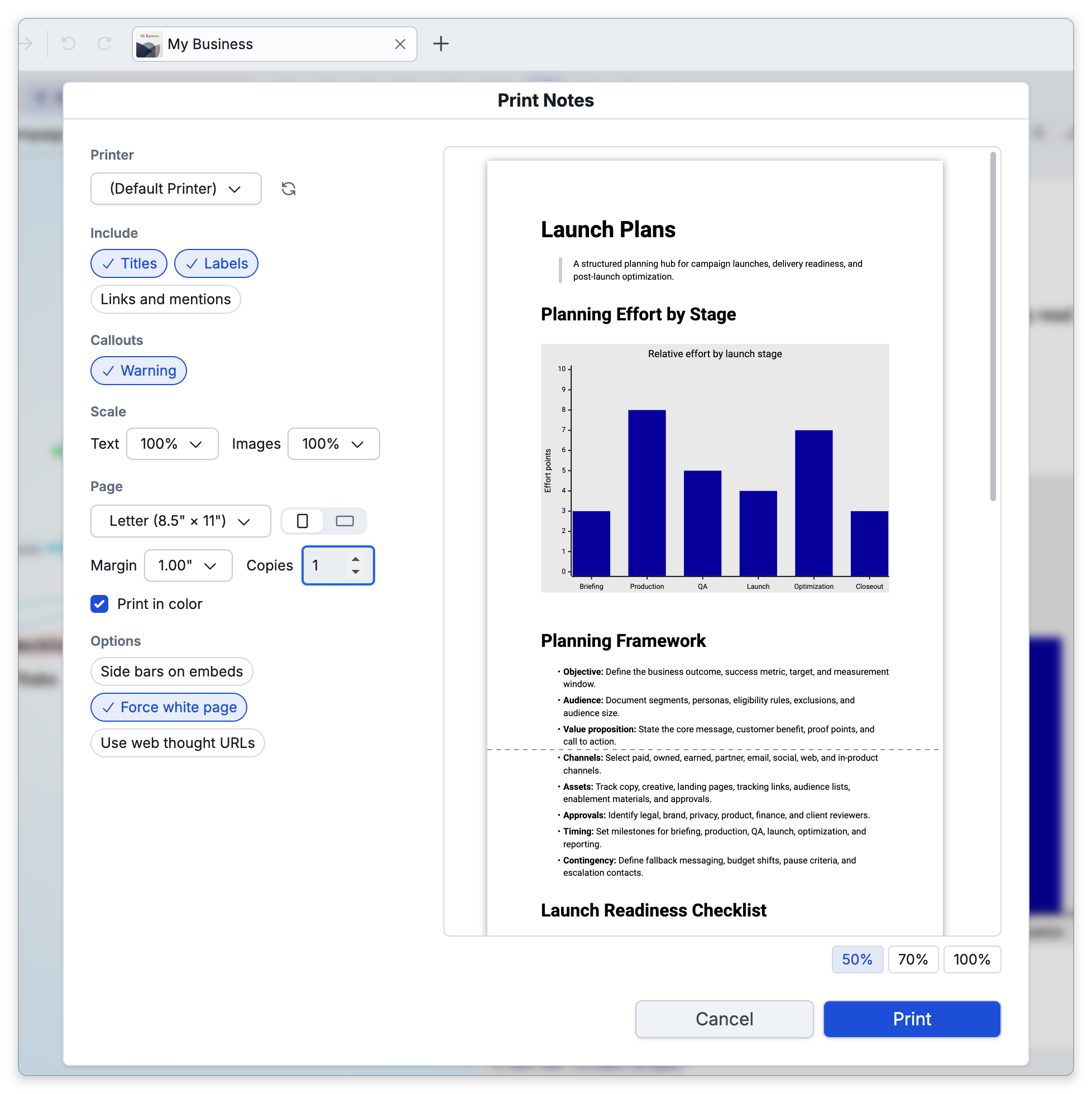
In a browser on a computer there is no Print Notes dialog. TheBrain hands the notes straight to the browser's own print dialog, where you choose the printer and page settings.
- Footnotes are gathered at the end of the document, under a rule, wherever they sit in the notes themselves (see Footnotes).
- An HTML export saves the notes' images in an
md-imagesfolder next to the HTML file, so keep the two together when you move or share the file. - The Text format always leaves out callout markers and keeps the callouts' titles and body text (see Callouts in Notes).
- To export a whole brain rather than the notes of chosen thoughts, see Exporting Brains.